When intake documents approach expiry, you need a clear record of what to request, what has arrived and what still needs review. The Law Firm Sheets Client Identity Document Expiry Tracker for Excel organizes those follow-ups by matter using dates your staff enter.
Record each expiring document submission, review the calculated action and update the record after staff review a replacement. This is an administrative tracking workbook, not identity authentication, legal advice or a practice management service.
Where this workbook helps
- Separate replacement requests, pending receipts and human-review work using the Action filter.
- See approaching expiry dates against a firm-selected review date and lead time.
- Keep request and receipt dates with the document record for an intake handoff.
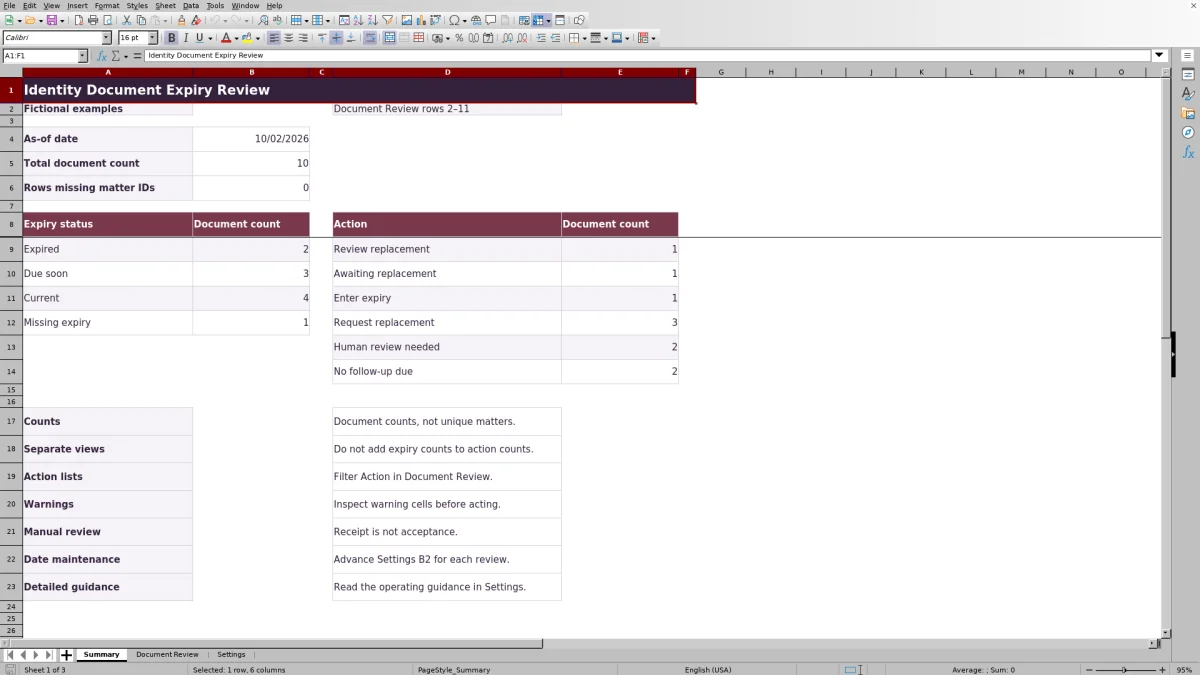
- Review document counts and missing-matter-ID warnings before planning follow-up.
What is in the file
How to get started
1. Prepare a working copy
Read the operating guidance in Settings. Document Review rows 2–11 contain fictional examples, not real client records. Clear their inputs in columns A–H before live use, while preserving the formulas in columns I–K. Keep document images, identity numbers, client names and confidential narratives out of this workbook.
2. Set the review assumptions
In Settings, enter the As-of date in B2, Replacement lead time (days) in B3 and Review age threshold (days) in B4. Use your firm's administrative assumptions, not presumed legal requirements. Advance the as-of date before every review.
3. Enter one document submission per row
In Document Review, complete Matter ID, Coordinator, Document type and Issuer label. Enter Document expiry date exactly as supplied on the document and independently verified by firm staff. Record Last human review date only when that review occurred. Use MM/DD/YYYY dates and repeat the matter ID when a matter has separate documents.
4. Review warnings and work the action list
Inspect warning cells, then filter Action for the work you are handling. Record Replacement requested date after a request and Replacement received date after receipt. After staff review the replacement, follow the update procedure in Settings. Check Summary for document totals and separate expiry and action counts.
Set a review date that matches the work session
The workbook measures expiry and review age against the entered As-of date, not a date that advances automatically. Before opening an action list, update Settings B2 to the date you intend to use for that review. Otherwise, an apparently current document may reflect an earlier review session.
Replacement lead time controls how far ahead an expiry falls into Due soon. A document expiring on the as-of date is also Due soon; it becomes Expired only when its expiry date is earlier. These are calendar-day comparisons of entered dates, not court-rule or legal deadline calculations.
Review age threshold addresses a different question: how long it has been since the recorded human review. When no higher-priority action applies, a missing review date or an age greater than the threshold produces Human review needed. An age exactly equal to the threshold does not trigger that action. Neither threshold establishes what review your firm is legally required to perform.
Worked example: decide when to request a replacement
The supplied fictional record DEMO-003 lists a driver's license from Fictional issuer, an expiry date of 11/01/2026 and a last human review date of 09/27/2026. Its replacement request and receipt dates are blank. With the supplied as-of date of 10/02/2026 and replacement lead time of 30 days, the workbook calculates +30 calendar days to expiry.
The calculation subtracts the as-of date from the document expiry date. Because the result is within the lead-time window, including its boundary, Expiry status is Due soon and Action is Request replacement. The recent review date does not override the approaching expiry.
The coordinator should confirm the entered expiry and follow the firm's replacement-request process. Once the request is made, entering Replacement requested date changes Action to Awaiting replacement. That change records the next administrative state; it does not mean the workbook sent the request.
Read expiry status and action as separate views
Use Expiry status to inspect the date condition of a document. Use Action to select the next follow-up queue. The two columns answer different questions, so an Expired document can legitimately show Awaiting replacement rather than Request replacement.
Action follows a fixed priority order:
- A recorded receipt produces Review replacement.
- Without a receipt, a recorded request produces Awaiting replacement.
- Without either, a missing expiry produces Enter expiry.
- An expired or approaching expiry produces Request replacement.
- Otherwise, a missing or old review date produces Human review needed; remaining records show No follow-up due.
This priority means a receipt or request can take precedence over missing expiry information. Inspect warnings before acting rather than treating one action label as a complete record check.
Summary counts document rows, not unique matters. A matter with several documents contributes several records. Expiry counts and action counts are separate views of those same records and must not be added together.
Handle a received replacement without recording acceptance too early
Enter Replacement received date when the replacement arrives. The resulting Review replacement action keeps the record in a review queue. Receipt is not acceptance, and Last human review date records a user's review rather than a judgment performed by Excel.
After staff review the replacement, update Document expiry date and Last human review date, then clear Replacement requested date and Replacement received date as directed in Settings. Leaving the receipt date populated keeps Review replacement in place even after the expiry date changes.
Before resetting those fields, preserve any prior request and receipt information your firm's recordkeeping process requires outside the current working record. This workbook is a current-state tracker, not an immutable audit log. For a handoff, confirm who is responsible for the filtered open actions; changing Coordinator does not notify that person.
Troubleshooting blank results, date warnings and missing records
A blank result is not a cleared record. If Matter ID is blank, Days to expiry, Expiry status and Action remain blank. A populated row without that ID is excluded from document and status counts, while Summary reports it under Rows missing matter IDs. Add the correct internal text ID and review the resulting calculations.
If the matter ID exists but Document expiry date is blank, Days to expiry stays blank and Expiry status becomes Missing expiry. Enter the verified date rather than a placeholder. Documents that do not have expiry dates are outside this tracker's scope.
- Missing Coordinator, Document type or Issuer label: complete the flagged input so the record can be understood and assigned.
- A review, request or receipt date later than the as-of date: check whether Settings is stale or the entry is incorrect. Correct the source of the discrepancy rather than changing dates simply to remove a warning.
- Receipt before request: verify both dates. An unsolicited receipt may have no request date.
- Unexpected formula output: check whether columns I–K were overwritten. Cells are unprotected, so recover the affected formulas from an intact copy rather than typing a status over them.
A Days to expiry result of zero means expiry falls on the as-of date. It is not missing data and does not mean the document has passed review.
Compare this tracker with a blank spreadsheet
Choose a record format based on how consistently your team needs to classify follow-up work and whether this workbook's scope fits your intake process.
| Method | Initial setup | Follow-up review | Record checks | Scope and history |
|---|---|---|---|---|
| Law Firm Sheets expiry tracker | Prepared fields and formulas; staff must set assumptions and remove fictional inputs. | Calculated expiry and action labels with filtering across 100 prepared rows. | Date validation and warnings for specified missing or inconsistent inputs. | Current-state tracking for expiring document submissions; no immutable audit log. |
| Blank spreadsheet | Staff design the fields, layout and any calculations. | Staff review dates manually unless they build their own classifications and filters. | Staff must create checks or inspect entries manually. | Can be designed for a different scope, but history requires a deliberate recordkeeping process. |
Use the prepared tracker when its document-by-document structure and action order match your process. A blank spreadsheet may fit a materially different record set, such as documents without expiry dates, if your team can maintain the necessary checks. Neither method authenticates identity or establishes compliance from a date entry alone.
Keep the working list within its prepared scope
Use one row per expiring document submission, not one row per client. Separate documents for the same matter can have different expiry dates and replacement states. Keep those records separate and use internal matter IDs and generic issuer labels instead of identifying document details.
The prepared formulas, validations, filter and Summary calculations cover Document Review rows 2–101. Entries below that range are not included in the existing Summary formulas. If your list outgrows the prepared range, arrange a controlled workbook revision that extends and tests all affected ranges before relying on the totals.
Summary counts records with text matter IDs even when other information is incomplete. A document count therefore measures recorded submissions, not completed intake checks. Resolve warnings and inspect the action list before reporting that the intake work is finished.
Frequently asked questions
Does Current mean the identity document has been authenticated?
No. Current means the entered expiry date is beyond the configured replacement lead-time window. It does not authenticate the document, establish acceptance, clear conflicts or determine legal requirements.
Can I change the coordinator and document-type dropdown choices?
The Coordinator dropdown uses Settings D2:D4, and Document type uses Settings E2:E4. You can edit those source values to match your workflow. Adding choices outside those ranges requires changing the corresponding validation source; extra cells are not automatically included.
Will the workbook send replacement requests or reminders?
No. It provides calculated action labels and filterable records. Your staff must send requests through the firm's chosen process, record the dates and return to the workbook for follow-up.
What should I do with a document that has no expiry date?
Keep it in a separate record suited to that document type. In this workbook, a blank expiry represents incomplete information, not a non-expiring document. Do not enter an invented future date to force a Current status.
Can I retain the fictional sample records while entering live work?
Keep them in a separate demonstration copy if you want a reference. The fictional records in Document Review rows 2–11 contribute to the working counts while their matter IDs remain present. Before live use, remove their inputs from columns A–H without deleting the formulas in columns I–K.
Editorial coverage

Audra PembrokeBilling and finance content

Graham ElleryPractice administration content