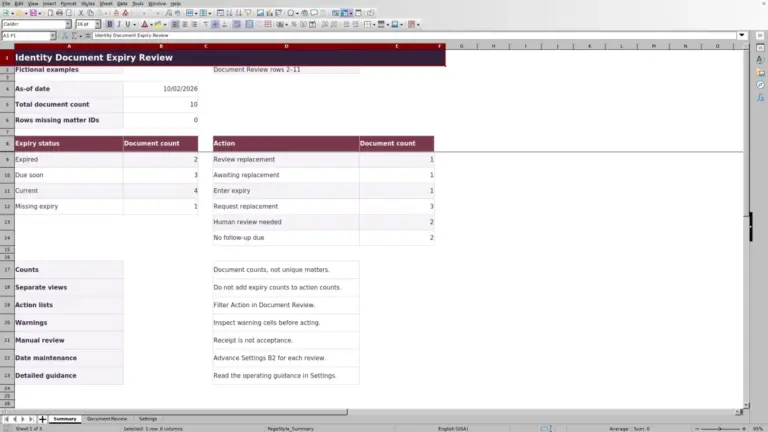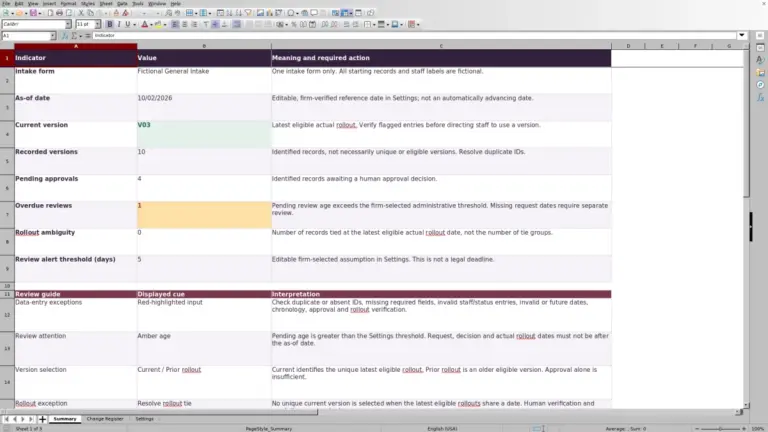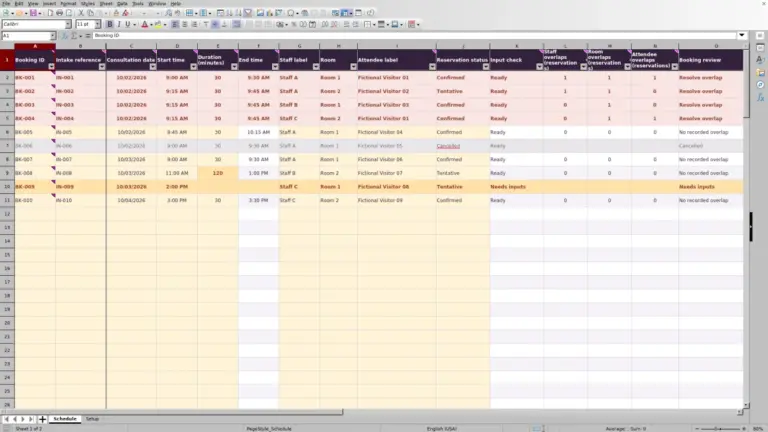
Before opening a proposed matter, bring the intake confirmations and review references together for the partner's decision. The Law Firm Sheets new matter acceptance checklist is an Excel workbook for recording that review and identifying missing documentation.
Use it as a human decision record, not an acceptance engine. Law Firm Sheets is an administrative Excel library, not a law firm or legal advice provider; the workbook does not authorize matters or clear conflicts.
Where this workbook helps
- Give the reviewing partner a consistent record of intake confirmations and supporting references.
- Identify pending or held proposals that reach your firm's internal follow-up threshold.
- Separate missing supporting checks from incomplete decision documentation.
- Use summary counts to focus a review meeting on follow-ups and approval documentation gaps.
What is in the file
How to get started
1. Set the review assumptions
On Settings, confirm Review as-of date in B2 and Internal follow-up threshold (calendar days) in B3. Enter your firm's chosen threshold as a whole number from 0 through 365. These are administrative review assumptions, not court-rule deadlines.
2. Prepare one row per proposed matter
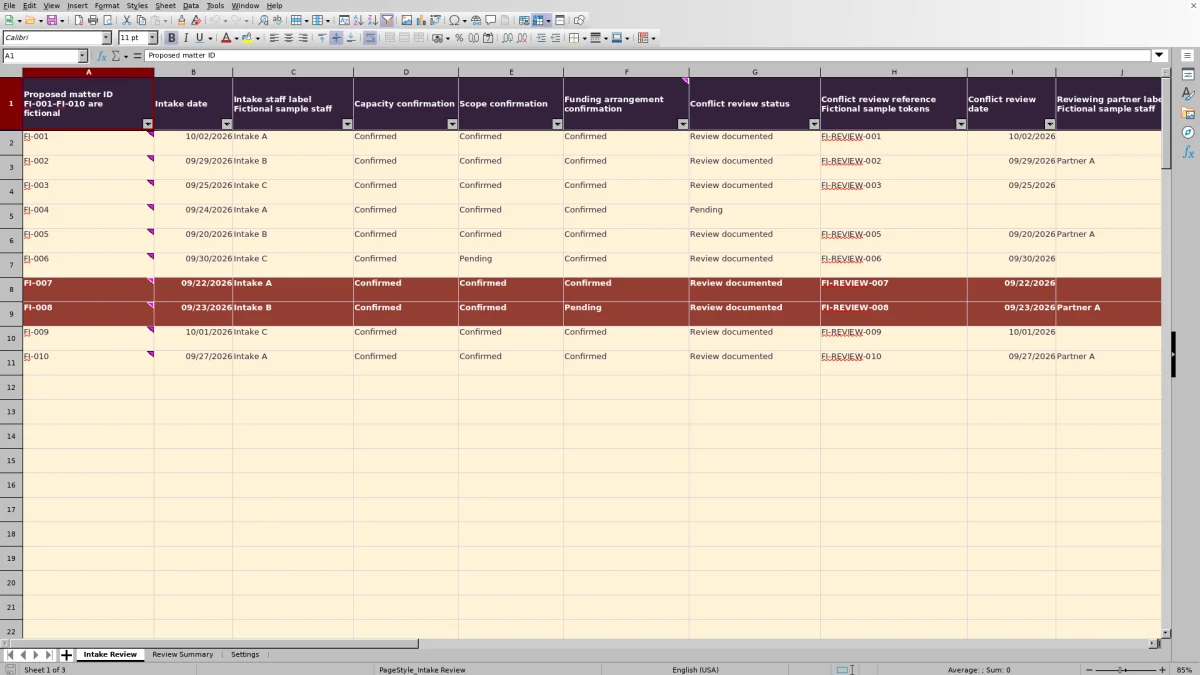
On Intake Review, use columns A:L for inputs. Rows 2–11 contain fictional sample matters, staff labels and reference tokens; remove or replace those inputs before using the file for your records. Enter a matter ID, Intake date and intake staff label. Keep client identities and privileged narratives out of this checklist.
3. Record the checks and partner decision
Complete Capacity confirmation, Scope confirmation and Funding arrangement confirmation based on the review actually performed. Record Conflict review status, a reference token for the separate review record and Conflict review date. The human partner's decision belongs in Partner decision, with the reviewing partner label and Decision date.
4. Recalculate and review exceptions
Check Supporting documentation and Decision documentation on Intake Review, then review the counts on Review Summary. Use the header filters to inspect affected rows. Correct missing inputs and date alerts rather than changing calculated results. Preserve formula columns M:P; the cells are not protected against editing.
Read the supporting checks separately from the decision
A complete set of intake fields and a recorded partner decision answer different questions. Supporting documentation returns Checks recorded only when Capacity confirmation, Scope confirmation and Funding arrangement confirmation are all Confirmed, Conflict review status is Review documented, and both the conflict reference and review date are populated. Otherwise, a row with a matter ID returns Checks outstanding.
Decision documentation returns Awaiting decision when Partner decision is blank, Pending or Hold. For Approved or Declined, it returns Decision incomplete if the reviewing partner label or Decision date is missing; otherwise, it returns Decision recorded.
These indicators are independent. An Approved entry can still have Checks outstanding, and Decision recorded can describe a declined proposal. Read both indicators alongside Partner decision. The formulas check specified entries and field presence, not whether the underlying review was adequate or the dates are valid.
Practical example: a pending proposal reaches follow-up
This example is fictional. Sample matter FI-003 has an Intake date of 09/25/2026. With Review as-of date set to 10/02/2026 and the demonstration threshold set to 7 calendar days, the age calculation subtracts intake from the supplied review date and returns 7 calendar days.
Partner decision is Pending, so the formula returns Follow up because the age has reached the threshold. The three confirmation fields are Confirmed, the conflict status is Review documented, and reference FI-REVIEW-003 and its review date are present. Supporting documentation therefore returns Checks recorded, while Decision documentation returns Awaiting decision.
The next action is to bring the proposal to the reviewing partner for a decision, not to accept it based on the completed checks. Follow up is an on-sheet flag for an internal review queue. It does not send a notification or establish a legal deadline, and the demonstration threshold is not a universal firm policy.
Use the summary without overstating approval
Review Summary gives you a starting point for the review meeting, but counts are not vetted approvals. Proposals counts nonblank matter IDs within the prepared range. It does not deduplicate records, and a row without an ID is excluded even if other inputs are present.
Recorded partner approvals counts rows with a matter ID and an Approved decision. It includes those entries even when a partner label, decision date or supporting check is missing. Approval documentation gaps counts the approved proposals that do not have both Checks recorded and Decision recorded.
Start with the gap count, then inspect the underlying approved rows on Intake Review. A zero gap count means those field-completeness conditions are satisfied; it does not establish date validity, remove duplicates or confirm the substance of the review. Separately inspect the date and ID alerts before relying on the record.
Troubleshooting blank results and input alerts
A blank follow-up flag is not an all-clear. If Settings B2 is blank, both age and follow-up calculations are blank. If Settings B3 is blank, follow-up calculations stop. Confirm both assumptions before interpreting a zero Follow-ups count on Review Summary.
- If Age (calendar days) is blank, check the matter ID, Intake date and review date. An intake date later than the review date also produces a blank age. Correct the source date or review assumption rather than entering an age manually.
- If a date cell is red, check for text instead of an Excel date, a date containing a time component, an out-of-range or future date, or a missing valid review date. A Decision date before intake is also flagged. Verify the correct date independently and enter it in MM/DD/YYYY format.
- If a matter ID is red, inspect it for duplication. Resolve whether the rows represent the same proposal before removing anything; duplicate rows can inflate the summary.
- If an ID cell is amber while the row contains other inputs, supply the missing ID or remove the unintended inputs. Rows without IDs do not produce the normal documentation indicators.
Validation can help during entry, but pasted values still need review. Check the visual alerts after pasting, and recalculate after corrections. Do not resolve an alert by overwriting a formula or simply changing a decision to Approved.
Keep review evidence outside the checklist
Use the Conflict review reference field for a short token that points staff to a separately maintained human-review record. The reference is not an attached report or an external workbook link. A reviewer should be able to use the token to locate the relevant record under your firm's document-handling process.
Keep the checklist focused on status and references rather than copying client identities, conflict narratives or privileged details into the row. When a concern remains unresolved, use the available Conflict review status choices to reflect the current record rather than selecting Review documented just to complete the indicator.
Funding arrangement confirmation records an arrangement, not money received. The workbook has no invoice, payment, firm-funds or client-funds transaction record. If acceptance depends on receipt of funds, verify that fact in the appropriate separate record before the partner makes the decision.
Preserve a usable record at the office handoff
Before passing the workbook to another staff member, save a dated copy and confirm who will review the outstanding proposals. This is a recommended file-handling practice, not a built-in assignment or history feature. Saving the file does not notify the next reviewer.
Keep edits in the input cells and preserve the prepared formulas through row 101. When removing fictional samples or clearing a test record, clear only the relevant inputs in A:L, not the entire row. Deleting the formulas in M:P would remove the indicators for that record.
The prepared calculations, validations, filters and summary ranges cover 100 proposed matters. If you need more space, have the ranges extended and checked before relying on additional rows; typing below the prepared range does not place those records in the existing summary.
Review Summary also contains acceptance checks to run, labeled Not executed. Treat them as verification instructions, not evidence of completed testing. After edits, recalculate in Excel or LibreOffice and check representative records before using the copy for an intake review.
Compare this workbook with a blank intake spreadsheet
Both approaches can support a manually maintained intake record. The choice depends on whether this checklist's fixed fields and prepared range fit your process or whether you need to design a different record.
| Method | Review structure | Follow-up and totals | Maintenance and limits |
|---|---|---|---|
| Law Firm Sheets checklist | Prepared confirmation, conflict-reference and partner-decision fields with separate documentation indicators. | Calendar-day follow-up flags and summary counts use the entered review assumptions. | 100 prepared rows; staff must preserve formulas, update assumptions and resolve alerts. No automatic acceptance or conflict clearance. |
| Blank intake spreadsheet | Your firm defines the fields, status choices and review instructions. | Staff must build and check formulas or review ages and totals manually. | Layout and capacity depend on your design; consistency and checks must be established by the firm. Recording a decision still requires human judgment. |
Use this workbook if its confirmation and decision structure matches your intake process and someone can maintain the assumptions and review exceptions. Start with a blank spreadsheet if materially different fields or review stages are essential, allowing time to design and verify the calculations and controls you need.
Frequently asked questions
Can I replace the fictional staff and partner labels?
Yes. The intake staff dropdown draws from Settings G2:G4, and the partner dropdown draws from Settings H2:H3. Replace those fictional labels with your firm's chosen labels. Adding names outside those ranges will not automatically expand the dropdowns; the validation sources would need to be updated and checked.
Does the review date update automatically each day?
No. Review as-of date is an editable value on Settings, not a TODAY formula. Confirm it before each review. Leaving an older date in place keeps the age and follow-up calculations tied to that older review point.
Does an approved matter stop accumulating age?
No. Age (calendar days) is the supplied review date minus Intake date; it does not stop at Decision date. An Approved or Declined decision does stop that row from receiving the formula's Follow up flag. Do not interpret the age column as time taken to reach a decision.
Can this serve as the firm's opened-matter register?
It is designed as a proposed-matter review record, not an opened-matter register. An Approved entry records the partner decision entered by a person. Complete your firm's separate matter-opening steps before treating the proposal as an active matter.
Editorial coverage

Audra PembrokeBilling and finance content

Graham ElleryPractice administration content