Before a consultation, bring the questions, known document labels, and missing information into one working agenda. This Law Firm Sheets Excel workbook helps you assign preparation work and review the planned discussion time.
Use the worksheet to organize what needs attention before the meeting—not to answer legal questions. Law Firm Sheets is an administrative Excel library, and this resource produces an agenda, not advice.
Where this workbook helps
- Keep questions, document references, and information gaps together for consultation planning.
- Make preparation responsibilities visible through owner, status, and next-action fields.
- Compare entered agenda minutes with a firm-selected planning threshold.
- Narrow the working agenda by consultation, priority, or preparation status before viewing or printing.
What is in the file
How to get started
1. Set up the consultation register
In Lists and Assumptions, replace the fictional register examples with nonconfidential consultation IDs, user-verified dates, and reviewing staff labels. Use rows 9–108 and give each consultation a unique ID. Set Agenda review threshold (minutes) to the firm's planning choice.
2. Enter one preparation item per row
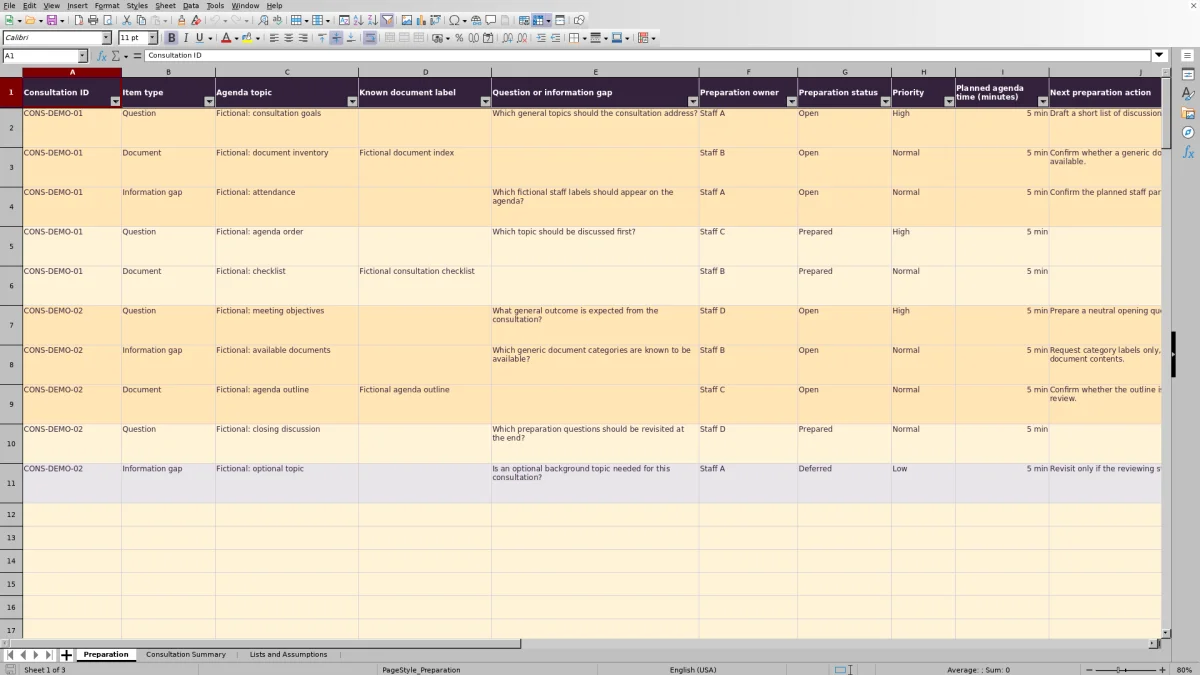
In Preparation, select the Consultation ID and Item type, then enter the Agenda topic, Preparation owner, Preparation status, Priority, and Planned agenda time (minutes). Document items need a Known document label. Questions and information gaps need a prompt in Question or information gap. Open items also need a Next preparation action.
3. Resolve incomplete entries
Check Review indicator before relying on the agenda. Incomplete means required information is missing or invalid. Needs preparation means the row is complete but its status remains Open. Use whole-minute estimates from 0 through 480.
4. Review the summary and working agenda
Choose Selected consultation ID in Consultation Summary. Review counts, missing estimates, and Agenda planning review. Then return to Preparation and filter Consultation ID to the same selection before viewing or printing the agenda.
Write agenda items that lead to a next action
Separate items when they require different preparation work. A question to discuss, a document to locate, and an attendance detail to confirm may belong to the same consultation, but each can have a different owner or status. Separate rows let you update one without implying that the others are ready.
Use Agenda topic for a short, recognizable label. Put the specific prompt in Question or information gap, or a generic reference in Known document label. For an Open item, make Next preparation action concrete enough for another staff member to carry out.
Keep confidential material outside this file. Use nonconfidential consultation labels rather than real identities, privileged narratives, or document contents. A document label is a planning reference, not evidence that the document has been received or reviewed.
Fictional example: decide whether the agenda needs trimming
Assume a fictional consultation, CONS-EX-02, is registered once with a verified example date of 11/09/2026 and Reviewing staff set to Staff A. For this example, the firm chooses a 45-minute review threshold. Enter these three items, all assigned to Staff A with Normal priority:
- Question: Agenda topic is Fictional: discussion goals. The prompt is Which general topics need discussion? Set status to Open, planned time to 10 minutes, and next action to Draft the topic list.
- Document: Agenda topic is Fictional: document inventory. Known document label is Fictional document index. Set status to Open, planned time to 15 minutes, and next action to Confirm index availability.
- Information gap: Agenda topic is Fictional: attendance. The prompt is Which staff labels belong on the agenda? Set status to Prepared and planned time to 25 minutes.
With the required fields valid and CONS-EX-02 selected, the summary counts 3 total items, 2 Open items, and 1 Prepared item. The entered minutes add up to 50 planned minutes. With no missing estimates or incomplete items, Agenda planning review returns Above review threshold.
The agenda is 5 minutes above the example threshold. That result calls for a planning decision: reduce the intended discussion scope, revise estimates where justified, or arrange a longer consultation. It does not determine which topics have legal importance.
Read partial estimates and threshold messages correctly
The minute total adds entered numeric estimates for the selected consultation. If an estimate is blank, the summary counts it under Missing time estimates and changes the total's label to Partial agenda estimate (minutes). A partial total is not the full meeting estimate. Ask the preparation owner to supply the missing minutes before deciding whether the agenda fits.
A zero is different from a blank: zero is an allowed whole-minute entry and is not counted as a missing estimate. Use it only when an item intentionally adds no planned discussion time. If Total items is zero, verify the selected ID and the IDs on the preparation rows rather than treating the zero-minute result as a completed agenda.
Agenda planning review checks missing minutes and incomplete items before reporting whether the total is above or within the threshold. Within review threshold does not mean all work is prepared; complete Open items can still need preparation. A total exactly equal to the threshold is within it.
The total includes Open, Prepared, and Deferred items. Changing an item to Deferred does not remove its minutes from the summary. If deferral means it will not be discussed, make an explicit planning decision about its estimate rather than assuming the status change reduces the total.
Hand off preparation without mistaking status for approval
Preparation owner identifies who is responsible for an individual item. Reviewing staff identifies the assignment recorded for the consultation. Before handing off the file, confirm that the receiving staff member knows which Open items require action and which consultation they are expected to review.
Prepared and Deferred are user-entered statuses, not approvals. The reviewer label also records an assignment, not a completed human review or legal or conflict clearance. Read the underlying agenda items instead of treating a status count as professional judgment.
When responsibility changes, update the relevant owner or reviewer label and communicate the handoff through the firm's normal process. Saving the workbook should not be treated as notice to the receiving staff member. Keep a dated copy if your office needs a reference for what was handed over.
Troubleshooting incomplete rows and register warnings
If Review indicator shows Incomplete, check the required fields first: ID, type, topic, owner, status, priority, and minutes. Then check the item-specific detail. A Document needs a generic label; a Question or Information gap needs a prompt; an Open item needs a next action.
- Check consultation register: confirm that the selected ID appears exactly once in the register. Correct missing or duplicate IDs rather than creating another copy of the same entry.
- Date missing or Reviewer missing: complete the corresponding register field. Red register rows also call attention to missing, duplicate, or invalid entries.
- Unexpected invalid-value warnings: use the listed type, status, and priority values. If staff labels were renamed, update the list and existing records consistently.
- Check threshold: enter a whole number from 1 through 480 in Lists and Assumptions, cell B2, the threshold input.
A wholly unused Preparation row has a blank review indicator. Leaving Selected consultation ID blank also leaves the selected-consultation results blank; it does not mean there are no preparation issues. Workbook-wide incomplete items is a separate count across the preparation grid.
Correct the source input, not the formula result. Preserve the formulas in Preparation column K and the summary calculation cells. Use the cream input cells for entries.
Keep the filtered agenda within the supported range
The workbook supports 100 preparation items in Preparation rows 2–101. That is the total item capacity across consultations, not 100 items for each consultation. The register separately supports 100 consultation slots in Lists and Assumptions rows 9–108.
Row 102 in Preparation is outside the supplied calculation and validation ranges. Do not assume that typing below the grid extends the review indicators or summary totals. If you need more room, use another appropriately organized copy or have the workbook's ranges and formulas deliberately extended and tested.
For a meeting handoff, select the consultation in Consultation Summary and separately filter Preparation by Consultation ID. The summary selection does not replace that filtering step. Additional Priority or Preparation status filters can narrow the view, but filters do not redefine summary totals: those formulas still use all matching consultation rows in the supported range.
Before printing, check whether a narrow filter has hidden topics that belong on the full agenda. Use a focused view for preparation work and a complete consultation view when the reviewer needs the whole discussion list.
Compare this workbook with a blank spreadsheet
A blank spreadsheet can work for a short, one-time agenda. This workbook is useful when your office wants consistent entries, preparation counts, and a defined minute-review process without designing those checks from scratch.
| Method | Entry structure | Planning checks | Handoff and upkeep |
|---|---|---|---|
| Law Firm Sheets workbook | Defined fields and listed choices for owners, item types, statuses, and priorities. | Required-information indicators, status counts, missing-estimate counts, and a configurable minute threshold. | Filter the preparation grid for review; preserve formulas and stay within the supplied ranges. |
| Blank spreadsheet | You choose the columns and wording to fit the meeting. | You manually check completeness and totals or build and test your own formulas. | You design the handoff view and decide how to keep entries consistent as the file grows. |
Choose the workbook when its defined fields and capacity fit your preparation routine. Choose a blank spreadsheet when a simpler, freely structured agenda is more appropriate and someone will handle the checks manually. Neither approach substitutes for reviewing the substance of the consultation agenda.
Frequently asked questions
Does the supplied consultation date calculate a legal deadline?
No. User-verified consultation date is supplied by your office and displayed in MM/DD/YYYY format. It is not an inferred deadline. Independently supply and verify any legal deadlines through the firm's established process.
Are the agenda minutes billable time?
No. Planned agenda time (minutes) is a meeting estimate, not recorded time or approved billable time. The workbook applies no billing rate or billing increment and does not turn estimates into invoices or payments.
Can I replace the fictional staff labels?
Yes. Replace the four staff-label entries in Lists and Assumptions, cells E2–E5, consistently with the labels used in preparation records and the consultation register. Keep the supplied item-type, status, and priority vocabulary because the formulas rely on those values.
Can the workbook recalculate in LibreOffice?
The workbook's instructions state that formulas recalculate when opened in Excel or LibreOffice. After opening or editing the file, check the summary and review indicators before relying on the results. Compatibility with other spreadsheet applications is not established by the supplied workbook information.
Are the included consultation records real?
No. All supplied example IDs, document labels, staff labels, and records are fictional. Replace the demonstration entries before using the file for office planning, and continue to use nonconfidential labels rather than real identities or privileged details.
Editorial coverage

Audra PembrokeBilling and finance content

Graham ElleryPractice administration content