Before setting reception coverage, compare the intake work you expect with the hours your team can make available. The Law Firm Sheets intake staffing calculator uses daily inquiry forecasts, average handling minutes and reception hours to estimate additional coverage needs.
This Excel workbook supports an intake supervisor’s staffing review, not a staff schedule or a guarantee that every inquiry will be handled promptly. Law Firm Sheets is an administrative Excel library, not a law firm, legal adviser or practice management service.
Where this workbook helps
- Translate forecast inquiry volume and handling minutes into estimated daily workload hours.
- Allow for breaks and other work through an editable usable share of reception hours.
- Separate small gaps for review from larger gaps using your firm’s chosen threshold.
- Review daily shortages together without letting surplus hours on another day cancel them out.
What is in the file
How to get started
1. Prepare a working copy
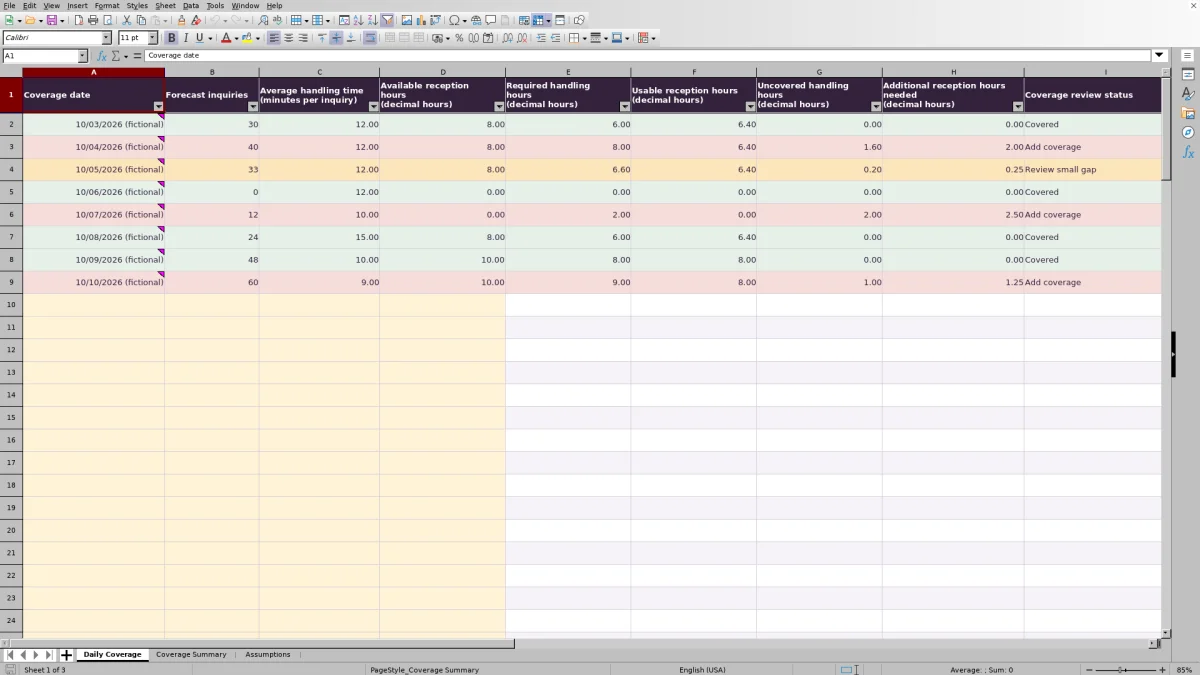
Save a copy for your planning period. Daily Coverage rows 2–9 contain fictional examples. Replace or clear their inputs in columns A–D before operational use, leaving the formulas in columns E–I intact. Apply MM/DD/YYYY formatting to replacement dates so actual planning records do not retain the fictional-example label.
2. Set your planning assumptions
On Assumptions, enter your chosen Usable share of reception hours in B3 and Small-gap review threshold in B4. The share must be greater than 0% and no more than 100%; the threshold must be zero or greater and is measured in decimal handling hours. These are firm planning choices, not industry standards.
3. Enter one team-wide record per day
On Daily Coverage, complete Coverage date, Forecast inquiries, Average handling time (minutes per inquiry) and Available reception hours (decimal hours). Use the entire intake team’s totals. Enter reception time as decimal hours, not hours:minutes: one hour and 30 minutes is 1.50, not 1.30.
4. Review exceptions before using totals
Check Coverage review status and any highlighted duplicate dates. Correct incomplete inputs, then use Coverage Summary to review total additional reception hours and the largest daily need. Confirm the actual time slots and people available outside the workbook before changing coverage.
Choose inputs that describe the same intake workload
Decide which activities your handling-time estimate includes before entering daily forecasts. For example, your firm might include the initial conversation and routine intake entry. Use that same scope when estimating inquiry volume and deciding which reception hours are available. Mixing a narrow handling-time estimate with a broader workload can understate the need.
The Usable share of reception hours reduces scheduled reception time to the portion expected to be available for the selected intake activities. Enter scheduled reception hours in Daily Coverage rather than reducing them yourself and then applying the share again. Avoid counting the same unavailable time twice.
The two planning settings apply to every prepared record. If you change either setting, the calculations or statuses for existing valid records can change. Keep a dated copy before testing a different assumption if you need to compare planning scenarios.
Fictional example: turn a daily gap into reception hours
For the fictional record dated 10/04/2026, the inputs are 40 forecast inquiries, 12 minutes per inquiry and 8.00 available reception hours. With the fictional 80% usable share, required handling time is 40 × 12 ÷ 60 = 8.00 decimal handling hours. Usable reception time is 8.00 × 0.80 = 6.40 decimal hours.
The formulas therefore produce a 1.60-hour uncovered handling gap. To translate that gap back into scheduled reception time, the workbook divides it by the usable share: 1.60 ÷ 0.80 = 2.00 additional reception hours. That is a staffing estimate, not two hours already worked and not a headcount recommendation.
At the fictional 0.50-hour small-gap threshold, this row’s status is Add coverage because the handling gap exceeds the threshold. The next decision is whether suitable staff can provide the additional reception time when inquiries are expected. Adding only the uncovered handling hours would fall short under the same usable-share assumption.
These results follow from the workbook’s recorded formulas. The supplied workbook record does not include a completed recalculation test; check the displayed results in your spreadsheet application before operational reliance.
Use coverage statuses to prioritize review
Coverage review status separates valid records into three planning categories. Covered means usable reception hours meet or exceed required handling hours. Review small gap means the positive handling-hour gap is at or below your threshold. Add coverage means the gap exceeds it.
The threshold classifies the gap; it does not remove it. A small-gap record still contributes its calculated additional reception hours to the summary. Raising the threshold changes which gaps receive each label, not the workload or additional-hours estimate.
The uncovered-hours calculation stops at zero. A Covered record may therefore have spare capacity, but the gap field does not show a negative balance measuring that surplus. With zero inquiries, the workbook can also return Covered even when no reception hours are available. That means no forecast workload gap—not proof that someone is on duty.
Read the summary as a collection of daily needs
Use Total additional reception hours on Coverage Summary to assess the combined shortage across the prepared records. Use Largest daily additional-hours need to identify the scale of the biggest single-day requirement. These answer different questions: total staffing effort versus the most demanding day.
Surplus capacity does not offset another day’s shortage. The workbook calculates each day’s gap first and then adds the resulting additional reception hours. This prevents an adequately staffed day from hiding a shortage elsewhere, but it does not decide whether staff can move between dates.
Complete days counts complete, valid records, not distinct calendar dates. Duplicate dates still count until you resolve them. The summary covers Daily Coverage rows 2–101, including valid fictional examples left in place. Its formulas also include filtered-out rows, so filtering the daily view does not create a period-specific summary. Keep only the intended planning records in the working copy.
Troubleshooting blanks, invalid inputs and duplicate dates
If a started row shows Incomplete or invalid inputs, check all four inputs in columns A–D. Use a genuine Excel date without a time component, a whole-number inquiry count of zero or more, positive handling minutes and reception hours of zero or more. A number pasted as text may look correct but fail the numeric checks.
If many entered rows lose their calculated hours at once, inspect Assumptions B3 and B4. A missing or invalid usable share or review threshold suppresses calculations, even where daily inputs are otherwise complete. Correct the assumption before treating the missing results as a reduction in workload.
Blank totals are not zero demand. Blank hour totals mean there are no complete, valid records to total. Unused rows stay blank, while started invalid rows are counted under Incomplete or invalid records and excluded from hour totals. Even on a zero-inquiry day, handling minutes must remain positive.
Repeated nonblank dates are highlighted but are not automatically excluded. If a duplicate represents separate staff entries, consolidate the day into one team-wide record. If the underlying workload estimates differ, resolve those estimates rather than averaging them without a basis. Also check pasted data manually: validation can be bypassed, and a mathematically valid number can still be an unrealistic forecast.
Turn the estimate into a staffing decision
After reviewing the daily additional-hours estimate, compare it with the reception schedule and expected busy periods. The workbook uses daily totals and average handling time; it does not model inquiry arrival times, simultaneous calls or individual staff availability. A day can appear Covered overall and still have a short-staffed morning.
Decide outside the workbook who can cover the needed periods and whether they can perform the selected intake tasks. Do not interpret the additional-hours field as a hiring recommendation, a shift assignment or an instruction sent to staff.
Hours display to two decimal places, but the underlying calculations are not rounded to a scheduling increment. Apply your firm’s scheduling convention when arranging coverage, then enter the revised available reception hours to see how the estimate changes. The workbook does not apply a billing increment or billing rate.
Compare with a blank staffing spreadsheet
A blank spreadsheet can support a daily staffing review, but someone must define the calculations and checks. This workbook is a practical starting point when a team-wide daily estimate fits your planning task.
| Method | Workload and capacity calculation | Input review | Planning scope |
|---|---|---|---|
| Law Firm Sheets intake staffing calculator | Prepared formulas convert inquiry volume and minutes into handling hours, apply a usable share and estimate additional reception hours. | Includes validation, invalid-input status and duplicate-date highlighting; staff must resolve exceptions. | Provides 100 daily team-wide records and summary measures, not individual shift assignments. |
| Blank staffing spreadsheet | You design and check the formulas, units and treatment of daily shortages. | You create any validation or warnings and establish a manual review process. | You can design a layout for your own dates, time slots or staff detail, with the related setup and checking work. |
Choose this workbook when you need a defined daily calculation and can supply consistent forecasts and assumptions. Consider a separately designed schedule or another suitable workflow when the main decision concerns hourly peaks or individual assignments. Neither approach makes an uncertain forecast reliable without checking the source inputs.
Frequently asked questions
Does changing the example starting date update the daily dates?
No. Fictional example starting date on Assumptions documents the date used to populate the samples. The dates on Daily Coverage are editable values, so changing that setting does not shift them. Enter and verify each coverage date directly; the workbook does not calculate legal deadlines.
Can I enter a separate row for each receptionist?
The intended structure is one record per day for the entire intake team. Enter team-wide forecast inquiries and total reception hours. Separate staff rows with the same date trigger duplicate-date highlighting and remain included in totals, so they can distort the summary.
What happens if I need more than 100 daily records?
The prepared formulas and summary ranges cover rows 2–101. Do not assume entries below that range are calculated or summarized. Use a separate working copy for another planning period, or have any extended formulas, validation and summary ranges checked before relying on an expanded file.
Should I enter client names or matter details?
No. The workbook’s inputs are aggregate daily staffing figures, and it has no client-identity or matter-narrative fields. Keep confidential intake details in your firm’s appropriate records rather than adding them to this planning file.
Are these results recorded time or billable hours?
No. Required handling hours and additional reception hours are forecast staffing estimates. They are not recorded time, approved billable time, invoiced amounts or payments received. Use your firm’s separate timekeeping and billing records for those tasks.
Editorial coverage

Audra PembrokeBilling and finance content

Graham ElleryPractice administration content