When intake information arrives in pieces, you need to know what has been received and what still needs attention. The Law Firm Sheets client intake checklist is an Excel workbook for recording receipt statuses and organizing administrative follow-up.
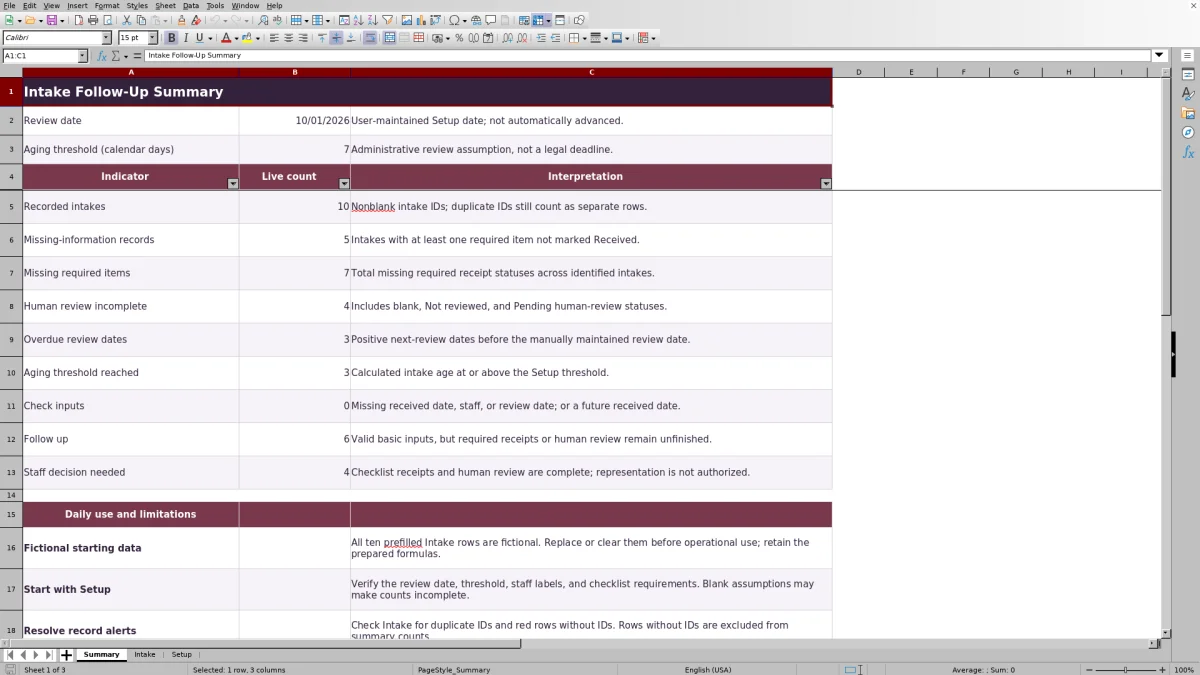
Configure the checklist requirements, enter each intake, and review the calculated missing-item counts and work queue. This is an administrative resource, not legal advice or a practice management service.
Where this workbook helps
- Identify intakes with required information still missing before deciding the next follow-up action.
- Keep receipt tracking separate from the status of a person's conflict review.
- Review intake age and scheduled review dates against firm-supplied administrative assumptions.
- Use assigned staff and filters to organize a focused intake handoff.
What is in the file
How to get started
1. Confirm the review assumptions
Open Setup. Set the four checklist item names and their Required? values, then check the item-to-column mapping. Update Review date — manually maintained, choose the Aging review threshold (calendar days), and replace the fictional staff labels as appropriate.
2. Remove the fictional starting records
The ten prefilled Intake records are fictional. Replace or clear their entries in columns A–J before operational use. Retain the formulas in columns K–M, which calculate missing items, intake age, and the work queue.
3. Record the intake and receipt statuses
On Intake, enter an intake ID, Received date, and Assigned staff. Use Item 1 status through Item 4 status according to the mapping on Setup. Record Human conflict-review status and a staff-supplied Next review date. Use MM/DD/YYYY dates and keep client identities and privileged narratives out of this receipt-status record.
4. Review the queue and plan follow-up
Check Summary, then filter Intake to inspect the underlying records. Resolve Check inputs entries first, identify the required information still outstanding, and confirm who will take the next action. Update statuses only when the corresponding receipt or human review has occurred.
Set requirements without changing the meaning of old records
Use Setup to define what each receipt status represents. The initial checklist covers identification, contact information, matter information, and party information. The first three are required initially; party information is optional. These are starting assumptions, not universal intake requirements.
Requirement changes affect every record. Renaming an item does not establish that the newly named information was received for earlier intakes. Before changing names or Required? values, retain a dated copy and review the existing statuses against the new definitions.
A required item counts as missing whenever its status is not Received. That includes a blank status and Not applicable. An optional item does not contribute to the missing count. A zero therefore means no currently required receipt is outstanding—not that every item has been received. If all four requirements are set to No, the missing-item count can be zero even with no receipt statuses entered.
Fictional example: turn a missing receipt into a next action
The workbook's fictional intake FI-02, associated with proposed fictional matter ID FIC-02, has a Received date of 09/30/2026 and is assigned to Staff B. Identification is marked Missing; the other three receipt statuses are Received. Human conflict-review status is Pending.
With the initial Setup review date of 10/01/2026 and the initial requirements, the calculations produce 1 missing required item, an age of 1 calendar day, and Follow up. The age is the review date minus the received date. The queue reflects both the unfinished required receipt and the unfinished human review.
Its Next review date is the same as the Setup review date, so it is not counted as overdue. It is also below the initial aging threshold of 7 calendar days. Staff B's next administrative decision is to arrange follow-up for the identification receipt and the pending review. Once both statuses are properly updated, the queue can move to Staff decision needed; that is a prompt for a separate decision, not an approval.
Read the work queue as a routing aid
The Work queue column follows an order of checks. For a row with an intake ID, it first tests the basic inputs. Only after those pass does it assess receipt completion and human-review status.
- Check inputs means the Received date, Assigned staff, or Setup review date is blank, or the Received date is later than the Setup review date.
- Follow up means the basic inputs pass, but a required receipt is unfinished or Human conflict-review status is not Reviewed.
- Staff decision needed means the basic inputs pass, required receipts are complete, and the human-review status is Reviewed.
The review status logs a person's review; it does not perform conflict clearance. Neither a completed checklist nor Staff decision needed authorizes representation or opens a matter. Keep those decisions in the firm's separate process.
The queue does not use Next review date or the aging threshold to determine its label. Check those fields separately: a record can reach Staff decision needed and still have a past review date.
Separate intake age from scheduled review dates
Intake age measures elapsed calendar days from Received date to the review date in Setup. Aging threshold reached counts identified intakes whose calculated age meets or exceeds the chosen threshold. The threshold accepts a whole number from 1 through 365 and is a firm-supplied administrative assumption.
Overdue review dates answers a different question: does an identified intake have a positive Next review date earlier than the Setup review date? A date equal to the review date is not overdue. A blank Next review date is not counted as overdue and does not, by itself, trigger Check inputs.
Advance the Setup review date manually before each review session. The workbook does not advance it with the calendar. If that date is blank, intake ages and the overdue count are blank; the aging count is also blank if either the review date or threshold is missing. These blanks do not mean there is nothing to review.
Supply and verify review dates independently. These calculations do not determine court-rule deadlines or send reminders.
Troubleshooting missing counts and unexpected alerts
When Summary does not match your expectations, inspect the relevant Intake rows rather than editing calculated results.
- A populated row is absent from the totals: check its intake ID. Rows without an ID are excluded from the summary counts, and their calculated fields remain blank. Resolve red rows without IDs.
- The recorded-intake count seems too high: inspect duplicate-ID alerts. Recorded intakes counts nonblank ID rows, not unique IDs. Correct duplicate entries after confirming which record should remain.
- A required item remains missing after you select Not applicable: the formula requires Received for any item whose Required? flag is Yes. Confirm the intended requirement rather than marking an unreceived item as received. Changing the flag affects all records.
- Intake age is blank: check the intake ID, Received date, and Setup review date. A received date later than the review date also suppresses age and triggers Check inputs.
- A status looks complete but still produces Follow up: use the supplied dropdown values. The formulas specifically test Received and Reviewed; custom wording may not satisfy those checks.
Use Excel date values rather than text that merely resembles a date. If entries were pasted into the sheet, recheck the dates and statuses instead of assuming the validation has established their accuracy.
Keep the daily handoff within the prepared range
Filter Intake by Assigned staff and the fields relevant to the day's review. Missing required items helps identify receipt follow-up; Human conflict-review status shows unfinished review records; Next review date and Intake age help staff prioritize administrative attention.
Summary indicators overlap. One intake can have missing information, an unfinished human review, and an overdue review date. Do not add those indicators together as though they represented different intakes.
The prepared input area is Intake rows 2–101. Its formulas, dropdown ranges, and summary references cover those 100 rows. Entries below that area are not included in the verified summary ranges. Before exceeding capacity, have the workbook's ranges and formulas extended and tested, or choose a recordkeeping method suited to the larger volume.
For a handoff, confirm the assigned person and next action outside the spreadsheet as needed. Saving a changed staff label does not notify that person or establish an automatic audit trail.
Compare this workbook with a blank intake spreadsheet
Both approaches require staff to enter accurate information and make follow-up decisions. The choice depends on whether the prepared four-item checklist fits the firm's process or whether staff need to design a different structure.
| Method | Checklist structure | Follow-up calculations | Setup and ongoing work | Scope and limits |
|---|---|---|---|---|
| Law Firm Sheets intake workbook | Four configurable receipt items with required flags and separate human-review status. | Prepared missing-item, age, queue, and summary calculations for 100 intake rows. | Staff verify assumptions, maintain the review date, and update records. | Receipt and review-status tracking; does not open matters or make professional decisions. |
| Blank spreadsheet | Staff design the columns, status vocabulary, and requirement rules. | Staff build and test calculations or assess follow-up manually. | Staff create validation, filters, formulas, and operating instructions if needed. | Scope depends on the design; spreadsheet entries alone do not establish professional decisions. |
Use the prepared workbook when its checklist size and row capacity fit the task. A blank spreadsheet may suit a substantially different intake structure, provided someone can define and test the counting rules and maintain them consistently.
Frequently asked questions
Does the workbook store identification documents or client narratives?
No document-storage workflow is provided. Use the workbook to record receipt statuses, not copies of identification, client identities, or privileged narratives. Keep source materials in the firm's designated recordkeeping location.
Can I rename the staff choices?
Yes. Edit the three staff labels in Setup cells B9–B11; those cells supply the Assigned staff dropdown. After changing a label, review existing Intake entries for consistency rather than assuming earlier selections have been rewritten.
Is a proposed matter ID required?
No. The column labeled Proposed fictional matter ID (optional; not an opened matter) is optional. The Intake ID is the identifier used to include a row in the calculations. Keep demonstrations fictional and do not treat a proposed reference as evidence that a matter has been opened.
Does Reviewed record who performed the review or when?
The verified fields include Human conflict-review status, but no separate reviewer-name or review-completion-date field. Assigned staff and Next review date serve different purposes. If the firm needs evidence of who reviewed something and when, maintain that detail through its established review record.
Are there charts on the summary?
No. Summary uses live counts and interpretation notes rather than charts. Use those counts to select an issue for review, then inspect the corresponding Intake records before taking action.
Editorial coverage

Audra PembrokeBilling and finance content

Graham ElleryPractice administration content