Before a consultation, check that language support has been arranged and its quoted fee reviewed. The Law Firm Sheets interpreter booking workbook gives intake staff an Excel record for consultation details, recorded confirmations and outstanding booking actions.
Use it to identify requests that need follow-up, then make and verify arrangements outside the file. Law Firm Sheets is an administrative Excel library, not a law firm, legal advice provider or practice management service.
Where this workbook helps
- Bring consultation details and interpreter follow-up into one booking record.
- Prioritize uncovered consultations using a firm-selected review date and notice window.
- Separate recorded confirmation from fee approval so one does not stand in for the other.
- Review confirmed quoted amounts alongside a count of confirmed bookings missing quotes.
What is in the file
How to get started
1. Set the review assumptions
On Assumptions, enter the Review date, Near-term notice window (calendar days), Fee-review threshold (USD) and Firm local time-zone label. These are firm choices, not legal defaults. Update the review date whenever you review the list; it does not advance automatically.
2. Prepare and check your working copy
Bookings rows 2–9 contain fictional examples. Review them in a separate copy, then clear their input cells in columns A–L before entering your own administrative records. Preserve the formulas in columns M–O. Recalculate before operational use: the manifest does not record an Excel or LibreOffice recalculation outcome.
3. Enter the consultation and booking details
Use Bookings rows 2–101. Enter a Booking ID and a non-identifying reference in Fictional matter ID, followed by Consultation date, Start time, local, Duration (minutes) and Language. Use non-identifying interpreter and reviewer labels rather than client identities or privileged narratives. Select the supplied Booking status and Fee approved choices, and enter the quoted flat fee in USD.
4. Record verification and work the action list
After staff verify the arrangement outside the workbook, complete Fictional interpreter label, Fictional reviewer label and Confirmation verified date, and update Booking status as appropriate. Review Summary, then filter Next action on Bookings for urgent, past or other pending items. Check the underlying entries and any separate review concerns before treating a row as complete.
Prioritize consultations that still need coverage
Start with the consultations most likely to need immediate staff attention. For a row without a recorded confirmation, Next action uses the Consultation date and the reference settings on Assumptions. A date before the Review date produces Past uncovered. A date from the Review date through the end of the notice window produces Urgent uncovered. Later dates produce Confirm booking.
The window uses calendar days, not business days. It does not consider the start time when assigning urgency, and it does not calculate court-rule deadlines. Staff must independently supply and verify the consultation date and time.
Filter Next action in column O to create a working list, then contact the interpreter or responsible staff member through your normal process. A row with an absent or nonnumeric consultation date instead shows Complete date; correct that first so the date-based priority can be evaluated. Changing the review date changes the assessment, not the stored appointment dates.
Understand what a recorded confirmation establishes
Selecting Confirmed in Booking status is not enough to produce Recorded confirmation in Coverage indicator. The formula also requires both IDs, numeric consultation and start-time values, a positive numeric duration, language, interpreter label, reviewer label and a numeric Confirmation verified date.
Once those confirmation requirements are met, Next action becomes Review fee unless Fee indicator is Approved quote. Only the combination produces Ready. This separates the record of the arrangement from the record of fee approval.
Ready is a record-completeness result, not proof of interpreter availability, qualifications or suitability. The workbook records the user's verification; it does not perform it. Review duplicate booking IDs, future verification dates and quotes above the firm's threshold even when Ready appears. A recorded confirmation can also remain Ready after its consultation date passes; this is not an attendance or completion tracker.
Fictional example: identify an urgent uncovered consultation
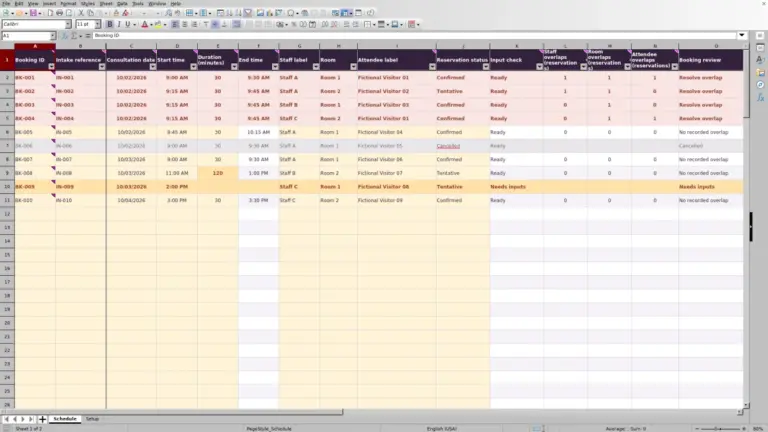
The supplied fictional record DEMO-B02, linked to fictional matter DEMO-M02, requests Spanish interpretation for 10/03/2026 at 9:00 AM for 60 minutes. Booking status is Requested, Fee approved is No, and the interpreter label, quote, reviewer label and verification date are blank.
With the initial Review date of 10/02/2026 and a notice window of 2 calendar days, the review window runs through 10/04/2026, inclusive. The consultation falls within that window and lacks the required confirmation record. The formulas therefore specify Unconfirmed for Coverage indicator, Missing quote for Fee indicator and Urgent uncovered for Next action.
The decision is to follow up on language coverage promptly and obtain the quote—not to mark the booking complete because a request exists. After the arrangement is verified, enter the missing confirmation details and record the actual fee-approval decision. The fee still needs attention even though the urgent coverage action takes priority in column O. These are formula-derived expectations; verify the displayed results after recalculation.
Keep quoted fees separate from approval and payment
Quoted fee (USD) holds a flat quoted amount. Duration (minutes) does not multiply that amount or create an hourly charge. Fee indicator first checks whether the quote is numeric. A missing or text entry produces Missing quote. With a numeric quote, Yes in Fee approved produces Approved quote.
If approval is not Yes, a quote above Fee-review threshold (USD) produces Above threshold: approve; other numeric quotes produce Approve quote. Approval does not eliminate the need to review an above-threshold amount under the firm's procedure. The formula can show Approved quote and allow Ready once Yes is entered.
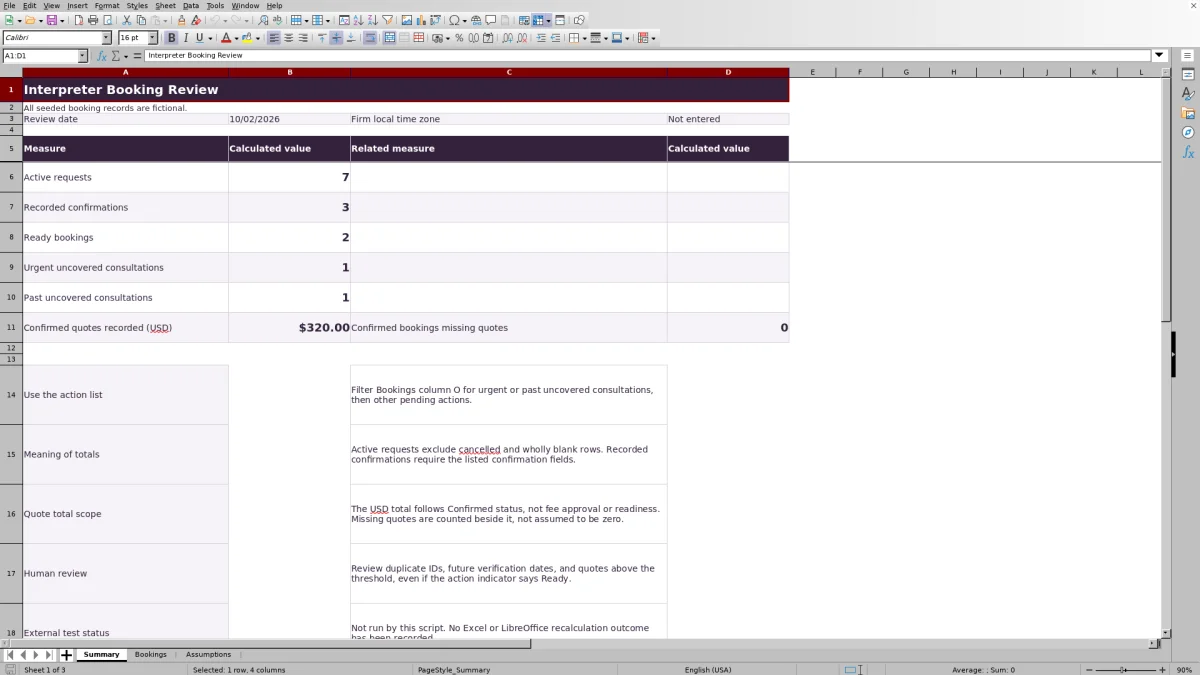
On Summary, Confirmed quotes recorded (USD) adds quoted amounts for rows whose Booking status is Confirmed, regardless of fee approval or readiness. Read it together with Confirmed bookings missing quotes: a total is not a complete cost picture when quotes are missing. It is neither an invoice amount nor a payment received, and the workbook does not calculate billing, payments or funds balances.
Troubleshooting incomplete or misleading results
- Confirmed still shows Unconfirmed: check all required confirmation fields, not just Booking status. A date or time pasted as text does not satisfy the numeric checks. Re-enter dates as Excel date values displayed in MM/DD/YYYY format and times as Excel time values.
- A blank quote is mistaken for a free service: leave an unknown amount blank so Missing quote remains visible. Enter numeric zero only when the quote is genuinely USD 0.00. Zero is a valid quote but still requires the recorded approval decision.
- A status change does not behave as expected: use Requested, Contacted, Confirmed or Cancelled, and Yes or No for approval. The formulas depend on the supplied wording, so do not substitute terms such as Booked or Approved.
- A pasted row looks complete but contains questionable values: review it directly. Pasting can bypass validation, and the indicators do not replace entry checks. Duration should be a positive whole number of minutes; a midnight start is valid.
- Urgency looks outdated: advance Review date on Assumptions and recalculate. The fictional sample consultation dates stay fixed when that reference date changes.
Wholly blank input rows should have blank indicators. If indicators appear on an apparently empty row, inspect columns A–L for leftover values or spaces before clearing the input cells. Do not erase the formula cells to hide the result.
Keep reviews within the prepared range
The prepared booking area is rows 2–101. Its indicator formulas, validation and filter cover that area, and the Summary calculations reference those same rows. Entries below row 101 are not included in the supplied summary formulas.
If you need more capacity, do not assume that typing below the range extends the workbook. Have the formulas, summary references and entry safeguards deliberately extended and checked, or use another controlled working copy under the firm's procedure. Avoid placing records in the guidance area below the prepared entries.
For a staff handoff, save a dated copy and identify outside the workbook who will handle unresolved bookings. The reviewer label and verification date record the review entered by a user; they are not an automatic history of changes or an assignment notification.
Before relying on a working copy, use a temporary copy to compare identical test entries in rows 2, 51 and 101, then remove the temporary inputs. Check that blank rows remain blank, missing confirmation details prevent Ready, and cancelled rows do not enter active or confirmed totals.
Compare with a blank spreadsheet
A blank spreadsheet can be sufficient for a short booking list. This workbook is more structured: it supplies a specific confirmation-and-fee review process, but you must maintain its assumptions and stay within its prepared ranges.
| Method | Booking entry | Follow-up review | Fee overview | Maintenance |
|---|---|---|---|---|
| Law Firm Sheets workbook | Prepared fields, dropdowns and entry validation for 100 booking rows. | Formula-based actions using recorded confirmation details and a manually maintained review date. | Confirmed-status quote total with a separate count of missing confirmed quotes. | Preserve formulas, review source entries and check any range extensions. |
| Blank spreadsheet | Staff choose and build the fields and any entry controls. | Staff review each row manually unless they add their own formulas. | Staff total quotes manually or create and check their own calculations. | Staff maintain the layout, review conventions and any formulas they create. |
Choose the prepared workbook when its fields and review categories fit your intake process and someone can maintain the reference date. Choose a blank spreadsheet when a simpler or substantially different record is needed and staff can consistently perform the checks themselves. Neither method, by itself, contacts an interpreter or verifies that coverage is actually available.
Frequently asked questions
Does the workbook send booking requests or reminders?
No. It records booking details and displays review indicators. Staff must send requests, obtain confirmations and manage reminders through their existing process; no automatic scheduling or notifications are established by the manifest.
How should we handle interpreters in another time zone?
Enter the firm's reference zone in Firm local time-zone label on Assumptions and use that basis for Start time, local. Independently agree on the appointment time with the interpreter. The workbook does not convert time zones. Summary displays Not entered if the zone label is blank, but that blank does not prevent a booking from showing Ready.
What happens when a booking is cancelled?
Select Cancelled in Booking status. The row's Coverage indicator becomes Cancelled, Fee indicator becomes Not applicable and Next action becomes No action. It is excluded from the active-request count and confirmed-status quote total. This records cancellation in the file; it does not notify the interpreter or determine any cancellation charge.
Can this sheet establish that an interpreter is qualified?
No. The workbook has an interpreter label and records confirmation details, but it does not assess credentials, language proficiency or suitability for a particular consultation. The responsible person must make those checks separately before relying on the arrangement.
Are the included bookings real, and has the file been externally recalculated?
All seeded booking records are fictional. Summary includes expected results for those examples, but the manifest explicitly states that no Excel or LibreOffice recalculation outcome has been recorded. Open a copy, recalculate and check the results before operational use; do not treat the sample expectations as evidence of an external test.
Editorial coverage

Audra PembrokeBilling and finance content

Graham ElleryPractice administration content