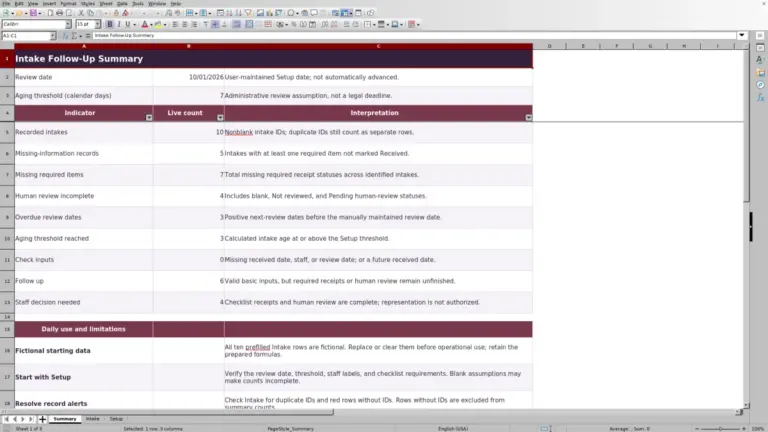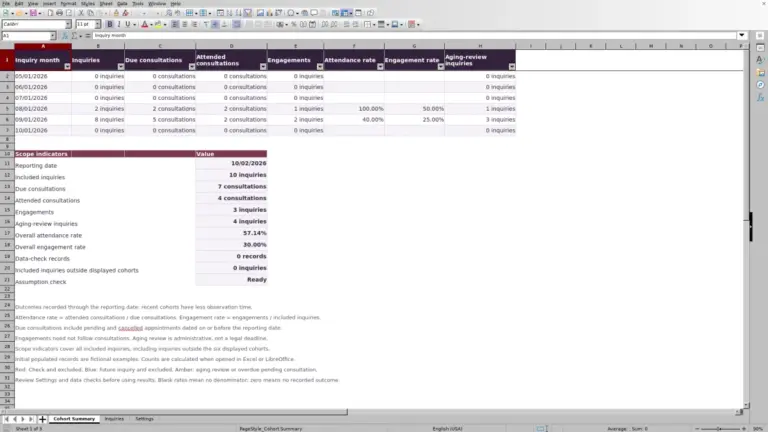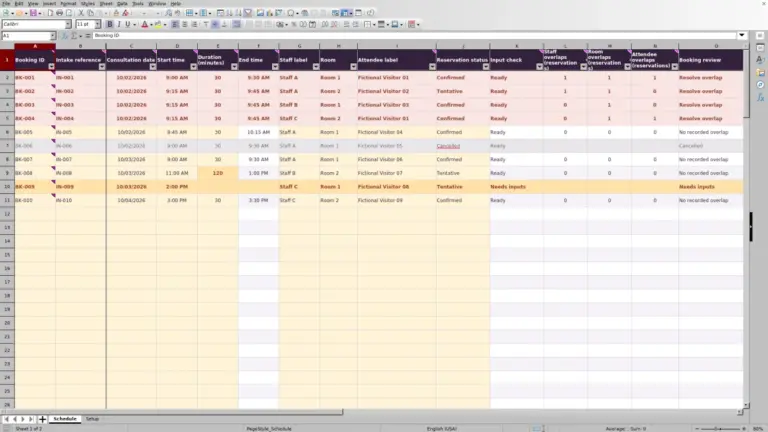
When referred inquiries arrive through different channels, keep a consistent record of where each came from and what still needs review. The Law Firm Sheets referral source tracker is an Excel workbook for recording inquiry attribution, permission documentation and intake follow-up.
Use it to organize administrative review before sharing referral counts. Law Firm Sheets is an administrative Excel library, not a law firm or practice management service. This workbook records your entries and applies defined checks; it does not provide legal advice or make professional decisions.
Where this workbook helps
- Keep a referred inquiry’s source, channel and assigned staff together for intake handoffs.
- Use review indicators to select records that need attention before reporting.
- Check source counts alongside unattributed records rather than overlooking missing attribution.
- Apply a firm-selected reporting date and pending-permission threshold consistently across the register.
What is in the file
How to get started
1. Set the reporting assumptions
On Settings, enter the As-of date and review the Pending-permission review threshold (calendar days). Confirm the source codes, source labels and staff labels you intend to use. Keep source codes unique and nonblank, and leave the controlled permission, channel and intake-stage labels unchanged.
2. Replace the fictional samples
Referrals rows 2–11 contain fictional examples. Clear or replace their input values before operational use, while preserving columns K and L. Use the cream input cells in columns A–J. Keep client identities and privileged narratives out of this administrative file; use inquiry identifiers instead.
3. Enter one referred inquiry per row
Complete Referral record ID, Inquiry received date, Inquiry ID, Source code, Referral channel, Attribution permission status, Assigned staff and Intake stage. Record Permission review date and Next review date when applicable, using independently verified dates in MM/DD/YYYY format. Select controlled values from the dropdowns rather than inventing new labels.
4. Review flags before sharing totals
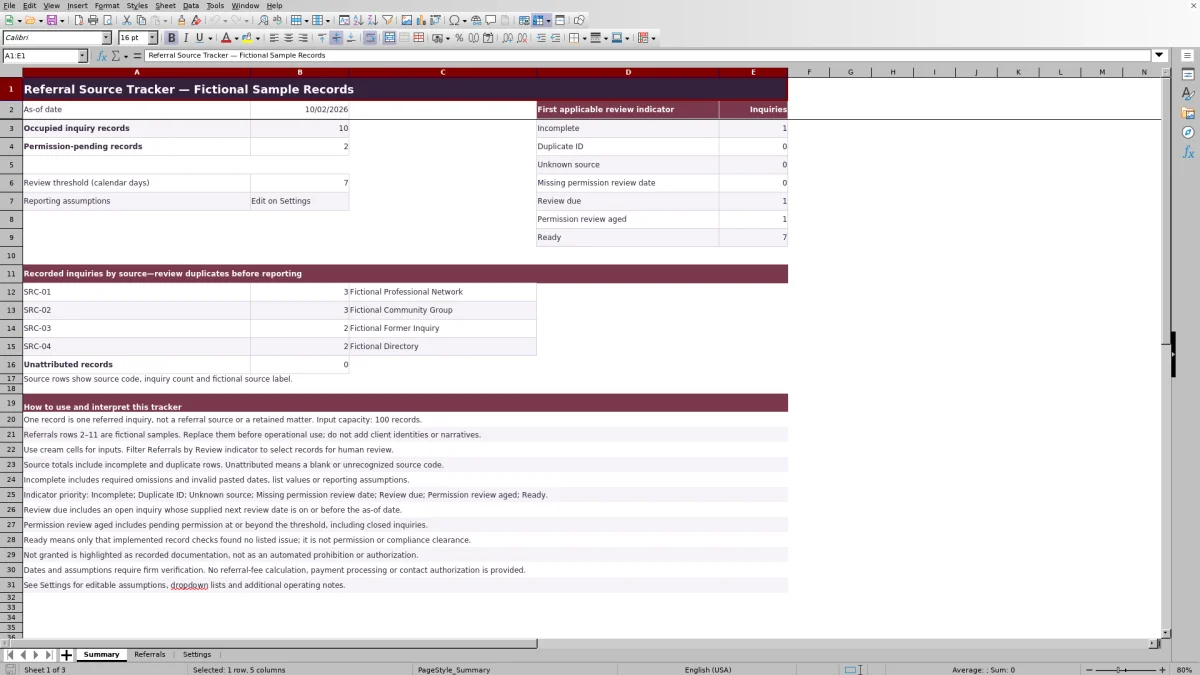
Filter Referrals by Review indicator and address the records selected for review. Then check Summary for occupied records, permission-pending records and source counts. Review duplicates before reporting: source totals count entered rows, including incomplete and duplicate records.
Count referred inquiries, not retained matters
Decide what the report represents before using its totals. In this workbook, one record is one referred inquiry, not one referral source or one retained matter. A source can appear on several inquiry rows. An intake stage of Consultation scheduled does not establish that an inquiry became a client or generated revenue.
Summary counts recognized source codes across the supported input rows. Unattributed records are those with a blank or unrecognized source code. Both groups can include records that still need correction, so treat the counts as a register summary rather than a verified performance report.
The As-of date governs review checks; it does not restrict source counts to inquiries received during a reporting period. If a supervisor requests monthly referral activity, separately confirm which Inquiry received date values belong in that report rather than presenting the full Summary total as a monthly count.
Read the first review indicator without missing other issues
The Review indicator shows the first applicable result in this order: Incomplete, Duplicate ID, Unknown source, Missing permission review date, Review due, Permission review aged, then Ready. It is a prioritized result, not a list of every issue on a row.
Correct the displayed issue and review the row again. For example, fixing an omitted required field can expose a duplicate or a date-related issue that was previously hidden by Incomplete. Summary groups these first-applicable results, so its indicator counts should not be read as a complete count of every underlying problem.
An open inquiry is Review due when its supplied Next review date is on or before the As-of date. Pending permission can become Permission review aged at or beyond the selected threshold, including on closed inquiries. Closing an inquiry does not remove pending-permission review needs. The separate Permission-pending records count helps you see pending entries even when another indicator takes priority.
Fictional example: move an inquiry into the review queue
Consider the fictional sample REF-DEMO-01, linked to INQ-DEMO-01. Its Inquiry received date is 09/30/2026, Source code is SRC-01, Referral channel is Email and Assigned staff is Staff A. Attribution permission status is Documented, Permission review date is 10/01/2026, Intake stage is New and Next review date is 10/05/2026.
The source lookup returns Fictional Professional Network for SRC-01. For a review conducted as of 10/05/2026, enter that date in Settings. With the row otherwise complete, its identifiers unique and no higher-priority issue present, the result is Review due: the inquiry is open and its supplied review date equals the reporting date.
The next decision belongs to the assigned staff member or supervising reviewer. Check what follow-up is appropriate, then update the record to reflect the actual decision and any new firm-supplied review date. The workbook compares entered dates; it does not calculate court deadlines. Do not treat the indicator as a delivered reminder.
Keep permission documentation separate from authorization
Use Attribution permission status to record the state of the firm’s documentation: Pending review, Documented or Not granted. Enter the Permission review date to reflect the review actually recorded by your firm, not simply the date you opened the spreadsheet.
Ready is not permission clearance. It means only that the implemented record checks found no listed issue. Likewise, Documented records a user-selected status; the workbook does not determine whether the underlying documentation is sufficient.
Not granted is highlighted as recorded documentation, not as an automated prohibition or authorization. Refer questions about contact, permission or ethical requirements to the responsible lawyer under the firm’s procedures. The register records human review; it neither performs that judgment nor establishes legal permission or ethical compliance.
Troubleshooting missing labels, incomplete rows and blanks
- Source not found: Compare Source code with the four source-code cells on Settings. Correct an unrecognized code or maintain the intended lookup entry. Do not type a replacement label into the calculated Source label column.
- Incomplete after pasting: Check required fields, date values, dropdown values and reporting assumptions. Pasting can bypass validation. Reenter dates as valid Excel dates without time components, and use the existing controlled list labels.
- Duplicate ID: Compare the identifiers with other records and determine whether the row repeats an existing inquiry or contains a typing error. Resolve that distinction before changing identifiers merely to remove a flag.
- Blank calculated cells: A completely unused input row has a blank Review indicator, and a blank Source code produces a blank Source label. A partly completed row should not be treated as unused. If its indicator is unexpectedly blank, check that the formula in column L has not been overwritten.
- Unexpected zero counts: Confirm that the intended records are within rows 2–101, that source codes match Settings and that formulas remain intact. A zero is not proof that intake staff received no referrals.
All sheets are unprotected. Formula cells are visually distinguished, not locked, so preserve Referrals columns K and L and the calculated cells on Summary when editing or pasting.
Maintain a dependable intake handoff
Before handing the file to another coordinator, confirm Assigned staff and the supplied Next review date for each outstanding inquiry. Agree separately on who will act on the filtered review list. Saving the workbook is not a substitute for communicating that responsibility.
The As-of date does not advance automatically. Update it for each review session so that date-based indicators reflect the intended reporting date. Keep a dated copy when you need to retain the prior reporting state rather than relying on the current editable file to explain earlier results.
The supported capacity is 100 inquiry records. Source lookups use four Settings entries, and Summary formulas refer to Referrals rows 2–101. Do not assume that typing beyond those boundaries expands the checks, dropdowns or totals. If you outgrow the file, plan a reviewed workbook modification or move to another intake-record workflow.
Settings list changes do not automatically replace values already entered in Referrals. When maintaining source codes or staff labels, reconcile existing records before relying on the next report.
Compare this tracker with a blank intake spreadsheet
A blank spreadsheet can suit a firm that wants to design its own register. This workbook supplies a defined structure, but that structure also sets limits on capacity and reporting. Compare the whole workflow, not just the convenience of having column headings ready.
| Method | Entry consistency | Review support | Reporting | Maintenance limits |
|---|---|---|---|---|
| Law Firm Sheets referral source tracker | Defined inquiry fields, dropdown lists and date validation. | First-applicable indicators based on entered records and editable assumptions. | Prepared source, unattributed, permission-pending and indicator counts. | 100 supported records and four source lookup entries; formulas are unprotected. |
| Blank intake spreadsheet | The firm chooses fields and must build any validation it needs. | Staff review rows manually unless the firm creates its own checks. | The firm prepares counts manually or builds formulas for its reporting needs. | Structure can be tailored, but the firm must test and maintain what it adds. |
Choose this tracker when its inquiry-level structure and fixed ranges fit your administrative process. Choose a custom spreadsheet when you need different fields, more sources or reporting that this file does not supply, and can take responsibility for testing that design. Neither approach replaces the firm’s review of the underlying records.
Frequently asked questions
Can I use the included sample records for live reporting?
No. All ten sample inquiries, source labels and staff labels are fictional. Replace or clear the sample inputs before operational use while retaining the formulas. Otherwise, the examples will remain part of the reported counts.
Is the seven-day permission-review threshold a required rule?
No. The initial seven-calendar-day value is a fictional reporting assumption, not a legal default. Your firm should select and verify its own administrative threshold in Settings. The editable field accepts whole numbers from 1 through 365 calendar days.
Do I need Excel to recalculate the workbook?
The operating notes identify Excel and LibreOffice as applications that recalculate the workbook formulas when opened. Use a calculating spreadsheet application and check the results after edits. A file-processing tool that reads or writes cells without calculating formulas is not enough to refresh the report.
Does the tracker calculate referral fees or track payments?
No. It records referred inquiries and attribution documentation. It does not calculate referral fees or manage billing, payments, firm funds or client funds. Inquiry counts should not be interpreted as amounts earned or received.
Should I enter client names or matter narratives?
No. Use Referral record ID and Inquiry ID to identify entries without adding client identities or privileged narratives. This is an inquiry register, not a matter-management record. Keep any necessary connection to fuller intake information in the firm’s appropriate separate records.
Editorial coverage

Audra PembrokeBilling and finance content

Graham ElleryPractice administration content