When records arrive in separate batches, you need to know which requests still need attention. The Law Firm Sheets records request log for Excel helps you track requests to third-party custodians, record permission and cost decisions, and compare expected items with receipts.
Use it to prepare an administrative review and decide what to check next. The workbook flags conditions based on your entries; it records your review, not professional judgment. Law Firm Sheets provides an administrative Excel library, not legal advice or practice management services.
Where this workbook helps
- Keep each request tied to a matter, staff label, and custodian label for follow-up.
- Find open requests with missing dates, permission-review gaps, or cost issues before the next review.
- Separate a matching receipt count from a staff-entered completion decision.
- Prepare a review snapshot using a firm-controlled date and attention thresholds.
What is in the file
How to get started
1. Set the review assumptions
In Settings, enter the Review date, Quote-review threshold (USD), and Open-age review threshold (calendar days). These are firm-controlled assumptions, not legal defaults. Update the review date each time you prepare a new snapshot.
2. Prepare the request rows
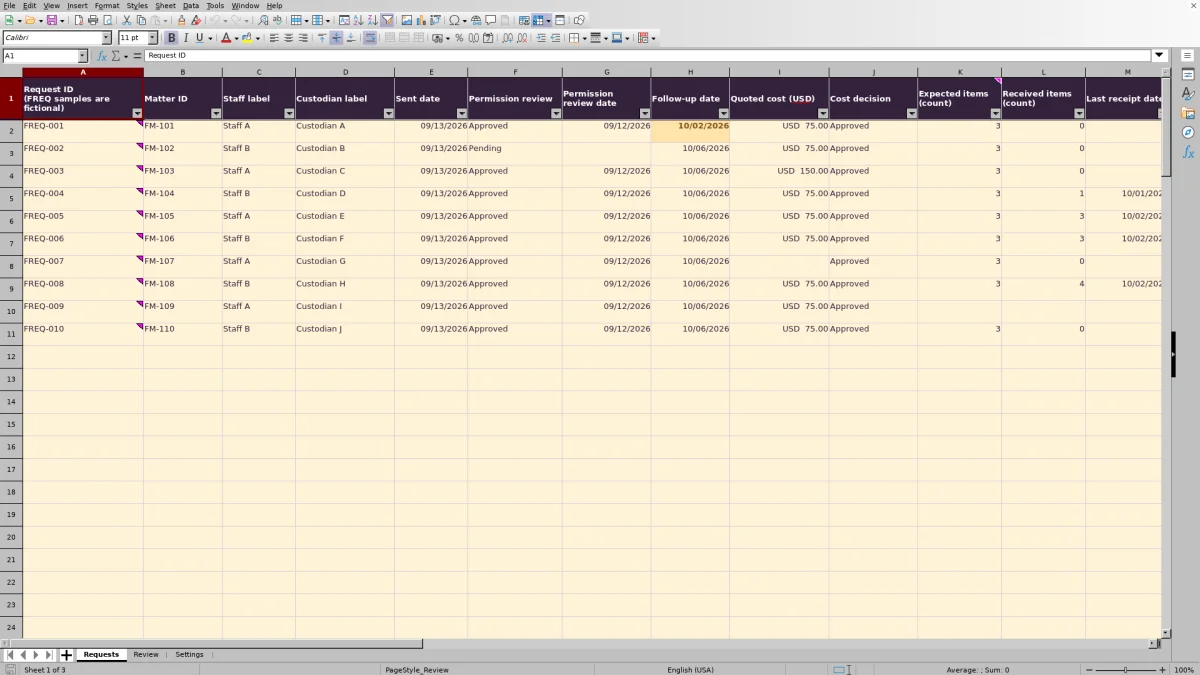
Requests rows 2–11 contain fictional examples; rows 12–101 are available for firm entries. Before relying on firm totals, clear or replace the sample inputs in columns A–O. Keep the formulas in columns P–U. All cells are unprotected, so save a clean copy before editing.
3. Record each request and its decisions
Use one row per request to one custodian for one matter. Enter a unique request ID, a Matter ID, staff and custodian labels, and the Sent date. Record Permission review with its date, a staff-verified Follow-up date, Quoted cost (USD), and Cost decision. Use the provided dropdown choices where available and dates in MM/DD/YYYY format.
4. Update receipts and inspect the review
Enter Expected items (count), Received items (count), Last receipt date, Receipt review, and Request status. Check Review for attention counts, then use the filters on Requests to inspect the underlying rows. Correct missing or inconsistent inputs before using a status label to decide the next action.
Build a follow-up list for a specific review date
Start by confirming the Review date in Settings. The workbook uses that entered date—not a continually advancing current-date formula—to assess request age and follow-up timing. A saved file can therefore show an old snapshot until you update the setting.
For an Open request with a request ID, Follow-up check returns Due when the entered Follow-up date is on or before the review date. A later date returns Scheduled, while an empty follow-up date returns Date missing. Filter for both Due and Date missing: the first identifies dated follow-up work, while the second identifies a scheduling gap you must resolve.
Days open (calendar days) measures elapsed calendar days from Sent date to the review date. The open-age threshold controls an attention highlight; it is not a response deadline. Supply and independently verify all dates. The workbook does not interpret court rules or calculate court deadlines, and a Due label is a worksheet flag rather than a delivered reminder.
Practical example: decide what to do with an open request
The prefilled record FREQ-001 is fictional, as are matter FM-101, Staff A, and Custodian A. It shows a Sent date of 09/13/2026, a Follow-up date of 10/02/2026, and Request status set to Open. With the fictional sample Review date of 10/03/2026, the elapsed time is 20 calendar days, and Follow-up check returns Due.
The same record has 3 expected items and 0 received items. Subtracting received from expected gives 3 missing items. Because Receipt review is Pending, Receipt check returns Outstanding. This identifies a request with no recorded receipts, not a conclusion about whether the custodian has actually sent anything.
Its USD 75.00 quote has Cost decision set to Approved. Against the illustrative USD 100.00 quote-review threshold, Cost check returns Reviewed. Permission review is Approved with a review date entered, so Permission check also returns Reviewed.
The next administrative action is to check the correspondence and receipt location, then follow up with the custodian if the record remains current. Update the receipt fields or the next follow-up date from what you verify. The permission and cost labels do not resolve the outstanding records request.
Record permission review without treating a label as authorization
Use Permission review to record the decision reached through your firm's process. Its choices are Pending, Approved, Not required, and Hold. Permission review date records when that review occurred.
For an Open request with a request ID, Permission check returns Reviewed only when Permission review is Approved or Not required and the review date is nonblank. Otherwise it returns Review needed. Selecting Approved without entering a date leaves an administrative gap.
Reviewed is a formula label, not an authorization decision. The workbook does not examine a release, determine whether permission is legally sufficient, or establish that the date is appropriate. Confirm the supporting material through your firm's normal process before entering the result. Keep privileged narratives and supporting documents outside this log; use matter IDs and administrative labels to locate the relevant record.
Separate quoted costs from approval and actual spending
Enter the custodian's estimate in Quoted cost (USD), then record Pending, Approved, or Declined in Cost decision. For Open requests, a blank quote produces Quote missing. When a quote is present, a Declined decision produces Declined. Otherwise, an unapproved quote or a quote at or above the firm-set threshold produces Review needed.
An approved quote at the threshold still remains flagged. This is intentional: approval and the amount-based attention rule are separate inputs. Do not lower the threshold merely to remove a flag. Instead, use the row to confirm the amount and the firm's intended next action.
On Review, Known quotes total (USD) adds numeric quotes across all request statuses, including Closed and Cancelled. It is an estimate total—not spending, invoiced charges, payments received, or a funds transaction record. Quote-entry count shows how many numeric quotes contribute, including zero-dollar quotes.
If no numeric quotes are entered, the total is blank. If a confirmed no-charge request is entered as zero, that is a known quote and is counted. Leave an unknown quote blank rather than entering zero to make the row look complete.
Check receipt counts before marking a request complete
Agree on what one requested item means before entering counts. For example, count distinct requested record categories consistently rather than switching between categories, documents, and pages. The workbook stores aggregate counts; keep the item-by-item checklist in the appropriate matter record.
Missing items (count) subtracts received items from expected items, with a minimum result of zero. Zero missing items does not establish completeness. If received items exceed expectations, the missing count is still zero, but Receipt check returns Count mismatch. Investigate a counting error, duplicates, or a changed request scope before revising either count.
- Missing either count produces Not assessed.
- Fewer received items than expected produces Outstanding, unless Receipt review is Complete, which produces Review mismatch.
- Equal counts produce Review required until Receipt review is Complete; with Complete selected, the label becomes Verified complete.
Verified complete reflects matching entered counts and your recorded review. It does not inspect the records or determine legal sufficiency. Check the actual materials and Last receipt date before relying on that label.
Closed requests retain receipt checks, so changing status does not erase a discrepancy. Cancelled requests are excluded from receipt checks. Also note that Receipt discrepancies on Review counts Count mismatch and Review mismatch—not every outstanding or unreviewed receipt.
Troubleshooting blanks, unexpected flags, and missing totals
When a result looks wrong, check the input and status that control it before editing a formula. Requests columns P–U calculate the checks; replacing a result with typed text hides the logic rather than fixing the record.
- A check is unexpectedly blank: confirm that the request ID is present. Age, follow-up, permission, and cost checks apply only to Open requests. Receipt checks exclude Cancelled requests, and the missing-item calculation also needs both counts.
- Days open is blank on an Open request: inspect Sent date and the Settings Review date. Either may be missing, or Sent date may be later than the review date. Correct the source date rather than treating the blank as zero days.
- An approved cost still needs review: compare the quote with the threshold. Quotes at or above that amount remain flagged after approval.
- A receipt looks complete but lacks a date: inspect Last receipt date separately. The receipt-status formula uses counts and Receipt review, so its text alone does not establish that every supporting field is filled in.
- Review totals contain unfamiliar entries: check whether the fictional samples remain. The summary counts current worksheet entries; filtering Requests does not limit those formulas to visible rows.
- A new row is absent from the summary: the supplied calculation and review ranges end at row 101. Do not assume entries below that row are included.
Before a handoff, also inspect duplicate request IDs and highlighted date or age cells. Validation and formatting assist entry and review, but they do not replace checking the underlying correspondence and records.
Compare this log with a blank spreadsheet
A blank spreadsheet can be a reasonable choice for a short, simple list. This workbook provides a defined review structure when your firm wants to track permission, quoted cost, and receipt completeness alongside follow-up dates.
| Method | Follow-up review | Receipt assessment | Setup and upkeep |
|---|---|---|---|
| Law Firm Sheets records request log | Entered review date drives Due, Scheduled, and Date missing checks for Open requests. | Compares entered counts and a receipt-review choice; flags count and review mismatches. | Includes preset fields, validation, filters, and summaries through row 101. Staff must maintain inputs and preserve formulas. |
| Blank spreadsheet | Staff read dates manually unless someone builds comparable calculations. | Staff design the count and review fields, then reconcile them manually or add formulas. | Starts without a fixed structure. Staff choose the layout and build any validation or summary they need. |
Choose this workbook if its one-request-per-row structure and snapshot review fit your process. Choose a blank sheet if you need only a minimal list or substantially different fields and can maintain your own checks. Neither approach, by itself, verifies permission, examines received documents, or performs professional review.
Frequently asked questions
How many requests can I enter in the supplied workbook?
The supplied range has 100 request rows, from rows 2–101. Ten contain fictional samples, leaving 90 unused rows initially. You can reuse the sample rows by clearing or replacing their inputs while preserving columns P–U. Expanding beyond row 101 requires extending and testing formulas, validation, formatting, filters, and Review ranges.
Can I change the staff labels and dropdown choices?
The lists are on Settings. The Staff label dropdown points to H2:H3, so you can replace those two fictional labels. Adding more staff requires adjusting the validation range. Keep the permission, cost, receipt, and status wording unless you also revise and test the dependent formulas; those formulas look for specific choices such as Open and Complete.
Does entering Complete close the request?
No. Receipt review and Request status are separate input fields. Selecting Complete does not change Request status to Closed. Confirm the receipt review and any remaining administrative action before changing the status under your firm's process.
What should I do when another staff member takes over?
Review the open rows together, confirm the Staff label, and agree on the next follow-up action outside the workbook. Save a dated copy if your firm's procedures call for one. Do not treat changing a label or saving the file as a notification or an automatic history of prior entries.
Should I store the requested records or detailed matter narratives here?
Use this workbook as an administrative log of requests, counts, dates, and recorded decisions. Keep the actual records, detailed item checklist, and supporting permission materials in your firm's approved matter-record location. Use matter IDs and concise labels in the log rather than client identities or privileged narratives.
Editorial coverage

Audra PembrokeBilling and finance content

Graham ElleryPractice administration content