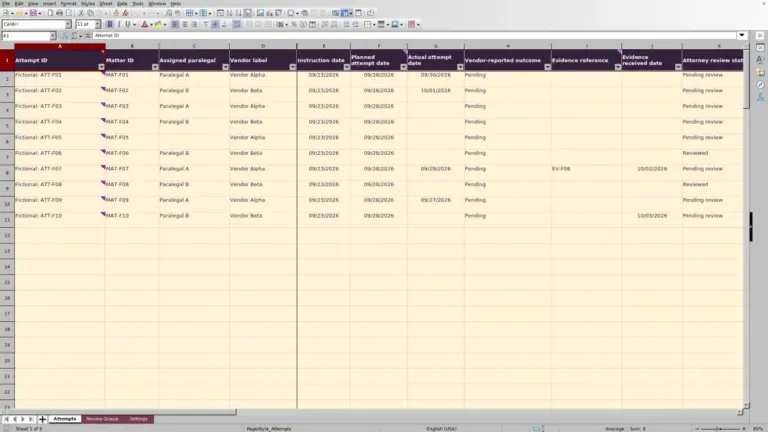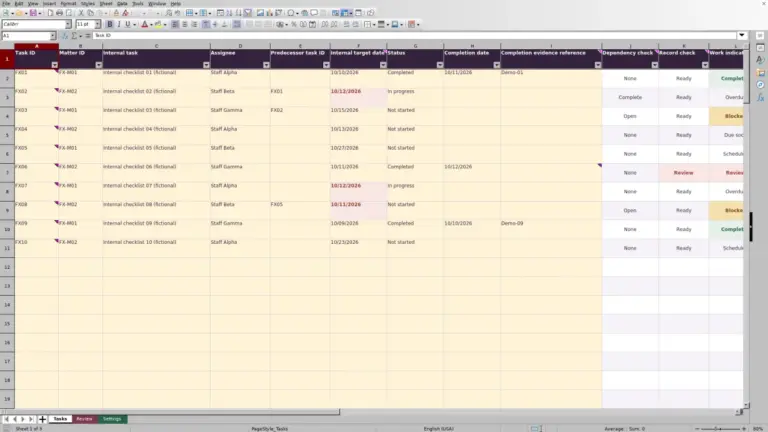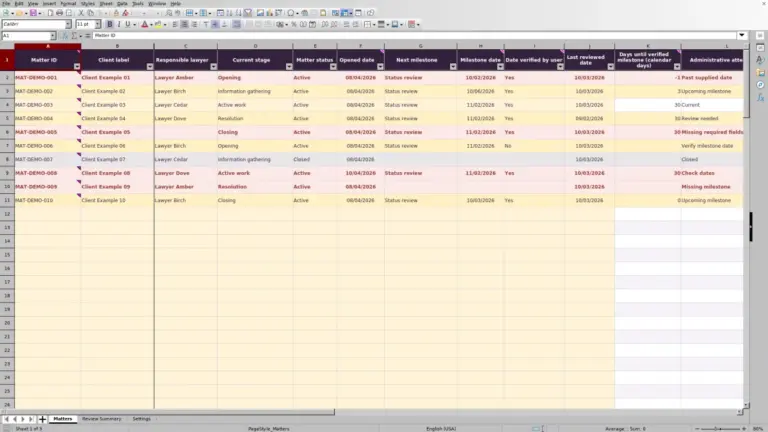
When research work moves from a requesting lawyer to an assignee and then a reviewer, keep the expected deliverable visible. The Law Firm Sheets legal research request register is an Excel workbook for recording assignments, target dates, delivery, and review status.
Use it to prepare a work review and identify requests needing follow-up. This is an administrative record, not a research service: it does not answer legal questions or judge whether a research output is sufficient.
Where this workbook helps
- Keep each research request, assignee, and expected deliverable together for a clearer handoff.
- Separate work needing delivery attention from requests already awaiting review.
- Use calendar-day ages to discuss how long recorded work has remained open or in review.
- Identify missing details and duplicate request IDs before relying on summary counts.
What is in the file
How to get started
1. Set the reporting assumptions
On Settings, enter the Reporting date, Due-soon window (calendar days), and Review attention threshold (calendar days). Use firm-selected thresholds. The reporting date is editable rather than a continuously advancing clock.
2. Remove the fictional examples
The workbook contains ten fictional sample requests. Replace or clear their inputs before using the summary for your own work. Preserve the calculated columns M:P on Research Register; the cells are unprotected.
3. Enter one request and deliverable per row
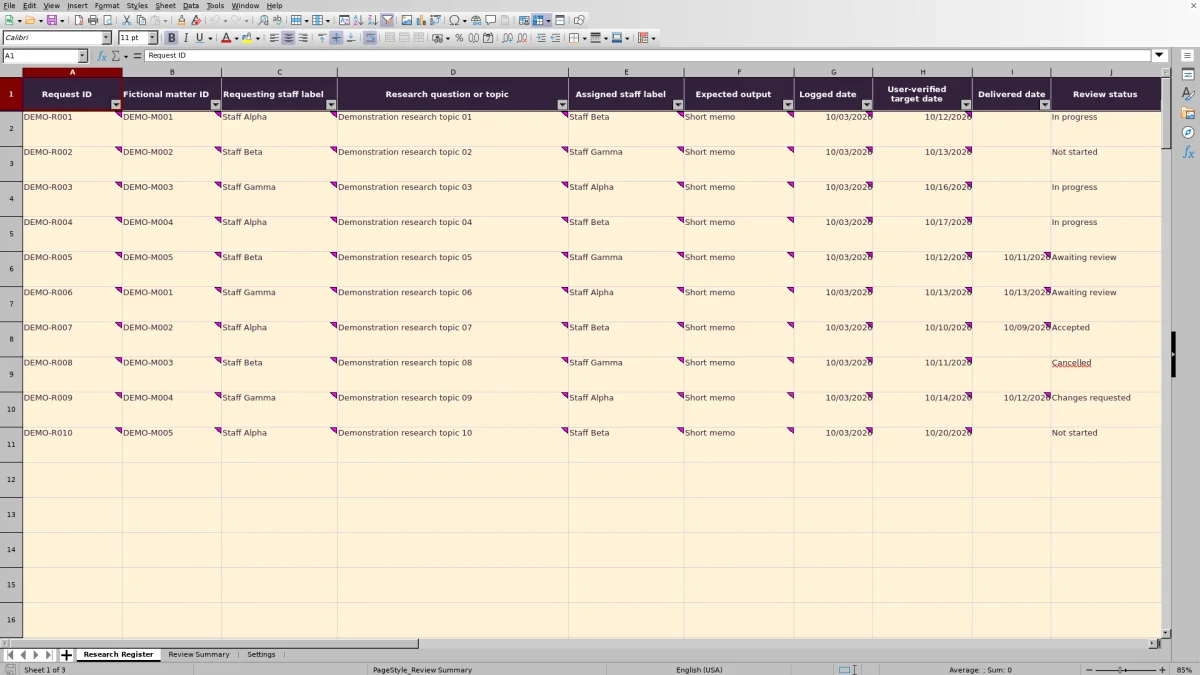
On Research Register, complete Request ID, Fictional matter ID, Requesting staff label, Research question or topic, Assigned staff label, Expected output, Logged date, User-verified target date, and Review status. Use the provided dropdown choices where available and enter dates in MM/DD/YYYY format. Keep topics brief and avoid client identities or privileged narratives.
4. Record delivery and review, then check the summary
When an output is delivered, enter Delivered date and Reviewing staff label, and update Review status to reflect the actual handoff. Record Reviewed date when review occurs. Inspect Record check, then use Research Register filters and Review Summary to decide which requests need follow-up.
Define the deliverable before assigning the request
A research topic alone may not tell the assignee what to return. Use Research question or topic to state the bounded task, then choose an Expected output such as Short memo, Source list, or Issue outline. These are the workbook’s supplied output choices.
Keep one request and one expected deliverable per row. If a matter needs separately assigned or separately reviewed outputs, use separate request IDs so each row can carry its own dates and status. Reuse the appropriate fictional matter ID to associate those requests without adding client identities.
Requesting staff label, Assigned staff label, and Reviewing staff label serve different purposes. Confirm who is doing the work and who will assess it rather than assuming the requester fills both roles. The register records those assignments; staff still need to communicate the scope and handoff outside the file.
Fictional example: interpret an overdue research request
The supplied fictional request DEMO-R001 concerns fictional matter DEMO-M001. Staff Alpha requests a Short memo from Staff Beta. Its Logged date is 10/03/2026, its User-verified target date is 10/12/2026, and its Review status is In progress.
With the Reporting date set to 10/13/2026, Open age (calendar days) is 10 calendar days: the reporting date minus the logged date. Target attention is Overdue because the target precedes the reporting date and the request is neither closed nor awaiting review.
The age measures elapsed time since logging, not hours worked or the length of the delay. The target is one calendar day before the reporting date. The next action is to ask the assignee about delivery and confirm whether the recorded status is current—not to infer that ten days of work were performed.
Read target attention without confusing it with a deadline system
For populated requests that are not Accepted, Cancelled, or Awaiting review, Target attention compares the User-verified target date with the Reporting date. Earlier targets are Overdue. Targets from the reporting date through the end of the due-soon window are Due soon, including both boundaries. Later targets are Later.
Status takes priority over target timing. Accepted and Cancelled produce Closed. Awaiting review produces In review, so a delivered request in that status is not included in the summary’s overdue or due-soon counts even if its target has passed. Review that queue separately.
The comparisons use calendar days, not business days. Supply and independently verify target dates; the workbook does not calculate court-rule deadlines. These labels support an internal work review, not a reminder or calendaring service. Update the Reporting date before relying on the current attention labels.
Manage the handoff from delivery to recorded review
Delivery and acceptance are separate events. When you record Awaiting review, also enter Delivered date and Reviewing staff label. Record check flags an awaiting-review row that lacks either of those details.
Awaiting-review age (calendar days) measures the interval from delivery to the reporting date only while Review status is Awaiting review. A numeric age meeting or exceeding the Review attention threshold (calendar days) is highlighted in amber. Use that signal to discuss the review queue with the designated reviewer.
Recorded status is not verified acceptance. Review Summary counts requests marked Awaiting review without establishing that delivery actually occurred. A reviewer must assess the output, and a user must record the resulting status and Reviewed date. If changes are needed, Changes requested is an available status; it returns the request to target-based attention rather than continuing the awaiting-review age.
When responsibility changes, communicate the handoff and update the relevant staff label. Saving a new label should not be treated as notifying the assignee or reviewer.
Troubleshooting missing ages, date alerts, and duplicate IDs
Start with Record check before interpreting an apparently quiet register. Its alerts identify issues such as duplicate IDs, missing fields, invalid choices, invalid dates, and listed chronology problems. They prompt correction; they do not establish the quality of the research.
- Duplicate request ID: Determine whether two rows describe the same request or separate deliverables. Remove an accidental duplicate or assign distinct IDs. Duplicate IDs count as separate rows in the summary.
- Missing required fields: Complete the request ID, fields from Fictional matter ID through User-verified target date, and Review status. A partially entered row can leave attention results blank.
- Check dates or Check dates or settings: Re-enter dates as actual Excel dates rather than text, and inspect the reporting date and applicable threshold on Settings. Use nonnegative whole calendar days for thresholds.
- Blank age: Check the status and dates before assuming no time has elapsed. Open age is blank for Accepted and Cancelled, missing required calculation inputs, or a logged date after the reporting date. Awaiting-review age is blank outside Awaiting review, with missing inputs, or when delivery is after the reporting date.
A numeric zero has a different meaning from a blank. With valid inputs, zero age means the relevant logged or delivered date equals the reporting date. If calculated results disappear after editing, inspect columns M:P for overwritten formulas and restore them from an intact copy before relying on the file.
Use the summary as a workload snapshot, not a completeness check
Review Summary helps you choose where to look next. Logged requests counts rows with nonblank text request IDs, including Accepted and Cancelled requests. It is not a count of open work. Use text-based identifiers with a prefix rather than numeric-only IDs so those rows are included as intended.
Read the overdue, due-soon, and awaiting-review measures alongside the register. A low overdue count can coexist with a substantial review queue because requests marked Awaiting review are excluded from overdue attention. Filter Research Register by Assigned staff label, Review status, or Target attention to inspect the underlying rows.
The prepared range ends at row 101. Formulas, register validation, and summary references cover rows 2–101. Do not assume a request added beneath that range is included. Before expanding the workbook, arrange for its formulas, validation, formatting, filter range, and summary references to be extended and tested together.
The original summary includes the fictional sample rows until their inputs are replaced or removed. Clear sample inputs without clearing the calculated columns, then review the resulting counts before distributing a workload snapshot.
Compare this register with a blank spreadsheet
Both approaches can support a small firm’s research handoff when someone owns the record and keeps it current. The choice depends on whether the supplied structure matches your process.
| Method | Assignment and review structure | Attention and reporting | Maintenance responsibility |
|---|---|---|---|
| Law Firm Sheets research register | Prepared fields for requester, assignee, output, delivery, reviewer, and recorded status. | Calendar-day ages, target labels, record checks, and four request counts within the prepared range. | Users maintain inputs and reporting assumptions, preserve formulas, and test any range expansion. |
| Blank spreadsheet | Your firm defines the columns, status terms, and handoff conventions. | Users inspect records manually unless someone builds and tests formulas, checks, and summaries. | Your firm designs and maintains the structure and any calculation ranges it adds. |
Choose the prepared register if its one-deliverable-per-row structure and fixed starting capacity fit your review process. A blank spreadsheet may suit a materially different process if someone can define and test it. Neither approach replaces communication with staff or a lawyer’s assessment of the research.
Frequently asked questions
Does Law Firm Sheets conduct or review the legal research?
No. Law Firm Sheets is an administrative Excel library, not a law firm or practice management service. This workbook records research requests and users’ review entries. It does not provide legal answers, assess sources, or perform professional review.
Can I change the staff labels and output choices?
The dropdown source lists are on Settings. The supplied staff list occupies E2:E4, fictional matter IDs occupy F2:F6, and expected outputs occupy G2:G4. If you need more entries than those ranges hold, update and test the corresponding validation ranges; adding a value below a list does not automatically extend its dropdown reference.
Keep the supplied Review statuses unless the dependent formulas are also revised and tested. Calculations use specific status text, including Accepted, Cancelled, and Awaiting review.
Does changing the reporting date show the historical status of each request?
No. Changing Reporting date recalculates attention and ages against the entries currently in the register. It does not reconstruct earlier assignments or statuses. If you need a dated snapshot, save a separate copy under your firm’s recordkeeping procedure before making later changes.
Can the workbook track multiple rounds of revision?
It includes Changes requested as a status, but each row has only one Delivered date and one Reviewed date. Do not treat it as a detailed revision history. Keep any required version history with the deliverable under your firm’s document procedures, and agree on what those date fields will represent before replacing earlier entries.
Will accepting a request remove it from the register?
No. Accepted makes Target attention show Closed and leaves Open age blank, but the row remains in the register. A row with a text request ID still contributes to Logged requests. Use the status filter when you want to distinguish closed records from work that still needs attention.
Editorial coverage

Audra PembrokeBilling and finance content

Graham ElleryPractice administration content