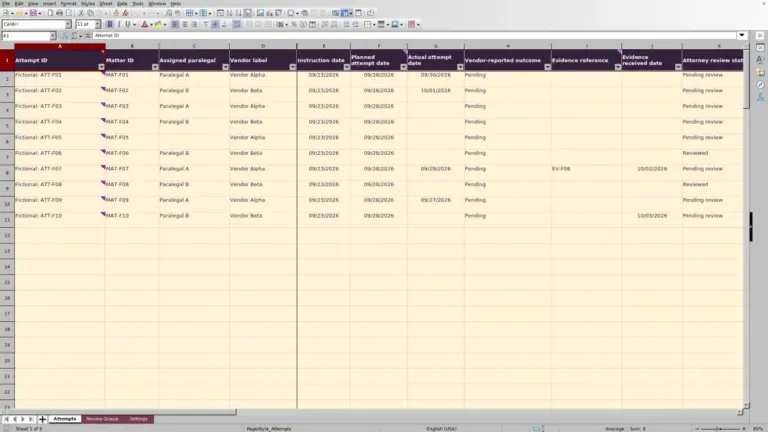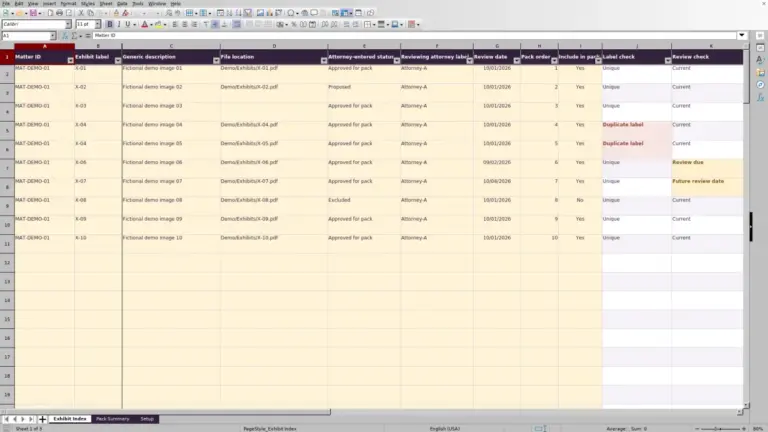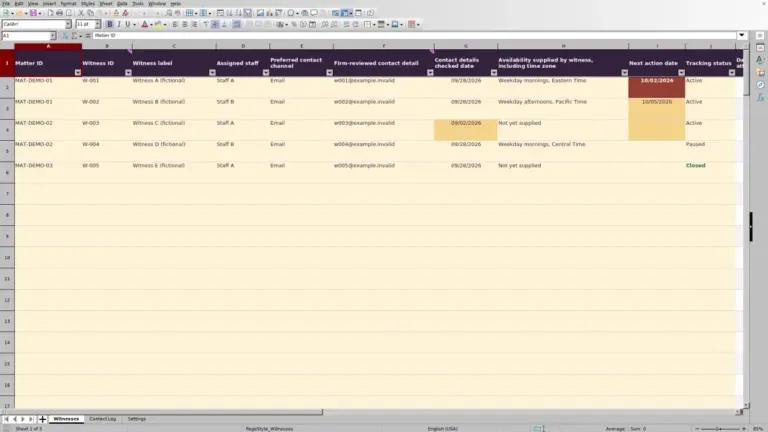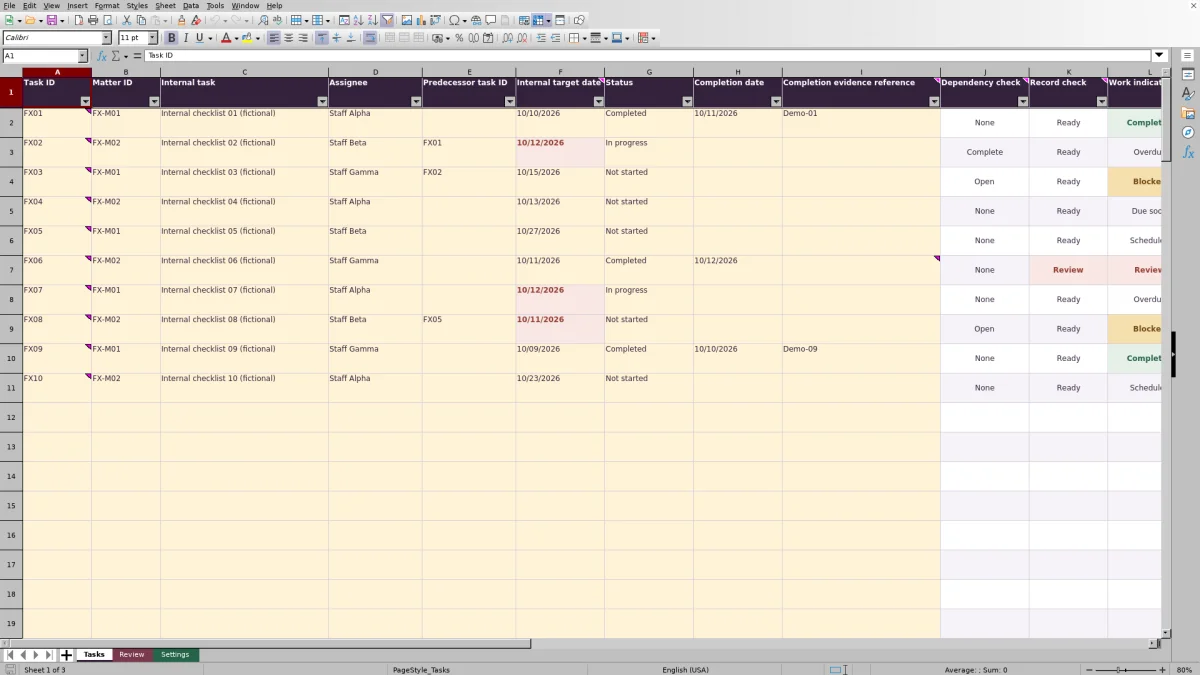
When one matter task depends on another, review who owns the next action and what still needs to be finished. The Law Firm Sheets matter task tracker is an Excel workbook for recording internal assignments, dependencies, and completion references so you can coordinate that review.
Use its work indicators to identify records needing attention, blocked tasks, and approaching internal targets. Dates are supplied and verified by your firm, not calculated from court rules. Law Firm Sheets is an administrative Excel library, not a law firm, legal advice provider, or practice management service.
Where this workbook helps
- Keep each internal task tied to a matter ID and assignee for assignment and handoff discussions.
- Identify unfinished work that depends on a predecessor without recorded completion.
- Bring missing required fields and inconsistent completion entries into the review queue.
- Review internal target dates against a firm-selected date and look-ahead period.
What is in the file
How to get started
1. Open a working copy and recalculate
Open the workbook in Excel or LibreOffice and recalculate before relying on its indicators or counts. The generated formulas have no cached results. All seeded tasks, staff labels, matter IDs, and evidence references are fictional; inspect them in a test copy before preparing your working file.
2. Set your review assumptions and choices
In Settings, enter the Review date in B2 and the Look-ahead period (calendar days) in B3. Replace the fictional assignee choices in D2:D4 and matter choices in H2:H3 as needed. Keep the three Status choices unchanged because the formulas depend on their wording.
3. Enter assignments and predecessors
In Tasks, use columns A:I for inputs. Enter a unique Task ID, Matter ID, Internal task, Assignee, Internal target date, and Status. Enter a predecessor task first, then put its ID in Predecessor task ID if the new task depends on it. Leave that field blank when there is no predecessor.
4. Record completion information
When work is completed, set Status to Completed and enter both a Completion date and a Completion evidence reference. Use a nonconfidential checklist or artifact reference rather than privileged content. Leave Completion date blank for unfinished work.
5. Review exceptions before discussing priorities
On Tasks, filter Work indicator to Review first. Correct those records, then inspect Blocked tasks and past target dates. Use Review for the summary counts and inspect completion evidence yourself. Preserve formula columns J:L; they are not protected against accidental edits.
Choose the date that drives your work review
Before deciding what needs attention, confirm the Review date in Settings. It is an editable assumption, not a live today-date formula. If you leave an earlier date in place, the workbook continues to classify tasks against that earlier review point.
For unfinished work with a Ready Record check and no invalid or open predecessor, a target before the review date is Overdue. A target from the review date through the end of the look-ahead period is Due soon; both boundary dates are included. Later targets are Scheduled. The look-ahead period uses calendar days, not business days.
Choose the period to fit your internal review routine. These labels help organize work; they do not establish legal urgency. Independently supply and verify any relevant deadlines through your firm's deadline process. This workbook does not interpret court rules or calculate filing deadlines.
Fictional example: move from dependency status to next action
The seeded records provide a concrete example. Fictional task FX02 belongs to matter FX-M02, is assigned to Staff Beta, and has Status set to In progress. Its predecessor is FX01, and its Internal target date is 10/12/2026. In Settings, the sample Review date is 10/13/2026 and the look-ahead period is 7 calendar days, ending on 10/20/2026.
Fictional predecessor FX01 is marked Completed with a Completion date of 10/11/2026 and the evidence reference Demo-01. Assuming those inputs and the formulas remain unchanged, recalculation should produce Complete for FX02's Dependency check, Ready for its Record check, and Overdue for its Work indicator. These results follow from the supplied formulas; confirm them in the recalculated workbook rather than treating them as previously tested results.
The interpretation is narrow: the predecessor has the required completion entries, FX02 has the fields checked by the record formula, and its target is before the review date. It does not mean anyone verified Demo-01 or approved the underlying work. The next action is to confirm the predecessor evidence and ask the assignee about FX02's status or target. Because the sample predecessor belongs to a different matter, also confirm that the cross-matter link is intentional.
Check dependencies without treating them as approval
Use Predecessor task ID to record one immediate predecessor per task. Dependency check returns None when the field is blank. It returns Invalid for a self-reference or when the entered predecessor ID does not match exactly one Task ID in the prepared range.
A valid predecessor is Complete only when its Status is Completed, its Completion date is a positive date value, and its Completion evidence reference is nonblank. Otherwise, the dependency is Open. An unfinished task with an Open dependency is classified as Blocked once the other record checks pass.
Inspect the linked task before changing the assignment sequence. The formulas do not detect multi-task dependency cycles or decide whether cross-matter links are appropriate. A task marked Completed can also receive a Completed work indicator despite an Open predecessor, so inspect Dependency check separately when reviewing completion. Dependencies never automatically complete another task or shift its target date.
Keep completion entries meaningful
Use Status, Completion date, and Completion evidence reference together. Marking a task Completed without either of the two completion fields causes a Review result. Recording a Completion date while leaving Status as Not started or In progress also causes Review.
A recorded reference is not verified evidence. The workbook checks whether the evidence field contains an entry; it does not open the referenced artifact, assess its contents, or decide whether the task met your firm's requirements. A responsible staff member or supervising lawyer must make that determination outside the formula.
Use a reference that an authorized reviewer can locate in your firm's existing records. Keep confidential narratives out of the task description and evidence field. For a handoff, confirm that the incoming assignee can find the referenced material and understands the next action; changing the assignee cell is only a record update.
Read the summary without overlooking blocked work
Start with Records needing review on Review, then inspect the underlying rows on Tasks. Entered records counts any prepared row with an input in columns A:I, including incomplete rows. It is a record count, not a count of valid assignments or distinct matters.
The Work indicator applies a priority order: Review first, then Completed, Blocked, Overdue, Due soon, and Scheduled. This matters because an unfinished task can be both blocked and past its target but appear only as Blocked in that main classification.
Use Overdue including blocked to see the separate count of unfinished, record-ready tasks with valid dependencies and past target dates, including blocked tasks. Do not add this overlapping count to the main categories. A zero in Overdue does not establish that no blocked task has a past target, and records needing review may still require urgent attention.
The sample totals printed in the workbook are acceptance criteria, not proof of tested results. Recalculate and inspect the inputs before relying on the summary for an assignment meeting.
Troubleshooting missing, invalid, or unexpected indicators
- Review appears instead of a date category: Check for a missing or duplicate Task ID, missing required assignment fields, and inconsistent completion entries. Also inspect Dependency check for Invalid. Correct the inputs rather than replacing the formula result.
- A predecessor is Invalid: Confirm that the predecessor exists exactly once within Tasks rows 2:101 and is not the task's own ID. If you rename a Task ID, check the dependent rows for the old reference.
- A completed predecessor still appears Open: Confirm the exact Completed status label, a valid positive Completion date, and a nonblank Completion evidence reference. Do not use placeholders merely to clear the indicator.
- Pasted data behaves unexpectedly: Pasting can bypass validation. Inspect IDs, dropdown choices, dates, evidence references, and dependencies after importing or copying entries. Enter actual spreadsheet dates, displayed as MM/DD/YYYY, rather than date-like text.
- Unused rows have blank indicators: This is expected when all input cells A:I are empty. A partial entry should trigger a check; if it does not, inspect the formulas and recalculate.
Formula cells are unprotected. If a formula has been overwritten, restore it from an intact copy and check the affected row before using its results. In a test copy, follow the acceptance-check guidance in Settings, including checks near the middle and end of the prepared range.
Compare this tracker with a blank spreadsheet
A blank spreadsheet can work for a short list when one person consistently checks every entry. This workbook adds defined inputs and formula-based checks, but it still requires someone to maintain the records and decide what action to take.
| Method | Assignment setup | Dependency and completion review | Target-date review | Maintenance |
|---|---|---|---|---|
| Law Firm Sheets task tracker | Prepared fields, dropdowns, and 100 task rows. | Checks one predecessor and required completion entries; evidence and complex links need manual review. | Classifies work against a user-set review date and calendar-day window. | Requires current inputs, recalculation, and preservation of fixed formula and validation ranges. |
| Blank spreadsheet | You choose and build the columns and entry conventions. | You inspect relationships and evidence manually unless you add and maintain formulas. | You compare dates manually unless you create date checks. | You maintain the structure, review rules, and any formulas you introduce. |
Choose this tracker when its single-predecessor model and prepared capacity fit your internal assignment process. Choose a blank spreadsheet when the work is simple enough for manual checks or needs a substantially different structure. If reminders, multi-predecessor scheduling, or automatic history are required, assess a separate system against those requirements; do not assume this workbook provides them.
Frequently asked questions
Can I add more than 100 tasks?
The supplied formulas, validation, filter, and summary references cover Tasks rows 2:101. Entries below that range are not included in the existing setup. Extending the file requires updating and checking all affected ranges, not merely copying an input row.
How do I add more assignees or matter choices?
The dropdowns use fixed Settings ranges: D2:D4 for assignees and H2:H3 for matters. You can replace the existing choices, but adding entries below those ranges requires changing the corresponding validation sources on Tasks. Keep the status labels Not started, In progress, and Completed unchanged.
Does Ready mean the task is approved to begin?
No. Ready is a Record check result, not approval. It means the row passed the formula's required-field and completion-consistency checks. The task can still have a dependency issue, and the result does not verify the target date, task scope, or professional judgment needed to proceed.
Will an assignee receive a reminder or notification?
No reminder or notification capability is established for this workbook. Assignee and target-date entries support your review process, but you need to communicate assignments and follow-ups through your firm's existing channels.
Should I put client names and detailed matter notes in the tracker?
Use matter IDs and concise, nonconfidential internal task descriptions instead of client identities or privileged narratives. The seeded matter IDs and records are fictional. Completion evidence reference is intended for a reference to an artifact, not a copy of its confidential contents.
Editorial coverage

Audra PembrokeBilling and finance content

Graham ElleryPractice administration content