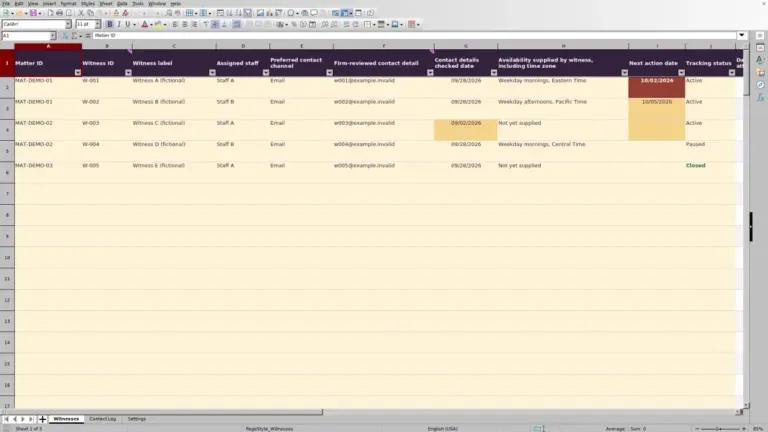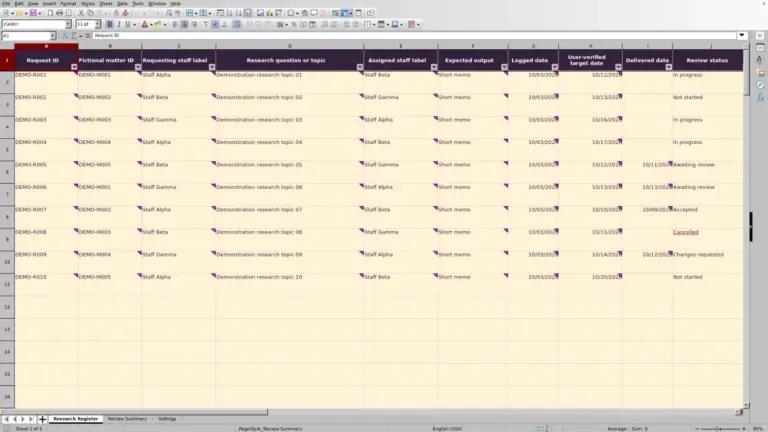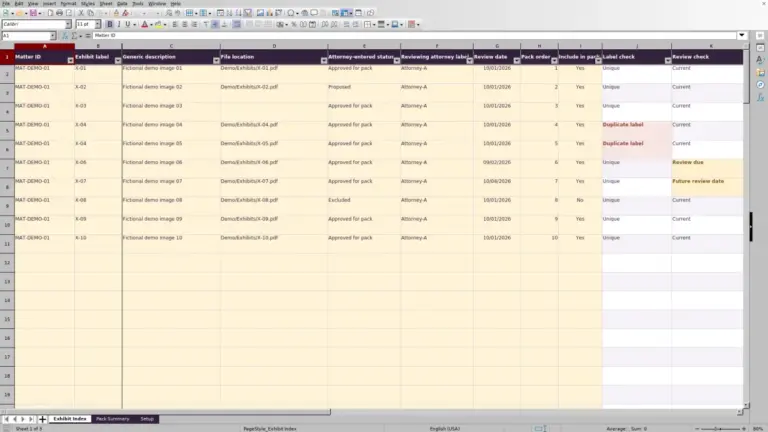
Before a matter review, bring ownership, stage and next-milestone information into one register. This Law Firm Sheets Excel workbook helps you maintain matter records and identify which entries need an administrative update, date verification or follow-up.
Use it to prepare a focused discussion with the responsible lawyer, not to replace the matter file or a deadline system. Law Firm Sheets is an administrative Excel library, not a law firm, legal advice provider or practice management service. The workbook includes fictional example records to replace before operational use.
Where this workbook helps
- Keep the responsible lawyer, current stage and next milestone together for each matter.
- Focus follow-up by filtering records by lawyer and administrative attention label.
- Spot incomplete records and date inconsistencies before relying on the register.
- Prepare a review using summary counts tied to a user-supplied as-of date.
What is in the file
How to get started
1. Set the review reference date
Open Settings and enter the As-of date in B2. Confirm the firm's approved Review threshold (calendar days) and Upcoming milestone window (calendar days) in B3 and B4. The reference date does not automatically advance.
2. Replace the fictional records
In Matters, replace the initial examples with your firm's administrative records. Use one row per matter within rows 2–101. Complete Matter ID, Client label, Responsible lawyer, Current stage, Matter status, Opened date and Last reviewed date. Use a concise approved client label rather than privileged narrative.
3. Enter the next milestone
Complete Next milestone and Milestone date for active matters. Record Yes in Date verified by user only after the supplied date has been independently checked under your firm's process. Enter actual dates displayed as MM/DD/YYYY, and use the available dropdowns for controlled values.
4. Recalculate and prepare follow-up
Open the workbook in Excel or LibreOffice to recalculate, then inspect Review Summary. In Matters, filter Administrative attention and Responsible lawyer to prepare your follow-up list. Preserve the formulas in columns K and L and on Review Summary; all cells are unprotected.
Choose review assumptions before interpreting flags
Set the review reference date before deciding which records need attention. Every milestone day count is measured against Settings B2, not automatically against today's date. A saved copy therefore reflects the reference date entered by the user; an old reference date can make the review appear more current than it is.
The initial Review threshold (calendar days) is 30. Review needed applies when elapsed calendar days since the last review exceed that threshold, provided no higher-priority label applies. Equality alone does not trigger that condition. The initial Upcoming milestone window (calendar days) is 7 and includes the reference date through that many days ahead.
These are firm-approved administrative assumptions, not legal defaults. Adjust them to the firm's review process. A shorter review threshold calls for more frequent status checks; it does not change any supplied milestone date.
Example: turn a supplied milestone into a follow-up decision
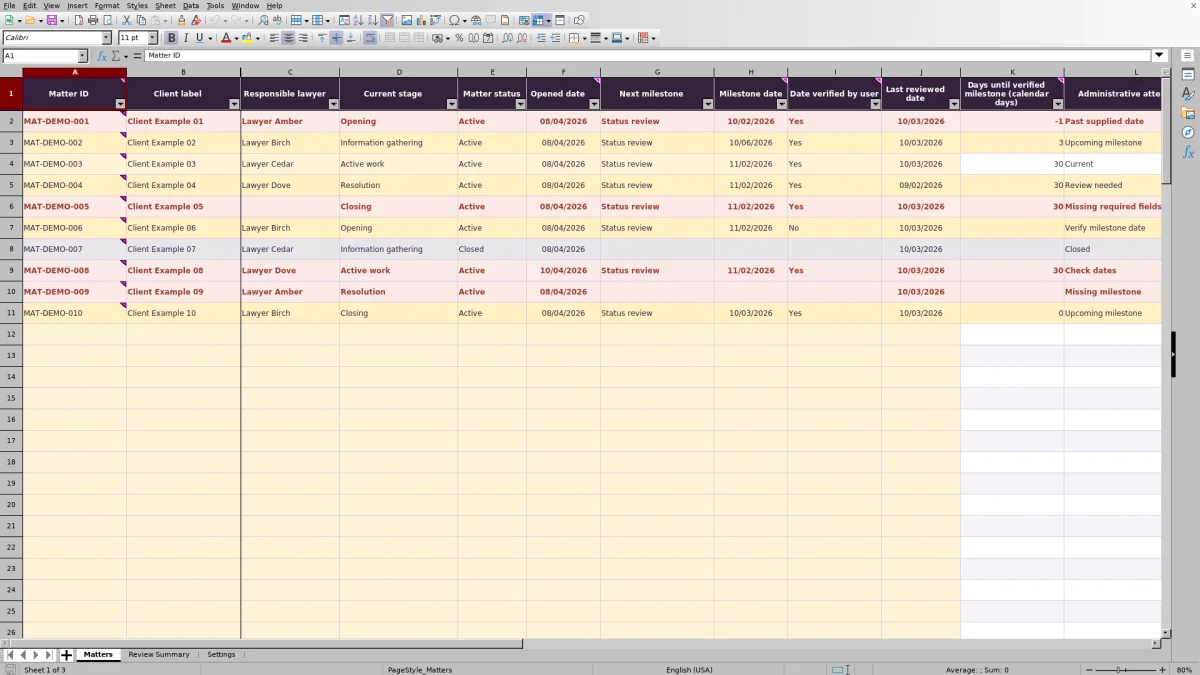
Use the fictional record MAT-DEMO-002 to understand the calculation. It is Active, its Next milestone is Status review, its Milestone date is 10/06/2026 and Date verified by user is Yes. Its required fields are complete, with an Opened date of 08/04/2026 and a Last reviewed date of 10/03/2026. The example As-of date is also 10/03/2026.
The calculation subtracts the reference date from the supplied milestone date: 10/06/2026 − 10/03/2026 = 3 calendar days. After recalculation, Days until verified milestone (calendar days) returns 3. With the initial upcoming window and no higher-priority issue, the record receives Upcoming milestone.
This result means the entered milestone is approaching relative to the review date. The next administrative action is to ask the responsible lawyer whether the status review is ready or whether the register needs an update. It is not a determination that a filing is due, and it does not send a reminder.
Read milestone day counts without treating them as deadlines
The Days until verified milestone (calendar days) field calculates only when the row has a Matter ID, Matter status is Active, Milestone date is present and Date verified by user is Yes. It subtracts the as-of date from the milestone date without adjusting for weekends or holidays.
A negative value means the supplied milestone date is before the reference date. Zero means the two dates are the same. A blank result is not zero and does not establish that no follow-up is needed: the matter may be closed, unidentified, missing a date or not marked as verified.
Verification is a user's record of a check, not a check performed by the workbook. All dates must be independently supplied and verified by the firm. The file does not interpret court rules or calculate legal deadlines. Also inspect Administrative attention: a numeric day count can appear even when other required information is missing or dates need correction.
Troubleshooting missing fields, dates and duplicate IDs
Administrative attention shows only the first applicable label. Fix that issue, recalculate and inspect the row again; another issue may then become visible. Use the text label rather than color alone.
- Missing required fields: Complete Matter ID, Client label, Responsible lawyer, Current stage, Matter status, Opened date and Last reviewed date. A partially completed record can need attention even without an ID.
- Check dates: Compare Opened date and Last reviewed date with the as-of date. Neither should be later than that reference date. Last reviewed date and any supplied Milestone date should not precede Opened date. Correct the source entry or review reference date as appropriate; do not change a valid date merely to remove a flag.
- Missing milestone: Supply both Next milestone and Milestone date for an active matter. Verify milestone date means the user verification field is not Yes; obtain the check before changing it.
- Duplicate IDs: Inspect Matter ID separately. Duplicate nonblank IDs are highlighted independently of the attention label, and the identified-matter count is not a unique-matter count. Resolve unintended duplicate records before using totals.
- Unexpected results after pasting: Inspect pasted dates and dropdown values. Pasting may bypass validation. Confirm that formulas in Matters columns K and L and Review Summary remain intact, then recalculate.
Use summary counts as a review queue, not a completeness score
Review Summary uses different counting rules for different questions. Identified matters counts nonblank IDs. Active matters and Closed matters count their respective status values, including incomplete records. Those totals may not reconcile when a status is present but an ID is missing, or an ID is present but a status is missing.
Check Populated records without IDs before distributing a matter count. Such records can appear among attention exceptions while remaining outside Identified matters. Actionable attention records adds the attention categories other than Closed and Current; it counts records, not every separate problem within them.
Current is not an approval. It means no higher-priority administrative attention label applies. A zero count in an exception category means no record currently displays that label, not that every possible underlying issue has been ruled out. Use individual column filters when you need to inspect conditions hidden by a higher-priority label.
Keep ownership and review dates meaningful during handoffs
When responsibility changes, update Responsible lawyer and check Current stage, Next milestone and Milestone date together. A reassignment without a milestone review can leave the new owner with an outdated next action. Filter the register by the new lawyer and discuss the outstanding attention labels before treating the handoff as complete.
Enter Last reviewed date to reflect an actual review, not simply the day someone opened or saved the file. Agree within the firm on what that administrative review covers. The workbook records the supplied date; it does not establish who approved the substance of the matter or preserve a review narrative.
Keep a dated copy if you need a snapshot at handoff, following the firm's storage policy. Editing Responsible lawyer does not notify the new owner, and saving the workbook does not create an automatic audit trail. Arrange acknowledgment through the firm's existing communication process.
Compare this workbook with a blank matter spreadsheet
A blank spreadsheet may be sufficient when you only need a short list and someone will inspect every row manually. This workbook adds a prepared structure for a recurring administrative review, but its calculations still depend on maintained inputs and a supplied reference date.
| Method | Record structure | Review checks | Summary preparation | Ongoing responsibility |
|---|---|---|---|---|
| Law Firm Sheets matter workbook | Prepared fields and 100 entry rows for one record per matter. | Date and required-field checks, duplicate-ID highlighting and prioritized attention labels. | Formula-based status and attention counts within the prepared range. | Supply and verify dates, update the as-of date, preserve formulas and arrange follow-up. |
| Blank spreadsheet with manual review | You choose and maintain the columns and row structure. | You inspect records manually or build and test your own checks. | You count records manually or create your own formulas. | Maintain both the register design and the review process. |
Choose this workbook if its matter-level fields and attention categories fit your regular review. Choose a blank sheet if a smaller or substantially different register is more appropriate and you can maintain its checks. Neither approach, as described here, supplies legal judgment, court-rule deadline calculation or reminder delivery.
Frequently asked questions
Can I use the initial records as live matters?
No. All 10 initial matter records, client labels and staff labels are fictional. Replace them before operational use, and check that no demonstration entries remain in the totals. Clear or replace input cells without deleting the prepared formulas.
Can I add more than 100 matters?
Rows 2–101 are prepared for 100 matter records. The summary formulas, validation and filter range use those fixed rows. Adding entries below them does not establish that they are included. Any expansion requires corresponding range and formula changes and independent testing before you rely on the results.
Can I change the lawyer and stage dropdown choices?
You can edit lawyer labels in Settings D2:D5 and stage labels in E2:E6. Review existing matter records after changing labels so older entries remain consistent. Keep Active, Closed, Yes and No unchanged because the formulas depend on those values. Adding choices outside the displayed list ranges requires changes to the validation setup.
What happens when a matter is marked Closed?
The milestone day-count field becomes blank, and Closed matters on Review Summary counts the status. However, Missing required fields or Check dates can take precedence over the Closed attention label. Marking a matter Closed does not establish that legal, financial or retention-related closing steps have been completed.
Does this workbook include billing or a detailed task list?
No. One record represents one matter with a next milestone, not a separate task, time entry, invoice or payment. The workbook does not provide billing, accounting, intake, conflict clearance or retention tracking. Keep those records in the firm's designated systems.
Editorial coverage

Audra PembrokeBilling and finance content

Graham ElleryPractice administration content