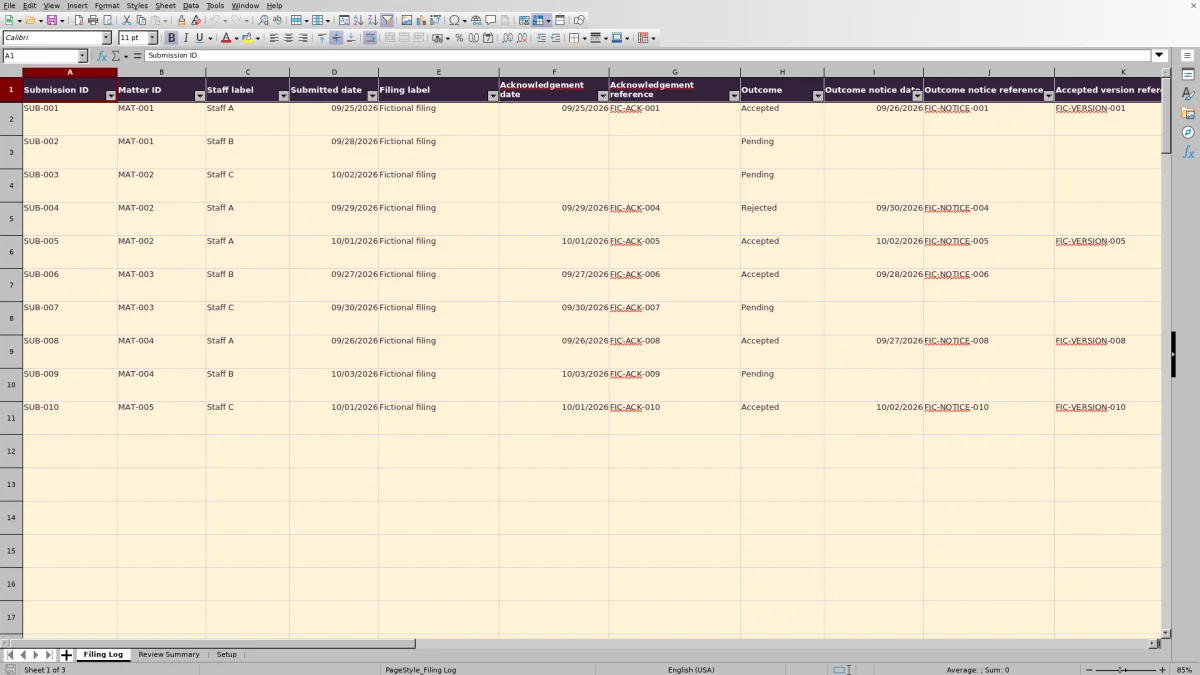
After a filing is submitted, match the submission record to its acknowledgement, outcome notice and accepted version. The Law Firm Sheets filing receipt log gives paralegals and supervising lawyers an Excel record for identifying missing evidence and deciding what needs follow-up.
Record each submission attempt separately, add internal document references and record the person's documentary review. The workbook organizes administrative follow-up; it does not determine whether a filing is legally effective or calculate court-rule deadlines.
Where this workbook helps
- Keep each submission attempt distinct so a resubmission does not erase the earlier record.
- Identify missing acknowledgement, outcome-notice or accepted-version information before closing documentary review.
- Use an internal review date and threshold to separate follow-up work from records that need monitoring.
- Check queue totals and rows missing submission IDs before handing off the review.
What is in the file
How to get started
1. Prepare the review settings
Save a working copy and replace the fictional sample records before operational use. On Setup, confirm Review date in B2 and obtain firm approval for Internal review threshold (whole days) in B3. The threshold is an administrative assumption, not a filing deadline. Adjust the staff labels in D2:D4 for your workflow.
2. Enter one submission attempt per row
Use Filing Log rows 2–101. Enter a unique Submission ID, Matter ID, Staff label, Submitted date, Filing label and Outcome. Use independently supplied, firm-verified dates in MM/DD/YYYY format. Keep descriptions administrative rather than including client identities or privileged narratives.
3. Match the supporting records
Add the acknowledgement date and reference, then the outcome notice date and reference when available. For an Accepted outcome, enter the Accepted version reference. Record Verified by and Verification date only after the person has performed the documentary review.
4. Recalculate and review exceptions
Recalculate the workbook in your spreadsheet application. On Review Summary, check the work queues, Queue reconciliation and Populated rows missing an ID. In Filing Log, filter Follow-up status and inspect Evidence status. Resolve red input alerts separately, and leave formula columns O–Q unchanged.
Match the evidence, not just the outcome label
A recorded Accepted outcome is not the same as a complete documentary record. In Filing Log, acknowledgement, outcome notice and accepted version are separate records. Enter each reference in its own field so the reviewer can locate the corresponding document in the firm's records.
Evidence status checks for missing information in a specific order. Missing core fields produce Incomplete record. Missing acknowledgement information, required outcome-notice information or an accepted-version reference produces Evidence missing. A Pending outcome with the required acknowledgement information shows Outcome pending. For a nonpending outcome, missing verifier information produces Review missing before the formula can show Complete evidence.
Use that result to choose the next administrative action. For example, an accepted filing with no Accepted version reference needs that reference located and recorded, not merely another confirmation that the Outcome field says Accepted. The formula checks populated fields; the reviewer must still compare the underlying documents.
Fictional example: a pending filing needs follow-up
Use the prefilled fictional record SUB-002 for matter MAT-001 to understand the age calculation. It has a Submitted date of 09/28/2026, an Outcome of Pending and no acknowledgement date or reference. For this example, set Review date to 10/02/2026 and use an approved internal threshold of 3 whole days.
The workbook subtracts the submission date from the review date: 10/02/2026 minus 09/28/2026 equals 4 days of age. This is elapsed calendar time as of the selected review date, not a court-rule calculation. With the core fields present, the missing acknowledgement produces Evidence missing. Because the unresolved record is at or above the internal threshold, its Follow-up status is Follow up.
The next action is to check the firm's submission records for the acknowledgement and record its date and internal reference if found. If it cannot be located, assign an administrative follow-up under the firm's procedure. Do not change the outcome or enter a receipt reference simply to remove the record from the queue.
Keep rejected attempts and resubmissions distinct
A rejection belongs to the original submission attempt. Record Rejected in Outcome and enter the outcome notice details when available. Rejections require a person's review even when the documentary fields are complete; the workbook does not decide how the filing should be corrected.
If a new submission is made, give it a new Submission ID and enter the earlier ID in Prior submission ID. This preserves the relationship without overwriting the rejected attempt. The prior-ID validation checks that the reference points to one existing submission ID and is not the current row's own ID.
For a fictional resubmission, SUB-011 might point to SUB-010. Keep the acknowledgement and outcome notice for each attempt on its own row. If the prior link is flagged, check for a typo, a duplicate earlier ID or a self-reference before proceeding. Pasting can bypass entry validation, so inspect the alert rather than assuming the link was accepted correctly.
Read the queues without double-counting work
Start on Review Summary to understand the size of the review, then return to Filing Log for the individual records. Follow up identifies unresolved records at or above the internal threshold; Monitor covers unresolved records below it. Review covers problems such as incomplete core data, unusable settings, a future submission date or a rejection. Closed indicates completed documentary matching under the workbook's criteria.
Open outcomes overlap the work queues. That count measures Pending outcomes; it is not an additional queue to add to Follow up, Review, Monitor and Closed. Queue total adds only those four queues, and Queue reconciliation compares that total with Submissions.
Counts match is an arithmetic check, not evidence that every input is valid. Check Populated rows missing an ID and Input alert review as well. A row without a Submission ID is excluded from submission and queue totals, while an invalid date or dropdown value can require attention independently of the count check.
Troubleshooting blanks, alerts and unexpected results
- A populated row has blank calculated results: check Submission ID first. The row formulas return blanks when that field is empty, and Review Summary reports populated rows missing an ID separately.
- Age (days) is blank even though an ID exists: confirm that Submitted date and Review date are valid Excel whole dates and that the submission is not later than the review date. Text that looks like a date or a value containing a time component can prevent the calculation. An age of zero, by contrast, can correctly mean submission and review occurred on the same date.
- A record shows Review unexpectedly: inspect core fields, the outcome, the review date and the threshold. The threshold must be a nonnegative whole number. Do not alter a verified event date merely to change a queue result.
- A red input alert remains after the queue appears resolved: check IDs, prior links, dates and dropdown values. Queue reconciliation does not replace this check.
- Totals appear stale or formulas are missing: recalculate in Excel or LibreOffice and check whether a formula was overwritten. Cells are not protected; restore damaged formulas from an unchanged copy before relying on the results.
For date-order issues, compare entries with the source records. Submission must be on or before review; acknowledgement and outcome dates must fall between submission and review. Verification should not precede the recorded events being verified.
Close documentary review and hand off unresolved work
Before treating a record as administratively closed, open the referenced records, confirm they belong to the same submission attempt and record the reviewer and verification date. Closed is not a legal-effectiveness finding. Verified by and Verification date record a person's review; they do not mean Law Firm Sheets or the workbook performed that review.
For unresolved work, use Administrative notes for a brief next action and an internal staff label. Keep the note factual, such as a request to locate an acknowledgement, without adding a privileged account of the matter. Confirm the assignment through the firm's usual communication process: filtering a queue sends no messages.
For a dated handoff, save a dated copy and confirm the Review date used for that review. Resolve input alerts even on records shown as Closed. A completed evidence status does not establish that a reference is accurate or that the person named actually completed the review.
Compare the workbook with a manual receipt checklist
A realistic alternative is to keep a paper checklist for each submission attempt, store the supporting documents in the firm's designated records location and review open checklists at a scheduled handoff. Compare that complete process with using the Law Firm Sheets workbook as the central receipt-review record. Both methods still require staff to locate and inspect the actual documents.
| Method | Matching submission evidence | Finding follow-up work | Review totals and handoff | Maintenance and limits |
|---|---|---|---|---|
| Law Firm Sheets filing receipt log workbook | Records each attempt with separate acknowledgement, outcome-notice, accepted-version and verification fields. Prior submission IDs connect related attempts. | Calculates age and evidence status, then assigns a work queue using entered information and firm-supplied review settings. Staff inspect alerts and source documents. | Calculates queue totals, checks their reconciliation and reports populated rows missing an ID. Staff communicate assignments separately; no messages are sent. | Prepared for 100 submission rows. Staff must preserve formulas, recalculate, maintain references and resolve input alerts. Documents remain outside the workbook. |
| Paper receipt checklists with separately stored documents | Staff write document references on each attempt's checklist and cross-reference any earlier attempt by hand. | Staff examine dates and unchecked items during each review, apply the firm's internal threshold and mark the next action manually. | Staff count open checklists, reconcile the list of attempts and prepare a handoff note or discuss assignments directly. | The firm must maintain the checklist set, keep references readable and ensure no open checklist is omitted from review. Documents remain in the designated records location. |
Choose the workbook when a central list, calculated ages and repeatable queue counts fit your receipt-review process within its prepared range. A manual checklist may be sufficient when the number of attempts is small and a designated person can reliably review every open record. Neither approach establishes legal effectiveness, and neither removes the need to compare the supporting documents or communicate unresolved work.
Frequently asked questions
Does the review date update automatically?
Setup B2 initially contains TODAY(), so its date can advance when the spreadsheet recalculates. You can replace it with a verified fixed date for an as-of review. Check the displayed Review date before interpreting ages or queues.
Can I use more than 100 submission rows?
The verified prepared range is Filing Log rows 2–101. Formulas, filters, alerts and totals cover those 100 rows. Do not assume entries below that range are included. Extending the workbook requires checking all affected formulas, validations, alerts and summary ranges before operational use.
Should I attach receipts or paste document links into the log?
The workbook's guidance calls for internal document identifiers, not embedded files or external links. Keep the source documents in the firm's designated records location and enter references that staff can use to find them. Avoid client names and confidential narratives in the log.
Are the prefilled records and initial counts actual filing results?
No. All 10 prefilled records, matter IDs, references and staff labels are fictional. The listed initial counts are expectations, not executed test results, and can change as TODAY() advances. Recalculate in Excel or LibreOffice, follow the external-check procedure on Setup and record actual results there before relying on the workbook.
Does Law Firm Sheets review filings or provide legal services?
No. Law Firm Sheets is an administrative Excel library, not a law firm, legal-advice provider or practice management service. Your firm supplies and verifies the information, performs the documentary review and determines any legal or filing-related action.
Editorial coverage

Audra PembrokeBilling and finance content

Graham ElleryPractice administration content