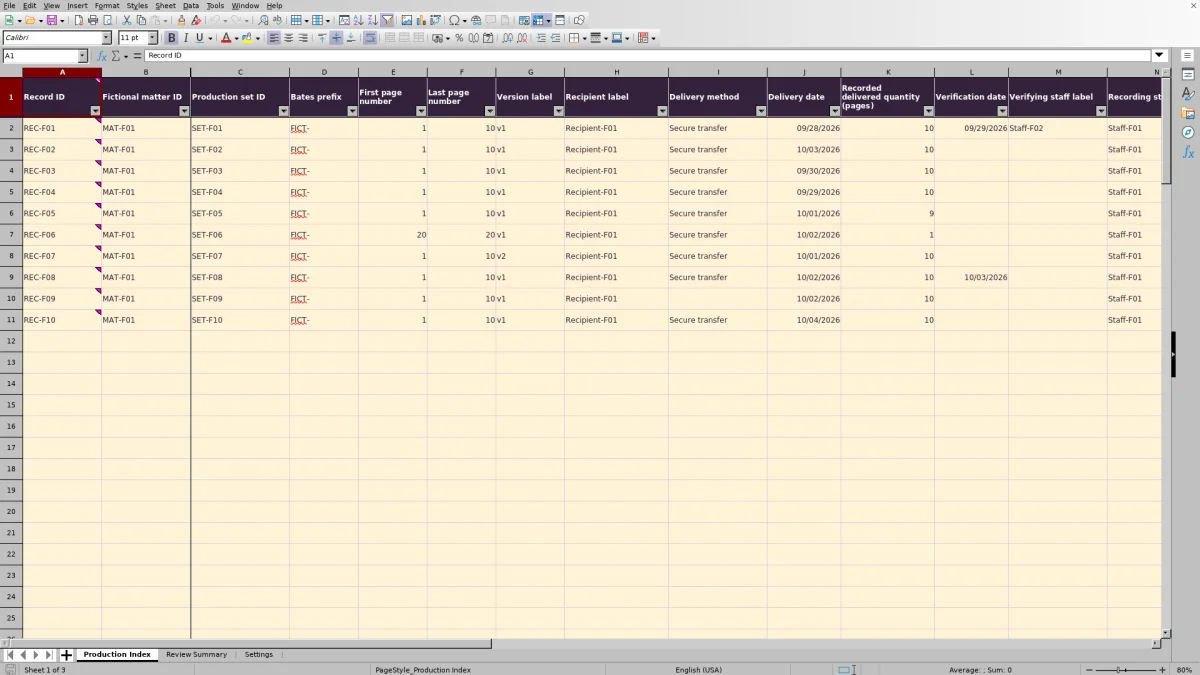
When a production set is delivered, record exactly which page range, version, and recipient belong to that delivery. The Law Firm Sheets document production index is an Excel workbook for reconciling delivery records against recorded page quantities.
Use it to identify missing details, range or date problems, and entries that still need review. It is an administrative record—not a discovery task list or a tool for determining whether a production is legally sufficient.
Where this workbook helps
- Keep separate recipients, versions, and redeliveries distinguishable during reconciliation.
- Compare the recorded delivered page quantity with the inclusive numbered range.
- Direct follow-up toward missing details, discrepancies, and unfinished verification records.
- Review delivery-record counts by status without treating repeated pages as unique production volume.
What is in the file
How to get started
1. Prepare the review settings
Save a working copy. On Settings, update Review as-of date and obtain firm approval for Review threshold (calendar days). Replace the fictional reference labels with approved non-identifying labels. The ten initial delivery records are fictional examples; remove their input values before operational use without deleting the formulas.
2. Enter one delivery record per range
On Production Index, enter a unique Record ID and complete the fields from Fictional matter ID through Recorded delivered quantity (pages), plus Recording staff label. Keep the Bates prefix separate from the numeric First page number and Last page number. Use separate rows for different recipients, versions, noncontiguous ranges, or redeliveries.
3. Reconcile the calculated results
Open and recalculate the workbook in Excel or LibreOffice. Compare Range quantity (pages) and Quantity difference (pages) with the delivery information. Follow Review status to address missing details, range errors, date errors, or page-count differences. Preserve formulas in columns O–Q; these cells are visually distinct but unprotected.
4. Record the check and review the summary
After a staff member checks the delivery information, enter Verification date and Verifying staff label. Use Review Summary to see the remaining status counts, then filter Production Index by Review status to find the records needing attention.
Choose the right unit for each delivery record
A row represents one contiguous numbered page range, in one version, sent to one recipient in one production event. This keeps the record specific enough to compare with the delivery information later.
For a fictional matter such as MAT-F02, a set sent to two recipients needs separate records. A revised version or a later redelivery also needs a separate record rather than an overwrite of the earlier event. Assign each row its own Record ID and use Production set ID to identify the applicable production event or set.
Bates numbering identifies pages using a prefix and numeric suffix. Enter the prefix in Bates prefix and only the numeric suffixes in First page number and Last page number. If the delivered material skips a numbered interval, split it into contiguous ranges. Otherwise, the inclusive range calculation would count the skipped pages as part of the range.
Fictional example: reconcile a delivered page range
The included fictional record REC-F01 uses matter MAT-F01, production set SET-F01, prefix FICT-, version v1, and recipient Recipient-F01. Its first page number is 1, its last page number is 10, and its recorded delivered quantity is 10 pages.
The range calculation includes both endpoints: last page number minus first page number plus one. These inputs therefore produce a Range quantity (pages) of 10. Subtracting that result from the recorded delivered quantity produces a Quantity difference (pages) of 0.
Zero means the two quantities agree; it does not prove that every expected page was present or that the recipient received the files. The next action is to compare the actual delivery information and material, not to treat the arithmetic as receipt confirmation.
This fictional record also supplies a Delivery date of 09/28/2026, a Verification date of 09/29/2026, and both staff labels. With the supplied review as-of date and no earlier data issues, the visible status formula returns Verified. That label records the entered human check; the workbook does not perform the check or establish legal sufficiency. These are results derived from the supplied formulas, not a claim of completed workbook acceptance testing.
Set an administrative review date deliberately
Settings contains Review as-of date in B2 and Review threshold (calendar days) in B3. The as-of date does not advance automatically. Update it deliberately before a review so the elapsed-day comparison reflects the date you intend to use.
The supplied threshold is a fictional assumption of 3 calendar days. Overdue starts only when elapsed days are greater than that threshold, not when they merely equal it. Obtain approval for the firm's chosen interval rather than treating the supplied value as a standard.
The date checks also flag a Delivery date later than the as-of date, or a Verification date earlier than delivery or later than the as-of date. Confirm the source dates before changing them. An old as-of date can make a valid later delivery appear to need a date check.
This threshold concerns administrative review only. It is not a court-rule deadline calculation, and the workbook does not provide reminders. Any legal deadline must be independently supplied and verified outside this review-age calculation.
Troubleshooting missing details and mismatched quantities
Each record displays one Review status at a time. The formula checks required details before range, date, and quantity problems, so correcting one issue may reveal another. Recheck the row after each correction rather than assuming its first status describes every problem.
- Needs details: Complete the required fields from Record ID through Recorded delivered quantity (pages), along with Recording staff label. Verification fields can remain empty while review is pending.
- Check range: Confirm that Last page number is not less than First page number. Use numeric suffixes rather than full text Bates identifiers.
- Check dates: Compare the entered dates with delivery evidence and the current review as-of date. Correct the source of the inconsistency rather than changing a date merely to remove the flag.
- Check page count: Compare the recorded quantity with the actual material. Quantity difference (pages) is recorded quantity minus range quantity. A positive result means the recorded quantity is larger; a negative result means it is smaller. Neither result identifies the cause by itself.
- Incomplete verification: One of Verification date and Verifying staff label is present without the other. Complete the missing field only after confirming the check occurred.
A blank Range quantity (pages) is not a zero-page result: it appears when an endpoint is missing or the range runs backward. Quantity difference (pages) stays blank when the recorded quantity or calculated range is missing. A recorded quantity of zero is an actual input and will disagree with a valid positive range.
Duplicate Record IDs are highlighted separately. They do not receive a separate status or change the summary's counting method. Resolve duplicate identifiers even when the displayed review status otherwise looks acceptable.
Use the summary for follow-up, not unique-page totals
Review Summary counts delivery records, not unique documents or pages. The same pages may appear in separate versions, recipient records, and redeliveries. Do not present Total delivery records as the number of documents produced.
Discrepancies or missing details (records) combines Needs details, Check range, Check dates, and Check page count. Incomplete verification (records) is shown separately, as are Overdue reviews (records). These totals help you decide which types of follow-up to address, but they do not describe every unresolved issue within each row.
For a handoff, filter Production Index to the relevant status and identify the affected Record IDs. Give the receiving staff member the specific next action through your firm's normal process. Recording staff label and Verifying staff label document entered roles; they do not assign future work or notify anyone. Save a dated copy if your process calls for a review snapshot—the workbook is not an automatic audit trail.
Keep edits within the workbook's prepared coverage
The prepared input and formula area runs from rows 2 through 101. Review Summary also counts statuses only within those rows. If you add records below that area, do not assume formulas, validation, highlighting, filters, or summary counts will extend automatically. Arrange and check those changes before relying on an expanded file.
The dropdown sources are fixed ranges on Settings: D2:D3 for matter labels, E2:E4 for recipients, F2:F4 for staff, and G2:G4 for delivery methods. Replacing an existing label is different from appending a new one. If you need additional choices, the applicable validation source must also be extended and checked.
Cream cells identify editable areas, while calculated cells have distinct formatting. Formatting is not protection. If a calculated result disappears or looks inconsistent after an edit, inspect whether its formula was overwritten and restore it from a clean copy before continuing. Recalculate after changes; the manifest does not establish that cached results have already been populated.
Compare with a blank delivery spreadsheet
A blank spreadsheet can work when your firm already has a stable record design and a separate reconciliation process. This workbook provides a defined delivery-record structure and calculations, but it still depends on accurate entries and staff review.
| Method | Record structure | Reconciliation | Review follow-up | Maintenance |
|---|---|---|---|---|
| Law Firm Sheets workbook | Prepared fields separate ranges, versions, recipients, and delivery events. | Calculates inclusive range quantities, quantity differences, and defined status checks. | Counts delivery records by status and records verification details entered by staff. | Requires deliberate date updates, preserved formulas, and checked changes beyond prepared ranges. |
| Blank spreadsheet | Your firm designs the columns and decides how to separate delivery events. | Staff compare quantities manually unless the firm adds and checks formulas. | Your firm creates its own review labels, counts, and verification fields. | Your firm maintains the entire structure and any calculations it adds. |
Choose this workbook when its page-range model fits the deliveries you need to reconcile. Start with a custom sheet when your records require a materially different unit of tracking, such as file-level entries that cannot be represented by contiguous numbered page ranges. Neither approach independently confirms delivery or replaces review of the underlying material.
Frequently asked questions
Does selecting a delivery method send the production?
No. Delivery method records how a delivery was made. The supplied choices include Secure transfer, Email, and Physical media, but they are labels—not transfer integrations. Use your firm's separate delivery process and retain its supporting evidence.
Can I use LibreOffice instead of Excel?
The workbook's instructions call for opening and recalculating in Excel or LibreOffice to populate formula results. That instruction is not a verified compatibility or acceptance-test result. Check calculations, dropdowns, dates, and formatting in the application you plan to use before relying on the file operationally.
Should I enter client names or descriptions of the produced material?
Use firm-approved non-identifying matter, recipient, and staff labels. The field named Fictional matter ID comes with fictional examples for replacement. Keep client identities and privileged narratives out of example records, and maintain any label-to-identity mapping through your firm's approved process.
Does the index store the production documents?
The verified workbook provides delivery-record fields and reconciliation calculations, not a document repository or attachment workflow. Keep the production files and delivery evidence in your firm's approved storage location. Law Firm Sheets provides an administrative Excel resource, not legal advice, legal services, or a practice management service.
Editorial coverage

Audra PembrokeBilling and finance content

Graham ElleryPractice administration content