When an accepted intake moves to the matter team, the coordinator needs a clear record of scope, contacts, commitments and ownership. The Law Firm Sheets New Client Handover Excel workbook brings those details together and displays administrative checks before you pass the record along.
Enter the handover information, resolve missing fields and date alerts, then select the intake for a one-page packet. This is an administrative Excel resource, not legal advice or a practice management service. The included sample records and staff labels are fictional.
Where this workbook helps
- Give the receiving team a consistent summary of accepted scope, exclusions and the next commitment.
- Identify missing required information before preparing the handover packet.
- Review packet age and supplied commitment timing using editable administrative thresholds.
- Distinguish a recorded handover from a recorded receiving acknowledgment.
What is in the file
How to get started
1. Confirm your administrative settings
In Setup, review Packet review age threshold in B2 and Commitment warning window in B3. Both are measured in days and accept whole numbers from 0 through 365. Confirm the staff labels and contact preferences before entering records. These settings are firm-supplied assumptions, not legal standards.
2. Enter one accepted intake handover
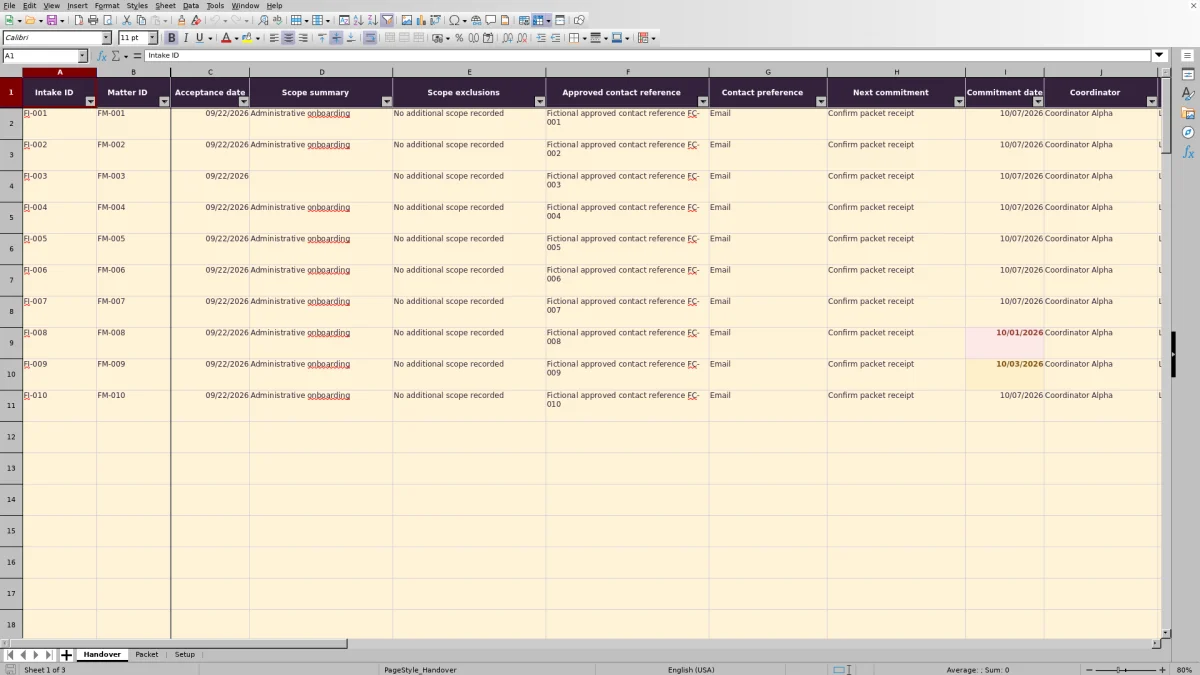
Use one row in Handover for each accepted intake being transferred to a matter team. Enter a unique Intake ID, a Matter ID, sanitized scope information, an approved contact reference, the next commitment and assigned staff. Replace the fictional examples before operational use. Enter independently verified dates as actual Excel dates displayed in MM/DD/YYYY format.
3. Check the record before preparing the packet
Review Missing required fields, Next action and Commitment timing. Record the actual review status and reviewer; do not select Reviewed by staff merely to change the indicator. Resolve red date alerts and duplicate IDs before relying on readiness, even if the Next action text appears favorable.
4. Select, check and hand over the packet
In Packet, choose the Intake ID in B1 and read Selection check before using the displayed record. The sheet is set up to print one record on one page. Deliver the packet through your firm's approved process, then enter Handover date and Receiving acknowledgment date in Handover when those events actually occur.
Make the scope and next commitment useful to the receiving team
A handover should explain what the team is taking on without becoming a second matter file. Use Scope summary for a short, sanitized description and Scope exclusions for known boundaries. Do not fill gaps by inventing scope. Where appropriate, the workbook notes allow None recorded in narrative fields; that wording records an absence of information, not a professional conclusion.
Use Approved contact reference to point to the firm's approved contact record rather than copying client identities or addresses. Contact preference gives the recipient a separate communication cue. Keep privileged narratives and financial account information out of this workbook.
Pair Next commitment with a firm-supplied Commitment date and a clear Assigned lead. Assigned support is optional. If several commitments need separate owners or ongoing progress tracking, maintain those details in the firm's designated task record; this handover row has one next-commitment field, not a full matter task list.
Read completeness and review status as separate checks
Missing required fields counts blank cells from Intake ID through Assigned lead, plus Acceptance reviewer through Packet review date. Assigned support is excluded from that count. Handover date and Receiving acknowledgment date are entered when applicable, so they can remain blank during preparation.
Zero missing fields means presence, not accuracy. The count does not determine whether a scope statement is sufficient, a reviewer actually performed a review or the entered dates are valid. A completely unused row leaves its calculated indicators blank rather than showing a zero.
Next action checks missing information first, then whether Conflict review status is exactly Reviewed by staff. It next checks acknowledgment, handover and packet review age, in that order. A recorded handover therefore produces Await acknowledgment before the formula considers whether the review is old.
Reviewed by staff records a user's review status only. It does not perform a conflict search or establish conflict clearance. Likewise, Ready for coordinator review is a prompt for the coordinator—not acceptance approval, commitment completion or a compliance finding.
Fictional example: decide whether to review or follow up
Assume the workbook is calculating on 10/05/2026. Use the included fictional intake FI-001 for fictional matter FM-001: its required fields are populated, Conflict review status is Reviewed by staff, Packet review date is 10/02/2026, and the next commitment is Confirm packet receipt on 10/07/2026. Handover date and Receiving acknowledgment date are blank.
With the supplied Setup values of 7 days for packet review age and 2 days for the commitment warning window, the review is 3 days old. It does not exceed the age threshold. The commitment is 2 days away, which falls within the inclusive warning window.
The formulas therefore return Missing required fields = 0, Next action = Ready for coordinator review, and Commitment timing = Within warning window. These results are consistent: the record has the required entries and a recent review, but its supplied commitment is approaching.
The coordinator's next decision is to check the selected packet and arrange the handover and receipt confirmation. Do not enter an acknowledgment date in advance to remove the timing warning. Because the indicators use TODAY(), results will change with the current date when Excel recalculates; the fictional sample is not a fixed readiness demonstration.
Troubleshooting: common handover errors and solutions
Check the source entry before changing a calculated result. The following errors can leave a packet blank, display the wrong record or make an apparently complete handover unreliable.
- Blank packet fields: A missing or unmatched Intake ID prevents the record from appearing. Read Selection check: a blank selector asks you to select an Intake ID, while an unmatched value reports Intake ID not found. To resolve it, choose an existing ID in Packet B1 and confirm that the displayed Matter ID is the intended one.
- Duplicate Intake ID: The packet lookup can display the first matching row even when a duplicate warning appears. Resolve the duplicate Intake ID values in Handover, then reselect the intended record and check Selection check before using the packet.
- Missing required information: A required-field count above zero means at least one counted input is blank. Check the required inputs rather than filling optional Assigned support or event dates just to reduce the count. For example, the included fictional FM-003 record has a blank Scope summary. Supply the verified summary rather than changing the formula.
- Invalid or out-of-order dates: A red date alert can remain even when Next action appears favorable. Check for text in date fields, future event dates, reversed date order or missing prerequisite review or handover dates. Correct the source record using verified information; the readiness text does not override the date alert.
Enter dates without time values or narrative placeholders. A future Commitment date can be appropriate, but acceptance, review, handover and acknowledgment dates record events that have occurred. Use the Date alert key on Packet to help distinguish timing warnings from date-entry errors.
Use date indicators without treating them as a deadline system
Commitment timing compares the supplied Commitment date with today's date. Without a date, it shows No commitment date. For an unacknowledged record with a date, it distinguishes Past supplied date, Within warning window and Scheduled. The warning window includes today through today plus the configured number of days.
The packet-age check uses a different boundary: it prompts Refresh packet review only when the review age exceeds the threshold, and only if earlier Next action conditions have not taken priority. Equality with the threshold does not trigger that refresh prompt.
These are calendar-day comparisons, not business-day or court-rule calculations. Supply and verify deadlines independently. Use the firm's established deadline and reminder process for required follow-up; the workbook's visible timing indicators are not a notification service.
If Receiving acknowledgment date is populated and a Commitment date exists, Commitment timing shows Handed over instead of a timing category. That label does not establish that the underlying commitment was completed. Keep any remaining work in the team's active task process.
Close the handoff with evidence of receipt
Use Handover date to record when the transfer occurred and Receiving acknowledgment date to record when the receiving team acknowledged it. Keeping those events separate helps the coordinator decide whether to follow up rather than assume that sending a packet completed the handoff.
Before entering acknowledgment, confirm receipt through the firm's approved communication process. When required entries and the recorded review status are in place, Next action changes from Await acknowledgment to Acknowledged after that date is entered. The workbook records the event you supply; it does not obtain acknowledgment for you.
Packet is a live view of the selected Handover row. Later edits to that row change the displayed packet. If the firm needs a record of what was transferred, retain a dated copy under its document-handling policy. Do not treat the current worksheet as an automatic version history or audit trail.
Compare this workbook with a blank handover spreadsheet
Both approaches can support a coordinator's handoff. The choice depends on whether the prepared record and checks fit the firm's process or whether a different structure is necessary.
| Method | Record structure | Review support | Packet preparation | Ongoing upkeep |
|---|---|---|---|---|
| Law Firm Sheets handover workbook | Prepared fields for accepted intake, scope, contacts, staff and handover events. | Missing-field counts, next-action text, supplied-date indicators and selection warnings. | Select an Intake ID to display a one-record, one-page packet. | Preserve formulas, maintain reference lists and resolve alerts; prepared ranges cover 100 records. |
| Blank spreadsheet maintained by the firm | The firm defines its own columns and record layout. | Staff check records manually unless the firm builds and tests its own checks. | Staff create and maintain a handover layout or assemble a separate summary. | The firm maintains its layout, formulas, validation and printing setup, if used. |
Choose this workbook when one accepted-intake row and a selected packet match your handover process. A blank spreadsheet may suit a materially different record structure if the firm is prepared to design and test it. Neither approach, by itself, replaces the firm's professional review, deadline management or evidence of receipt.
Frequently asked questions
How many handover records are prepared in the workbook?
Handover has 100 prepared rows, from row 2 through row 101. Its formulas, validation ranges and Packet lookup use those rows. Adding records below that range does not by itself extend the verified setup; any expansion needs corresponding updates and testing.
Can I change staff labels and contact preferences?
Yes. The staff lists refer to Setup D2:D6, and contact preferences refer to E2:E4. Update the existing list cells to fit the firm's process. Changing a list entry does not update previously entered Handover records, so review those records separately. Adding items outside the referenced ranges requires changes to the validation sources.
Which cells should I avoid overwriting?
Preserve Handover columns S:U and Packet B2:B24, which contain calculated results. Packet B1 is the intake selector. Packet B28 also contains the formula displaying the current assumptions. The cells are unprotected, so work from a saved copy and take care when pasting data.
Can I rename the review status choices?
Use caution. The Next action formula tests for the exact text Reviewed by staff. Renaming that choice without updating and testing the formula can leave a completed review showing Obtain human review. Adjust staff labels as needed, but preserve the review-status wording unless the calculation is intentionally revised.
Does the packet include attachments or create a complete matter file?
The verified Packet sheet displays the selected handover record and its administrative indicators. It does not assemble attachments or create a complete matter file. Keep supporting documents in the firm's approved location and provide any required access separately.
Editorial coverage

Audra PembrokeBilling and finance content

Graham ElleryPractice administration content