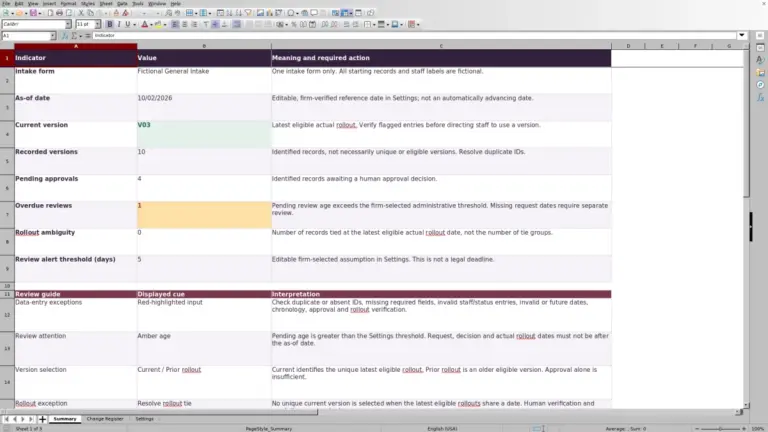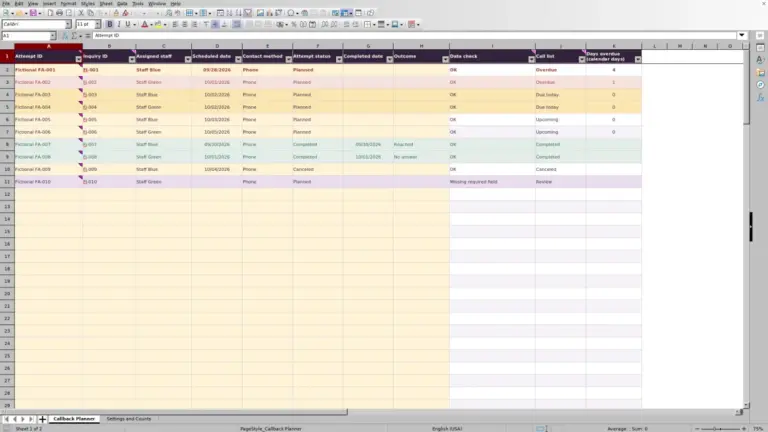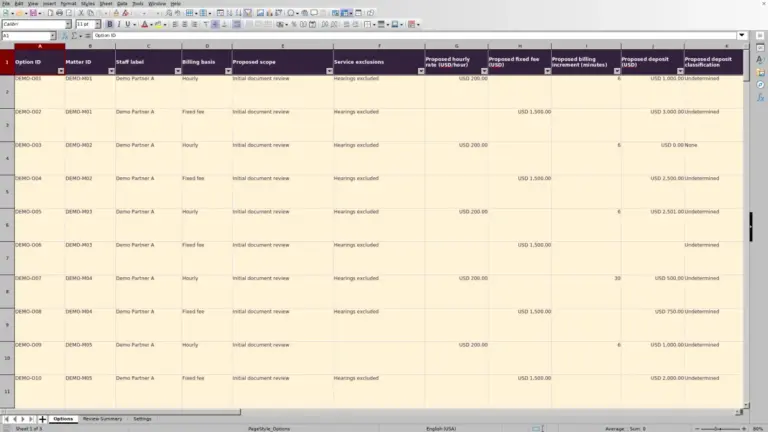
Before an intake review, check which recorded matters still lack signed engagement evidence. The Law Firm Sheets Engagement Letter Tracker for Excel records letter versions and uses your entries to identify corrections and administrative follow-up.
Enter one letter version per row, keep a plain-text evidence reference, and review the calculated work queue. Law Firm Sheets is an administrative Excel library, not a law firm or practice management service; the workbook does not determine whether an engagement is valid.
Where this workbook helps
- Keep separate letter versions tied to the same matter without overwriting the earlier record.
- Identify records that need correction before relying on their signed-evidence status.
- Prioritize administrative review using a firm-supplied as-of date and warning window.
- Give the next staff member a consistent record of letter stage, dates, and evidence references.
What is in the file
How to get started
1. Set the review basis
Open Settings and enter the As-of date in B2. Set Review warning window (days) in B3 to your firm's chosen interval from 0 through 30 days. The date is entered manually; it does not advance automatically.
2. Prepare the working copy
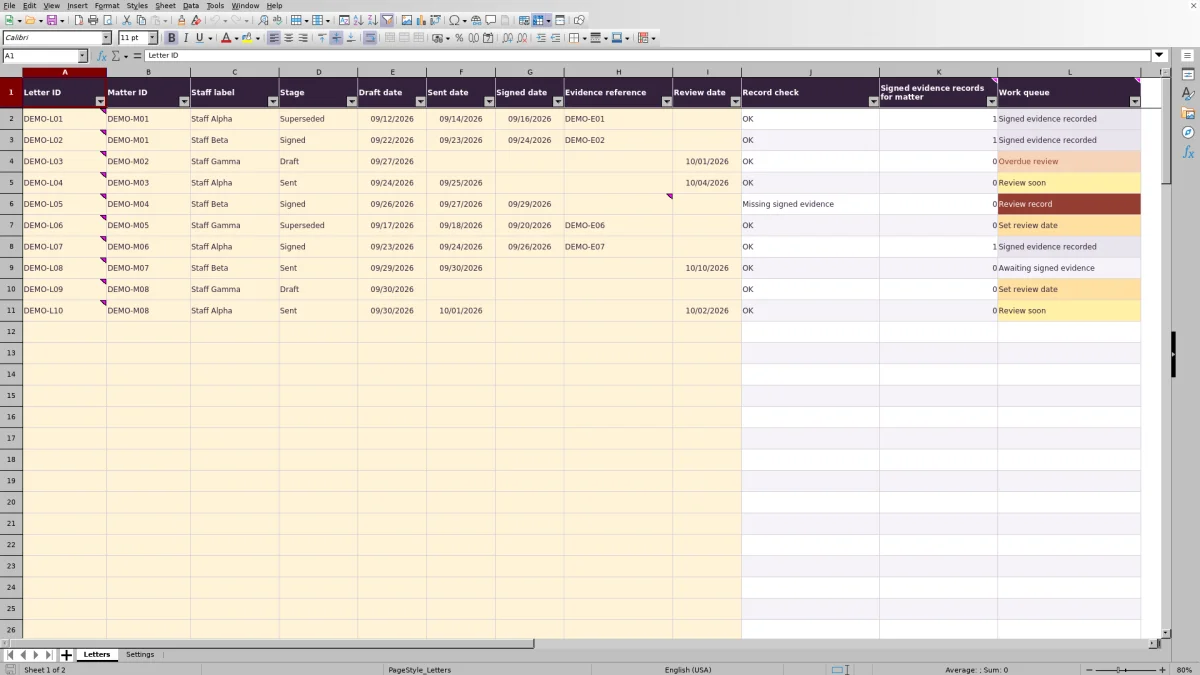
Letters rows 2–11 contain fictional examples. Replace or clear their input cells before using the file for firm records. Rows 2–101 are prepared for entry. Keep calculated columns J–L intact; the cells are unprotected.
3. Record each letter version
In Letters, enter Letter ID, Matter ID, Staff label, Stage, and Draft date. Add Sent date, Signed date, Evidence reference, and Review date as applicable. Use a unique Letter ID for each version and the same Matter ID for versions belonging to the same matter. Enter dates as MM/DD/YYYY without times.
4. Recalculate and review the queue
Open the workbook in Excel or LibreOffice to calculate formulas. Resolve Record check messages first, then review Work queue. Supply and independently verify any needed administrative review dates. Assign and communicate follow-up outside the workbook; it generates no messages or documents.
Example: decide whether a sent letter needs follow-up
This fictional example uses letter DEMO-L04 for matter DEMO-M03. Staff Alpha is the Staff label, Stage is Sent, Draft date is 09/24/2026, and Sent date is 09/25/2026. Signed date and Evidence reference are blank. The Review date is 10/04/2026.
With an As-of date of 10/02/2026 and a warning window of 3 days, the review date is 2 calendar days away and falls within the window ending 10/05/2026. If Record check is OK and no qualifying Signed record exists for that matter, Signed evidence records for matter is 0 and Work queue calculates Review soon.
That result identifies an administrative follow-up item, not proof that the letter was never signed. Check the firm's document record. If signed evidence is available, verify it and update the relevant letter record; otherwise, arrange follow-up under the firm's intake procedure. These are formula-based example results, not a report of a live matter or a claim that the workbook has been recalculated here.
Read signed-evidence counts without treating them as clearance
Signed evidence records for matter counts qualifying rows with the same Matter ID. A row contributes only when Stage is Signed, Signed date is a positive date on or before the As-of date, Evidence reference is present, and Record check is OK.
A positive count means qualifying evidence has been recorded for the matter. It does not establish that the referenced document exists, covers the current scope, or authorizes work to begin. A responsible reviewer must assess the underlying document separately. Recorded evidence is not clearance.
A zero means no row meets all of those counting conditions in the prepared range. Evidence could be missing from the tracker, assigned to a different Matter ID, excluded by a record error, or dated after the review basis. A blank count means Matter ID is blank, not that the matter has no signed evidence.
The matter count repeats on each version's row, so never sum that column. The Settings indicators count letter records, not unique matters. Reconcile the tracker against a separate matter list when looking for matters with no letter row at all; this workbook cannot flag a matter that was never entered.
Keep superseded versions without confusing the current record
Use one row for each letter version rather than replacing an earlier version's details. Give the new version its own Letter ID and retain the shared Matter ID. When the firm's review determines that a version has been replaced, use Superseded for that older row and retain its recorded dates and reference.
A Superseded row never contributes to the signed-evidence count, even if it still has a Signed date and Evidence reference. Its Work queue can nevertheless show Signed evidence recorded when another qualifying version exists for the same matter. That is a matter-level result, not a statement that the superseded version remains current.
There is also no version-specific exception to the evidence priority: a new Draft row can show Signed evidence recorded because another row for the matter qualifies. Check which version supports the result before deciding that a revised letter needs no follow-up. Keep any separate action for obtaining a revised signature in the firm's established task process.
Troubleshooting: correct entries before trusting the queue
Work queue shows Review record whenever Record check is not OK. Correct the source entry rather than typing over a calculated message. Checks are evaluated in sequence, so resolving one problem can reveal another.
- Missing required field: check Letter ID, Matter ID, Staff label, Stage, and Draft date. Complete them from the source record; do not guess.
- Duplicate letter ID: find the repeated identifier within the prepared rows. Correct an accidental duplicate or assign distinct identifiers to genuinely separate versions.
- Missing sent date: a Sent or Signed row needs Sent date. Confirm the actual date before entering it.
- Missing signed evidence: a Signed row needs both Signed date and Evidence reference. Locate the evidence or correct an inaccurate stage rather than adding a placeholder reference.
If date entry is rejected, check the As-of date and the date value itself. Draft, sent, and signed dates cannot exceed the as-of date and must not include a time component. Future Review date values are allowed.
Pasted values can bypass validation. Review pasted identifiers, stages, and dates manually, even when no entry warning appears. An OK result is a workbook check, not a comprehensive audit of the evidence. If a formula was overwritten, restore it from an unchanged copy rather than replacing it with a fixed result.
Use review dates as a follow-up schedule
For a row with Record check of OK and no qualifying signed evidence for its matter, the queue follows a clear order. A blank Review date produces Set review date. A date before the As-of date produces Overdue review. A date from the As-of date through the end of the warning window produces Review soon. A later date produces Awaiting signed evidence.
The warning interval uses calendar-day addition, not business-day or court-rule calculation. A review due on the As-of date is Review soon, not overdue. Choose the warning window to fit your administrative review routine; the initial setting is a fictional, editable example rather than a legal default.
Signed evidence takes priority over date alerts once the row passes its record check. Therefore, the overdue count is not a count of every past Review date in the file. It counts rows whose final queue result is Overdue review.
Enter and independently verify review dates under your firm's procedures. These are administrative dates, not calculated court deadlines, and the queue does not send reminders. Update the As-of date before each review so the results reflect the intended review period.
Prepare a reliable handoff and stay within the working range
Before handing the file to another staff member, save a dated working copy, confirm the review basis, and explain which corrections or follow-ups remain open. Staff label provides a record label, not a notification or acknowledgment that someone has accepted an assignment.
Use Evidence reference for a plain-text document identifier that staff can resolve through the firm's separate document records. Do not enter document contents, hyperlinks, client identities, addresses, or privileged narratives. The reference is a pointer for your process, not an attachment or a verified connection to a document system.
The prepared range supports 100 letter-version records, not necessarily 100 matters. Multiple versions consume multiple rows. The verified formulas and summary counts use rows 2–101, so do not assume entries below that range will be included. Before expanding the file, have the formulas, validation, and summary ranges deliberately extended and tested, or choose a recordkeeping method suited to the larger volume.
Keep the four Stage terms unchanged because the formulas use those exact terms. The Staff label choices come from Settings C6:C8 and initially contain fictional labels; if you replace them for firm use, use consistent administrative labels.
Compare with a blank spreadsheet
Both approaches require staff to enter accurate information and inspect the underlying engagement evidence. The choice depends on whether this workbook's prepared structure fits your intake process or whether you need a different record design.
| Method | Record structure | Review support | Evidence handling | Capacity and maintenance |
|---|---|---|---|---|
| Law Firm Sheets tracker | Prepared fields for each letter version, matter identifier, stage, and dates. | Record checks, matter-level signed-evidence counts, and date-based queue results. | Plain-text evidence references; staff must inspect documents separately. | 100 prepared rows with fixed calculation ranges; as-of date requires manual updating. |
| Blank spreadsheet | Staff design the fields and decide how versions relate to matters. | Manual review unless staff build and test their own calculations. | Staff define a reference convention and inspect documents separately. | Range and structure are staff-designed; consistency and any calculations require maintenance. |
Use this tracker when its version-based structure and prepared capacity match your intake review. A blank spreadsheet may suit a substantially different record layout, provided someone is responsible for designing and checking it. Neither approach substitutes for reviewing the actual engagement evidence or communicating follow-up assignments.
Frequently asked questions
Does the workbook create, send, or obtain signatures on engagement letters?
No. It records stages, dates, and evidence references entered by staff. It does not generate letters, send messages, or collect signatures. Handle those activities through the firm's separate procedures.
Are the included records real?
No. Letters rows 2–11 contain fictional examples. All DEMO identifiers and the Staff Alpha, Staff Beta, and Staff Gamma labels are fictional. Replace or clear the example inputs before maintaining firm records, while preserving the formulas in columns J–L.
Why are calculated cells blank on an unused row?
Record check and Work queue remain blank when the input cells in columns A–I are empty. Signed evidence records for matter remains blank when Matter ID is empty. These blanks keep unused rows out of the working record; they are not confirmation that a matter has been reviewed.
Can I change the stage names to match our office terminology?
Keep Draft, Sent, Signed, and Superseded unchanged. The formulas rely on those exact terms. If your office uses different terminology, explain the correspondence in your operating instructions rather than renaming the workbook's stage choices.
Will the workbook calculate in LibreOffice?
The workbook's guidance calls for opening it in Excel or LibreOffice to calculate formulas. Recalculate before reviewing the queue, then check that the results reflect your current inputs and as-of date. No broader compatibility or collaboration capability is established by the workbook manifest.
Editorial coverage

Audra PembrokeBilling and finance content

Graham ElleryPractice administration content