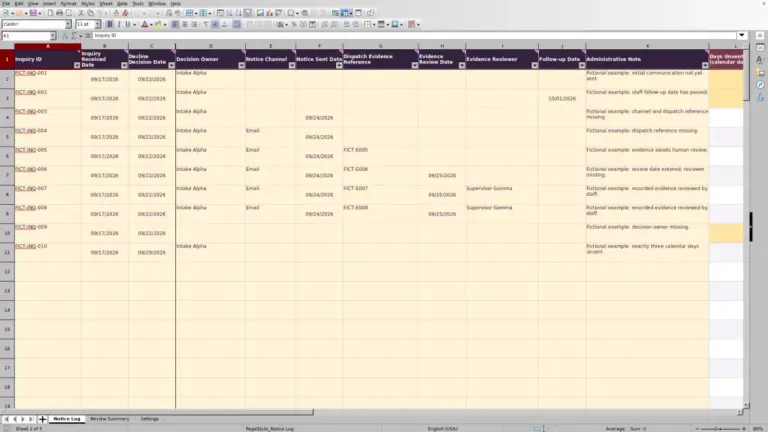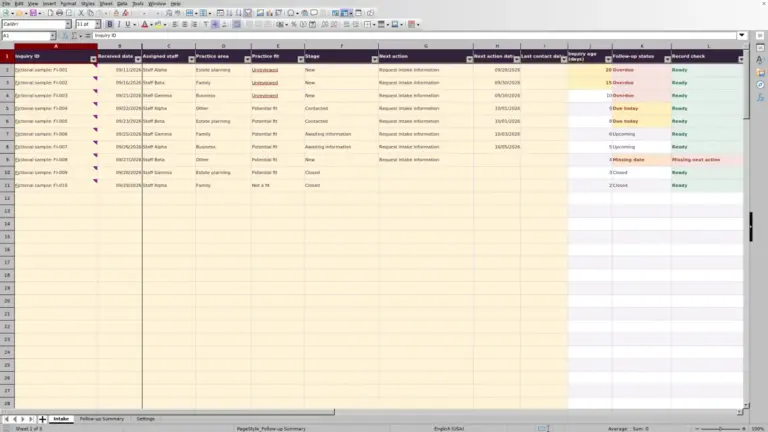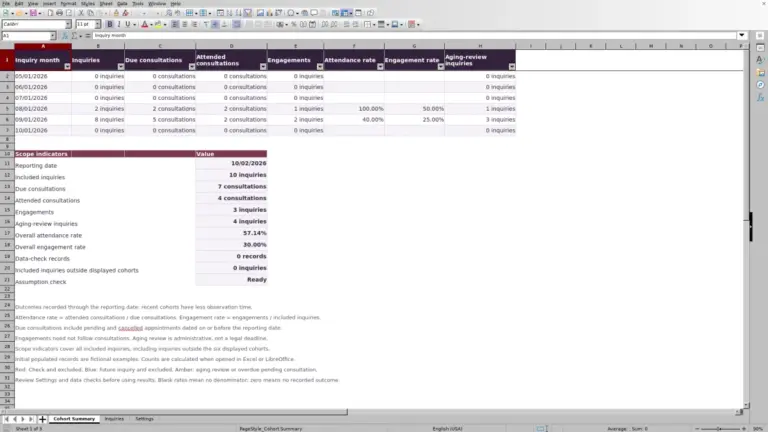
When intake staff promise a callback, record the attempt, its scheduled date, and who will handle it. The Law Firm Sheets prospective client follow-up planner is an Excel workbook for turning those records into a daily contact list.
Use it to review overdue and due-today attempts, record outcomes, and manually schedule the next contact when needed. It tracks individual contact attempts, not overall intake pipeline stages. Law Firm Sheets is an administrative Excel library, not a law firm or legal advice service.
Where this workbook helps
- Build a daily contact list from overdue and due-today attempts using your chosen work-list date.
- Keep each promised attempt tied to an inquiry and an assigned staff member.
- Catch missing entries, duplicate attempt IDs, and inconsistent completion details before working the list.
- Review category counts while keeping completed and canceled attempts separate from planned work.
What is in the file
How to get started
1. Prepare a working copy and set the planning date
Save a working copy before editing. The ten prefilled records are fictional; remove their input values before entering your own records, but preserve formulas in columns I–K. On Settings and Counts, enter the Work-list date in B2 and your firm's Overdue review threshold (calendar days) in B3. Confirm that Planning settings check reads OK.
2. Enter one promised attempt per row
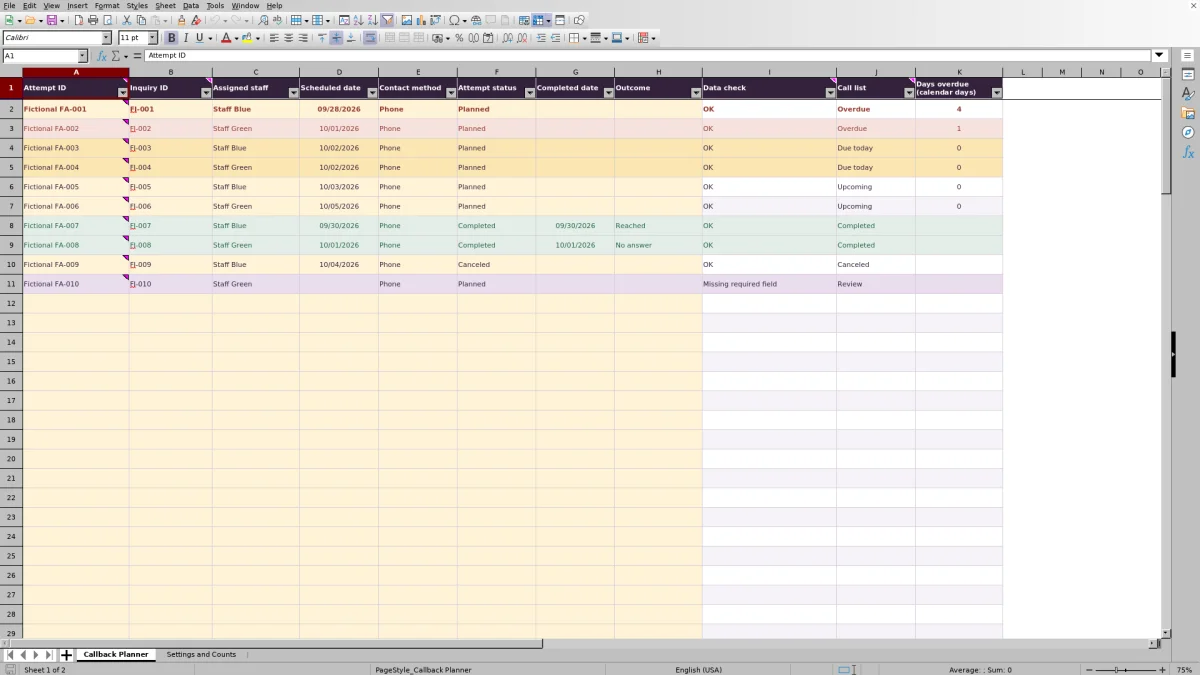
On Callback Planner, complete Attempt ID, Inquiry ID, Assigned staff, Scheduled date, Contact method, and Attempt status. Use a unique Attempt ID for each row and an internal inquiry reference rather than a client name or privileged narrative. For a Planned attempt, leave Completed date and Outcome blank.
3. Correct exceptions and prepare the daily list
Resolve rows labeled Review in Call list by reading Data check. Then filter Call list to Overdue and Due today, and sort Scheduled date from oldest to newest. Filter Assigned staff when preparing one person's work. Keep all columns together when sorting so the attempt details stay aligned.
4. Record the result and schedule any next attempt
After making the contact attempt, set Attempt status to Completed and enter Completed date and Outcome. If another contact is promised, manually add a new row with the same Inquiry ID and a new Attempt ID. For a Canceled attempt, leave both completion fields blank.
Keep the inquiry separate from each contact attempt
An inquiry can need several contacts before staff know the next intake action. Keep the same Inquiry ID across those contacts, but give every scheduled attempt its own Attempt ID. This lets you retain the result of one attempt without replacing it with the next promise.
Completed means the attempt is finished, not that the prospective client was reached or the inquiry was accepted. The available outcomes include Reached, No answer, and Message left. An unsuccessful call can therefore be Completed with an appropriate outcome, followed by a new Planned row.
The workbook does not determine whether the firm should accept a matter, clear a conflict, or advance an inquiry through intake stages. Keep those decisions in the firm's established process; use this file for the contact schedule and attempt record.
Choose the date that defines today's work
Before distributing the list, check Work-list date on Settings and Counts. It is an entered planning assumption, not a live clock. A valid Planned attempt is Overdue when its Scheduled date is earlier than that date, Due today when the dates match, and Upcoming when its date is later.
The review threshold controls bold emphasis on overdue rows; it does not delay the Overdue classification. Choose a whole number from 1 through 365 calendar days to reflect the firm's administrative review preference. The initial setting is illustrative, not a universal standard.
Staff must independently supply and verify promised contact dates. These are calendar-day scheduling comparisons, not court-rule deadline calculations or automatic reminders. Updating the work-list date and reviewing the file remain staff tasks.
Fictional example: decide what to do with an overdue callback
In the fictional sample record, Attempt ID FA-001 belongs to Inquiry ID FI-001 and is assigned to Staff Blue. Its Scheduled date is 09/28/2026, Contact method is Phone, and Attempt status is Planned. With Work-list date set to 10/02/2026 and a valid record, Call list returns Overdue.
The calendar-day calculation subtracts the scheduled date from the work-list date: 4 calendar days overdue. With the sample review threshold set to 3 calendar days, the row also meets the threshold for bold overdue emphasis. That result shows how far the attempt is behind the chosen planning date; it does not establish urgency or explain why contact has not occurred.
Next, confirm with the assigned staff member whether the attempt still needs to be made or whether its record needs correction. If staff make the attempt and get no answer, they should enter the actual Completed date and choose No answer. Any newly promised callback needs a separate Planned row rather than an overwritten history.
Troubleshooting: resolve Review rows before relying on the list
Review is a correction queue, not a timing category. When Data check does not return OK, Call list shows Review instead of the usual scheduling status. A record that needs attention may therefore be absent from your Overdue and Due today view.
- Missing required field: complete the six input fields from Attempt ID through Attempt status.
- Duplicate attempt ID: confirm whether you entered two different attempts or accidentally copied a record. Distinct attempts need distinct IDs; repeating an Inquiry ID is appropriate for follow-up contacts.
- Completion details needed: a Completed attempt needs both Completed date and Outcome.
- Check completion details: Planned and Canceled attempts must have both completion fields blank. Correct the status or remove mistakenly entered completion details after checking what happened.
- Date, list-choice, or planning-setting problems: use actual Excel dates displayed as MM/DD/YYYY, select the available dropdown choices, and check the settings on Settings and Counts.
Correct the displayed issue, then check the row again; another issue may remain. These checks identify entry problems, but they do not verify that a promised callback actually occurred or that the entered date is correct.
Read counts, zeros, and blanks without overlooking work
Use the category totals on Settings and Counts to see how many attempt records fall into each Call list category. They count rows, not distinct inquiries. Several attempts for one inquiry contribute several records.
Active records includes completed and canceled rows: its formula adds all six displayed category counts, including Review. Do not treat that total as the number of open calls. For the immediate call workload, inspect Overdue and Due today, and separately resolve Review records.
In Days overdue (calendar days), zero means a valid Planned attempt is not earlier than the work-list date. It can be due today or upcoming; use Call list to tell which. A blank overdue value can occur for a non-Planned attempt or a row that has not passed Data check. It does not, by itself, mean no action is needed.
The category formulas reference the full prepared record range. Filtering the planner for one staff member does not turn these totals into that person's workload counts.
Hand off the list without losing assignments or formulas
At a shift change, confirm who will handle unresolved attempts and update Assigned staff where responsibility has changed. The dropdown draws from the two staff-label cells in Settings and Counts, D2:D3. The supplied Staff Blue and Staff Green labels are fictional. If you replace those labels, reconcile existing assignments so they still match the choices.
Tell the receiving staff member which work-list date was used and point out any unresolved Review rows. Changing an assignment in the file is not a notification. Use the firm's normal handoff channel to confirm ownership.
Keep formula columns I–K and workload-count cells intact. Cells are unprotected, so a pasted value can overwrite a calculation. If a result stops updating, compare the affected formula with a clean copy rather than typing a status into the result cell. Open the workbook in Excel or LibreOffice to recalculate formulas before relying on its results.
Compare the workbook with a paper intake callback log
A shared paper callback log is a realistic alternative when staff can review every open entry at each handoff. This Excel workbook supports the same administrative task with prepared fields, date-based categories, entry checks, and counts. Both methods still depend on staff recording attempts and arranging the next contact.
| Method | Preparing today's contact list | Checking record completeness | Recording outcomes and repeat attempts | Handoff and upkeep |
|---|---|---|---|---|
| Law Firm Sheets Excel follow-up planner | Enter a work-list date, resolve Review rows, then filter Overdue and Due today. Category counts summarize the prepared record range. | Formula checks flag supported entry issues, including missing required fields, duplicate attempt IDs, and inconsistent completion details. | Record status, completed date, and outcome. Manually add each next attempt with the same inquiry ID and a new attempt ID. | Filter by assigned staff and confirm responsibility outside the file. Maintain the planning settings and preserve formulas within the 100 prepared rows. |
| Shared paper intake callback log | Read the scheduled dates and manually compile the overdue and due-today entries for the chosen day. | Staff inspect entries for missing information, duplicate references, and unclear completion notes. | Write the result beside the attempt and add a separate entry for the next promised contact, using the inquiry reference to connect them. | Pass the current log to the receiving staff member and identify unresolved entries. Keep handwriting, corrections, and ownership clear. |
Choose the workbook when staff want a filterable attempt record and can maintain its inputs and formulas. A paper log may fit a small callback list that staff can reliably inspect in full. If you need timed alerts, contact delivery, or intake-stage management, this workbook does not provide those functions; neither does a paper log by itself.
Frequently asked questions
Does the file store phone numbers or email addresses?
The verified planner has an Inquiry ID and a Contact method field, but no dedicated phone-number or email-address field. Use the inquiry reference to locate contact details in the firm's authorized intake record. Avoid placing contact details or privileged narratives in identifier fields.
Can I plan email follow-ups as well as calls?
Yes. Contact method offers Phone and Email. The Call list categories use the attempt's status and scheduled date, so you can use the same daily review process for either method. The workbook records and organizes attempts; it does not send email.
What happens when I need more than 100 attempts?
The prepared formulas, filters, validation ranges, and category-count references cover rows 2–101. Do not assume that typing below that range extends those functions. Before using additional rows, have the relevant ranges extended and tested, or use a separately managed copy with a clear process for carrying forward open work.
Can I schedule a callback for a specific time of day?
The workbook provides Scheduled date, not a dedicated appointment-time field. Its date validation expects whole-number date values. Keep specific callback times in the firm's established scheduling process rather than adding a time component to a date used by these calculations.
Can I tell whether a callback date was changed previously?
The verified layout has no automatic change-history or audit-log feature. If your handoff requires a prior version, retain a dated copy under the firm's file-handling policy. A saved copy documents the file at that point; it does not verify who performed an attempt or why a date changed.
Editorial coverage

Audra PembrokeBilling and finance content

Graham ElleryPractice administration content