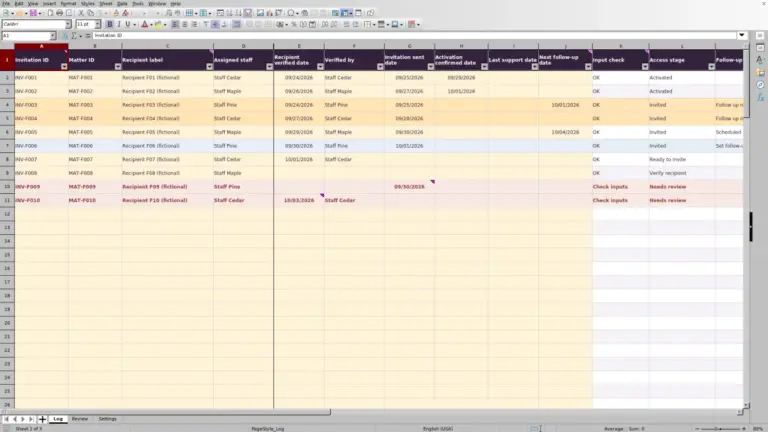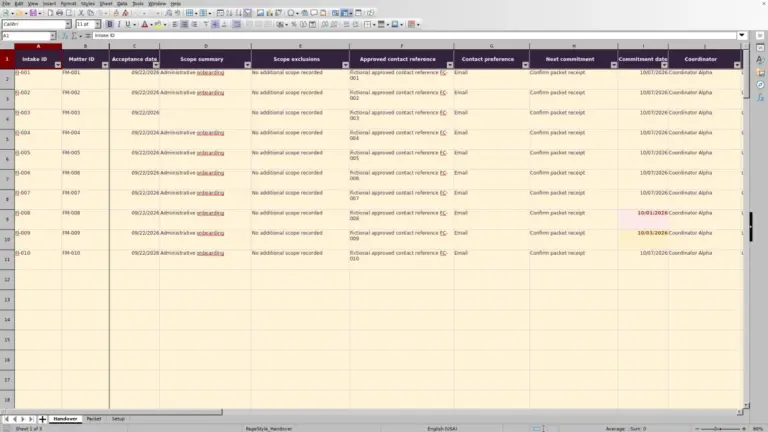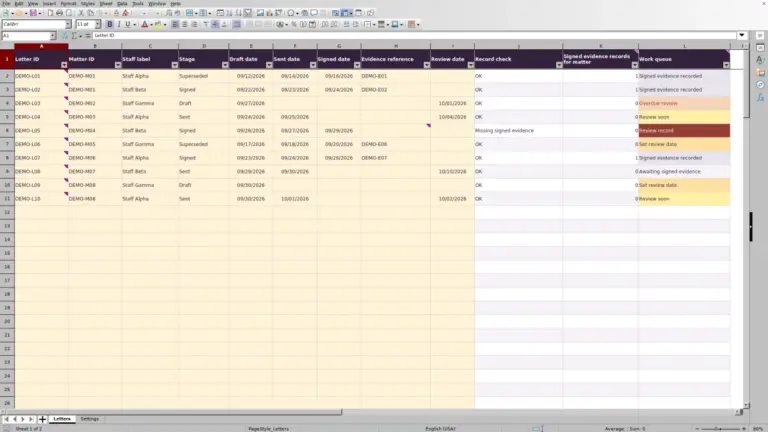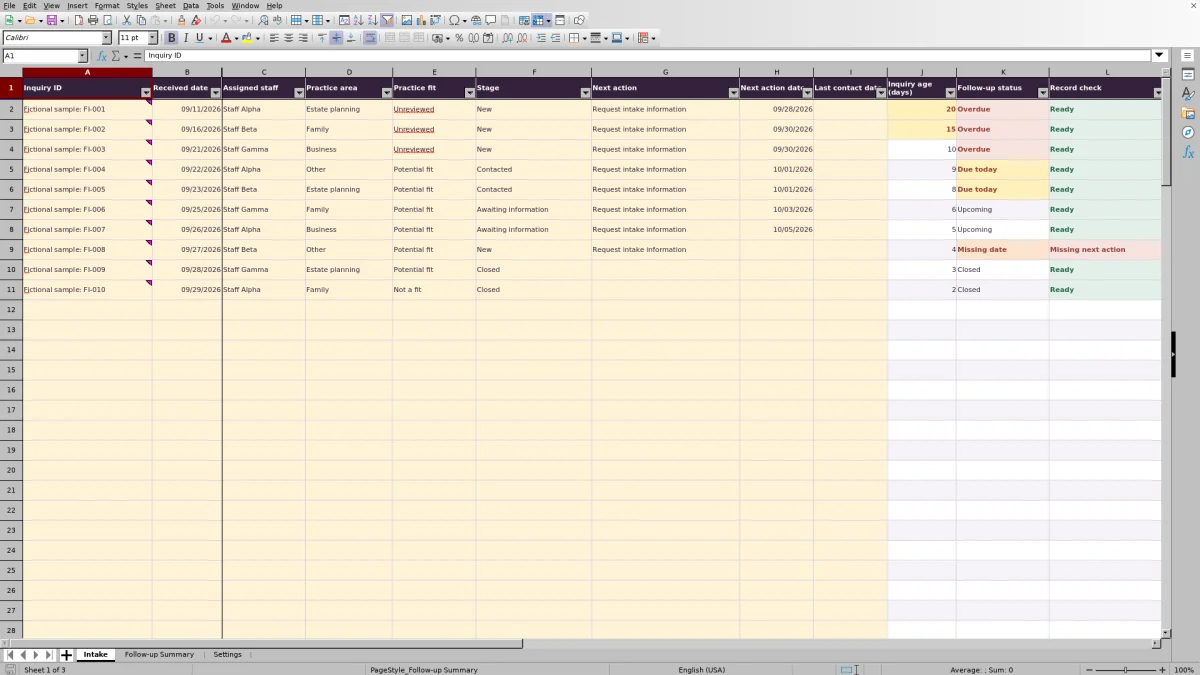
When inquiries arrive at different stages, you need a clear record of who will follow up and what happens next. The Law Firm Sheets intake pipeline Excel workbook brings those administrative details together so you can review outstanding actions before assigning the day's work.
Record each inquiry by ID, update its stage and next action, then use the follow-up counts to guide your review. This is an administrative Excel resource, not legal advice, a law firm or a practice management service.
Where this workbook helps
- Keep the assigned staff member, next action and action date together for each inquiry.
- Focus follow-up review on overdue actions, actions due on the review date and missing dates.
- Identify older open inquiries separately from actions that are already overdue.
- Check incomplete or duplicate records before relying on the summary counts.
What is in the file
How to get started
1. Prepare the workbook for your firm
Save a working copy. The ten populated inquiry rows and all sample staff labels are fictional. Replace or clear the sample inputs on Intake without deleting the formulas in columns J:L. Use inquiry or matter IDs rather than client names, contact details or privileged narratives.
2. Confirm the review settings
On Settings, confirm Review date in B2 and obtain firm approval for Age-review threshold (days) in B3. Review date initially uses TODAY(); you can replace it with a firm-verified date. Edit staff and other dropdown entries within their displayed list ranges, but keep the stage Closed unchanged.
3. Enter the inquiry and its next action
Use the cream input cells in Intake columns A:I. Enter Inquiry ID, Received date and Assigned staff, then select Practice area, Practice fit and Stage. Supply a specific Next action and an independently verified Next action date. Enter Last contact date when applicable, using MM/DD/YYYY dates.
4. Correct records, then review follow-ups
Allow the workbook to recalculate. Resolve Record check warnings first, then open Follow-up Summary. Return to Intake and use the column filters to review Assigned staff and Follow-up status, including Overdue, Due today and Missing date. Review aged open inquiries separately rather than treating every older inquiry as overdue.
Choose the date that anchors your review
Before deciding which inquiries need attention, confirm the date against which the workbook is evaluating them. Settings!B2 supplies the Review date used by the follow-up calculations. Its initial TODAY() formula uses the current date when recalculated; a manually entered date remains fixed until you change it.
Due today means due on the selected review date, which may not be the day you open the file. If you use a fixed date for a staff meeting, check it again before the next review so an old setting does not make the action list appear more current than it is.
Inquiry age is elapsed calendar days since Received date. The age threshold is a firm-supplied administrative assumption, not a legal deadline. Next action dates must also be independently supplied and verified; the workbook does not calculate court-rule deadlines or send reminders.
Fictional example: turn an aging inquiry into a next decision
For this fictional example, use inquiry FI-001, assigned to the fictional Staff Alpha. Its Received date is 09/11/2026, Stage is New, Practice fit is Unreviewed, and Next action is Request intake information. The Next action date is 09/28/2026. Set Review date to 09/30/2026 and use the illustrative 14-day age-review threshold, assuming the firm has approved it for this exercise.
The age calculation subtracts the received date from the review date: 09/30/2026 minus 09/11/2026 produces 19 calendar days. Because the inquiry is open and its action date precedes the review date, its follow-up status is Overdue. Its age also strictly exceeds the threshold, so it contributes to Aged open inquiries.
These results describe two different concerns: an action date has passed, and the inquiry has remained open long enough to warrant an age review. Ask the assigned staff member to confirm whether contact occurred. If it did, update Last contact date and record the actual next step; if it did not, decide who will complete the outstanding action. Neither result determines practice fit or whether the firm should accept the inquiry.
Read the summary as overlapping work queues
Follow-up Summary counts inquiry rows, not unique prospective clients. Recorded inquiries includes rows with an Inquiry ID, including closed inquiries. Open inquiries requires an ID and a populated stage other than Closed. A row without an ID can therefore need correction while remaining outside the recorded-inquiry total.
Do not add the summary counts together. One inquiry can be open, overdue and aged at the same time. Use each measure to answer a separate question: which actions need attention, which dates are missing, or which inquiries have remained open beyond the approved threshold?
Aged open inquiries uses a strict greater-than comparison. An inquiry exactly at the configured threshold is not yet counted as aged. Also review Records needing correction before relying on totals: an unrecognized but nonblank stage can still satisfy the open-count formula until you correct it.
Keep practice fit separate from pipeline stage
Use Practice fit to record a person's assessment, not a spreadsheet-generated score. Its supplied choices are Unreviewed, Potential fit and Not a fit. Stage records a different fact: where the inquiry stands in the administrative process, from New through contact, information gathering, consultation scheduling or closure.
Changing Practice fit is not the same as changing Stage. After the responsible person makes a decision, record both the appropriate stage and a concrete next action. For example, an instruction to request missing intake information is more useful for a handoff than a vague note to follow up.
Keep the exact stage label Closed because formulas depend on it. Use it only when it accurately reflects the firm's administrative disposition. Practice fit and a Ready result in Record check do not establish legal eligibility, conflict clearance, client acceptance or a professional review performed by the workbook.
Troubleshooting blank results and record warnings
Start with the displayed warning rather than replacing a formula with a value. Record check can show an earlier issue before later checks are reached, so correct the problem and review the row again.
- Missing ID or Duplicate ID: supply the inquiry's correct ID or investigate why it appears on more than one row. Do not invent a second ID merely to hide a duplicate warning.
- Incomplete: check the required opening fields from Received date through Stage. Draft blanks are allowed, but they still need attention before operational review.
- Review stage: select a valid Stage from the dropdown. Review settings: confirm that Review date is a valid Excel date without a time component.
- Missing date: confirm and enter Next action date for the open inquiry rather than choosing an arbitrary date just to remove the warning.
A blank Inquiry age (days) is not an age of zero. A missing ID or received date, a received date stored as text, or a received date after the review date can leave age blank. A valid inquiry received on the review date has an age of zero calendar days. Re-enter incorrect dates as actual Excel date values.
Pasting can bypass validation, so inspect imported or pasted entries even when they look correctly formatted. All cells are unprotected. If calculations disappear, check whether columns J:L or summary formulas were overwritten and restore the affected formulas from an unchanged copy. Formula results require recalculation; do not treat an uncalculated blank summary as evidence that no work is outstanding.
Hand off open inquiries without losing the next step
When responsibility changes, update Assigned staff and confirm that Next action describes the work the new owner is expected to do. Review Next action date and Last contact date together so the receiving staff member can distinguish planned work from contact already recorded.
Keep a dated copy when you need a record of the handoff, and communicate the change through your firm's established process. Editing a staff assignment does not notify the new owner, and the workbook is not an automatic activity history. Last contact date records a date, not a full correspondence log.
The prepared formulas, validation and Intake filter cover rows 2–101. Summary formulas also use that fixed range. Entries below it will not automatically enter the summary. If you need more capacity, have the formulas, validation and filter range extended and checked together before using additional rows, or choose a workflow designed for the larger volume.
Compare this workbook with a blank spreadsheet
Both approaches can support a manually maintained intake record. The choice depends on whether the supplied fields and fixed review structure match your firm's process.
| Method | Record structure | Follow-up review | Maintenance and limits |
|---|---|---|---|
| Law Firm Sheets intake workbook | Prepared fields for inquiry ownership, fit, stage and next action, with dropdowns. | Calculated age and follow-up status, record warnings and summary row counts. | 100 prepared rows; fixed ranges and unprotected formulas require care. Staff enter dates and complete follow-up outside the file. |
| Blank spreadsheet | You choose and build the fields, lists and layout. | Manual review unless you create and check formulas, filters and summary measures. | You maintain the structure and any calculations you add. Capacity depends on the design you build. |
Choose this workbook if its fields and prepared capacity fit a straightforward intake follow-up process. A blank spreadsheet may be more appropriate if you need a substantially different record layout and have someone responsible for designing and checking it. If your process requires notifications or a full contact history, evaluate a system with those capabilities rather than assuming either spreadsheet provides them.
Frequently asked questions
Should I leave the fictional sample inquiries in the file?
Remove or replace them before operational use. Otherwise, their IDs and stages contribute to the summary alongside your firm's entries. Clear only the sample inputs in Intake columns A:I, preserving the calculated columns, and replace the fictional staff labels in Settings.
Can I add more staff names or practice areas?
You can edit the existing entries in Settings. The supplied dropdown sources cover F2:F4 for staff and G2:G5 for practice areas. Typing new choices below those ranges does not automatically include them in the dropdowns; expanding the lists requires updating and checking the relevant validation and record-check logic.
Can I keep a closed inquiry for reference?
Yes. A row with an Inquiry ID and Stage set to Closed remains in Recorded inquiries but is excluded from Open inquiries. Follow-up status returns Closed for that stage. Closing the row does not certify that every field is accurate, so continue to review any Record check warning.
Does the workbook need contact details to track follow-up?
No contact-detail fields are provided. Use an inquiry or matter ID to connect the administrative record with information held in your firm's approved system. Keep names, contact details and privileged narratives out of this workbook, including the Next action field.
Can I use the file in LibreOffice?
The workbook's calculation notice says formula results populate after recalculation in Excel or LibreOffice. It does not assert compatibility test results. Before operational use in your chosen application, check recalculated results, dropdowns and date handling against a small set of known fictional entries.
Editorial coverage

Audra PembrokeBilling and finance content

Graham ElleryPractice administration content