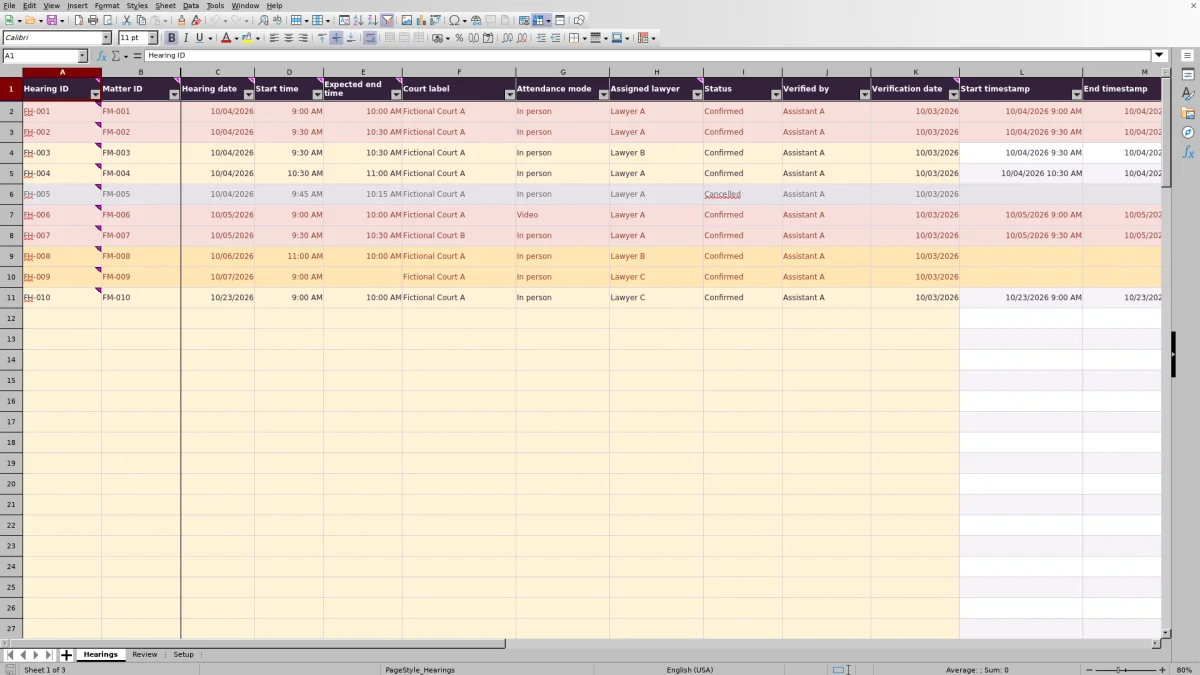
Before assigning hearing coverage, put the firm’s verified dates and expected appearance times in one place. The Law Firm Sheets hearing calendar workbook records court, attendance mode and assigned lawyer, then screens complete confirmed entries for same-lawyer time overlaps.
Use it to prepare an appearance review, not to decide whether a lawyer can attend. Staff supply and verify the dates; this administrative Excel resource does not calculate court-rule deadlines, confirm attendance or provide legal advice.
Where this workbook helps
- Keep appearance details together so staff can review coverage by date and assigned lawyer.
- Identify missing inputs before relying on an appearance in overlap screening.
- Direct attention to same-lawyer overlaps that need a scheduling decision.
- Count ready appearances within a staff-selected review window for planning.
What is in the file
How to get started
1. Set the review assumptions
On Setup, enter the Review date, Review window (calendar days) and Calendar time zone. Confirm the demonstration assumptions rather than treating them as firm defaults. Convert all hearing times to the selected zone before entering them; the workbook does not perform that conversion.
2. Replace the fictional demonstration inputs
All 10 prefilled appearances are fictional. Clear their inputs in Hearings columns A:K while preserving the formulas in columns L:O. Replace the fictional lawyer and verifier labels in Setup with your firm’s working labels. Keep the status labels Confirmed and Cancelled unchanged because the formulas depend on them.
3. Enter each verified appearance
In Hearings, complete Hearing ID through Verification date. Use a unique Hearing ID, a matter identifier rather than a client narrative, and clock times for Start time and Expected end time. Enter the person who actually verified the information in Verified by. The end time must be later than the start time on the same day.
4. Recalculate and review exceptions
Open the file in Excel and confirm that results recalculate. Filter Entry check for Check entry, correct the underlying inputs, then filter Clash check for Review overlap. Use Review for summary counts and Hearings for the affected records. Refer coverage decisions to the responsible lawyer; an alert does not resolve the schedule.
Example: two hearings assigned to the same lawyer
The workbook’s fictional sample FH-001, for matter FM-001, assigns Lawyer A to Fictional Court A on 10/04/2026 from 9:00 AM to 10:00 AM. Fictional sample FH-002, for matter FM-002, assigns the same lawyer from 9:30 AM to 10:30 AM that day. Both are marked Confirmed, with In person attendance and verification recorded by Assistant A on 10/03/2026.
With those complete inputs, Entry check evaluates to Ready. The timestamp formulas combine each hearing date with its start and end times. The intervals share 30 minutes, so the overlap formula returns Review overlap for both records. These are two affected records, not two separate overlap pairs; the workbook does not calculate overlap duration.
The next action is to confirm the source times and ask the supervising lawyer to resolve coverage. Do not shorten an expected interval merely to remove the alert. The fictional Lawyer B appearance during the same period is not a same-lawyer clash. These results follow from the supplied formulas; confirm them after opening because the workbook does not include certified recalculation test results.
Use the review window without misreading the totals
Set Setup’s Review date and Review window (calendar days) to match the period you intend to examine. Review shows that date as the inclusive start and Window end as the exclusive boundary. An appearance on the start date can count; one on the displayed end date does not. The window length accepts whole numbers from 1 through 365.
Ready appearances in window is not a cleared schedule. It includes ready entries even when they have an overlap flag. Confirmed records is a broader status count and can include incomplete entries. Overlapping records counts affected rows, not distinct clashes.
Only the within-window indicator is restricted to that period. The confirmed, check-entry and overlapping counts use the full prepared record range. If you need to inspect appearances for a particular period or lawyer, filter Hearings rather than assuming every Review total uses the window.
A zero within-window count means no ready records meet those date boundaries. Before concluding that nothing is scheduled, check for incomplete entries, incorrect dates and a stale Review date. That date is a user-supplied assumption, not an automatically advancing daily setting.
Decide what an overlap result can tell you
The screening compares ready records assigned to the same lawyer. It flags intersecting time intervals regardless of court or attendance mode. A video appearance and an in-person appearance can therefore clash even when their court labels differ.
Adjacent intervals do not overlap. A hearing that starts exactly when another ends will not trigger the formula. That result leaves no allowance for travel, preparation, connection setup or a hearing running long. Check those practical constraints separately before confirming coverage.
No overlap found applies only to ready records entered in the prepared range. It does not account for appointments held elsewhere, exclude every possible scheduling problem or guarantee availability. Expected end times are staff-supplied planning assumptions, so revise them when reliable information changes.
Troubleshooting incomplete entries and misleading blanks
Use Entry check before Clash check. A blank clash result is not the same as No overlap found: the workbook leaves clash results and timestamps blank when a row is not Ready.
- Check entry: Confirm that every required input from Hearing ID through Verification date is present, dates and times are Excel numeric values, Status is Confirmed, and Expected end time is later than Start time. Equal or reversed times need correction against the source information.
- Cancelled or empty rows: Cancelled rows are excluded from screening. Fully empty input rows have blank checks. A partially completed row ordinarily needs attention rather than being treated as an unscheduled slot.
- Rejected verification date: The validation requires a whole Excel date no later than today. Record the actual verification date, not a planned future review.
- Pasted data: Pasting can bypass direct-entry validation. Check dates, clock times and dropdown labels manually; Ready does not certify that every validation rule was respected.
- Red Hearing ID cell: The same nonblank ID appears more than once. Determine whether the rows are separate appearances needing unique IDs or an accidental duplicate. Duplicate IDs do not automatically remove rows from totals.
If two entries appear to belong to the same lawyer but do not flag, check the Assigned lawyer labels as well as readiness. Inconsistent labels can prevent the formula from treating them as the same assignment.
Handle schedule changes and office handoffs
When a hearing changes, verify the new information before updating its date, times, court or attendance mode. Recheck the assigned lawyer and record the actual verification in Verified by and Verification date. Those fields record a user’s review; they do not perform verification or professional judgment.
For a cancelled appearance, use Cancelled in Status so the row is excluded from readiness and clash screening. For a reassignment, update Assigned lawyer and inspect the new overlap result. If you rename a lawyer label in Setup, also update existing hearing entries; changing the list is not a substitute for maintaining the records.
At handoff, identify who will address each unresolved entry or overlap and communicate that responsibility through your firm’s established process. Keep a dated copy if you need a prior-state reference. Saving this workbook does not notify the new owner or create an automatic change history.
Stay within the prepared record range
The prepared capacity is 100 appearance records in rows 2–101. Formulas, validations, filters and review counts are built around that range. Typing below it does not establish that the new records participate in screening or totals.
If you need more capacity, have the workbook’s formulas and ranges maintained together and test the expanded file before relying on it. Simply copying a visible result or adding a row is not enough to verify coverage. Splitting records among separate files also prevents this workbook from comparing appearances across those files.
No cells are protected. Be careful when clearing sample data, pasting records or making layout changes so that the calculation columns remain intact. Review includes manual acceptance-check guidance, marked as not yet performed. Use a working copy for those checks and remove temporary inputs afterward without deleting the formulas.
Compare with a manually maintained hearing list
A blank spreadsheet can hold the same source information, but staff must design its fields and perform or build the checks. This workbook provides a defined review structure with a fixed prepared scope.
| Method | Record preparation | Overlap review | Summary review | Maintenance needs |
|---|---|---|---|---|
| Law Firm Sheets hearing calendar | Prepared fields and validation for appearance details and verification records. | Formula screening of ready, same-lawyer intervals within rows 2–101. | Defined record counts and a staff-selected window count. | Preserve formulas, maintain labels and ranges, and review exceptions manually. |
| Blank spreadsheet maintained manually | Staff choose the fields and entry conventions. | Staff compare assignments unless they add and test their own formulas. | Staff count or create their own summaries. | Staff maintain the layout, checks and any formulas they introduce. |
Choose this workbook when its same-day, single-time-zone records and prepared capacity fit your review process. A blank sheet may suit a very short list or an unusual layout, provided you accept the manual checking burden. If you require shared calendar notifications, broader scheduling coverage or automatic history, assess a separate system for those requirements; they are not established capabilities of this file.
Frequently asked questions
Can one hearing have more than one assigned lawyer?
Yes. Enter a separate appearance record for each assigned lawyer, as the Review guidance directs. Give each record a unique Hearing ID while using the appropriate Matter ID. The summaries count appearance records, so multiple lawyers attending one hearing can produce multiple counted records.
How should I enter an overnight appearance?
The workbook requires same-day intervals and instructs staff to split overnight appearances into separate records. A single row with an end time earlier than its start time will return Check entry. Verify how your separate dated records represent the full appearance before relying on screening; do not force an overnight interval into one row.
Can I add more lawyers or verifiers to the dropdowns?
The prepared Assigned lawyer list points to Setup F2:F4, and Verified by points to G2:G3. You can replace the existing fictional labels. Adding labels below those ranges alone will not expand the dropdowns; the validation sources must also be maintained and tested. Update existing records when changing labels.
Is this a monthly calendar grid or a reminder tool?
It is a filterable appearance register with a review summary, not a monthly calendar grid. Use the Hearings filters to inspect dates and assignments. Calendar synchronization and automatic reminders are not verified features, so retain your firm’s established reminder process.
Can I use the workbook in LibreOffice?
The workbook guidance says formulas are set to recalculate in Excel or LibreOffice. Confirm the calculated results, validation behavior and manual acceptance checks in the application you use. The file does not contain certified recalculation test results.
Editorial coverage

Audra PembrokeBilling and finance content

Graham ElleryPractice administration content