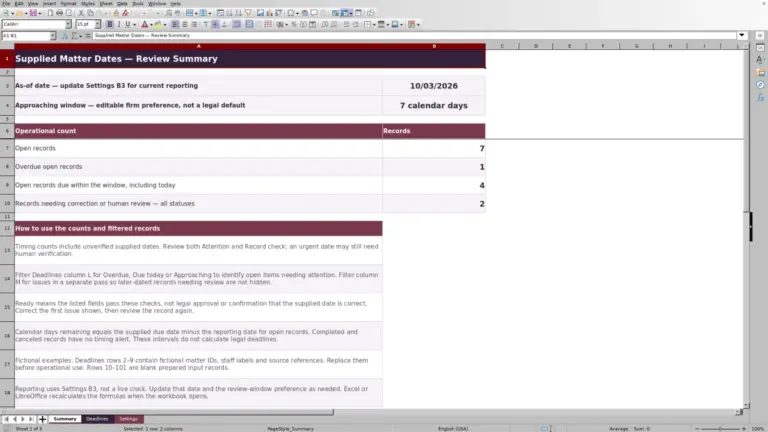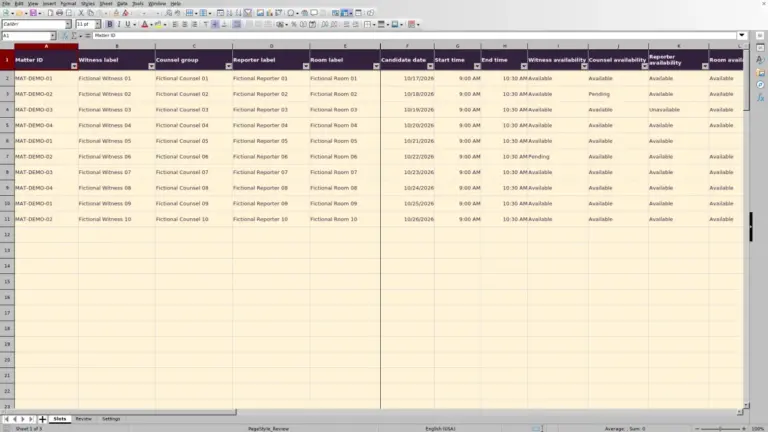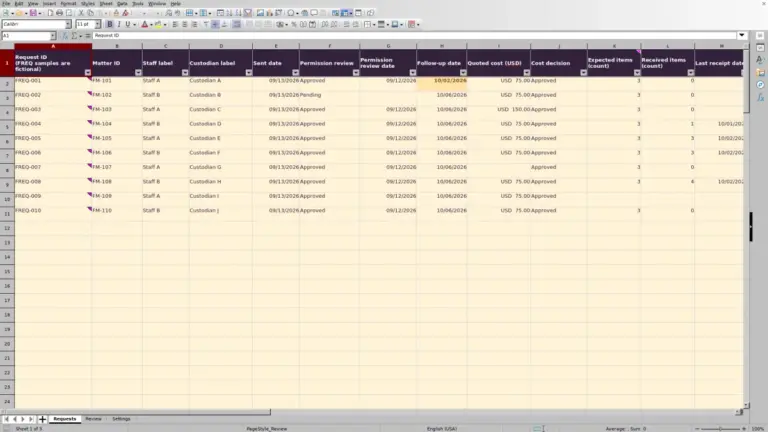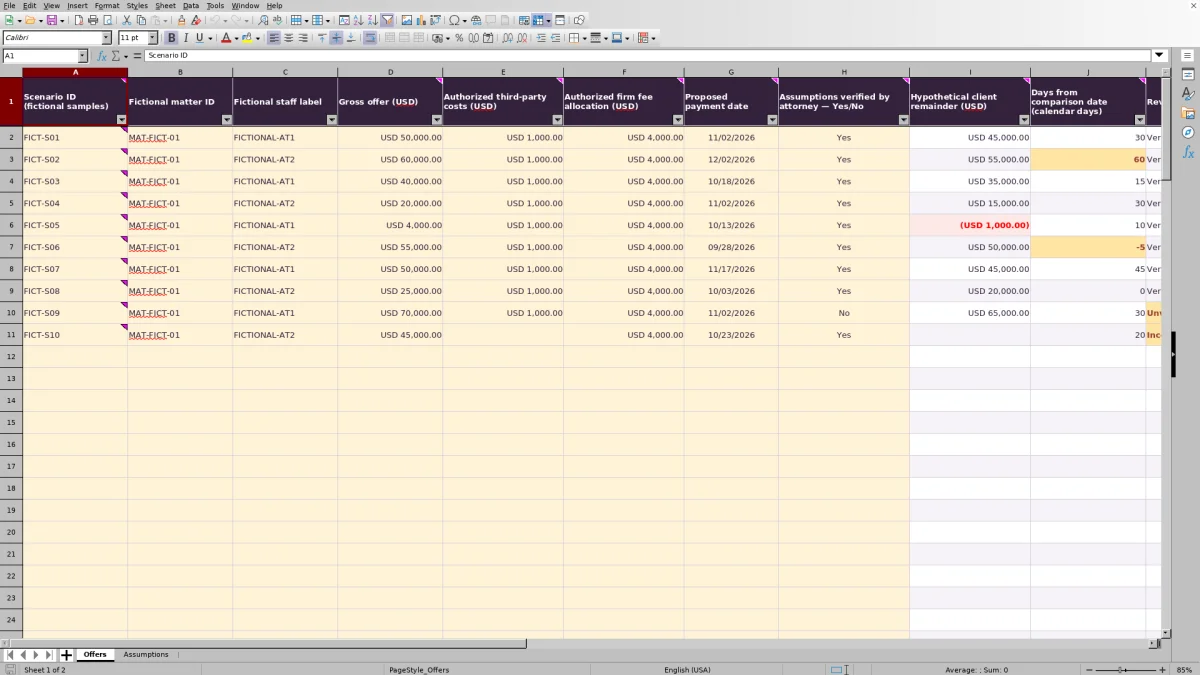
Before a settlement review, put alternative offers on the same arithmetic basis. The Law Firm Sheets settlement offer comparison workbook lets you enter a gross offer, authorized deduction assumptions, and a proposed payment date for each scenario for one selected matter.
Use the results to check hypothetical client remainders, payment timing, and records needing attention. This is an administrative Excel resource, not a recommendation to accept an offer or a valuation of claims. The included records are fictional examples.
Where this workbook helps
- Compare alternative offers using the same deduction categories and comparison date.
- Keep missing deductions distinct from explicit zero-dollar assumptions.
- Find incomplete, unverified, or arithmetically concerning scenarios before handing off the comparison.
- Give the supervising lawyer a consistent record of assumptions and calculated results to review.
What is in the file
How to get started
1. Set the comparison assumptions
On Assumptions, enter the firm-supplied comparison date in B2, deductions review threshold in B3, and payment-delay review threshold in B4. Set Selected fictional matter ID in B5 and the allowed fictional staff labels in D2:D3. These are user-supplied settings, not recommended standards.
2. Replace the fictional sample inputs
The workbook includes ten populated fictional examples. Clear or replace their editable inputs before preparing your own comparison. Use fictional matter IDs and staff labels, not real client identities or privileged narratives. Cream cells are editable inputs; retain the formulas in the white or lavender result cells.
3. Enter one single-payment scenario per row
On Offers, enter a unique scenario ID, the selected fictional matter ID, a fictional staff label, and the amounts in Gross offer (USD), Authorized third-party costs (USD), and Authorized firm fee allocation (USD). Enter an explicit zero when an authorized deduction is zero. Supply one Proposed payment date in MM/DD/YYYY format.
4. Record review and check the results
Use Assumptions verified by attorney — Yes/No to record whether the attorney has verified the assumptions. Open the workbook in Excel or LibreOffice and allow recalculation. Review the remainder, calendar-day difference, deductions share, and Review status together. Use the Assumptions record counts to identify outstanding entries, then inspect the underlying rows rather than relying on counts alone.
Keep deduction assumptions consistent across offers
Before comparing results, confirm what the authorized cost and fee figures include. The workbook subtracts Authorized third-party costs (USD) and Authorized firm fee allocation (USD) from Gross offer (USD). Enter each intended deduction once, and use a consistent basis across alternatives unless a difference is intentional and has been reviewed.
The fee allocation is a dollar input. It is not a fee entitlement calculated from an agreement, and the workbook does not determine which deductions are legally appropriate. Have the supervising lawyer supply or confirm the assumptions outside the spreadsheet.
The result is a hypothetical client remainder after only those two entered deduction categories. It is not an invoice, payment received, disbursement instruction, or client-funds balance. Do not treat it as a tax calculation or evidence of trust-account compliance.
Fictional example: interpret an offer before the next review
The included fictional scenario FICT-S01 uses matter ID MAT-FICT-01 and staff label FICTIONAL-AT1. Its gross offer is USD 50,000.00, authorized third-party costs are USD 1,000.00, and authorized firm fee allocation is USD 4,000.00.
The remainder calculation subtracts both dollar deductions: USD 50,000.00 − USD 1,000.00 − USD 4,000.00 = USD 45,000.00. The deductions share divides total deductions by the gross offer: USD 5,000.00 ÷ USD 50,000.00 = 10.0%.
With a comparison date of 10/03/2026 and proposed payment date of 11/02/2026, the date subtraction produces 30 calendar days. This describes the proposed interval from the supplied comparison date; it does not establish that payment will arrive.
Together, the results describe a scenario with a 10.0% deduction share and a hypothetical remainder payable on the proposed date. The next action is to confirm that the source offer, deduction assumptions, and date match the record, then compare the other alternatives on that same basis. These calculations do not decide whether the offer should be accepted.
Use timing and thresholds as review prompts
Days from comparison date (calendar days) subtracts the date in Assumptions B2 from each Proposed payment date. A negative result means the proposed date precedes the comparison date. Zero means the dates are the same. Neither result is a payment-receipt status.
The sample settings use an illustrative deductions threshold of 20.0% and a delay threshold of 45 calendar days. Replace them with firm-supplied settings. The deductions-share alert applies strictly above its threshold. The timing alert applies to dates before the comparison date or intervals strictly beyond the delay threshold. Equality with a threshold does not trigger that threshold alert.
These are review prompts, not acceptance rules. A result below a threshold is not an endorsement. The workbook does not discount later payments to present value, assess collection risk, or calculate court-rule deadlines.
The comparison date is a supplied input, not a rolling current-date calculation. Changing it changes the day differences across the comparison. Independently verify dates; the file provides neither installment scheduling nor payment reminders.
Read review status without mistaking it for approval
For a row with a scenario ID, Review status first checks whether required row inputs and shared assumptions are present in the expected basic form. Missing identifiers, numeric amounts, a numeric payment date, the Yes/No entry, or required shared settings can produce Incomplete.
Once those checks pass, entering Yes in Assumptions verified by attorney — Yes/No produces Verified inputs. A complete row with No produces Unverified. Verified inputs records the user's review entry; the spreadsheet does not perform attorney review, confirm legal sufficiency, or approve a settlement.
Completeness is also not the same as validity. A duplicate scenario ID or a matter ID that differs from the selected matter can still require correction even when a status appears complete. Verification does not suppress arithmetic alerts, so inspect negative remainders and highlighted timing or deductions separately.
On Assumptions, Recorded scenarios counts nonblank scenario IDs. The other indicators count their stated statuses or negative remainder results. They are record counts, not financial totals, and the displayed counts alone do not establish that every source entry is correct.
Troubleshooting blank results and unexpected alerts
- Blank remainder or deductions share: Check for a missing scenario ID or a blank or text value in the three amount fields. Enter numeric amounts, including zero where authorized. A missing deduction is not treated as zero.
- Blank deductions share with a visible remainder: The share formula requires a positive gross offer. A zero or negative gross offer leaves the percentage blank even though the subtraction may produce a remainder. Correct an entry error or ask the reviewer how to handle the scenario; do not interpret the blank as 0%.
- Blank calendar-day result: Confirm that the scenario ID is present and that both the proposed payment date and comparison date are recognized by the spreadsheet as numeric dates, not text.
- Negative remainder: The entered deductions exceed the gross offer. Check for a duplicated deduction, misplaced decimal, or incorrect amount. If the inputs are intentional, retain the result for review rather than changing it merely to remove the alert.
- Red scenario or matter ID: Give each scenario a unique ID, fill a missing ID where other inputs exist, and confirm that the row belongs to the selected fictional matter.
Pasted values can bypass validation. After pasting, inspect the source entries as well as the calculated results and alerts. A result that calculates successfully is not proof that the amount or date was authorized.
Prepare a clear one-matter handoff
Use the workbook for alternatives for one selected matter, not as a multi-matter settlement register. The selected fictional matter ID supplies the matter choice for Offers, and active rows with a different matter ID are flagged. Changing the selected matter does not replace the identifiers or assumptions already entered in existing rows.
For a new matter, start from a separate copy and remove the prior scenario inputs. For a revised comparison, save a dated copy before changing shared settings so the recipient can distinguish the earlier assumptions from the current ones. This is a manual recordkeeping precaution, not an automatic audit trail.
At handoff, identify which scenarios still need input confirmation and who will review them through the firm's usual process. The fictional staff label is a record field, not a notification mechanism.
Do not add alternative offers together as if they were cumulative recoveries. Each row represents a different single-payment possibility. Review the scenario-level results and use the record indicators to check completeness, not to calculate a combined settlement value.
Compare this workbook with a blank spreadsheet
A blank spreadsheet may be sufficient for a one-time calculation. This workbook is useful when you want the same fields, calculations, and review prompts applied to a set of single-payment alternatives.
| Method | Setup and arithmetic | Review support | Scope and maintenance |
|---|---|---|---|
| Law Firm Sheets workbook | Prepared inputs and formulas for remainder, calendar-day difference, and deductions share across 100 rows. | Completeness statuses, input validation, visual alerts, and record counts are provided; source verification remains external. | Designed for one selected matter and one proposed payment date per scenario. Shared settings and fictional identifiers must be maintained. |
| Blank spreadsheet | You choose the layout and build or manually perform each calculation. | You must design any review fields, checks, alerts, and counts you need. | You can design a different structure, but must test and maintain its formulas and assumptions yourself. |
Choose the prepared workbook when its single-payment structure matches the task and you want consistent review fields. Use a separately designed approach when the comparison requires installment cash flows or other calculations outside this file's scope. Either method still requires authorized inputs and independent professional judgment.
Frequently asked questions
Can I remove the included fictional examples?
Yes. Clear or replace the editable sample inputs on Offers while preserving the formula columns I:L. Review the settings on Assumptions as well. The ten populated records are fictional examples, not actual offers or evidence of completed reviews.
What happens if I need more than 100 scenarios?
The verified prepared range is Offers rows 2–101. Do not assume that entering data below row 101 extends the formulas, validation, alerts, filter, or Assumptions counts. A larger version would need those ranges extended and checked before use.
Does Deductions share (%) calculate the firm's fee percentage?
No. It divides the combined authorized third-party costs and authorized firm fee allocation by the gross offer. It therefore describes the share taken by both entered deduction categories, not just the firm's fee. The fee allocation itself must be entered as an authorized USD amount.
Can I open the workbook in LibreOffice?
The workbook instructions say to open it in Excel or LibreOffice and allow recalculation before relying on results. Check the formulas, dates, and alerts in the application you use; the manifest does not establish identical behavior in every software version.
Does Law Firm Sheets review the offers entered in this file?
No. Law Firm Sheets is an administrative Excel library, not a law firm or practice management service. The workbook records your inputs and review designation; it does not provide human review, legal or tax advice, payment processing, or compliance assurance.
Editorial coverage

Audra PembrokeBilling and finance content

Graham ElleryPractice administration content