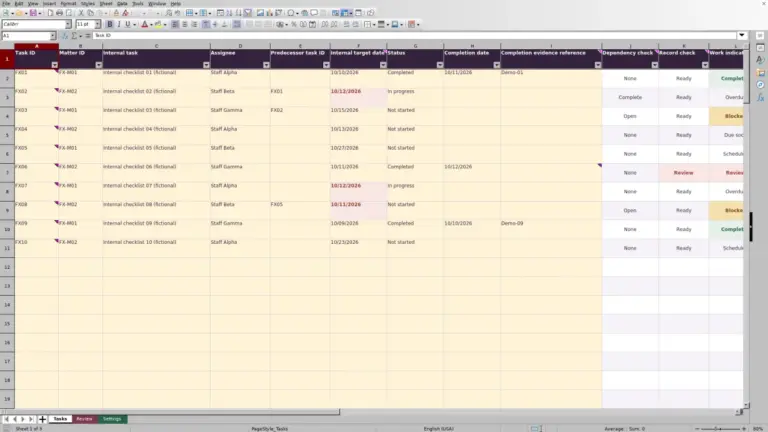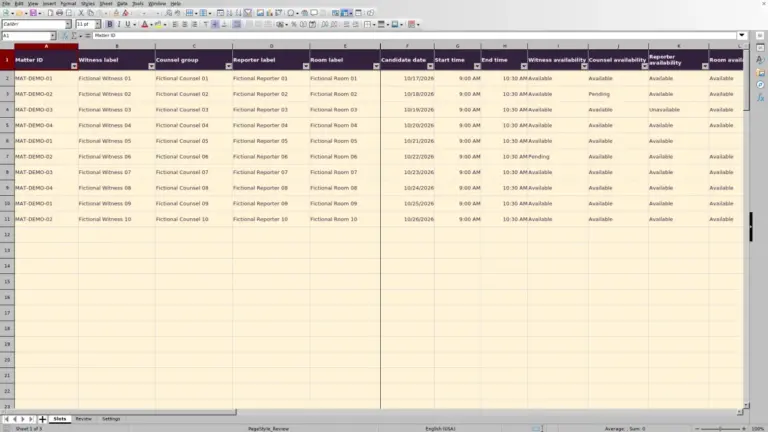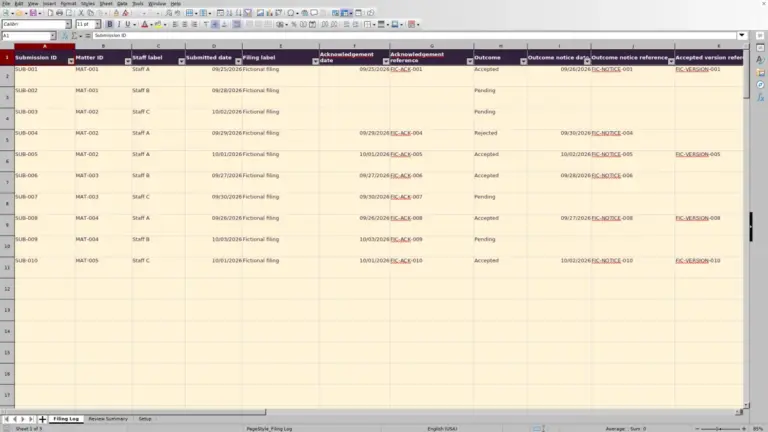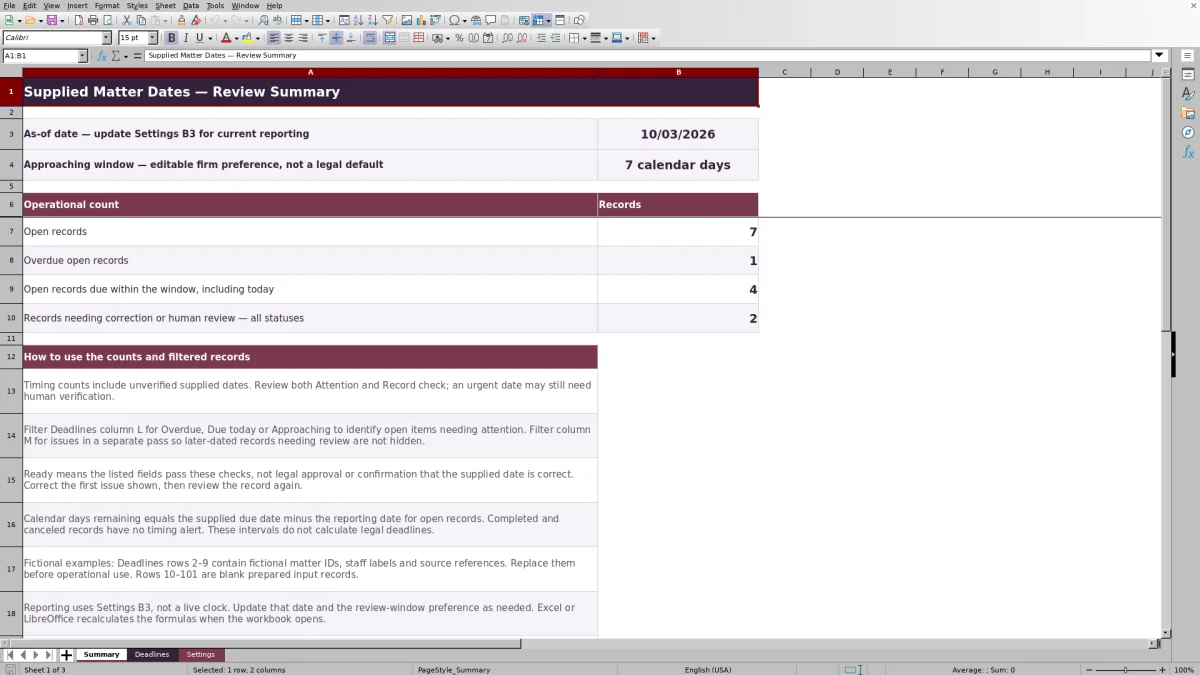
Before a matter-date review, bring the supplied due dates, source references, and reviewer details into one record. This legal deadline tracking spreadsheet from Law Firm Sheets helps you identify open items that need attention and records that need correction.
The Excel workbook tracks dates your firm supplies and independently verifies. It is an administrative tracking resource, not legal advice or a tool for calculating deadlines from court rules or holidays.
Where this workbook helps
- Focus the date review on overdue, due-today, and approaching open records.
- Keep each supplied date connected to its source, assigned staff member, and recorded reviewer.
- Find missing information and verification issues separately from timing urgency.
- Use summary counts to plan follow-up while retaining individual records for review.
What is in the file
How to get started
1. Prepare the workbook for your firm
Save a working copy. Replace the fictional examples in Deadlines rows 2–9 before operational use, editing the input cells rather than deleting the formula cells. In Settings, replace the fictional staff labels in F2:F3 as needed. Keep the status labels Open, Completed, and Canceled unchanged.
2. Set the reporting date and review window
Enter the reporting date in Settings B3, labeled As-of date. Set Settings B2, Approaching window (calendar days), to your firm's preferred review interval. The allowed window is 0–365 calendar days; it is a firm preference, not a legal standard.
3. Enter one supplied date per record
In Deadlines, complete Record ID, Matter ID, Assigned staff, Task label, Due date, Source reference, and Status. Use a unique Record ID for each task and date. Enter dates as MM/DD/YYYY without times. Record Human reviewer and Verification date when the person has actually checked the supplied date against its source.
4. Review timing and record issues separately
Check Summary, then filter Attention in Deadlines for Overdue, Due today, or Approaching. Clear that filter before reviewing Record check for corrections and verification issues across all records. Correct the first issue shown, then review the record again because another issue may become visible.
Keep the reporting date current
Before relying on the timing flags, confirm the As-of date displayed on Summary. The workbook uses a manually set reporting date from Settings B3, not a live clock. Reopening the file recalculates formulas in Excel or LibreOffice, but does not advance that date.
For an Open record with a numeric Due date, Calendar days remaining subtracts the reporting date from the supplied due date. A negative result produces Overdue; zero produces Due today. A positive result within the selected window produces Approaching, and a larger result produces Later.
These results measure calendar-day distance from your reporting date. They do not adjust for weekends or holidays. Choose the window to support your review routine, and update the reporting date before deciding which records need action.
Fictional example: interpret an approaching date
The workbook's fictional record DEMO-03 belongs to matter FIC-M003. It lists Staff-A for an Internal review task, a Due date of 10/06/2026, and a Fictional schedule reference. Staff-B is recorded as Human reviewer with a Verification date of 10/03/2026, and Status is Open.
With the As-of date set to 10/03/2026 and the approaching window set to 7 calendar days, the calculation is 10/06/2026 minus 10/03/2026 = 3 calendar days remaining. Attention therefore shows Approaching because the result is positive and within the selected window.
That result means the supplied date belongs in the current timing review. It does not establish that the due date is legally correct or that the task is finished. The next administrative step is to confirm with the assigned staff member what remains to be done and consult the recorded source and reviewer if the date is questioned.
Separate urgency from verification
Use Attention to identify timing priorities and Record check to identify listed data or review issues. These answer different questions. An urgent record can still lack verification, while a later-dated record may need correction now.
Timing counts include unverified supplied dates. Summary counts Open records by status, overdue open records by their timing result, and records due within the window, including today. Its correction-or-review count covers all statuses. These categories can overlap, so do not add them together as a count of distinct tasks.
Run a second filter pass for Record check issues without leaving an urgency filter in place. Otherwise, later-dated or closed records needing attention may stay hidden. Ready means the listed fields pass the workbook's checks; it is not legal approval or confirmation that the supplied date is correct. The reviewer fields record a person's review rather than perform that review.
Troubleshooting missing inputs and misleading blanks
Resolve the displayed issue at its source rather than typing over a formula result. Record check reports only the first detected issue, so a corrected record needs another look.
- Missing required input: check the required fields, including Source reference and Status. Confirm that Due date is an actual Excel date rather than text that merely looks like one.
- Duplicate record ID: give each separate task-and-date record its own Record ID. Repeated Matter ID values are appropriate when one matter has several records.
- Needs human verification: arrange the review and record the actual reviewer and verification date. Do not fill those fields simply to remove the flag.
- Check verification date: compare Verification date with the reporting date. Correct a mistaken entry or update a stale As-of date, as appropriate; do not change the historical review date just to pass a check.
A blank Calendar days remaining or Attention result is not proof that nothing is due. Those formulas return blank when Status is not Open or Due date is not numeric. By contrast, zero calendar days remaining means Due today. Check the inputs before interpreting a blank as a closed task.
Validation helps with entry, but pasted values can bypass it. Inspect pasted dates and statuses, and review both calculated columns afterward. The workbook's checks are not a complete audit of every possible input error.
Close records and hand off responsibility deliberately
Use Completed when the task is complete and enter its Completion date. Use Canceled when the task is canceled, leaving Completion date blank. Verification and completion dates must not be later than the As-of date. Preserve the exact status wording because the formulas depend on it.
Completed and canceled records have no timing alert. Confirm the task's disposition before changing Status; a closed status removes it from the timing review even if the supplied due date is near. Continue checking Record check because the correction-or-review count includes all statuses.
When responsibility changes, update Assigned staff and directly confirm the handoff with the new owner. Keep a dated copy if your firm's procedure calls for one. A staff assignment in a cell is not a notification, and saving the file should not be treated as an automatic audit trail.
Stay within the prepared range and preserve formulas
The prepared area runs from Deadlines row 2 through row 101. It holds 100 records in total; rows 2–9 initially contain fictional examples, and rows 10–101 are blank prepared inputs. Replace the examples before using the workbook's counts for real work.
Rows beyond 101 are outside the supplied setup. Summary formulas and duplicate-ID checks reference the prepared range, and the filters, validation, and row formulas are also set up for that range. Simply typing a record below it does not extend those controls.
Enter data in the pale cream input cells and preserve the formulas in columns K–M. Cells are unprotected, so accidental overwriting is possible. If your firm needs a larger register, have the ranges, formulas, validation, and filters deliberately extended and tested before relying on the additional records.
Compare with a blank spreadsheet or paper list
Choose the method that fits the number of records and the amount of review your team can maintain. This workbook supplies a defined date-review structure, but it still depends on careful entry, current settings, and staff follow-through.
| Method | Record structure | Timing review | Checks and upkeep |
|---|---|---|---|
| Law Firm Sheets workbook | Prepared fields for supplied dates, source references, staff, and recorded verification. | Formula-based timing labels and summary counts using a manually set reporting date. | Listed record checks and entry validation; formulas and the 100-record range must be maintained. |
| Blank spreadsheet | Your firm designs the columns and decides what to require. | Manual review unless your firm builds and tests timing formulas. | Your firm must create and maintain any validation, duplicate checks, and summaries. |
| Paper date list | Staff write the date, task, source, and review details using a chosen format. | Staff scan dates and tally upcoming work manually. | Corrections, completeness checks, and handoffs depend on the paper review routine. |
Use this workbook when its prepared fields and record capacity fit your workflow and someone will maintain the reporting date. A blank spreadsheet may suit a materially different record structure if your firm can build and test it. A paper list may be workable for a small, stable set of dates with an established manual review process. None of these methods independently verifies the supplied due date.
Frequently asked questions
Does the workbook send reminders to assigned staff?
No reminder or notification capability is established by the supplied workbook. Attention labels appear in the spreadsheet, and filters help you find relevant records. Assign someone to review the file and communicate follow-up through your firm's existing process.
Can I change the staff choices?
Yes. The Assigned staff and Human reviewer lists use Settings F2:F3, which initially contain fictional labels Staff-A and Staff-B. You can edit those labels, but existing records must be updated manually when a label changes. Adding staff outside those two cells requires changing the validation source range; typing extra labels below them alone does not expand the dropdown lists.
What should I put in Source reference?
Use a concise reference that lets the reviewer locate the source your firm relied on for the supplied date. Prefer matter IDs and restrained administrative descriptions rather than client identities or privileged narratives. The field records a reference; it does not retrieve or assess the underlying source.
Will a zero overdue count mean every record is correct?
No. It means no record in the prepared range currently has the Overdue timing label. Missing or nonnumeric due dates, non-Open statuses, a stale reporting date, or records outside the prepared range can affect what appears in that count. Review Record check and the underlying records before drawing a broader conclusion.
Editorial coverage

Audra PembrokeBilling and finance content

Graham ElleryPractice administration content