When a portal invitation remains unactivated, intake staff need to know what has been recorded and who should act next. The Law Firm Sheets Client Portal Invitation Log is an Excel workbook for tracking invitation attempts, recipient verification records, activation confirmation and support follow-up.
Use it to organize an administrative review, not to operate a client portal. Staff supply the event dates and confirmations; the workbook calculates access stages and follow-up labels from those entries. Law Firm Sheets is an administrative Excel library, not a law firm or legal advice service.
Where this workbook helps
- Give each invitation attempt an assigned staff member so open access tasks have a clear owner.
- Separate recorded verification, sent invitations and confirmed activation during intake review.
- Identify invitations needing follow-up using a firm-selected review date and calendar-day threshold.
- Surface incomplete or inconsistent records before relying on access-stage and follow-up counts.
What is in the file
How to get started
1. Set up the review assumptions
On Settings, enter the Review date in B2 and the Follow-up threshold in B3. The threshold is a firm-selected number of calendar days, not a legal deadline. Add your staff labels in B7:B106 for the Assigned staff and Verified by dropdowns.
2. Prepare the log for your records
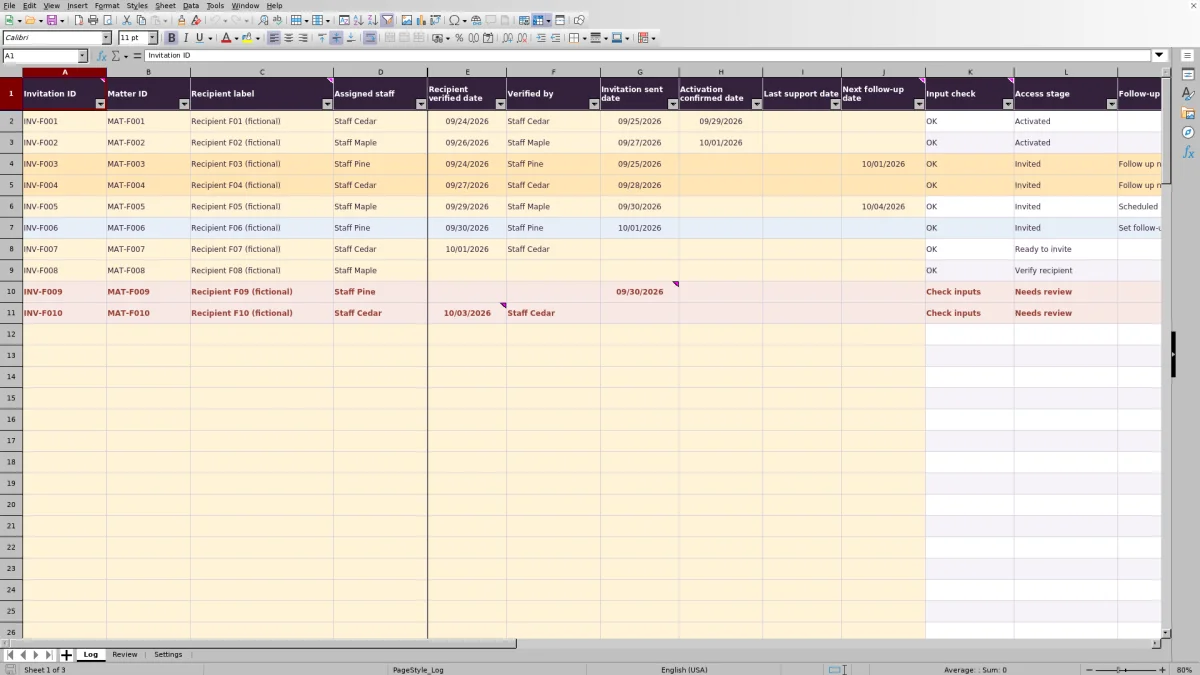
Log rows 2–11 contain fictional examples, including intentional input issues. Remove the example inputs from columns A:J before using the file as a live register, or keep a separate training copy. Preserve the formulas in K:M; the cells are not protected.
3. Record each invitation attempt
Enter a unique Invitation ID, a Matter ID, a nonidentifying Recipient label and Assigned staff. When recipient verification is completed under your firm's procedure, enter Recipient verified date and Verified by together. Record Invitation sent date and Activation confirmed date only when those events have occurred.
4. Review issues and assign follow-up
Start on Review with Input issues and Needs review. Use the Log filters to find the affected records and correct their inputs. Then review Follow-up action for invited records, carry out the needed contact outside the workbook, and update Last support date and Next follow-up date as appropriate.
Start with input issues before planning outreach
Open Review to decide which records need correction before staff begin contacting recipients. Recorded attempts includes populated records even when they are incomplete. It is an attempt count, not a count of unique matters or people.
Needs review records are excluded from the actionable access-stage and follow-up counts. A zero under Follow up now therefore does not establish that every invitation is resolved. Check Input issues and Needs review first, then examine the remaining access stages.
Blank records produce no status. Follow-up action is also blank whenever Access stage is not Invited, including records awaiting verification and records needing input review. Use the stage and input-check labels together rather than treating an empty follow-up cell as completion.
Keep recorded verification separate from actual access
Recipient verified date and Verified by record a staff member's completed verification event. For an otherwise valid record, that entry moves Access stage to Ready to invite when no sent date is present. It tells the next staff member what has been recorded; it does not send an invitation.
After sending through your firm's separate portal process, enter Invitation sent date. Without an activation confirmation, the record becomes Invited. Enter Activation confirmed date only after obtaining the confirmation required by your firm's procedure.
Activated is a recorded status, not proof of secure access. This workbook does not verify identity, prove secure delivery, access a portal or establish compliance. Resolve recipient authorization and access questions through the firm's actual procedures, not through the spreadsheet's status labels.
Fictional example: decide when an invitation needs follow-up
The supplied fictional attempt INV-F004 belongs to matter MAT-F004 and uses Recipient F04 (fictional), assigned to Staff Cedar. Recipient verification is recorded on 09/27/2026 with Staff Cedar as verifier, and the invitation is recorded as sent on 09/28/2026. Activation confirmed date and Next follow-up date are blank.
With the fictional Settings review date of 10/02/2026 and a threshold of 3 calendar days, the invitation age is 4 calendar days: the review date minus the sent date. Assuming the record passes Input check, Access stage is Invited and Follow-up action is Follow up now because its age has reached the threshold.
The result means staff should review the unresolved invitation and decide what contact or support is appropriate. It does not establish why activation is missing. After the contact, record the support date and choose an explicit next follow-up date if another check is needed. Record activation only when it has been confirmed.
Choose between an explicit follow-up date and invitation age
For valid Invited records, an entered Next follow-up date takes priority over the aging threshold. If that date is on or before the Settings Review date, the action is Follow up now. If it is later, the action is Scheduled—even if the invitation is already older than the threshold.
Without an explicit date, the workbook compares calendar days since sending with the threshold. Reaching or exceeding the threshold produces Follow up now. A younger invitation produces Set follow-up date so staff can decide when to check it again.
Last support date does not restart the aging calculation. Recording a support contact alone can leave an invitation due for follow-up. Enter an appropriate Next follow-up date when the firm decides to defer the next check.
Update Settings before each review cycle: the calculation uses the entered Review date, not a live reminder service. These are administrative follow-up dates supplied and verified by staff; the workbook does not calculate court-rule deadlines or notify anyone.
Troubleshooting: correct the source entry, not the status
When Input check shows Check inputs, use the underlying fields to find the problem. Do not type over Access stage to make a record appear ready or complete.
- Missing identifiers or owner: complete Invitation ID, Matter ID, Recipient label and Assigned staff. Even a partially entered attempt contributes to the recorded-attempt count.
- Duplicate invitation ID: check whether the row is an accidental duplicate or a separate attempt. Separate attempts need distinct IDs; repeating a matter or recipient label is allowed.
- Unrecognized staff label: select a label listed on Settings. Both Assigned staff and any entered Verified by value must match the staff list.
- Verification entered only halfway: Recipient verified date and Verified by must be completed together. Do not invent either value just to clear the warning.
- Events out of sequence: check the source dates. Sending requires a recorded verification date, activation requires a sent date, and those events must be in chronological order.
- Date stored as text: replace it with an actual Excel date and display it as MM/DD/YYYY. Event-date fields are not free-text notes.
Pasted content can bypass validation. After importing or pasting entries, inspect the calculated checks and compare dates with the source records. An OK label reflects the workbook's input rules; it is not independent confirmation that an event occurred.
Prepare a reliable staff handoff within the workbook's limits
Before handing the review to another staff member, save a dated copy under your firm's file-handling procedure. Confirm who owns each unresolved attempt and whether the next task is verification, sending or follow-up. Changing Assigned staff in the file does not notify that person; communicate the assignment separately.
Last support date holds one date, not a support-contact history. Keep any permitted detailed support record in the firm's appropriate system rather than entering privileged narratives or credentials into this log. Use matter IDs and nonidentifying recipient labels to make records distinguishable.
The prepared range ends at Log row 101. Formulas, validation, filters and Review counts are set up for rows 2–101, a total of 100 attempts. Typing below that range does not establish that a new row is included in the review. If volume exceeds the prepared capacity, use a controlled continuation process or have the workbook ranges extended and checked before relying on the totals.
Compare this workbook with a blank spreadsheet
A blank spreadsheet may be sufficient for a short, occasional list. This workbook is designed for a recurring review where staff need consistent invitation stages and follow-up rules. Compare the whole workflow, including the manual work that remains.
| Method | Record structure | Follow-up review | Checks and oversight | Portal activity |
|---|---|---|---|---|
| Law Firm Sheets invitation log | Prepared fields and formulas for 100 invitation attempts. | Calculated labels use the entered review date, explicit follow-up dates and calendar-day threshold. | Input checks, validation and summary counts support staff review; formulas remain unprotected. | Staff send invitations and obtain confirmations outside the workbook, then enter the events. |
| Blank spreadsheet maintained manually | Staff design the fields and determine how attempts will be distinguished. | Staff inspect dates manually unless they build and maintain their own formulas. | Staff establish consistency checks and counts, or review records individually. | Staff likewise handle portal activity separately unless they independently implement another process. |
Choose this workbook when its fields, fixed range and review logic fit your intake process. Choose a blank sheet when the record is simpler or materially different and someone will maintain its structure. If you need portal activity and access confirmation captured without manual entry, evaluate a separate system for those requirements rather than expecting this file to supply them.
Frequently asked questions
How should I record a resend?
Use a new row and a new Invitation ID for each resend. Matter ID and Recipient label may repeat. This preserves the one-row-per-attempt structure, so Recorded attempts should not be interpreted as the number of distinct recipients.
Can I enter future dates?
Next follow-up date can be a future date. Validation for Recipient verified date, Invitation sent date, Activation confirmed date and Last support date requires whole Excel dates no later than the Settings Review date. If a real completed event appears to be in the future relative to the workbook, check whether the review date is stale before changing the event record.
What happens if the follow-up threshold is zero?
Settings accepts a whole-number threshold from 0 through 365 calendar days. At zero, a valid Invited record with no explicit Next follow-up date reaches the threshold on its sent date. An explicit follow-up date still takes priority. Choose the threshold through firm review rather than treating any supplied setting as a standard requirement.
Can the verifier be different from the assigned staff member?
Yes. Assigned staff identifies the owner of the attempt, while Verified by records who completed the recipient verification event. The workbook checks both against the Settings staff list but does not require them to be the same person. Use labels consistently, and check existing records before renaming or removing a staff-list entry.
Editorial coverage

Audra PembrokeBilling and finance content

Graham ElleryPractice administration content