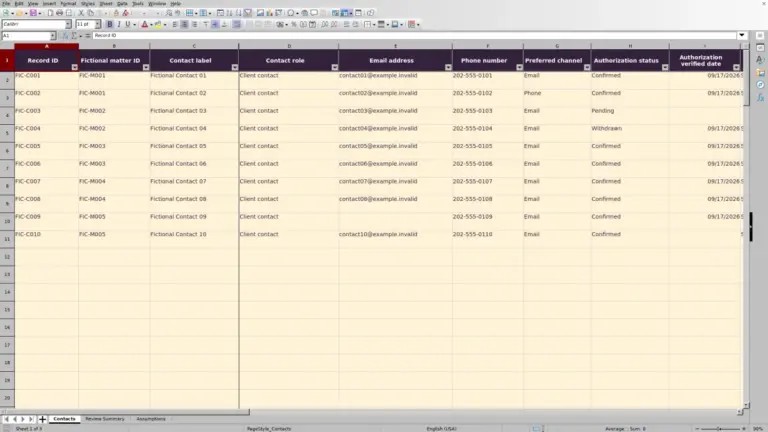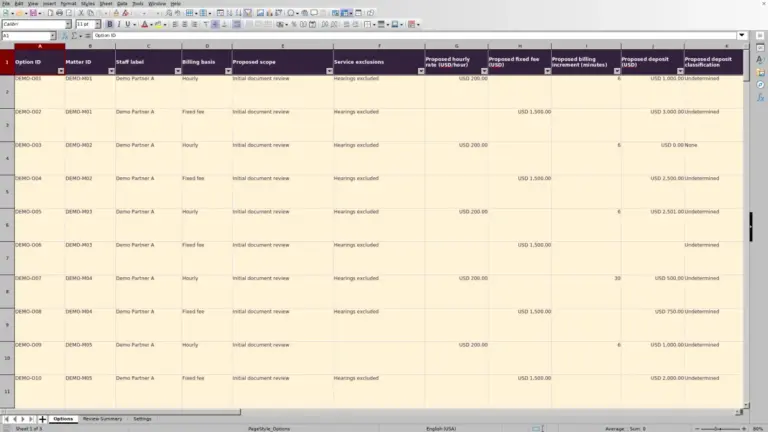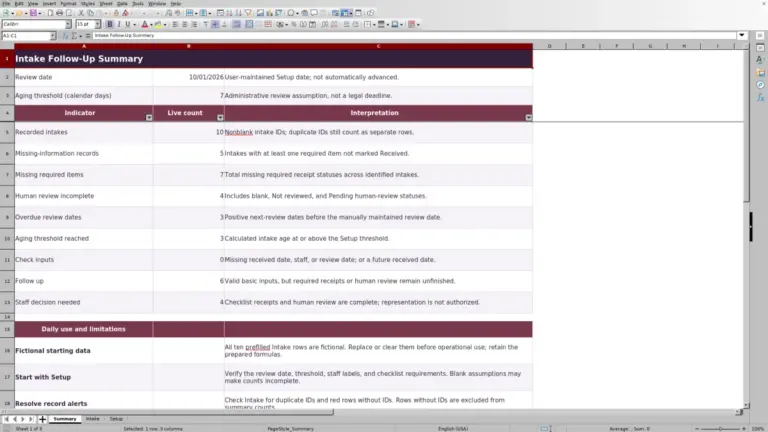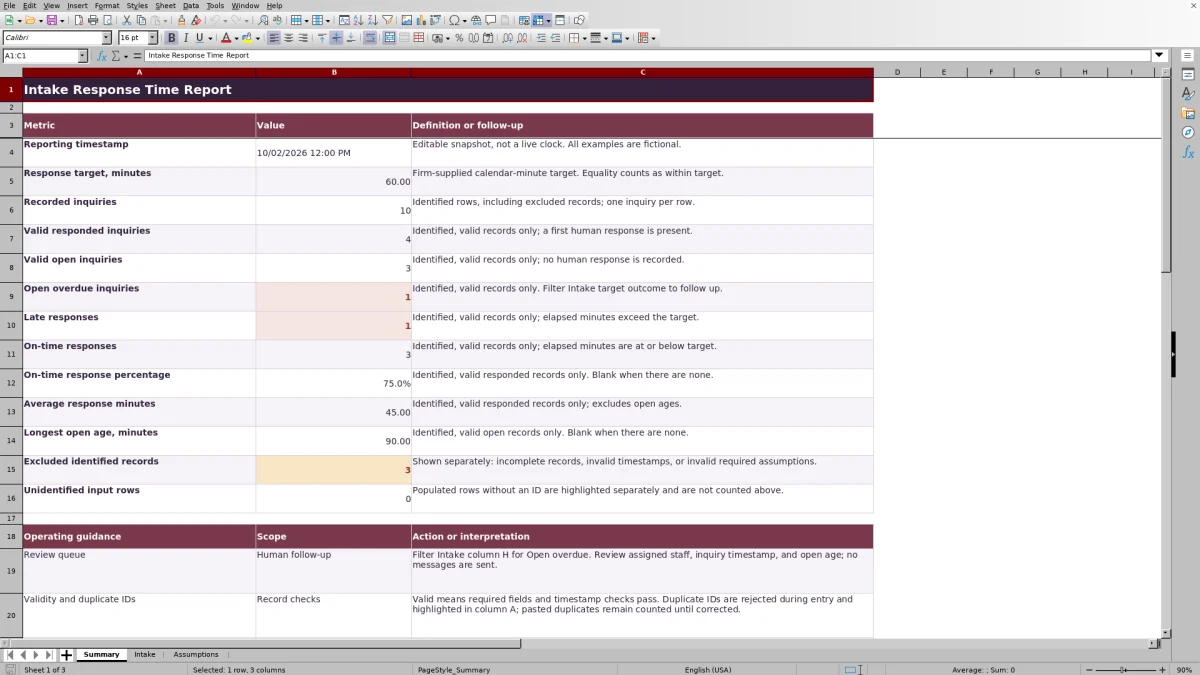
When inquiries are waiting for a response, intake staff need to see which records require follow-up. The Law Firm Sheets Intake Response Time Report lets you enter inquiry and first human response timestamps, measure elapsed minutes, and compare them with a firm-supplied internal target.
This administrative Excel workbook separates responded inquiries from open ones and flags records that need correction. Open ages use an editable reporting snapshot, not a live clock, so update that timestamp before reviewing the queue.
Where this workbook helps
- Find valid open inquiries that have exceeded your firm's internal response target.
- Keep response delays separate from the age of inquiries still awaiting a recorded human response.
- Review incomplete and invalid records before relying on response statistics.
- Use assigned staff labels and a dated snapshot to support an intake handoff.
What is in the file
How to get started
1. Set the reporting assumptions
On Assumptions, enter a positive target in B2, labeled Response target, minutes, and a verified Reporting timestamp in B3. Record the Firm-selected time zone in B4 and use that zone for every timestamp. The supplied values and records are fictional examples, not firm policy.
2. Prepare the intake records
Work in a copy and replace the fictional sample inputs before producing a firm report. In Intake, use one row per inquiry within rows 2–101. Enter a unique nonidentifying reference under Fictional inquiry ID, select Assigned staff label and Inquiry channel, and enter the Inquiry timestamp. Keep names and privileged narratives out of the record.
3. Record the first human response
Enter the verified date and time in First human response timestamp, using a format such as MM/DD/YYYY hh:mm AM/PM. Leave it blank if no human response has been recorded. An automated acknowledgment does not qualify. Edit the cream input cells only; the cells are unprotected, so formulas can be overwritten.
4. Correct records and review follow-up
Check Record status and highlighted ID issues before using Summary. Then filter Target outcome in Intake for Open overdue and review Assigned staff label and Open age, minutes. Arrange follow-up through your firm's usual process; the workbook sends no messages.
Choose a target that matches the timing basis
Confirm what your intake manager wants to measure before entering a response target. This report measures calendar minutes, not business hours. Overnight time, weekends, and office closures are not removed from the calculation. If your policy measures only staffed hours, this workbook's elapsed times do not directly measure that policy.
For a responded inquiry, elapsed time runs from Inquiry timestamp to First human response timestamp. For an open inquiry, it runs from Inquiry timestamp to the Reporting timestamp on Assumptions. Excel stores time differences as fractions of a day; the calculation multiplies that difference by 1,440 to express it in minutes.
Durations are rounded to two decimal places before comparison with the target. A duration equal to the target counts as within target. The target is a firm-supplied administrative assumption, not a legal response standard.
Fictional example: identify a late first response
The supplied fictional inquiry FI-003 is assigned to Intake C and uses the Web form channel. Its Inquiry timestamp is 10/02/2026 08:40 AM, and its First human response timestamp is 10/02/2026 10:10 AM. With the fictional Reporting timestamp set to 10/02/2026 12:00 PM, both events fall before the reporting snapshot.
The response occurred one hour and 30 minutes after the inquiry, so Elapsed minutes is 90.00 minutes. Against the fictional 60-minute target, Record status is Responded and Target outcome is Responded late. Open age, minutes is blank because this inquiry already has a recorded response.
The result identifies a missed internal target, not an inquiry still awaiting its first response. Review the recorded timestamps and the intake handoff before deciding whether the delay calls for an administrative change. The workbook does not establish why the response was late or assess the quality of that response.
Refresh the snapshot before an intake handoff
At a handoff, enter a verified Reporting timestamp in Assumptions B3, then review open inquiries. Changing this value recalculates open ages without moving the original inquiry timestamps. Leaving an old snapshot in place can make the queue look younger than it is.
Filter Intake column H, Target outcome, for Open overdue. Use the assigned staff label, inquiry timestamp, and open age to decide who should check each record. A blank response timestamp means no human response is recorded in this file; confirm whether contact has occurred before treating the entry as unanswered.
Save a dated copy when you need to retain the figures discussed at a handoff. The workbook is a snapshot-based record, not an automatic notification or handoff service. Staff must communicate the next action separately.
Read response statistics without hiding the open queue
On Summary, On-time response percentage uses valid responded inquiries only: on-time responses divided by valid responded inquiries. Average response minutes uses that same responded group and excludes open ages. These measures describe recorded responses, not the entire intake backlog.
Read those results alongside Open overdue inquiries and Longest open age, minutes. A favorable response percentage can coexist with overdue open inquiries because those open records are not part of the percentage's denominator.
A blank percentage or average means there are no valid responded records to measure; it does not mean zero delay. Longest open age, minutes is blank when there are no valid open records. A genuine zero-minute duration can occur when the relevant timestamps are equal, so distinguish a displayed zero from a blank result.
Recorded inquiries counts identified rows, including excluded records. Check Excluded identified records and Unidentified input rows before treating the report as complete. Filtering Intake changes the visible queue, but the Summary formulas still cover the full prepared range rather than only the visible rows.
Troubleshooting missing results and misleading counts
Resolve record problems before comparing staff activity or reporting performance. The following checks address the file's main entry risks:
- Incomplete: An identified row is missing Assigned staff label, Inquiry channel, or Inquiry timestamp. Supply the verified missing input rather than entering a placeholder date.
- Check timestamps: Confirm that Excel recognizes the entries as dates and times, the inquiry is not after the reporting snapshot, and the response is neither before the inquiry nor after the snapshot. Correct the source entry or update an outdated snapshot only after verification.
- Check assumptions: Confirm that the response target and reporting timestamp are numeric Excel values greater than zero. A blank or text value can prevent valid results.
- Unidentified input rows: If a populated row lacks an ID, it is reported separately and is not included in the inquiry metrics. Add the correct unique reference or remove unintended inputs.
- Duplicate IDs: Entry validation rejects duplicates during normal entry, but pasting can bypass validation. Highlighted pasted duplicates remain counted until corrected. Determine whether the rows describe one inquiry or separate inquiries before deleting or relabeling anything.
A blank Elapsed minutes cell is not proof of an immediate response. Check Record status and the ID first. If results still look wrong after correcting inputs, check whether someone overwrote a formula in the unprotected calculation columns.
Keep the report within its range and time limits
The prepared calculation and Summary ranges cover Intake rows 2–101. Treat that as a 100-inquiry reporting range. Typing below it does not make those rows part of the verified report. For a larger volume, use a clearly separated reporting batch or have any range changes checked before relying on the totals.
Enter all timestamps in one firm-selected time zone. The label on Assumptions documents your choice; Excel timestamps do not convert zones. They also do not adjust elapsed time across daylight-saving changes. Independently verify an interval spanning a clock change rather than treating its displayed duration as an adjusted elapsed time.
Keep Administrative note limited to short operational context, such as a timestamp correction that needs confirmation. Do not add client identities or privileged narratives. This file supports intake follow-up only; its status labels do not perform conflict clearance, establish a matter, or calculate court deadlines.
Compare this report with a blank spreadsheet
A blank spreadsheet can serve as an intake list, but someone must define its timing rules and check the calculations. This workbook provides a specific snapshot-based method. The choice depends on whether that method fits your firm's reporting task.
| Method | Timing and metrics | Entry checks | Follow-up and scope |
|---|---|---|---|
| Law Firm Sheets Intake Response Time Report | Prepared calendar-minute calculations, target outcomes, and Summary metrics for 100 inquiry rows. | Required-input status checks, timestamp validation, and duplicate-ID checks; pasted data still needs review. | Filterable open-overdue queue based on an editable snapshot. Staff arrange follow-up separately. |
| Blank spreadsheet maintained by staff | Staff must define the timing basis and create or manually calculate the metrics they need. | Checks depend on the validation and review procedures the firm adds. | Staff design the queue, reporting range, and handoff process around their requirements. |
Use this workbook if a defined calendar-minute target and a manually refreshed snapshot fit your review. Start with a custom spreadsheet or evaluate another workflow if you need different timing rules or a larger reporting structure. In either case, someone must verify the source timestamps and take responsibility for follow-up.
Frequently asked questions
Does an automated email acknowledgment count as a response?
No. The workbook's response definition is First human response. Enter the verified timestamp of that event, not the time an automated acknowledgment was sent. The workbook calculates from the timestamp you enter; it does not inspect or classify communications.
Can I change the staff labels and inquiry channels?
Yes. The staff dropdown uses Assumptions D2:D5, and the channel dropdown uses Assumptions F2:F4. Edit those existing list cells to match your administrative labels. Adding entries outside those ranges does not extend the verified dropdown lists, and changing a list label does not rewrite previously entered Intake records.
What happens if I change the response target?
The target outcomes and related Summary results recalculate against the new positive value in Assumptions B2. The file uses one current target across its prepared records, not a separate historical target for each inquiry. Save a dated copy before changing the target if you need to retain the earlier report's classifications.
Should each row represent a client or a matter?
Neither: one row represents one inquiry. Use a unique nonidentifying inquiry reference, following the pattern of the fictional examples, rather than a client name. Do not interpret Recorded inquiries as a count of distinct clients or opened matters.
Does a valid record mean the inquiry has been professionally reviewed?
No. Valid means the required inputs and timestamp checks pass for the report's calculations. It does not mean a lawyer reviewed the inquiry, a conflict check was cleared, or representation was accepted. Law Firm Sheets provides an administrative Excel library, not legal advice, a law firm, or a practice management service.
Editorial coverage

Audra PembrokeBilling and finance content

Graham ElleryPractice administration content