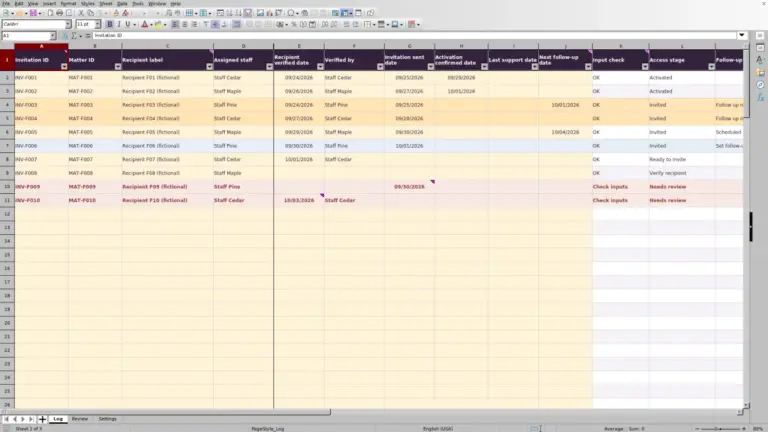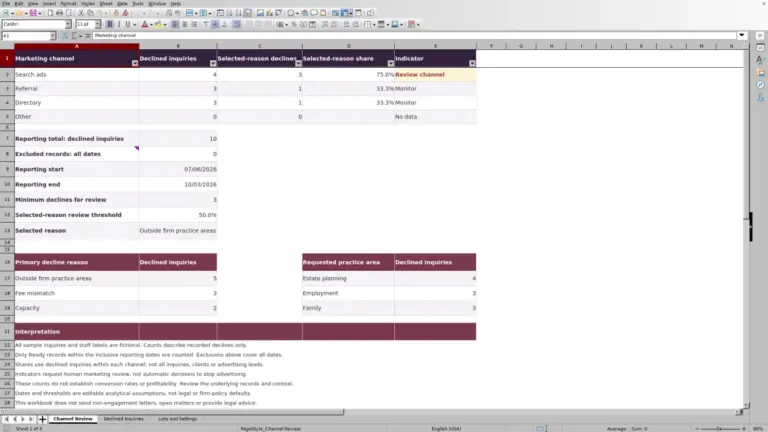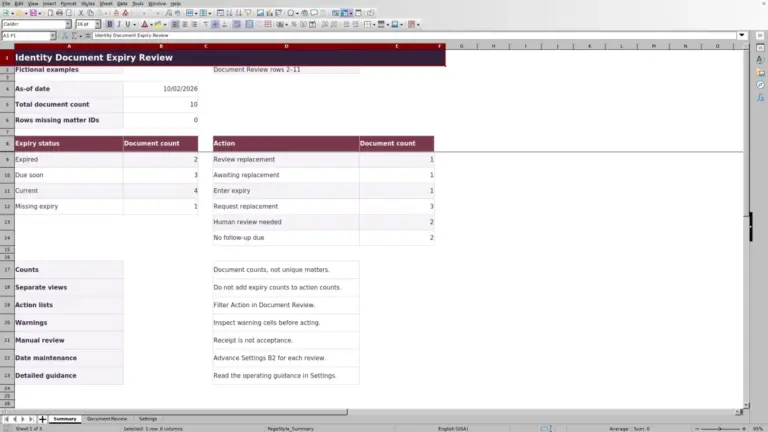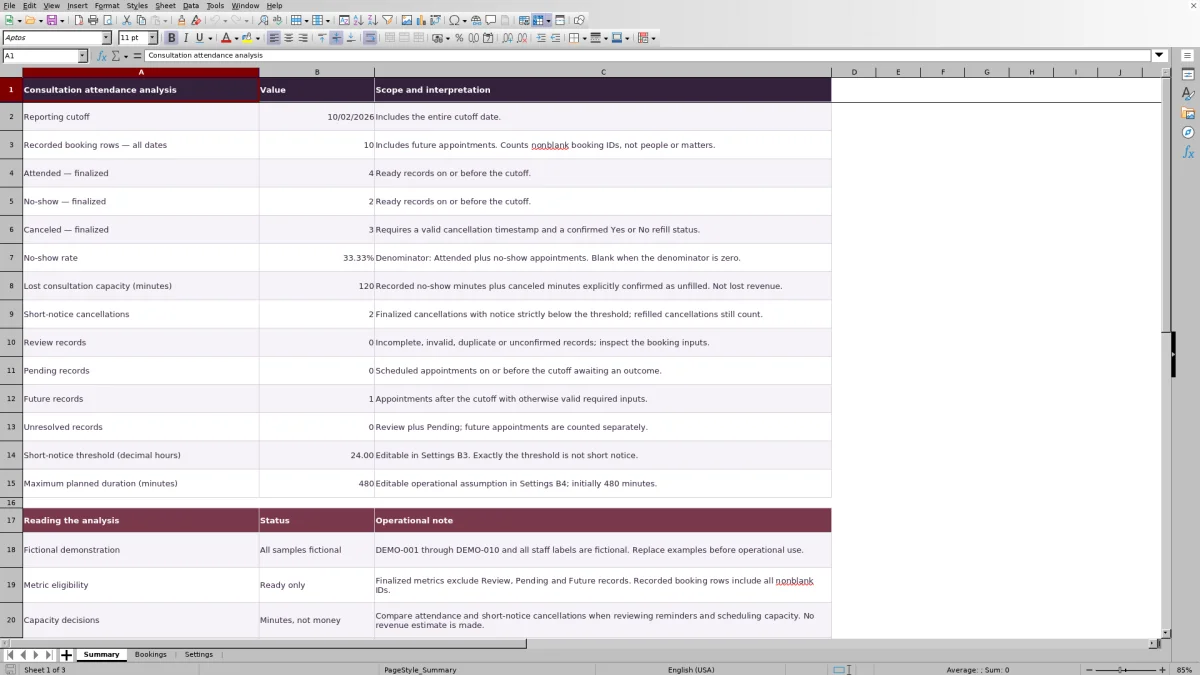
When consultation slots go unused, review attendance and cancellation records before changing your intake schedule. The Law Firm Sheets consultation no-show analysis Excel workbook helps you compare recorded outcomes, cancellation notice and lost consultation minutes.
Use it to assess consultation capacity, not engagement conversion. Finalized metrics depend on complete records and your reporting cutoff. Law Firm Sheets is an administrative Excel library, not a law firm, legal advice provider or practice management service.
Where this workbook helps
- Separate finalized attendance results from records that still need correction or an outcome.
- Distinguish canceled slots confirmed as refilled from those confirmed as unfilled.
- Review short-notice cancellations using a firm-approved threshold in decimal hours.
- Keep capacity discussions focused on recorded minutes rather than assumed revenue losses.
What is in the file
How to get started
1. Set the reporting assumptions
In Settings, enter your verified Reporting cutoff date in B2, Short-notice threshold (decimal hours) in B3 and Maximum duration (minutes) in B4. The cutoff includes the entire calendar date. The threshold and duration limit are operational assumptions for your firm to approve, not universal standards.
2. Replace the fictional demonstration entries
The ten DEMO bookings and all supplied staff labels are fictional. Replace the sample inputs in Bookings A:H without clearing the calculated columns I:K. Use one row per appointment, a unique fictional booking ID beginning with DEMO- or FICT-, and a fictional staff label from the available list. Do not enter client identities or case details.
3. Record the appointment outcome
Enter Consultation date, Start time and Planned duration (minutes), then select Scheduled, Attended, No-show or Canceled in Outcome. For a cancellation, enter the received date and time in Cancellation received. Confirm Yes or No in Canceled slot refilled; use Unknown while confirmation is outstanding.
4. Resolve exceptions before reading totals
Filter Record indicator in Bookings to inspect Review and Pending records. Correct the source inputs rather than overwriting calculated results. Then read Summary, keeping unresolved records visible in your discussion of the finalized figures.
Define the appointment population before comparing results
Each booking row represents one consultation appointment, not one person, matter or engagement. A rescheduled appointment receives a separate booking ID. Keep the original appointment's actual outcome and give the replacement appointment its own record so the scheduling history is not replaced by the new date.
Summary's Recorded booking rows — all dates counts nonblank booking IDs, including future appointments and records needing review. It is not the denominator for the no-show rate.
The reporting cutoff controls eligibility for finalized metrics, but the workbook has no start-date setting. Results therefore reflect eligible records retained in the entry area through the cutoff, rather than an automatically selected month. If you want separate monthly comparisons, prepare copies containing the intended appointment population and use consistent assumptions. Otherwise, a change in the records included may look like a change in attendance behavior.
Read the no-show rate alongside unresolved records
The no-show rate answers a narrow question: among finalized attended and no-show appointments, what share were no-shows? The calculation is finalized no-shows divided by finalized attended appointments plus finalized no-shows. Cancellations are excluded from that denominator.
Ready is a formula-based eligibility indicator, not confirmation that a person has checked the appointment record. Finalized counts exclude Review, Pending and Future records. Pending identifies scheduled appointments on or before the cutoff that still need an outcome; Future identifies otherwise valid appointments after the cutoff. Unresolved records combines Review and Pending.
A blank no-show rate means there are no eligible attended or no-show appointments to divide, not that attendance was perfect. A zero rate means the eligible denominator exists but contains no finalized no-shows. Before reporting either result, check whether missing outcomes or incomplete records could change the picture.
Separate cancellation notice from whether the slot was filled
For canceled appointments, Notice (decimal hours) measures the interval from Cancellation received to the scheduled consultation date and start time. The workbook rounds that interval to two decimal places. Decimal hours are not hours-and-minutes notation: 1.50 decimal hours means 90 minutes.
A cancellation counts as short notice only when its calculated notice is strictly below the threshold in Settings. A value exactly equal to the threshold does not qualify. Because the comparison uses rounded notice, check source timestamps when a result is close to the boundary.
Refill status answers a different question. A finalized cancellation marked Yes contributes zero lost minutes, but it can still count as short notice. A finalized cancellation marked No contributes its planned duration to lost capacity. Unknown or blank refill status leaves a historical cancellation out of finalized metrics until staff confirm the result.
Mark Yes only after confirming replacement capacity; merely offering the slot to someone else is not confirmation. Record the replacement appointment separately. The workbook records the entered refill status—it does not verify that the replacement occurred.
Fictional example: interpret an unfilled cancellation
Consider a fictional booking, FICT-011, assigned to fictional staff label Intake A. Its consultation is scheduled for 10/01/2026 at 10:00 AM, with a planned duration of 45 minutes. Staff received the cancellation on 09/30/2026 at 4:00 PM and confirmed that the slot was not refilled.
For this illustration, set the reporting cutoff to 10/02/2026, the short-notice threshold to 24 decimal hours and the maximum duration to 480 minutes. Enter Canceled as the outcome and No as the refill status. Assuming the booking ID is unique and all required inputs are valid, the record is eligible as Ready.
The verified notice formula subtracts the cancellation timestamp from the scheduled start, converts the interval to hours and rounds it. These inputs produce 18.00 decimal hours of notice. Because that is below the chosen threshold, this record contributes one short-notice cancellation. Its Lost capacity (minutes) result is 45 because the canceled slot was confirmed unfilled.
These are formula-derived results for the fictional illustration, not a claim about the workbook's current demonstration totals. The operational conclusion is that a recorded block of consultation time went unused after a short-notice cancellation. Next, review how that slot was offered for replacement before changing scheduling procedures. The result does not establish lost fees or a failure to convert an intake into an engagement.
Troubleshooting missing totals and review flags
If an appointment is absent from finalized totals, start with its Record indicator rather than changing Summary formulas. A booking can be recorded without being eligible for analysis.
- Duplicate or invalid booking ID: Check that each appointment has a unique fictional ID with the required DEMO- or FICT- prefix. Correct the identifier; do not remove a valid separate appointment just to clear the flag.
- Dates, times or durations entered incorrectly: Use a date without a time in Consultation date, a time of day in Start time, and positive whole minutes within the Settings duration limit. Text that looks like a date or time may not be an Excel date or time value.
- Cancellation details incomplete: Check the received timestamp and confirm the refill result. A negative notice value means the entered cancellation timestamp follows the scheduled start. Verify the source record rather than substituting a convenient earlier time.
- Outcome still Scheduled after the cutoff: Confirm what happened and update Outcome. Do not mark Attended merely to remove a Pending indicator.
- Labels changed or pasted inconsistently: Keep the outcome and refill labels exactly as supplied. The formulas depend on those labels, and pasted data can bypass validation.
A blank Lost capacity (minutes) result means the row is not Ready. A zero on a Ready row means no lost minutes under this workbook's rules, such as an attended appointment or a cancellation confirmed as refilled. Summary's capacity total is blank when there are no numeric row results; that is different from a calculated total of zero.
Compare this workbook with a blank spreadsheet
A blank spreadsheet can be sufficient when you only need an appointment list. This workbook is a more structured starting point when you need consistent attendance and capacity calculations, provided its definitions fit your review.
| Method | Record structure | Metric preparation | Exception handling | Scope and flexibility |
|---|---|---|---|---|
| Law Firm Sheets workbook | Defined appointment fields, controlled labels and fictional identifiers. | Existing formulas for finalized outcomes, no-show rate, notice and lost minutes. | Record indicators separate eligible, unresolved and future records; staff still check inputs. | Prepared for 100 appointment rows with fixed summary definitions and editable operational assumptions. |
| Blank spreadsheet | You choose and document the fields and identifiers. | You create, check and maintain any calculations needed. | You design checks and decide how to exclude incomplete records. | You can design a different layout or reporting scope, but must maintain its logic. |
Choose this workbook when its appointment-level definitions match the question you need to answer. Choose a custom spreadsheet when you need materially different fields or reporting periods and have a process for testing the calculations. Neither approach independently verifies attendance or confirms that a canceled slot was filled.
Turn the review into a documented scheduling decision
Read lost minutes, short-notice cancellations and unresolved records together. Lost capacity adds recorded no-show durations and canceled durations explicitly confirmed as unfilled. It does not measure every unused opening in the firm's calendar or calculate a utilization percentage.
Before making a change, confirm that missing outcomes are resolved and that refill status is being recorded consistently. Then use the results to frame a specific question: should staff review the timing of existing appointment contacts, the process for offering canceled slots, or the amount of consultation time made available? The workbook provides evidence for that discussion; it does not identify the cause of a no-show or send reminders.
At handoff, save a dated copy and document the cutoff, included appointment population and assumptions in your firm's review notes. Assign follow-up work through your existing office process. Because entries and calculated cells are unprotected, a saved copy is useful for comparison, but it is not an automatic audit trail.
Frequently asked questions
Can I enter client names or matter narratives?
No. The workbook is designed for fictional identifiers and fictional staff labels. Keep client identities, addresses and case details out of the file. Its record is an appointment, so use the Booking ID (fictional) field rather than adding a privileged intake narrative.
Can I add more than 100 appointments?
The prepared input, formula, validation and Summary ranges cover Bookings rows 2 through 101. Entries below that area are outside the verified analysis ranges. Do not assume that adding rows extends every calculation and check. Use another appropriately scoped copy or have any structural changes tested before relying on expanded totals.
Can I change the staff labels?
Yes. Settings F2:F3 contains two editable fictional staff labels used by the booking dropdown. Use distinct labels beginning with Intake followed by a space, and keep each within 30 characters. If you change a label after entering bookings, review existing records for consistency. Adding more staff choices would require changes beyond the supplied two-cell list.
Are the formulas protected from accidental edits?
No. The workbook's cells are unprotected. Edit the pale cream input cells in Bookings A:H, Settings B2:B4 and Settings F2:F3. Keep Bookings I:K and calculated Summary values intact. Retain an untouched copy so you can recover if formulas are overwritten.
Does this workbook measure intake conversion or lost revenue?
No. It analyzes appointment attendance, cancellation notice and recorded lost consultation minutes. It has no engagement-conversion calculation or revenue estimate. Do not treat consultation minutes as approved billable time, an invoiced amount or payments received.
Editorial coverage

Audra PembrokeBilling and finance content

Graham ElleryPractice administration content