When a meeting accommodation is requested, record the arrangement and who will follow up before the meeting. The Law Firm Sheets accessibility request tracker is an Excel workbook for tracking requests, consent entries, provider or staff labels, and completion.
Use it to prepare an administrative review list, not to decide whether an accommodation or consent is legally sufficient. Law Firm Sheets is an administrative Excel library, not a law firm or practice management service. Keep entries limited to practical arrangements and non-identifying references.
Where this workbook helps
- Keep each meeting accommodation request connected to a coordinator and a next review date.
- Find records needing follow-up by filtering attention flags rather than scanning every entry.
- Check incomplete records and completion-date exceptions before relying on the summary.
- Use a chosen review date and an editable age threshold to organize the firm's follow-up.
What is in the file
How to get started
1. Prepare a working copy
Read the guidance on Settings. Requests rows 2–11 contain fictional examples; remove or replace those inputs before operational use. Preserve the calculation columns L–N and keep new entries within rows 2–101.
2. Set the review assumptions
On Settings, confirm As-of date in B2 and Review age threshold (days) in B3. The date initially uses TODAY() and changes on recalculation. The initial three-day threshold is illustrative, not a legal requirement. Enter a verified fixed date when preparing a dated review.
3. Enter the request and responsibility
On Requests, enter a unique text Request ID and a non-identifying reference in Fictional intake reference. Add Received date, Meeting date, Requested accommodation, Consent status, Coordinator label and Request status. Select a Provider or staff label when assigned, and supply Next review date for an open request. The firm must independently supply and verify all dates.
4. Recalculate and review the action list
Recalculate in Excel or LibreOffice before relying on Summary. Filter Requests by Attention to inspect Missing fields, Check completion and Review needed. Check red date and ID cells separately. Update the record after follow-up; enter Completion date when marking a request Completed.
Record the arrangement without a sensitive narrative
Use one row for one accommodation request for one meeting. Separate accommodations can have separate records, each with its own Request ID. This keeps a completed arrangement from concealing another request that still needs coordination.
In Requested accommodation, describe the operational need—for example, Fictional example: Written meeting agenda. Do not enter diagnoses, medical records, real client names, addresses or privileged narratives. Use non-identifying intake references and staff labels instead.
Consent status records the coordinator's entry. Recorded does not establish that consent is sufficient, and Not needed—reviewed records a user's review rather than performing one. Keep supporting consent documentation outside the tracker under firm procedures. Likewise, a Provider or staff label records an assignment; it does not authorize or confirm a provider.
Practical example: a recent request still needs review
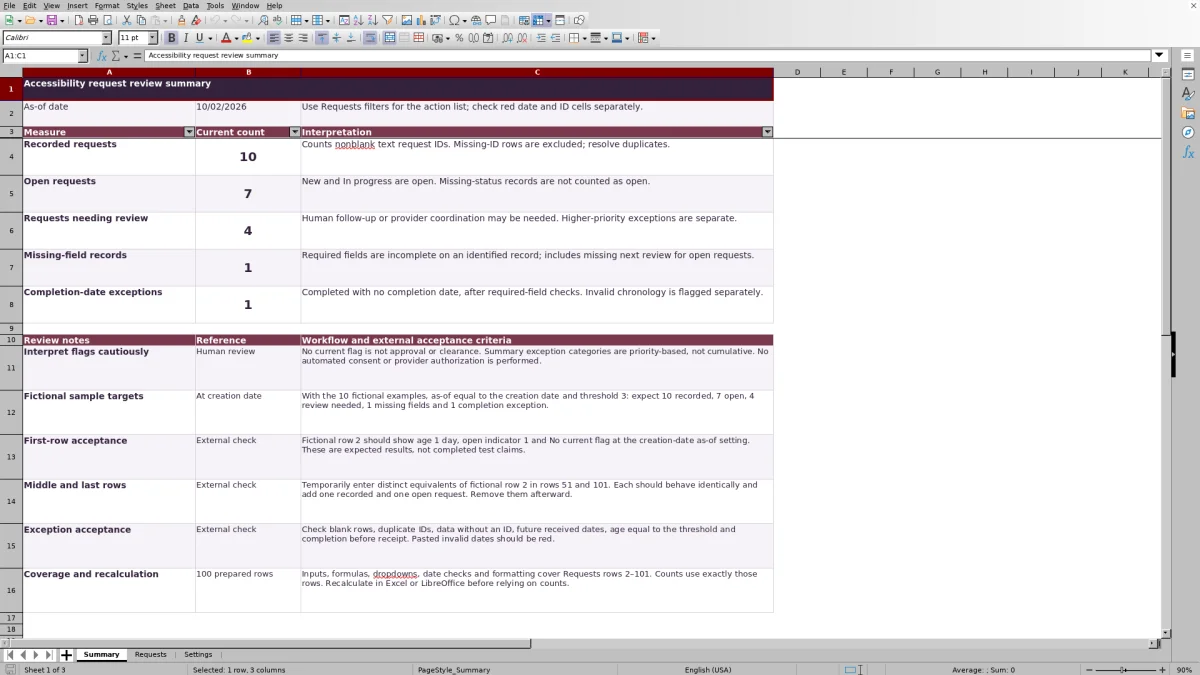
Consider fictional request AR-DEMO-002, with Fictional intake reference set to Fictional intake DEMO-002. It requests captioning, was received on 10/01/2026, and has a meeting on 10/07/2026. The fictional labels are Internal staff and Staff A. Request status is New, Consent status is Pending, and Next review date is 10/04/2026.
For this example, set As-of date to 10/02/2026 and the review age threshold to 3 days. The age calculation subtracts the received date from the review date, giving 1 day since receipt. The open indicator is 1 because the identified request is New. With the required fields present, Attention returns Review needed because consent is Pending—even though the request has not reached the age threshold and its next review date is still ahead.
The result means the coordinator should inspect the pending consent entry and determine the next administrative action under firm procedures. It does not mean the workbook has contacted anyone or evaluated consent. After follow-up, update the status and review date to reflect what actually occurred.
Read attention flags in priority order
Start with Missing fields. For an identified request, the formula checks the intake reference, received and meeting dates, accommodation, consent status, coordinator and request status. An open request also needs Next review date. Provider or staff label is not part of this required-field check, so inspect it separately when arranging outside support.
Next, resolve Check completion, which identifies Completed records without a Completion date after the required-field checks pass. Review needed then identifies open requests with Pending or Declined consent, a next review or meeting date on or before the as-of date, or an age at or above the chosen threshold.
Flags are priority-based, not cumulative. A row missing a required field can also have an overdue review date, but only Missing fields appears in Attention. Fix the first issue and recalculate to reveal any remaining flag. No current flag is not approval or clearance, and these checks do not calculate court deadlines or send reminders.
Troubleshooting missing counts, blank ages and red cells
If a request seems absent from Summary, inspect Request ID first. Recorded requests counts nonblank text IDs, not unique requests. A missing ID excludes the row from the summary calculations, while duplicate text IDs can inflate the recorded count. Use unique text identifiers and resolve red ID warnings before reporting totals.
If the open count seems too low, check Request status. A missing status is not counted as open. With the supplied choices, New and In progress are open, while Completed and Cancelled are closed. Use the dropdown rather than pasting an unrecognized status: the formula treats any nonblank status other than the two closed labels as open.
A blank Days since received (days) result is not a zero-day age. It can mean the ID or received date is missing, a date is not numeric, or receipt is later than the as-of date. Check those inputs and the Settings date before interpreting the result.
Red date cells require a separate check even when Attention shows another result. Correct text pasted as dates, receipt or completion dates later than the as-of date, and meeting, review or completion dates earlier than receipt. Use valid dates displayed as MM/DD/YYYY, then recalculate. Changing a cell's display format alone does not necessarily convert text into a usable date.
Close a request and hand off unfinished work
Before selecting Completed, confirm that the recorded arrangement was completed under the firm's process, then enter Completion date. A closed status makes the open indicator zero; it does not independently establish that the service was delivered. A Completed record without its date can still produce Check completion.
For a cancelled arrangement, use Cancelled rather than Completed so the status reflects the outcome. Preserve the distinction when reviewing closed records instead of treating every zero open indicator as successful completion.
When responsibility changes, update Coordinator label and confirm the next review date with the receiving staff member. Filter the remaining open work together and address any red date or ID cells. Saving a revised label does not notify the new coordinator or create an automatic handoff history. Keep a dated copy if the firm needs a record of the review.
Plan for capacity and careful customization
The prepared inputs, formulas, dropdowns, date checks and formatting cover Requests rows 2–101. Summary counts use exactly that range. A record entered below row 101 will not join the existing summary merely because it is visible on the worksheet.
Before exceeding 100 requests, decide whether to maintain separate dated files under a consistent firm procedure or have the workbook's ranges deliberately extended and checked. Adding rows without updating calculations, validation and formatting can leave records outside the review process.
Settings contains the dropdown source entries. Keep consent and request-status wording consistent with the formulas: Pending, Declined, Completed and Cancelled have specific calculation roles. Renaming those choices without revising the logic can change results. Provider and coordinator lists also use fixed source ranges, so adding labels beneath those ranges does not automatically expand the dropdowns.
Compare with a manually maintained spreadsheet
A blank spreadsheet can be a reasonable alternative when the firm wants different fields and can maintain its own review process. Compare the full tracking routine, not just the effort required to enter a row.
| Method | Initial setup | Follow-up review | Data checks and limits |
|---|---|---|---|
| Law Firm Sheets workbook | Prepared fields, dropdowns and settings; fictional examples must be removed or replaced. | Calculated ages, open indicators, attention filters and summary counts support a staff review. | ID and date checks cover 100 prepared rows; staff must resolve warnings and verify arrangements. |
| Blank spreadsheet maintained manually | Staff choose columns, labels and any formulas or validation they need. | Staff inspect dates and statuses manually unless they build their own review calculations. | Coverage and error checks depend on what the firm creates and maintains. |
Use this workbook when its fields and prepared capacity fit the firm's meeting-request process. Choose a custom sheet when materially different information is needed and someone will maintain the structure and checks. Neither approach replaces communication with the people responsible for the arrangement or professional judgment about the request.
Frequently asked questions
Can I use a fixed date for a weekly review?
Yes. Replace the TODAY() formula in Settings B2 with the verified review date and recalculate. Ages and date-based review flags then use that date. Save a dated copy if you need to preserve the review, because changing the date later changes the calculations.
Does request age mean business days?
No. Days since received (days) subtracts Received date from As-of date and reports whole calendar days. It does not exclude weekends or holidays. The age threshold is a firm-selected follow-up assumption, not a legal deadline.
Does the recorded-request total equal the number of meetings?
No. Summary counts text Request IDs. One meeting can have several separately recorded accommodations, so the request total is not a meeting count or a count of unique people. Resolve duplicate IDs before using it as a request total.
Can I open the workbook in LibreOffice?
The workbook's operating guidance calls for recalculation in Excel or LibreOffice before relying on counts. After opening it, check the formulas, dropdowns and visual warnings in your chosen application. The supplied guidance is not a certification of identical behavior in every software version.
Do the fictional examples prove that the workbook was tested?
No. Summary includes expected sample results and external-check guidance, not completed test claims. Use a separate copy with the stated settings if you want to check those examples, and remove any temporary test records before operational use.
Editorial coverage

Audra PembrokeBilling and finance content

Graham ElleryPractice administration content