Before comparing marketing campaigns, match each campaign's allocated spend to the signed engagements attributed to it. This Law Firm Sheets Excel calculator helps small-firm office managers and intake staff review period-based cost per signed engagement—not just counts of inquiries or conversions.
You supply the spend, reporting dates, and attribution decisions. The workbook counts eligible records and calculates costs when its checks are satisfied. Law Firm Sheets is an administrative Excel library, not a law firm, legal advice provider, or practice management service.
Where this workbook helps
- Compare campaign costs using included signed engagements rather than general conversion counts.
- Keep spend allocations and engagement dates tied to defined reporting windows.
- Identify unresolved attribution before relying on campaign cost comparisons.
- Direct attention to costs above a firm-supplied review threshold.
What is in the file
How to get started
1. Set the review assumptions
In Settings, replace the fictional review-through date in B2 and cost-review threshold in B3 with your firm's assumptions. The threshold must be a positive USD amount. Edit the spend allocation method in B6 and attribution policy in B7 so staff know which costs and engagements belong in the review.
2. Enter campaign-period records
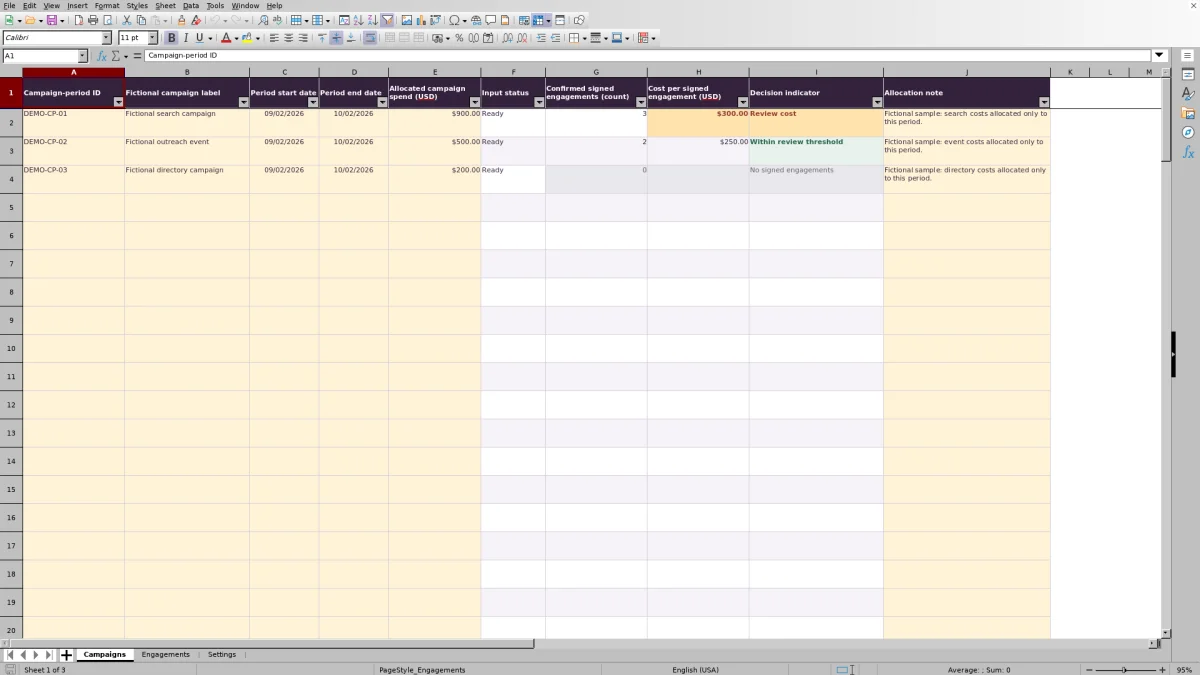
Replace the fictional examples in Campaigns. Enter a unique Campaign-period ID, a campaign label, Period start date, Period end date, and Allocated campaign spend (USD). Use Allocation note to explain the basis for the amount. Enter valid dates in MM/DD/YYYY format and nonnegative numeric spend.
3. Record reviewed signed engagements
In Engagements, use the identifier field labeled Fictional matter ID rather than adding client names or privileged narratives. Complete the staff label, select the Campaign-period ID, and enter the Signed engagement date. Record your team's decision in Human review using Pending, Confirmed, or Excluded. Do not mark an item Confirmed merely to obtain a cost result.
4. Recalculate and check the results
Open the file in Excel or LibreOffice and allow formulas to recalculate. Check Input status in Campaigns and Attribution status in Engagements. Resolve exceptions, then review Cost per signed engagement (USD) and Decision indicator. Keep formula cells intact; the workbook's cells are unprotected.
Allocate spend once to a defined reporting window
Decide what marketing cost belongs to each campaign-period before entering amounts. Allocated campaign spend (USD) is a manually supplied amount; the workbook does not calculate the allocation from underlying bills or distribute shared costs for you.
Use Settings to document the firm's general method, then put record-specific explanations in Allocation note on Campaigns. If a cost supports more than one campaign or period, determine the split outside the calculator and check that the same cost has not been allocated twice.
Use the same reporting window for allocated spend and signed engagement dates. Campaign start and end dates are inclusive. A recurring campaign needs distinct Campaign-period IDs for its separate reporting records; repeating an ID causes Review input status.
Confirm attribution before counting an engagement
The denominator is not every row entered in Engagements. Confirmed signed engagements (count) on Campaigns counts matching records whose Attribution status is Included. Eligibility requires Confirmed human review, a Ready campaign, and a valid signed date within the campaign window and no later than the inclusive review-through date.
The Human review field records your team's decision; it does not perform the review or establish which campaign caused an engagement. Check the supporting attribution under your firm's policy before selecting Confirmed.
Unassigned records, pending records, unknown campaign IDs, and duplicate non-excluded matter IDs create attribution exceptions. Excluded records do not count and do not create duplicate-matter exceptions for other records. Exclusion is a deliberate user decision, not a correction the workbook makes on your behalf.
Fictional example: turn campaign spend into a review decision
The workbook's fictional search campaign, DEMO-CP-01, has USD 900.00 allocated to 09/02/2026 through 10/02/2026. Fictional matters DEMO-M-001, DEMO-M-002, and DEMO-M-003 have Confirmed review entries and signed dates of 09/02/2026, 09/14/2026, and 10/02/2026, respectively. The fictional review-through date is 10/02/2026.
With the campaign Ready and no unresolved attribution anywhere in the workbook, those three Included records produce USD 300.00 per signed engagement: USD 900.00 divided by 3 signed engagements. The fictional USD 275.00 threshold produces Review cost because the result is above that threshold.
This is allocated marketing cost per included engagement for the stated period—not revenue, profit, a payment received, or lifetime acquisition cost. The next action is to check the cost allocation and attribution support, then decide whether the campaign warrants further review. The indicator does not direct you to cancel the campaign.
Troubleshooting blank costs and review messages
A blank cost is not zero cost. Use the status fields to find the reason before comparing campaigns.
- Review inputs: Check the campaign's unique ID, required label, numeric spend, and dates. An end date before the start date, negative spend, or a duplicate Campaign-period ID prevents Ready status.
- Resolve attribution: Check Unresolved attribution records (count) in Settings and filter Engagements for Review. Any unresolved attribution record blocks cost results across all campaigns, not just the campaign associated with that row.
- No signed engagements: A Ready campaign has no Included engagements. Its cost remains blank because there is no denominator; it is not a zero-cost acquisition result.
- Review settings: Enter a positive numeric cost-review threshold in Settings B3. A cost can still display when the threshold is invalid, but its threshold comparison needs correction.
Pasting can bypass entry validation. If a pasted date or amount looks correct but triggers review, confirm that Excel recognizes it as a date or number. Dates must be whole-day values without time components. Also check the signed date against both the campaign window and Settings B2.
A genuine USD 0.00 result is possible when allocated spend is zero, the campaign has Included engagements, and attribution is resolved. Verify that zero represents the intended allocation rather than an omitted cost.
Use the threshold without overstating the conclusion
The Decision indicator compares the calculated cost with one firm-supplied threshold. A cost above it receives Review cost; a cost equal to or below it receives Within review threshold. The latter means only that the amount meets that comparison—not that the campaign is profitable or effective.
Review the engagement count alongside the cost. A campaign with few included engagements may change substantially when another eligible engagement is recorded. For a fair comparison, confirm that the reporting windows, allocation methods, and attribution policies are comparable.
Check that the review-through date covers the intended review before circulating results. If it falls before a campaign's end date, later signed records cannot be Included yet. Do not present that output as a completed-period comparison. Keep a dated copy of the reviewed workbook and communicate follow-up decisions separately; a status label is not an assigned action.
Stay within the prepared record capacity
Rows 2–101 are prepared for entry on both Campaigns and Engagements. This means 100 records on each sheet, not 100 engagements per campaign. The campaign counts and unresolved-attribution formula reference those prepared ranges.
Do not assume added rows are counted. Typing beneath row 101 does not establish that formulas, validation, formatting, or referenced ranges have expanded. If your review exceeds the prepared capacity, use a separately maintained approach or have any workbook extension checked before relying on it.
Pale cream cells identify editable areas. Preserve the formula columns while replacing sample records, and save a clean copy before making structural changes. Keep client identities and privileged descriptions out of this marketing attribution worksheet.
Compare this calculator with a blank spreadsheet
A blank spreadsheet can support a custom marketing review, but someone must define and maintain its calculations and checks. This workbook provides a fixed starting structure for period-based signed-engagement attribution.
| Method | Calculation setup | Attribution checks | Capacity and adaptation | Staff responsibility |
|---|---|---|---|---|
| Law Firm Sheets calculator | Prepared counts, spend-per-engagement formulas, and a threshold indicator. | Prepared review statuses, duplicate checks, and a workbook-wide cost block for unresolved attribution. | 100 campaign-period rows and 100 engagement rows; changes beyond that need checking. | Supply spend, verify attribution, resolve exceptions, and interpret results. |
| Blank spreadsheet | Staff create the record layout, formulas, and comparison rules. | Staff design checks or review records manually. | Layout can be customized, but ranges and calculations must be maintained. | Perform the same source review plus build and test the spreadsheet logic. |
Choose this calculator when its single-campaign attribution structure and prepared capacity fit your review. Consider a custom spreadsheet when you need a different allocation model or more records, provided someone can maintain and verify that design. Neither method independently confirms the accuracy of source records.
Frequently asked questions
Does this calculate cost per lead or conversion rate?
No. It calculates allocated campaign spend divided by Included signed engagements. It has no lead-volume denominator for a conversion rate, and an inquiry or consultation is not interchangeable with a signed engagement.
Can one matter receive credit across multiple campaigns?
The prepared workflow assigns each signed engagement to one campaign-period. Duplicate non-excluded matter IDs receive Review attribution status. Fractional or multi-campaign credit is not a supported calculation in this workbook; use a different model if your firm's attribution policy requires it.
Are the initial records and settings real firm data?
No. All three campaign records and seven engagement records are fictional, as are their IDs, labels, amounts, and dates. The initial review date and cost threshold are also fictional assumptions. Replace the examples and document your firm's assumptions before using the results.
Why should I recalculate the file after opening it?
The generated workbook does not contain cached formula results. Open it in Excel or LibreOffice and allow recalculation, then verify the displayed results against the records. The fictional example reference in Settings is guidance, not an independent recalculation check.
Can I use the result as return on investment?
No. Return on investment requires information beyond the marketing spend and engagement counts used here. This workbook does not establish collected revenue, matter profitability, or the value of future work. Use the result as one administrative input to a broader campaign review.
Editorial coverage

Audra PembrokeBilling and finance content

Graham ElleryPractice administration content