Before a matter-team review, bring discovery preparation work into one list so you can see who owns each request and what needs attention. The Law Firm Sheets discovery request tracker for Excel records supplied due dates, preparation status and next actions.
Use the workbook to organize administrative follow-up, not to determine procedural obligations. Law Firm Sheets is an administrative Excel library, not a law firm or practice management service. The prefilled requests, staff labels and matter IDs are fictional examples.
Where this workbook helps
- Bring response ownership and next actions together for a focused preparation review.
- Identify missing or inconsistent records before relying on date-based attention labels.
- Review open preparation work by owner, including requests without an assignment.
- Use a consistent as-of date to discuss priorities across the matter team.
What is in the file
How to get started
1. Prepare a working copy
Save a separate copy and read the operating guidance on Setup. Replace the fictional example inputs with your administrative records, using matter IDs and short request labels rather than client identities or privileged narratives. Preserve the formulas in Requests columns K and L.
2. Set the review assumptions
On Setup, enter the Review date and Upcoming-review window (calendar days). Replace the displayed staff and matter lists as needed within their existing ranges. Keep the four preparation-status phrases unchanged because the formulas depend on them.
3. Record each request and its supplied date
On Requests, use one row per request within rows 2–101. Enter a unique Request ID, Matter ID, Request label, Response owner and Received date. Enter the independently supplied due date in Supplied due date, then record the actual review in Due date verified by and Verification date.
4. Check results and assign follow-up
Update Preparation status and Next action. Enter Preparation completed date when appropriate. Recalculate the workbook, inspect Attention and the separate row alerts, then review Summary with the team. Before operational use, follow the Setup checks for formulas, dropdowns and alerts at rows 2, 51, 52 and 101.
Review supplied dates without treating them as calculated deadlines
Before deciding which request needs work first, confirm that its date has been independently supplied and verified by the firm. Enter that date in Supplied due date. Due date verified by and Verification date record the user's review; filling those fields does not make the date correct.
No court rules are encoded. The workbook subtracts the editable Review date from the supplied date to show calendar days remaining when the required date-review fields are present and the request is not marked complete. It does not calculate a procedural deadline from Received date or adjust for service methods, holidays or court rules.
The Review date is an as-of input, not a promise that the file is showing today's position. Update it deliberately before a current review. The upcoming-review window is also a firm-supplied planning assumption, not a legal default. If a supplied date changes, confirm the revised date independently and update its review record before using the timing result.
Read attention labels as a review sequence
Start with incomplete and unverified records before drawing conclusions from timing categories. Attention displays only the first applicable exception. A request with both a missing owner and an overdue supplied date can therefore appear as Incomplete record rather than Past due.
Resolve the displayed issue, recalculate and inspect the row again. Another issue may become visible after the first one is corrected. This sequence helps you repair the record, but it is not a complete list of everything wrong with that request.
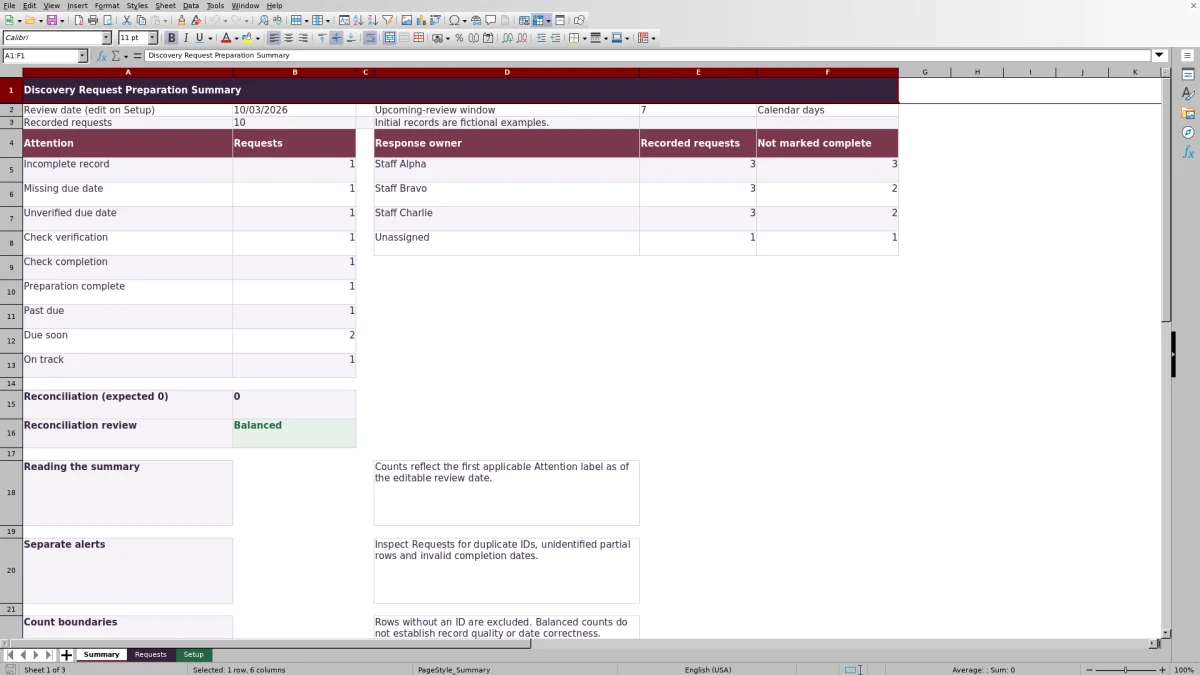
Summary groups identified requests by their displayed Attention label. A zero in Reconciliation (expected 0) means the recorded-request total balances against those category counts. It does not establish that IDs are unique, dates are correct or preparation is adequate. Inspect the separate duplicate-ID, unidentified-row and completion-date alerts on Requests as part of the same review.
Fictional example: turn days remaining into a next action
Consider the prefilled fictional request FIC-R003 for matter FIC-M003. Staff Charlie is the Response owner. Received date is 09/19/2026, Supplied due date is 10/10/2026, and Staff Alpha is recorded as having verified the date on 09/23/2026. Preparation status is Not started.
With the Review date set to 10/03/2026 and an upcoming-review window of 7 calendar days, the date subtraction produces 7 calendar days remaining. Under these example assumptions, the expected Attention label is Due soon. This is an expected formula result to check after recalculation, not a claim that a live operational review has occurred.
The result places the request within the chosen planning window; it does not tell you whether enough preparation time remains. The next decision is to ask the owner to confirm a preparation plan and record a concrete Next action. If the assignment or status is outdated, correct the record before using it to set team priorities.
Troubleshooting blanks, duplicate IDs and completion dates
A blank Days remaining (calendar days) result is not the same as zero days. It can appear when Request ID is missing, the supplied date is not numeric, verification details are missing, Verification date is later than Review date, or the status is Preparation complete. Inspect those inputs rather than entering a number over the formula. A displayed zero means the supplied date matches the review date.
- Dates entered as text: Re-enter them as valid spreadsheet dates and confirm the MM/DD/YYYY display. Pasted values can bypass validation, so a date that looks plausible still needs checking.
- Highlighted request IDs or unidentified rows: Check for duplicate IDs and for inputs entered without a Request ID. Assign or correct the ID after confirming what the row represents. Rows without IDs are excluded from Summary counts.
- Conflicting completion information: Check that Preparation status and Preparation completed date agree. A highlighted completion date is before receipt or after the review date; inspect it even when Attention says Preparation complete.
If a result remains unexpected, check the Setup assumptions and confirm that the row's formulas have not been overwritten. The workbook has no protected cells, so input safeguards do not prevent every editing error.
Use owner counts for a specific handoff
On Summary, compare each Response owner's Recorded requests with Not marked complete. The latter count includes requests with exceptions, not just clean records that are ready for drafting. The Unassigned row helps you find identified requests that still need an owner.
Use these counts to start a conversation, then inspect the underlying requests. A count measures requests, not their complexity, estimated hours or readiness for review. Two owners with the same number of requests may have very different workloads.
When work changes hands, update Response owner and write a specific Next action that the new owner can act on. Communicate the handoff separately: saving this workbook does not send a message. Preparation complete means internal preparation only; it is not evidence of service or filing.
Keep changes within the prepared workbook boundaries
The prepared entry area is Requests rows 2–101. The formulas, validation, filtering and Summary ranges are built around that area. Adding a row below it does not establish that the new record is included in the calculations. If your list exceeds the prepared capacity, extend and test the affected ranges before relying on the expanded file.
The dropdown sources are fixed ranges on Setup: staff in D2:D4, statuses in E2:E5 and matters in F2:F4. Adding a staff label or matter below those ranges does not automatically expand the dropdowns. The owner summary also references the displayed staff entries, so expanding staffing needs more than an extra name in a cell.
Replace list values carefully in an active workbook. Changing a staff label on Setup does not rewrite existing owner or verifier entries on Requests. Check existing records for matching values, and preserve the status wording that the formulas use.
Compare with a blank discovery tracking spreadsheet
A blank spreadsheet may be enough when your team already has a tested format and someone responsible for maintaining it. This workbook supplies a defined preparation-review structure, but it still needs accurate entries, deliberate updates and checks after changes.
| Method | Initial structure | Review support | Maintenance and limits |
|---|---|---|---|
| Law Firm Sheets tracker | Prepared request fields, dropdowns and 100 entry rows. | Calendar-day results, attention categories, owner counts and separate row alerts. | Uses fixed ranges and an editable review date; requires recalculation checks and careful range maintenance. |
| Blank spreadsheet | Your team chooses and builds the fields and layout. | Reviews depend on the formulas, filters and checks your team adds, or on manual inspection. | Can be designed around local needs, but the team must define, test and maintain its own controls. |
Choose the prepared tracker when its fields and capacity fit your administrative review and you want to start from an established layout. Choose a custom spreadsheet when your workflow requires a different structure and you can support the setup and testing. Neither approach independently verifies deadlines or performs the supervising lawyer's judgment.
Frequently asked questions
Can I filter the list for a single matter or response owner?
Yes. Requests has filters across its prepared columns, including Matter ID and Response owner. Use them to narrow the working list. The Summary formulas count the prepared ranges rather than only visible filtered rows, so do not read Summary as a subtotal of your filtered view.
Will changing the review date preserve earlier results?
The calculations use the current Review date on Setup. Changing it changes the as-of basis for the results; it does not create a historical snapshot. If your office needs a record of a particular review, save a dated copy under your firm's file-handling procedures.
Can I use this file for billing, intake or document storage?
This workbook is structured for incoming discovery requests as preparation work items. It is not an intake, billing, finance or records system. Keep source documents and other administrative records in the firm's appropriate systems rather than treating request labels as document storage.
What should I check when opening the workbook in LibreOffice?
Setup instructs users to recalculate in Excel or LibreOffice and verify formulas, dropdowns and alerts in a working copy before operational use. It also lists expected initial fictional-example counts as acceptance targets, not completed tests. Check those targets before replacing the examples; do not assume that merely opening the file verifies its behavior.
How much detail belongs in Request label and Next action?
Use a brief administrative label and an actionable follow-up. Keep the matter reference in Matter ID and avoid client identities or privileged narratives in descriptive fields. The tracker should help the team locate and coordinate work without becoming a substitute for the underlying matter record.
Editorial coverage

Audra PembrokeBilling and finance content

Graham ElleryPractice administration content