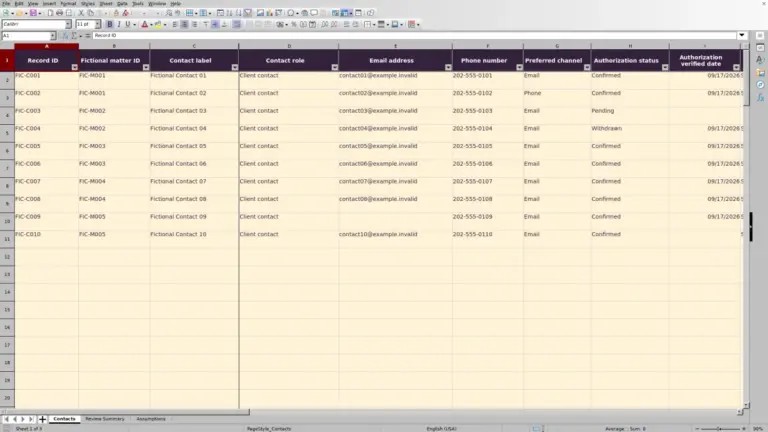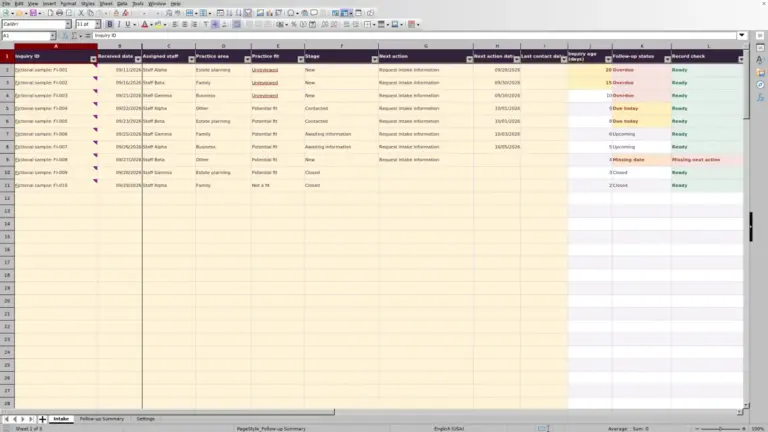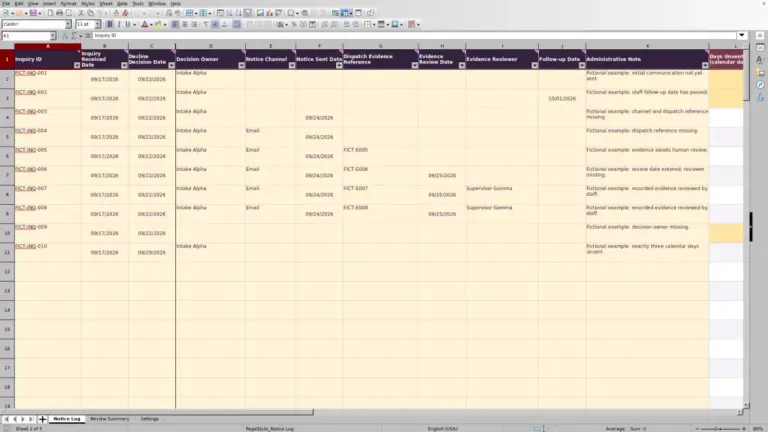
Before following up on a consultation fee, match the booking and agreed fee to the receipts and refunds your firm has recorded. The Law Firm Sheets consultation fee reconciliation Excel workbook calculates the remaining unpaid amount or excess received for each booking.
Use it to organize a receptionist’s or billing team’s review of recorded transactions. Law Firm Sheets is an administrative Excel library, not a law firm or practice management service, and this workbook does not provide legal advice.
Where this workbook helps
- Bring multiple receipt and refund records together under one booking ID.
- Separate unpaid amounts from excess receipts so one booking’s balance does not hide another’s.
- Identify incomplete bookings and transaction entries that need correction before relying on totals.
- Use recorded balances and review indicators to prepare a focused billing handoff.
What is in the file
How to get started
1. Prepare a working copy and set review assumptions
Save a separate working copy. Remove or replace the prefilled DEMO bookings and transactions, which are all fictional, while preserving formulas. In Settings, confirm Review date, Matching tolerance (USD) and Overdue review threshold (calendar days). Set the three staff labels before entering operational records.
2. Enter the consultation bookings
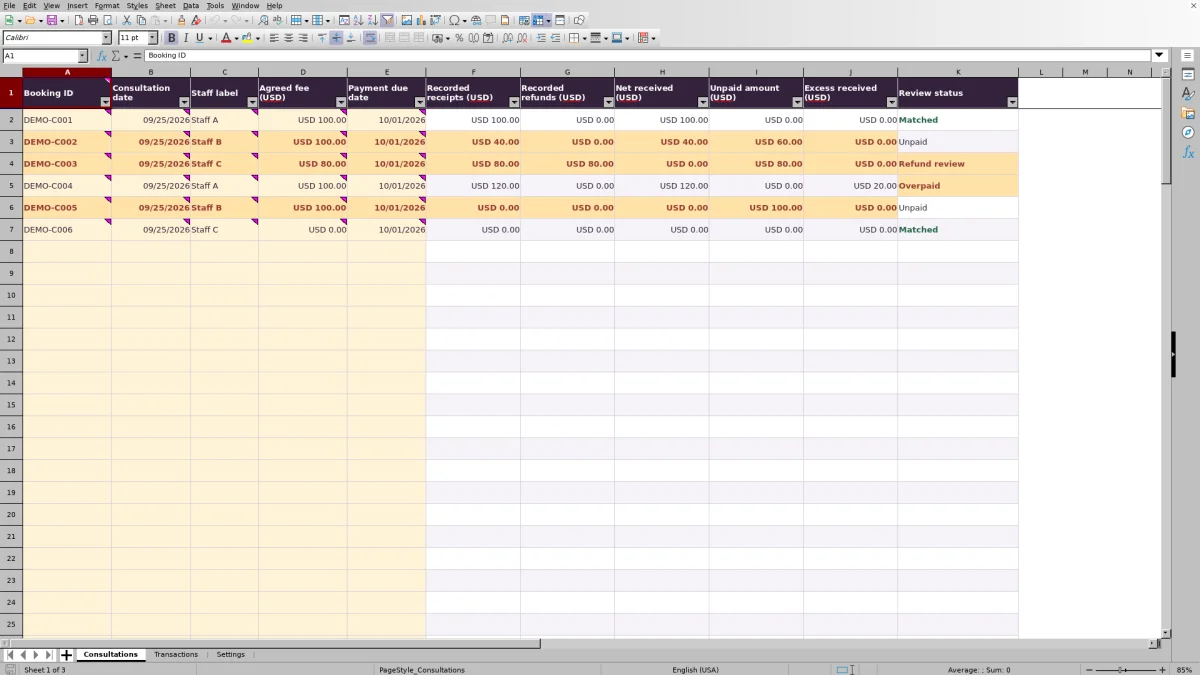
In Consultations, complete Booking ID, Consultation date, Staff label, Agreed fee (USD) and Payment due date. Use unique, non-identifying booking IDs and independently verified dates in MM/DD/YYYY format. Enter the fee as a number, including zero when that is the firm’s agreed fee.
3. Record receipts and refunds separately
In Transactions, enter a unique Transaction ID, the matching Booking ID, Transaction date, Type, Amount (USD) and Staff label. Choose Receipt or Refund and enter a positive amount for either type. Use a separate row for each transaction rather than replacing a receipt with its net balance after a refund.
4. Correct entries, then review balances
Check Entry check in Transactions and Review status in Consultations. Resolve Review and Incomplete entries before relying on the reconciliation totals in Settings. Recalculate the workbook in Excel and compare results with source records before operational use; the workbook notes do not claim completed external execution tests.
Match payment records without treating them as settlement proof
Start with the booking record and the firm’s supporting receipt or refund records. Booking ID is the link between Consultations and Transactions. A booking can have several transactions, but each transaction needs its own unique Transaction ID.
Only transactions marked Ready enter the receipt and refund totals. Ready means the entry meets the workbook’s checks; it does not confirm that the money reached a bank account. Likewise, an agreed fee is not an invoice, and the workbook does not process payments.
Use this file only for transactions the firm has already classified as firm funds. Exclude client funds. The workbook does not determine ownership of money or establish trust-account or Interest on Lawyers’ Trust Accounts (IOLTA) compliance. Resolve classification questions through the firm’s responsible reviewer before entering a transaction.
Fictional example: a refund reopens the displayed balance
The prefilled fictional booking DEMO-C003 has an agreed fee of USD 80.00 for a consultation dated 09/25/2026, with a supplied payment due date of 10/01/2026. Its fictional transactions are a USD 80.00 receipt dated 09/29/2026 and a USD 80.00 refund dated 09/30/2026, both assigned to Staff C.
With those transactions marked Ready, the formulas subtract recorded refunds from recorded receipts: USD 80.00 − USD 80.00 = USD 0.00 net received. They then compare the agreed fee with that net amount, producing an unpaid amount of USD 80.00 and excess received of USD 0.00. The booking displays Refund review. These are formula-derived results consistent with the workbook’s sample expectations, not a claim of independently executed testing.
The unpaid amount is a reconciliation difference, not an instruction to collect. A refund may have been intentional. Before contacting anyone, confirm the reason for the refund and whether the recorded agreed fee remains appropriate. Do not delete the refund merely to make the balance appear matched.
Troubleshooting missing receipts and review flags
If a receipt is absent from the booking total, inspect its Entry check in Transactions before changing the fee. An entry marked Review is excluded from totals, so an apparent shortfall may be an entry problem rather than a missing payment.
- Duplicate or unmatched IDs: Check that Transaction ID is unique and Booking ID matches exactly one row in Consultations. An unknown booking ID may not flag any existing booking, so also review Transactions directly.
- Missing or text-formatted dates: Enter genuine Excel dates in Transaction date, Consultation date and Payment due date. A date that looks correct but is stored as text can leave a record under review.
- Negative or zero transaction amounts: Enter a positive Amount (USD). For a refund, select Refund rather than entering a negative Receipt.
- Unrecognized staff labels: Select a label listed in Settings. If labels change, review existing entries that still use the old values.
- Incomplete bookings: Check all five consultation input fields, booking-ID uniqueness and whether the agreed fee is numeric and nonnegative.
Pasting can bypass entry validation. After a bulk paste, check the review indicators and compare the pasted values with source records rather than assuming that accepted cells are correct.
Set review timing without changing the underlying balance
In Settings, Review date provides the date used for the review. Matching tolerance (USD) and Overdue review threshold (calendar days) are editable firm assumptions, not universal billing standards. Confirm them with the person responsible for the fee-review process.
Tolerance changes review classification, not displayed balances. A small unpaid or excess amount can remain visible even when it falls within the chosen tolerance. Decide how the firm wants staff to handle such differences rather than treating the tolerance as a write-off.
The amber booking alert applies when the unpaid amount exceeds tolerance and the review date is more than the specified number of calendar days after the supplied due date. Equality with the threshold does not trigger that alert. Supply and independently verify the due date; the file does not infer deadlines, interpret court rules or send reminders.
Read totals and status labels together before a handoff
Settings summarizes included receipts, refunds and net received alongside unpaid and excess amounts. Unpaid and excess balances are calculated per booking and then summed separately. An excess on one consultation therefore does not cancel an unpaid amount on another.
Review indicator status displays Provisional when any of the three counts—Transactions needing review, Incomplete bookings or Refund-review count—is nonzero. Otherwise, it displays No flagged reviews. No flagged reviews is not a paid-in-full certification. That indicator is based on those counts, not a conclusion that every booking has no remaining balance.
Resolve Incomplete and Transaction review first. Refund review takes priority over Unpaid and Overpaid, so inspect the numeric balance columns even when another status is displayed. For a handoff, give the responsible staff member the booking IDs, unresolved discrepancies and requested next actions through the firm’s existing process. These calculated statuses do not record professional approval or notify a reviewer.
Protect formulas and plan for the record limit
The prepared ranges cover rows 2–101 on each record sheet: 100 bookings and 100 transactions. Because one booking may have several receipts or refunds, the transaction range can fill before the booking range does.
Do not assume that adding rows extends the workbook. The formulas, checks and filters use fixed ranges. Entries below row 101 will not enter the existing receipt and refund calculations. Before reaching capacity, choose a controlled new-file process or have the workbook structure revised and tested. If you split files, keep each booking with the transactions needed to reconcile it.
Cream cells identify editable inputs, but all cells are unprotected. Avoid overwriting Consultations columns F–K, Transactions column G or the calculated results in Settings. Keep a known-good copy so an accidental formula overwrite can be restored and the affected totals recalculated.
Compare with a blank spreadsheet
A blank spreadsheet and this workbook can both support a manual consultation-fee review. The main choice is whether the prepared checks and fixed structure fit your records or whether the firm needs a custom layout it will maintain itself.
| Method | Matching and calculations | Entry checks | Capacity and upkeep | Source verification |
|---|---|---|---|---|
| Law Firm Sheets workbook | Links transactions by Booking ID and calculates balances from Ready receipts and refunds. | Prepared checks flag incomplete bookings and transaction entries needing review. | Prepared for 100 bookings and 100 transactions; fixed ranges and unprotected formulas need care. | Staff must compare entries with source records and confirm settlement separately. |
| Blank spreadsheet | Staff design the matching method and calculate balances manually or build formulas. | Staff must create checks or inspect records manually. | The layout can be customized, but staff must maintain and test any formulas and ranges. | Staff must compare entries with source records and confirm settlement separately. |
Use the prepared workbook when its booking-level structure and capacity fit the review. Choose a custom spreadsheet when different fields or a different record structure are essential and someone can maintain the checks. Neither method replaces verification of the underlying payment records.
Frequently asked questions
Can one consultation have several partial payments?
Yes. Enter each receipt as a separate transaction with a unique Transaction ID and the same Booking ID. The booking’s receipt total includes all matching transactions marked Ready within the prepared transaction range. Keep refunds as separate Refund entries.
Can I record a consultation with no fee?
Yes. Agreed fee (USD) can be zero. Complete the other required booking fields, including Payment due date. A complete zero-fee booking with no receipts or refunds can display Matched; that does not mean a payment was received.
Why is a balance blank instead of zero?
A missing Booking ID leaves the receipt, refund and balance results blank. Unpaid amount (USD) and Excess received (USD) also remain blank when the agreed fee is not numeric. A blank result therefore should not be read as a zero balance. Check the booking inputs and Review status first.
Should I enter client names or consultation details?
No. Use non-identifying booking IDs and staff labels. Do not enter client identities, addresses, privileged narratives or bank account numbers. Every prefilled DEMO record and Staff A through Staff C label is fictional and should be replaced or removed before operational use.
Does the workbook distinguish a cancellation from a completed consultation?
No separate attendance, completion or cancellation field is included. The workbook reconciles the agreed fee against recorded receipts and refunds. Confirm the booking’s outcome in the firm’s source record before deciding whether a displayed unpaid amount needs follow-up.
Editorial coverage

Audra PembrokeBilling and finance content

Graham ElleryPractice administration content