Before confirming a consultation, check whether the proposed time works for the staff member, room and attendee. The Law Firm Sheets consultation schedule is an Excel workbook for recording pre-engagement reservations and reviewing recorded overlaps.
Enter each booking, resolve missing inputs and check the review result before communicating the appointment. This is an administrative resource, not legal advice or a practice management service; it supports your scheduling review rather than guaranteeing availability.
Where this workbook helps
- Review staff, room and attendee scheduling overlaps separately before confirming a consultation.
- Find incomplete reservations that need attention before they can participate in overlap checks.
- Keep tentative holds in the scheduling review while excluding cancelled reservations.
- Use review-date and exception counts to organize the receptionist’s next scheduling actions.
What is in the file
How to get started
1. Prepare a working copy
Save a copy for firm use. Schedule rows 2–11 contain fictional examples. Clear their inputs in columns A:E and G:J, but preserve the formulas in F and K:O. On Setup, replace the fictional staff and room labels within the existing list cells before entering live reservations. Keep the reservation status labels unchanged.
2. Enter the reservation
On Schedule, complete Booking ID, Intake reference, Consultation date, Start time, Duration (minutes), Staff label, Room, Attendee label and Reservation status. Use an internal intake or matter reference rather than a privileged narrative. Enter a date in MM/DD/YYYY format, an Excel time such as 2:00 PM and a whole-number duration in minutes.
3. Check completeness and overlaps
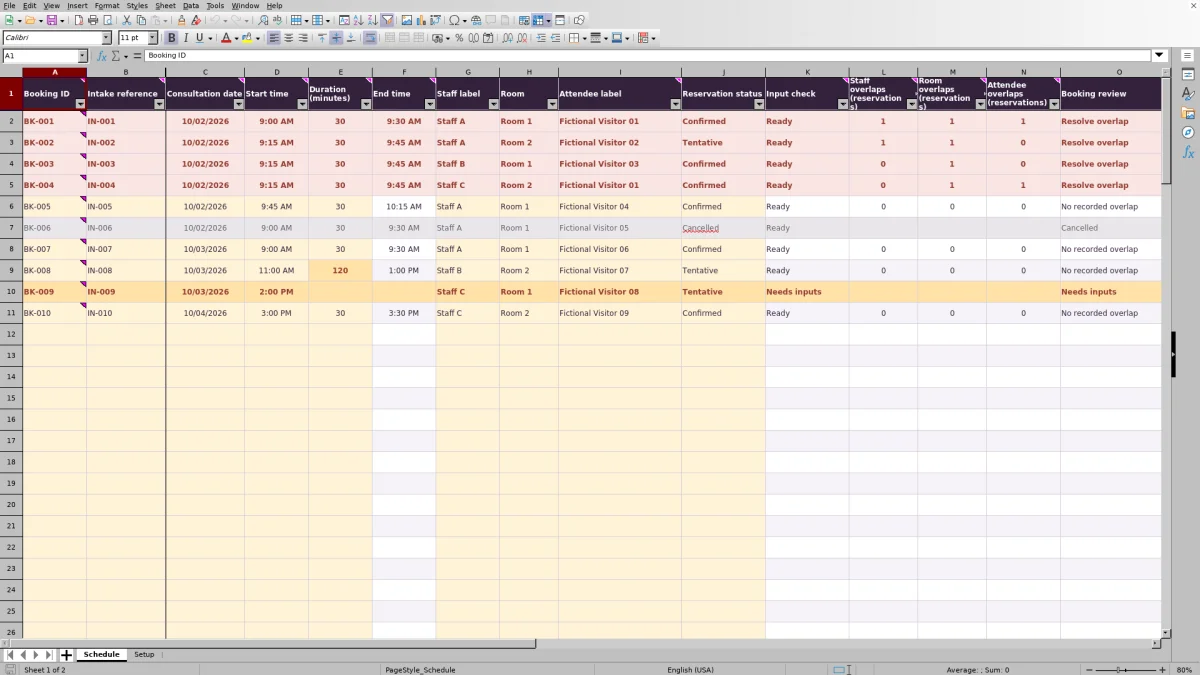
Read Input check first. If it says Needs inputs, correct the row before relying on overlap results. For a Ready, non-cancelled reservation, inspect the three overlap columns and Booking review. A result of No recorded overlap means no overlap was found among the eligible records in this workbook—not that every outside commitment has been checked.
4. Resolve and communicate the booking
If Booking review says Resolve overlap, identify the shared staff member, room or attendee and adjust the appropriate reservation. Recheck the results after editing. Set Setup’s Review date for the day you are reviewing, then confirm the arrangements through your firm’s normal communication process.
Complete a reservation before treating the slot as checked
Every reservation needs all nine input fields in columns A:E and G:J. Input check returns Ready when those fields are populated and the date, start time, duration and calculated end time meet its numeric checks. Ready means input completeness; it is not approval of the appointment or proof that the information is correct.
An incomplete reservation is excluded from overlap counts, including the checks performed for other rows. A partially entered hold can therefore appear on Schedule without being counted against the staff member or room. Complete it before deciding whether another consultation fits.
Use consistent labels, especially in Attendee label, which has no dropdown. Two different labels for the same attendee will not reliably identify that person as a shared scheduling resource. Keep identifying details to the minimum your firm needs, and keep substantive intake information in the firm’s designated record system.
Fictional example: resolve a shared-staff overlap
Consider an isolated practice copy containing only these two fictional bookings. Enter BK-001 with Intake reference MAT-001 for 10/02/2026 at 9:00 AM, a duration of 30 minutes, Staff A, Room 1, Attendee label Visitor-01 and status Confirmed. Enter BK-002 with Intake reference MAT-002 for the same date at 9:15 AM, a duration of 30 minutes, Staff A, Room 2, Attendee label Visitor-02 and status Tentative.
The End time calculation adds the entered minutes to the start time, producing 9:30 AM and 9:45 AM. With both rows complete, each has Input check set to Ready. Each shows 1 in Staff overlaps (reservations), 0 in Room overlaps (reservations) and 0 in Attendee overlaps (reservations). Both show Resolve overlap because Staff A is assigned to two consultations that share 15 minutes.
Changing rooms will not fix this staff overlap. If the participants’ availability permits, move BK-002 to 9:30 AM. Its new end time is 10:00 AM, and both reservations then show zero overlaps and No recorded overlap in this two-booking example. Decide separately whether Staff A needs a break or preparation time before communicating the revised appointment.
Understand holds, cancellations and time boundaries
Tentative and Confirmed reservations both count in overlap checks when their inputs are Ready. A tentative consultation therefore holds the recorded resources just as a confirmed consultation does for this calculation. Do not assume that changing Confirmed to Tentative will remove an overlap.
Set Reservation status to Cancelled when a reservation is actually cancelled. That excludes the row from overlap counts while leaving its entered details in place. Keep the status labels exactly as supplied; the formulas specifically exclude Cancelled rather than interpreting other status wording.
Back-to-back bookings are allowed by the overlap logic. A reservation that starts exactly when another ends does not overlap. No preparation, travel or room-reset buffer is added. Evaluate those needs separately when assigning times.
The End time calculation allows an appointment to end exactly at midnight but returns blank if it extends beyond midnight. It does not create a next-day end date. Use a separate scheduling process for consultations that cross into the following day.
Troubleshooting blank results and missed overlaps
- End time is blank: Check that Start time is an actual Excel time, not text or a combined date-and-time value. Duration (minutes) must be numeric and positive. Also check whether the appointment would run past midnight. Correct the inputs rather than typing over the formula.
- Input check says Needs inputs: Inspect all nine required input fields, including Booking ID, Intake reference and Attendee label. A missing administrative reference can exclude an otherwise plausible appointment from overlap checks.
- Overlap cells are blank: A blank is not a zero. Those cells remain blank for incomplete or cancelled reservations. Read Input check and Reservation status before interpreting them.
- An expected overlap is missing: Check that both rows are Ready, neither is Cancelled, and both use the same consultation date and the same relevant resource label. Enter date-only values in Consultation date; a hidden time component can prevent dates from matching.
- A renamed resource no longer matches: Changing a staff or room label on Setup does not update existing reservations. Update the affected Schedule entries consistently and recheck them.
If a calculated field has been overwritten, restore its formula from an unchanged copy and test the affected row before relying on the result. Preserve formulas when clearing old inputs.
Use the Setup counts to choose the next action
Start with Reservations needing input on Setup. This counts rows whose Input check says Needs inputs across the schedule. Resolve those records first because incomplete rows are outside the overlap calculations.
Next, review Reservations needing overlap review. This counts rows marked Resolve overlap, not unique overlap pairs. A shared-resource problem can put more than one reservation into that count. Likewise, do not add the three overlap columns and treat the sum as a count of distinct appointments: one other booking may share both a staff member and a room.
Ready reservations on review date uses the editable Review date in Setup. It counts Ready, non-cancelled reservations on that date, including Tentative and Confirmed reservations—even if they still have overlaps. It is a volume indicator, not a count of cleared appointments. The two exception counts are not limited to the selected review date.
Setup also contains Long-consultation review threshold (minutes), initialized to a fictional firm preference of 90 minutes. Treat that as an editable administrative assumption, not a legal requirement or a scheduling buffer.
Keep the schedule dependable during a handoff
Agree on who maintains the working copy and who communicates appointment changes. Before handing off reception duties, use the Schedule filter to review incomplete reservations and unresolved overlaps. Confirm who will finish each item; saving the workbook does not itself notify that person or send an appointment confirmation.
The supplied formulas and overlap checks cover rows 2–101 only. Typing a reservation below that range does not bring it into the existing checks. Copying a formula to another row alone is not enough if its comparison range still ends at row 101. If you need more capacity, have the formulas, validation ranges, filters and Setup counts deliberately extended and tested, or choose another scheduling workflow.
The supplied staff dropdown references Setup cells D2:D4, and the room dropdown references E2:E3. You can replace labels within those cells, but adding entries below the lists does not automatically expand the dropdowns. Plan resource changes before a busy intake period rather than assuming the lists grow with new entries.
Compare this workbook with a blank scheduling spreadsheet
Both approaches can serve a receptionist who maintains a small consultation list. The practical difference is whether you want predefined checks within a fixed layout or need to design the scheduling structure yourself.
| Method | Reservation entry | Overlap review | Review summary | Changes and upkeep |
|---|---|---|---|---|
| Law Firm Sheets consultation schedule | Predefined input fields and staff, room and status dropdowns | Formula checks for matching staff, room and attendee among Ready, non-cancelled rows in the supplied range | Counts for incomplete rows, overlap-review rows and ready reservations on a selected date | Fixed 100-row calculation range and fixed dropdown source ranges require deliberate changes to expand |
| Blank spreadsheet without added formulas | You choose and maintain the columns and entry conventions | You compare reservations manually unless you build and test checks | You tally exceptions and daily reservations manually unless you add calculations | You can design the layout around local needs, but must establish and test the controls yourself |
Choose this workbook when its reservation structure and capacity fit your intake process and someone will maintain complete, consistent entries. A blank spreadsheet may suit an unusual layout if your firm can design and verify its own checks. If you require shared-calendar synchronization or automatic reminders, evaluate a separate scheduling system rather than expecting either spreadsheet approach to provide them.
Frequently asked questions
Does Booking review perform a legal conflict check?
No. Booking review reports input and scheduling conditions. It does not check adverse parties, evaluate legal conflicts or authorize engagement. Keep the firm’s conflict-review and engagement decisions separate from this consultation schedule.
Can I use the workbook for virtual consultations?
Room is still a required input. If your firm treats a virtual consultation channel as a scheduling resource, you can use a consistent label within the existing Setup room list. The workbook checks matching labels; it does not create meeting links or manage access to a virtual meeting.
Can one reservation list several staff members or attendees?
Each reservation has one Staff label and one Attendee label field. The checks compare the value of each field as a whole; they do not separately check names or labels combined in one cell. For a group consultation, verify each participant’s availability outside that combined entry.
Can I use a duplicate Booking ID for a rescheduled appointment?
The verified checks do not test Booking ID uniqueness. Use a consistent firm convention and inspect IDs manually so staff can distinguish separate reservations. For a straightforward time change, edit the intended existing row and recheck it rather than accidentally leaving two active versions.
Is consultation duration billable time?
No. Duration (minutes) is the planned length used to calculate the scheduled end time. It is not time worked, approved billable time, an invoice amount or a payment received. Use the firm’s separate timekeeping and billing process for those records.
Editorial coverage

Audra PembrokeBilling and finance content

Graham ElleryPractice administration content