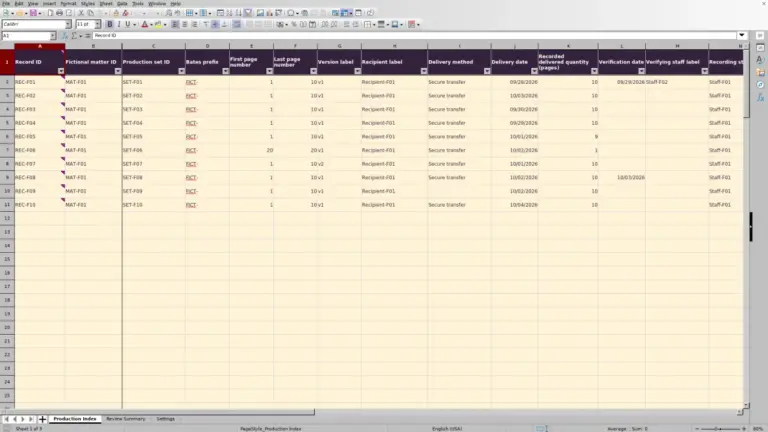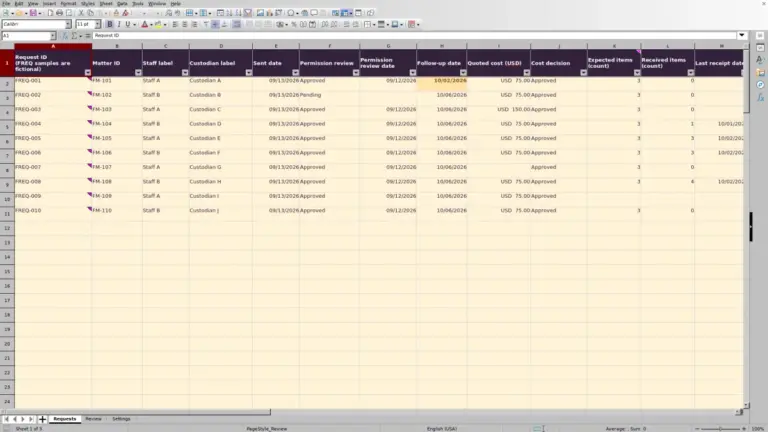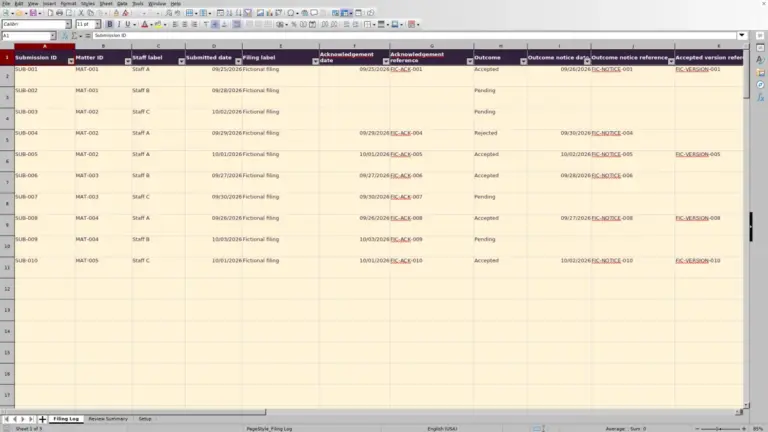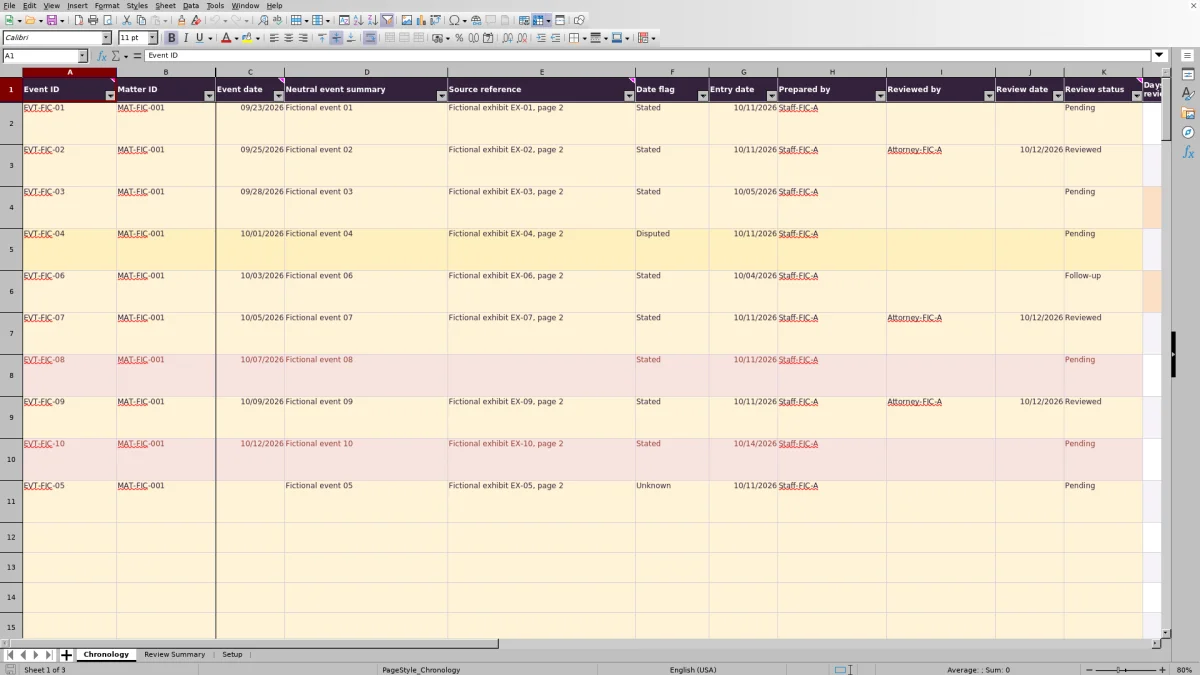
When events come from several sources, build a chronology that lets the reviewing attorney trace each entry and see where dates remain uncertain. The Law Firm Sheets case chronology Excel template brings event records, source references and review status into one administrative workpaper.
Enter one event per matter, sort complete records into date order and check outstanding review items before handoff. Law Firm Sheets is an administrative Excel library, not a law firm or legal service; this workbook records your review activity rather than performing legal or factual analysis.
Where this workbook helps
- Keep each event beside its source reference so a reviewer can locate the supporting material.
- Separate stated, disputed and unknown dates without forcing an unsupported date into the chronology.
- Identify aging review items using a firm-selected as-of date and calendar-day threshold.
- Check incomplete records and review totals before sharing the workpaper.
What is in the file
How to get started
1. Set the review assumptions
Open Setup and enter the Review as-of date in B2 and the Review age threshold (calendar days) in B3. Use a valid date and a positive whole-number threshold. The as-of date is stored, not automatically advanced, so update it for each review session.
2. Prepare the event records
The initial 10 records and their matter IDs, staff labels and source references are fictional. Replace or remove those example inputs before using the file for live work, preserving the calculated columns. Enter your records in Chronology columns A–K, with one event per row. Use matter IDs rather than client identities and keep summaries neutral and limited to what the reviewer needs.
3. Record dates and supporting references
Supply and independently check Event date, Entry date and any Review date. Enter dates as MM/DD/YYYY without a time component. Add a Source reference that helps the reviewer find the relevant material. If the event date is unknown, leave it blank and select Unknown in Date flag.
4. Check and sort the complete chronology
Read Input checks (calculated) and correct the underlying inputs. Then select the entire Chronology range A1:N101 and sort by Matter ID, Event date from oldest to newest, and Event ID. Keep blank event dates last within each matter. Never sort a date column on its own.
5. Review the queue and document the outcome
Use the Chronology filters to locate review items, disputed dates and blank source references. Consult Review Summary for overall counts and assumption checks. After the appropriate person reviews an event, record Reviewed by, Review date and Review status. Leave columns L–N for their calculated results.
Keep source references and date uncertainty visible
A useful chronology lets another person retrace the entry without guessing which document you used. In Source reference, record a document or exhibit identifier and a useful location, such as a page number. Keep the Neutral event summary separate from the citation so the reviewer can distinguish the event description from its supporting source.
Use Date flag to preserve uncertainty. Stated records the date classification you selected; it does not mean the workbook verified the source. Disputed identifies a date that needs human attention. For Unknown, leave Event date blank rather than inserting a placeholder date that would create a false position in the sequence.
Filter disputed and unknown entries for a focused review. The workbook does not decide which competing account is accurate. Keep the uncertainty visible until the reviewer determines how it should be represented.
Sort events without separating them from their evidence
Entry order and event order serve different purposes. Event date describes when the event occurred; Entry date records when it was entered into the workpaper and drives review aging. Do not change Entry date merely to make the chronology appear in the desired sequence.
Sort all columns together so each event retains its matter ID, source reference, flags and review information. The supplied instructions use Matter ID first, Event date second and Event ID third. After sorting, inspect the transition between matters and confirm that unknown-date entries remain last within their matter.
The initial fictional records are already sorted, but that does not make later entries self-sorting. Treat sorting as a deliberate Excel operation. If you accidentally sort only one column, stop and undo the change before continuing; otherwise, the visible dates may no longer belong to the adjacent records.
Fictional example: interpret review age before assigning follow-up
Consider the supplied fictional event EVT-FIC-03 for matter MAT-FIC-001. Its Entry date is 10/05/2026 and its Review status is Pending. With the Setup as-of date set to 10/13/2026 and the illustrative threshold set to 7 calendar days, the aging formula produces 8 calendar days awaiting review.
The calculation subtracts Entry date from the stored as-of date and prevents a negative result. Because this unreviewed event has reached the selected threshold, it qualifies for the Overdue reviews count. That result is an administrative cue to ask who will review the entry next—not a conclusion about the event's importance.
The threshold is a firm-supplied assumption, not a universal review standard or court deadline. This workbook does not calculate court-rule deadlines. Separately, an event marked Follow-up can qualify as overdue while its Review queue label remains Follow-up, so do not look only for an overdue queue label when planning the next review.
Read summary counts as a workpaper-wide check
Review Summary counts identified events within Chronology rows 2–101. An identified event is a row with a nonblank Event ID. The count is not a count of unique IDs, so duplicate IDs can inflate the apparent number of distinct events until you correct them.
A partially entered row without an Event ID is excluded from the identified-event measures, even if it contains other information. Input alert rows is different: it counts rows whose calculated checks contain an Error message, including rows missing an ID. Use both views before deciding the workpaper is ready for handoff.
The summary formulas cover the full prepared range, not just rows visible after filtering. Filtering Chronology to one matter therefore does not turn Review Summary into a matter-specific report. Use the filtered records for that matter's review and keep the overall summary's scope clear.
Likewise, User-marked reviewed events reflects entered status. It does not establish source accuracy or mean that all other input issues have been resolved.
Errors and solutions: troubleshoot chronology inputs
Before handing off the chronology, read Input checks (calculated) and investigate unexpected aging results. Correct the source inputs rather than replacing a calculated warning with typed text.
- Missing or duplicate Event ID: Enter a unique identifier for each event. The calculated checks identify missing IDs on populated rows and duplicates within the prepared range. Correct the IDs, then check the summary again.
- Missing required information: Read the error message and fill the relevant matter, summary, source, flag, entry date, preparer or status field. Do not overwrite the alert formula to hide the message.
- Unexpected blank review age: A Reviewed status intentionally leaves aging and queue cells blank. Aging is also blank when the Event ID or Entry date is missing, or when the entry or as-of date is invalid. Inspect those inputs before treating a blank as completed work.
- Unexpected zero review age: The calculation does not show negative days. An entry dated after the as-of date can therefore show zero. Check whether the stored as-of date is stale or the entry date was entered incorrectly, and correct the applicable date.
- Invalid review assumptions: If Review Summary asks you to correct Setup B2 and B3, supply a valid whole date and a positive whole-number threshold before relying on aging or overdue counts.
- Invalid values after pasting: Pasting may bypass dropdown or date validation. Read the text alerts, check the pasted values against the permitted choices and enter dates without a time component.
Cells are unprotected, including formulas. If a calculated cell was replaced, restore it from a clean copy or a known-good version before using the affected result. A blank input-check result is not a substitute for checking the source material.
Make the attorney handoff a recorded action
Before handoff, use the filters to assemble the records that need attention: disputed dates, unknown dates, missing source references and outstanding review items. Agree outside the workbook on who will address each unresolved question and how the result will be communicated.
Prepared by identifies the person who entered the record. Reviewed by and Review date document the review you record, while Review status distinguishes Pending, Reviewed and Follow-up. Reviewed records a user's review; selecting it does not perform professional judgment or certify factual accuracy.
Keep a dated copy under your firm's file-handling procedures when handing off a review version. Saving or changing a status should not be treated as sending a notification or creating an automatic audit trail. Use your normal communication process to tell the reviewer what needs attention.
Compare this workbook with a blank spreadsheet
A blank spreadsheet can be sufficient for a short, one-time event list. This workbook is more structured: it provides event and review fields, input checks and an administrative aging calculation. The choice depends on whether you need that structure and can work within its prepared range.
| Method | Event and source structure | Review tracking | Checks and upkeep | Capacity planning |
|---|---|---|---|---|
| Law Firm Sheets chronology workbook | Prepared fields keep dates, summaries, sources and flags together. | Includes user-entered review details, calculated aging and summary counts. | Includes validation and text alerts; users must update assumptions, sort records and preserve formulas. | Calculations, filters and validations are prepared for 100 event rows. |
| Blank spreadsheet | You choose and build the columns and citation convention. | You must create any status fields, aging formulas or totals you need. | Input checks and sorting procedures must be designed and maintained by your team. | You define the working range and maintain any formulas or validation as it grows. |
Use this workbook when a consistent review workpaper and its prepared checks fit the task. Choose a blank spreadsheet when the list is simple or needs a substantially different structure, provided someone is responsible for maintaining it. Neither approach replaces source verification or attorney review.
Frequently asked questions
Can I open the file in LibreOffice instead of Excel?
The workbook instructions call for Excel or LibreOffice with automatic calculation enabled. Recalculate before relying on the results: the file does not contain independently verified cached results, and the listed starting counts are acceptance targets rather than evidence of completed testing.
How many events can I enter without extending the workbook?
The prepared range supports 100 event rows, from row 2 through row 101. The initial 10 rows contain fictional examples, and rows 12–101 are available for additional entries. If you replace the examples, all 100 prepared rows can hold your records.
Entries beyond row 101 are outside the supplied formula, validation, filter and summary ranges. Do not assume those rows will be checked or counted; extending the workbook requires updating and checking the affected ranges.
Can I change the matter and staff dropdown choices?
Yes. Setup contains visible fictional matter labels in D2:D3 and staff labels in E2:E4 that you can replace. The current dropdowns point to those fixed ranges, so adding labels below them does not automatically expand the choices.
Keep the Date flags and Review statuses vocabulary unchanged unless the related formulas are also updated and checked. Those exact values are used in calculations and counts.
Does a zero missing-source count mean the citations are complete?
No. Missing source references counts identified records whose Source reference is blank. A populated cell may still contain an incomplete or incorrect citation, and a row without an Event ID is outside that measure.
Check that each reference actually leads the reviewer to the supporting material. The workbook checks for missing entries; it does not verify the referenced source.
Editorial coverage

Audra PembrokeBilling and finance content

Graham ElleryPractice administration content