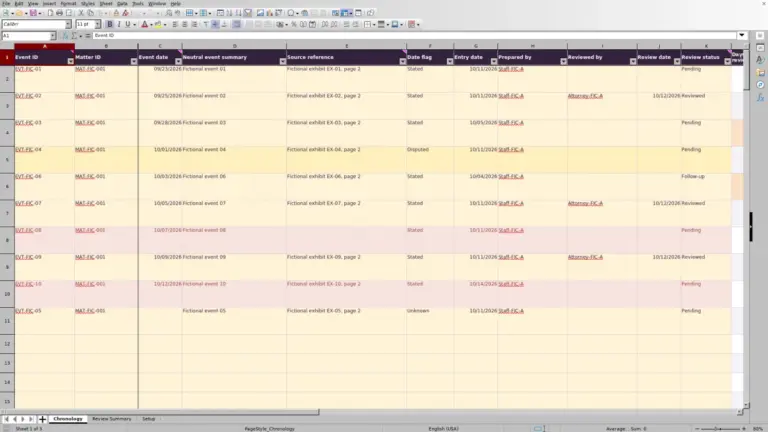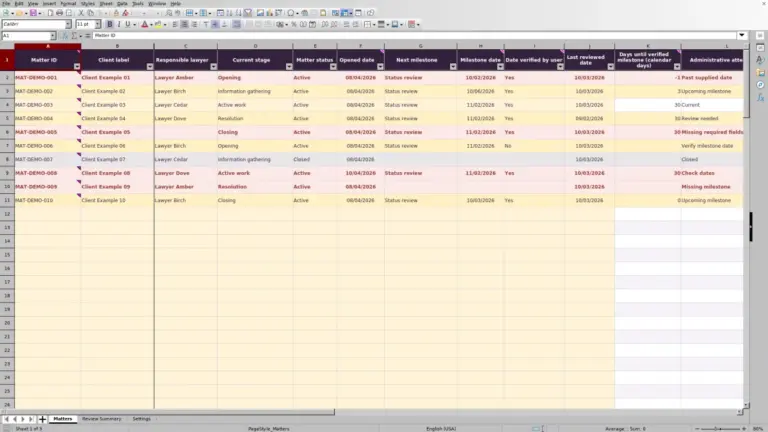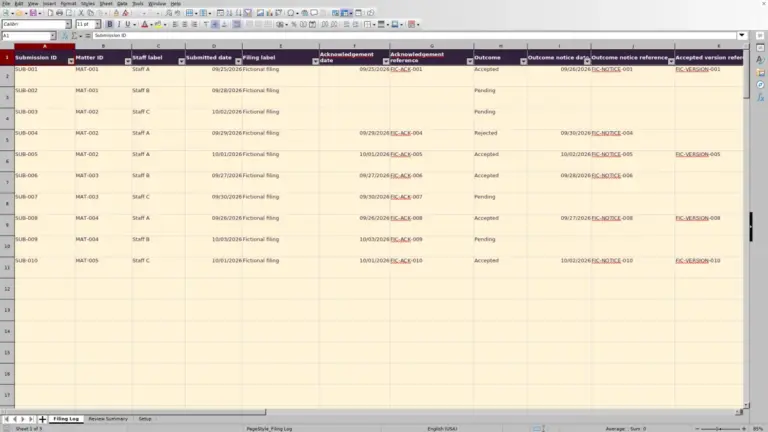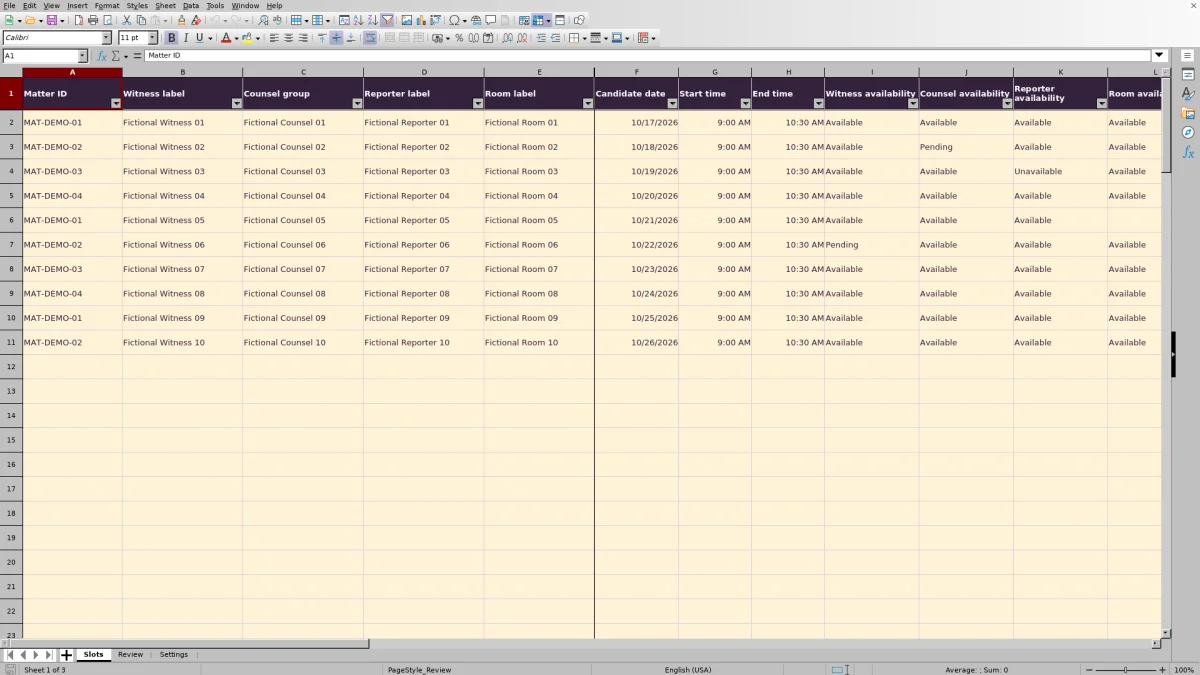
When several deposition times are under consideration, compare witness, counsel, reporter, and room availability before choosing a slot for follow-up. This Excel deposition scheduling matrix from Law Firm Sheets keeps candidate times and availability checks together.
Enter one candidate per row, review the readiness result, and record your selection. The workbook supports administrative scheduling review; a selected row is not a confirmed booking. Law Firm Sheets is an administrative Excel library, not a law firm or practice management service.
Where this workbook helps
- Compare candidate slots using the same four availability categories instead of piecing together separate notes.
- Identify incomplete records, unavailable participants, and availability that needs to be checked again.
- Keep a chosen candidate visible while flagging selections that no longer meet the workbook’s readiness checks.
- Give the next staff member a consistent record of candidate times, verification dates, and follow-up choices.
What is in the file
How to get started
1. Set the scheduling assumptions
Open Settings. Confirm the Scheduling time zone and set Availability review threshold (days) to your firm’s preference. Replace the fictional matter IDs in D2:D5 with your internal, nonidentifying matter labels. Keep the availability and selection status wording unchanged because the formulas depend on it.
2. Enter a candidate slot
In Slots, use the cream input cells for one candidate per row. Rows 2–11 contain fictional examples; rows 12–101 provide blank input space with formulas and validation prepared. Complete Matter ID, participant and room labels, Candidate date, Start time, and End time. Use MM/DD/YYYY dates and times such as 2:00 PM.
3. Record checked availability
Choose Available, Unavailable, or Pending for each availability field. Confirm every required counsel participant before marking Counsel availability as Available. Enter the Availability verified date based on your actual check, not the date you happened to open the file.
4. Review and record the next choice
Filter Slots to compare Readiness results. After reviewing a candidate, use Selection to record Selected, Unselected, or Rejected. Check Selection alert and the summary on Review, then carry out confirmations through your firm’s normal process. Leave calculated columns O:R intact.
Decide what an availability entry represents
Use each row for a specific combination of date, time, participants, and room. An Available entry should mean that the named resource can accommodate that whole interval. If the time or resource changes, check the affected availability again rather than carrying the earlier response forward without review.
Counsel availability covers the group, not just the first person who replies. The workbook has one Counsel group label and one availability entry for that group. Keep the individual response details in your firm’s appropriate scheduling record, and use Pending until every required participant has been checked.
For a complete row with valid dates and times, any Unavailable entry produces Not feasible. If none is Unavailable but fewer than all four entries are Available, the result is Awaiting availability. That distinction helps you decide whether to pursue a missing response or consider another candidate.
All candidate times use the single Scheduling time zone in Settings. There is no automatic time-zone conversion or daylight-saving interpretation. Resolve time differences with participants before entering the shared scheduling time.
Fictional example: from candidate time to review decision
Consider the fictional record MAT-DEMO-01, with fictional witness, counsel, reporter, and room labels completed. Its Candidate date is 10/17/2026, Start time is 9:00 AM, End time is 10:30 AM, all four availability entries are Available, and Availability verified date is 10/03/2026.
Assume Current date evaluates to 10/08/2026 and the firm has retained the illustrative 7-day review threshold. The workbook converts the time difference to 90 minutes and reports a verification age of 5 days. Because the required fields are complete, the candidate date has not passed, all resources are available, and the verification age is within the threshold, Readiness returns Ready for review.
If Selection is Selected, Selection alert returns Selection recorded. These results mean the row passes the workbook’s stated checks and the user’s choice has been recorded. The next decision is whether to proceed after checking actual bookings, participant requirements, and final confirmations—not whether the spreadsheet has booked the deposition.
The duration describes one proposed interval. It is not testimony time already taken, billable time, or a workload total across alternative slots. Because Current date uses TODAY(), this fictional record may show a different readiness result when you open the file later.
Troubleshooting incomplete rows, dates, and blank results
Readiness checks run in order, so the displayed result may identify only the first issue. Correct it, then read the result again.
- Incomplete: Complete every field from Matter ID through Availability verified date. Selection is not required for readiness. A missing availability entry produces Incomplete rather than Awaiting availability; choose Pending when the response is genuinely outstanding.
- Check date/time: Check whether End time is equal to or earlier than Start time, Candidate date is before Current date, or Availability verified date is in the future. These checks follow the completeness check.
- Blank Duration (minutes): Enter both times and make sure the end is later than the start. A blank duration is not a zero-minute appointment. The workbook supports same-day slots only.
- Blank Verification age (days): Check for a missing or future verification date. A blank age does not mean the availability was just verified; a verification date equal to Current date produces zero days.
Enter dates and times as actual Excel date and time values, not descriptive text such as “next Tuesday.” The workbook includes input validation, but all cells remain unprotected. If a formula is overwritten, restore it from a clean copy before relying on the affected result.
Choose when availability needs another check
Availability can become stale even when the candidate date is still in the future. Verification age (days) subtracts Availability verified date from Current date. When an otherwise eligible row’s age exceeds Availability review threshold (days), Readiness returns Reverify.
The threshold is a firm-supplied preference, not a legal rule. An age equal to the threshold remains current; only an age above it triggers Reverify. Settings permits a whole-number threshold from 0 through 365 days. Choose a value that fits how your staff will actually follow up.
There is one verification date for the entire candidate row, not a separate date for each resource. Establish a consistent office convention that does not make older responses appear newly checked. Do not move the date forward merely to remove a warning.
Current date recalculates when the workbook opens, so a previously ready or selected row can require attention later. Review changed results before continuing scheduling work; the workbook does not send reminders.
Review selections before a scheduling handoff
Selection records the user’s choice independently of readiness. A Selected row receives Selection recorded only while Readiness is Ready for review. Any other readiness result produces Review selection. Unselected and Rejected rows have no selection alert.
Selection is not confirmation. Before handing off a chosen candidate, check overlapping bookings, the people included in each counsel group, and final participant and room confirmations. The workbook does not detect collisions across rows, reserve resources, or send messages.
For an office handoff, save a dated copy and tell the receiving staff member which candidates still need follow-up. Agree separately who will contact each resource. The selection record does not establish that those contacts occurred.
This is an administrative comparison tool. It does not determine legal authorization, calculate court-rule deadlines, or provide legal or compliance assurance. Any applicable deadlines must be independently supplied and verified before candidate dates are used.
Read the summary as candidate records, not matters
Use Review to get a quick picture of the entries before working through individual rows. Candidate records counts populated Matter ID cells in the prepared Slots range. Several alternatives for the same matter therefore count as several candidate records, not one matter.
A partially entered row without a Matter ID is excluded from Candidate records even if it has other information. If the summary seems lower than expected, inspect Slots for missing IDs rather than assuming the row is absent.
Ready slots counts rows whose Readiness is Ready for review. Selected slots counts the user’s Selected entries regardless of readiness. Selections needing review counts selected rows with a Review selection alert. These are different questions, so a selected count is not a count of ready or booked depositions.
The prepared calculations and summary ranges cover Slots rows 2–101. Entries beyond that range are not included in the existing Review formulas. Stay within the prepared range, or have any expansion checked before using it for scheduling decisions.
Compare the matrix with a blank spreadsheet
A blank spreadsheet can hold the same scheduling facts, but your staff must design its fields and decide how to review them. This workbook supplies a defined structure and formula-based checks while leaving confirmations and scheduling judgment with your team.
| Method | Entry structure | Readiness and freshness review | Booking responsibility |
|---|---|---|---|
| Law Firm Sheets deposition matrix | Prepared candidate fields and controlled status choices within a fixed input range. | Formulas evaluate completeness, dates, four availability entries, and verification age against a chosen threshold. | Staff checks overlaps, contacts participants, and confirms bookings outside the workbook. |
| Blank spreadsheet | Staff designs the columns and maintains consistent wording. | Staff reviews entries manually unless someone builds and checks equivalent formulas. | Staff checks overlaps, contacts participants, and confirms bookings through the firm’s existing process. |
Use the matrix when the four availability categories and one shared time zone fit your process and you want consistent review indicators. A custom spreadsheet may fit better when you need a separate response record for every participant or substantially different fields, provided someone maintains and checks that design. Neither approach, by itself, confirms a booking.
Frequently asked questions
Can I use the workbook without entering client names or testimony?
Yes. Use an internal Matter ID and nonidentifying witness, counsel, reporter, and room labels. The supplied records are fictional. Keep testimony, addresses, client identities, and privileged narratives out of this scheduling matrix.
Can I change the matter IDs and status choices?
You may replace the matter IDs in Settings D2:D5, which supplies the Matter ID list. Keep Available, Unavailable, Pending, Unselected, Selected, and Rejected spelled as supplied. The readiness and selection formulas depend on those exact status terms.
Does Rejected make a candidate not feasible?
No. Selection and Readiness answer different questions. Rejected records your decision not to pursue that candidate; it does not change the availability-based readiness calculation. A rejected row can still be Ready for review and appear in the Ready slots count.
Should the fictional examples match the initial counts on Review?
Not necessarily when you open the workbook later. Current date uses TODAY(), while the fictional candidate and verification dates remain fixed. Age and past-date checks can therefore change the results. The acceptance checklist on Review states initial expected results; it is labeled as not executed by the workbook and is not evidence of a completed test.
Does the workbook rank the best deposition slot?
No. It classifies rows using the stated readiness checks and records your selection. It does not weigh preferences, travel needs, or competing appointments to choose an optimal time. Use the results to narrow your review, then make the scheduling decision through your firm’s normal process.
Editorial coverage

Audra PembrokeBilling and finance content

Graham ElleryPractice administration content