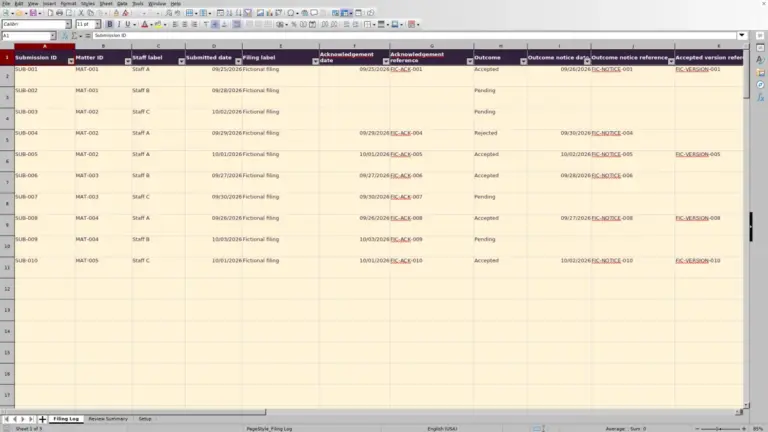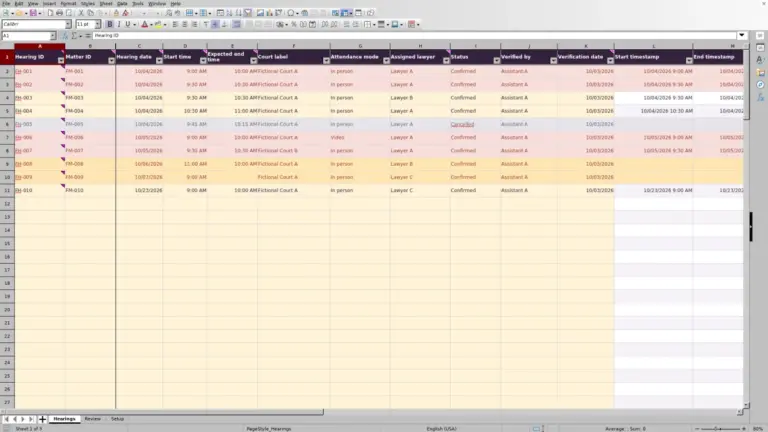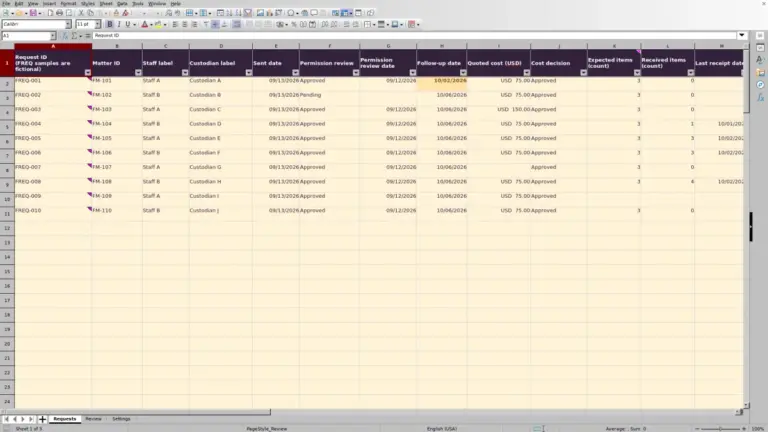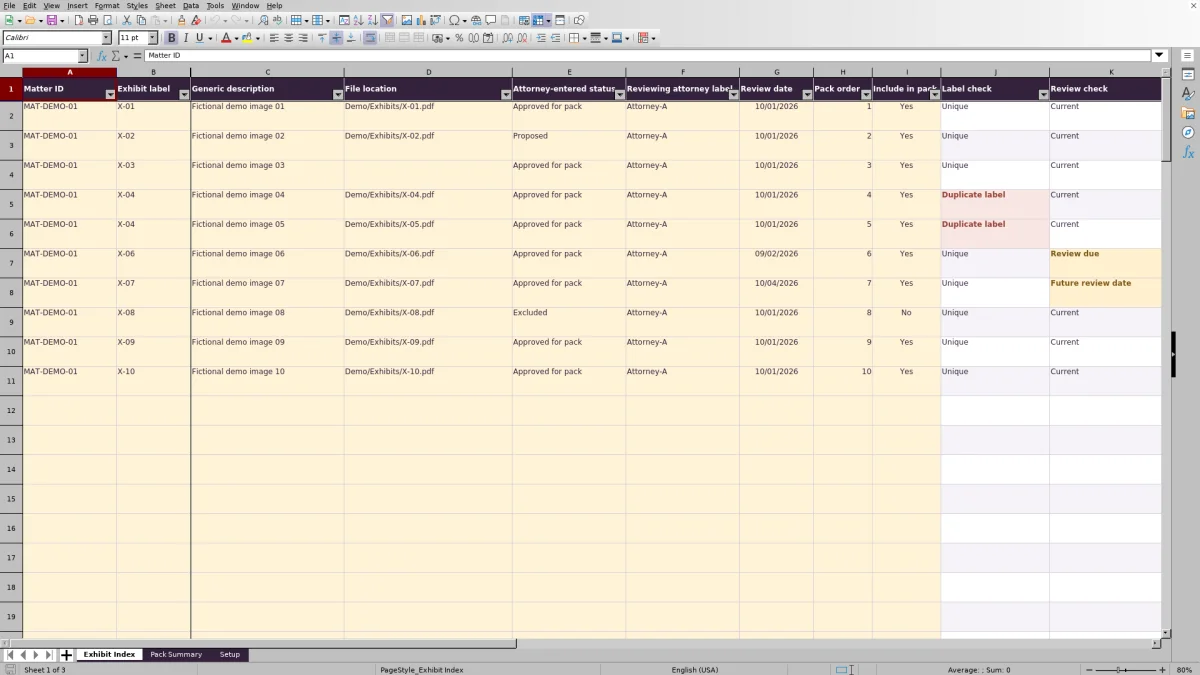
Before preparing an exhibit pack, bring the proposed exhibits into one matter-specific index. The Law Firm Sheets exhibit list Excel workbook records labels, generic descriptions, file locations, and attorney-entered status so you can identify selected records that still need attention.
Use the recorded checks to organize your preparation work, then confirm the responsible attorney’s instructions before assembling the pack. This is an administrative Excel resource, not a document repository, legal advice, or a practice management service.
Where this workbook helps
- Keep each proposed exhibit’s label, location, and recorded review details together for an office handoff.
- Identify selected records with missing information, duplicate labels, or conflicting pack orders before assembly.
- Separate exhibits chosen for the pack from those that pass the recorded administrative checks.
- Use a firm-supplied assessment date and review-age threshold to guide follow-up on review records.
What is in the file
How to get started
1. Set the matter and review assumptions
On Setup, enter the selected matter ID in B2, the Assessment date in B3, and the Review-age threshold (calendar days) in B4. Use an independently verified date displayed as MM/DD/YYYY and a firm-approved threshold. Maintain distinct, nonblank attorney labels in the provided list.
2. Replace the fictional starting records
The ten initial records are fictional. Replace or clear their entry values before live use, without deleting the prepared formulas. On Exhibit Index, use the cream entry cells in columns A:I. Enter one proposed exhibit per row, with a concise Generic description and a File location that staff can check separately.
3. Record review and selection details
Record the Attorney-entered status, Reviewing attorney label, and Review date from the authorized review record. Choose Yes or No in Include in pack. For selected exhibits, assign distinct whole-number Pack order values from 1 through 100. Do not change a status simply to make a check pass.
4. Resolve exceptions and prepare the handoff
Review Label check, Review check, and Pack check. Preserve formula columns J:L. Check Pack Summary for selected exhibits needing attention, then filter Exhibit Index to Pack check = Ready and sort Pack order from smallest to largest. Obtain the responsible attorney’s authorization and verify the source files before assembling the pack outside the workbook.
Keep the index focused on one matter and one exhibit per row
Use the workbook for the matter selected on Setup. Label check compares each entered Matter ID with that setting and checks for duplicate exhibit labels within the same matter across the prepared rows. A record from another matter can therefore return Wrong matter even when its other details are complete.
One row represents one proposed exhibit, not each page or file version. If an exhibit has several working versions, follow the firm’s file-management process and record the intended location rather than treating every version as a separate exhibit. Keep descriptions generic and use matter IDs instead of client identities or privileged narratives.
A File location is plain text. The workbook does not confirm that the file exists, that a colleague can open it, or that it is the intended version. Check those points in the actual storage location before relying on the index for assembly.
Fictional example: follow a record from entry to Ready
Consider an isolated fictional example with no other populated records. On Setup, select MAT-DEMO-01, set the assessment date to 10/03/2026, use a firm-approved example threshold of 30 calendar days, and list Attorney-A as a reviewing attorney label.
On Exhibit Index, enter exhibit X-01 with Generic description “Fictional demo image 01,” File location “Demo/Exhibits/X-01.pdf,” Attorney-entered status “Approved for pack,” Reviewing attorney label “Attorney-A,” and Review date 10/01/2026. Set Pack order to 1 and Include in pack to Yes.
The review is 2 calendar days old, within the example threshold. With a matching matter, a unique label, populated description and location, the required status, a listed attorney, a current review, and a distinct valid order, the recorded conditions produce Pack check = Ready. That result tells the assistant the administrative entry checks pass; it does not inspect the exhibit or authorize its use.
The next action is to verify the source file and confirm the attorney’s pack instructions. If the recorded status were instead Proposed, selecting Yes would not make it ready: the selected record would need attention until the authorized review decision was recorded.
Choose a review window deliberately
The Assessment date on Setup is user-supplied. Update it deliberately when reviewing the pack; do not assume the saved date represents today. Review check uses the workbook’s review assumptions, and Pack check requires a Current review for a selected record to be Ready.
The Review-age threshold (calendar days) is a firm-supplied administrative assumption, not a legal default. The workbook allows a whole-number threshold from 0 through 3650, and its guidance states that a review exactly at the chosen threshold is Current. Decide which threshold the firm wants before interpreting the results.
If Setup lacks either assumption, Review check reports Set review assumptions. Invalid assumptions can produce Invalid review assumptions. Correct the setting rather than changing a recorded review date to force a favorable result. When a review needs refreshing, obtain the appropriate review and then record its actual date.
Troubleshooting labels, selections, and pack orders
When a selected record reports Needs attention, inspect the underlying entries rather than overwriting the formula. The most useful corrections address the specific cause:
- Missing ID or label: complete Matter ID and Exhibit label. For Wrong matter, confirm whether the row belongs in this workbook before changing its ID.
- Duplicate label: reconcile the repeated labels within the matter, including records not selected for the pack. Determine whether the entries describe the same exhibit or need distinct authorized labels.
- Selection needed: choose Yes or No in Include in pack. A populated row without that choice is not an affirmative selection.
- Duplicate selected order: give each selected exhibit a distinct whole-number Pack order from 1 through 100. The workbook flags duplicate selected orders in red and reports Needs attention for affected selected records.
- Other readiness issues: check the description, location, exact Approved for pack status, listed attorney label, and Review check result.
Validation is an entry aid, not a guarantee that pasted values are valid. After a paste, review the checks and source entries. Cells are unprotected, so preserve the formulas in J:L and keep a clean copy available if formulas are accidentally replaced.
Read summary counts without mistaking them for clearance
Pack Summary distinguishes Indexed exhibits, Selected exhibits, Ready exhibits, and Selected needing attention. The last measure subtracts ready records from selected records, showing how many affirmative selections still fail the recorded readiness conditions.
A zero attention count is not approval. First check whether any exhibits are selected. A workbook with no Yes selections can show zero selected records needing attention while populated rows still report Selection needed. Entirely blank prepared rows do not count as indexed exhibits; choosing No produces Not selected.
Summary counts cover the prepared index range and do not change when you filter rows. If a filtered view shows only ready records but the summary still shows attention items, clear the filter and inspect the other selected records. This prevents a narrowed view from hiding unresolved work during a handoff.
Turn the reviewed index into an assembly handoff
Resolve selected records needing attention before relying on the ready-only view. Filter Exhibit Index by Pack check = Ready, then sort the full index by Pack order from smallest to largest so each exhibit’s fields stay together. Avoid sorting the order column by itself.
Before handing work to another assistant, confirm who will check the actual files, who will assemble the pack, and who will obtain the attorney’s final instructions. Save a dated working copy if the firm needs a record of the index used for that handoff; saving a spreadsheet should not be treated as an automatic audit trail or notification.
Ready reports recorded administrative checks only. It does not establish admissibility, authenticity, legal sufficiency, or attorney authorization. The workbook records a user’s review information; it does not perform professional judgment, assemble the pack, or store its documents.
Compare this workbook with a blank spreadsheet
A blank spreadsheet can serve as a simple exhibit list when staff only need labels and locations. This workbook adds a defined preparation structure, but it also requires the team to maintain its assumptions and preserve the formulas.
| Method | Entry structure | Exception review | Pack preparation | Ongoing upkeep |
|---|---|---|---|---|
| Law Firm Sheets exhibit workbook | Prepared fields and dropdowns for one matter, with 100 exhibit rows. | Recorded label, review, and readiness checks, plus summary counts. | Filter ready records and sort recorded pack order; verify files and assemble separately. | Update review assumptions, maintain source entries, and preserve formulas. |
| Blank spreadsheet | Staff choose and build the fields needed for their process. | Staff perform manual checks or create and test their own formulas. | Staff establish selection and ordering conventions; verify files and assemble separately. | Maintain a consistent layout and any checks the firm adds. |
Choose the prepared workbook when the firm wants a repeatable matter-specific index with explicit selection and readiness checks. A blank spreadsheet may be sufficient for a short, manually reviewed list with fewer tracking needs. If the task requires document storage or automated pack assembly, evaluate a separate tool: neither a plain list nor this workbook provides those functions as supplied.
Frequently asked questions
How many exhibits can I track in the supplied workbook?
The prepared range contains 100 exhibit rows, from row 2 through row 101 on Exhibit Index. The checks, validation ranges, filters, and summary formulas are set up for that range. Do not assume entries added below it will be included. If you need more capacity, have the workbook’s formulas and ranges deliberately extended and tested before use.
Can I rename the status or attorney dropdown choices?
Dropdowns follow the lists on Setup, but keep Approved for pack, Yes, and No unchanged because formulas use those exact values. Keep the attorney labels distinct and nonblank in the provided list. If you change a label after entering records, check existing entries against the current list rather than assuming they have been updated.
What should I do if formulas appear blank or out of date?
Open the file in Excel or LibreOffice and recalculate its formulas, as the workbook guidance directs. Entirely blank entry rows intentionally produce blank checks. For a populated record, inspect the inputs and confirm that formulas in J:L have not been replaced before treating a blank or unchanged display as a valid result.
Does Approved for pack automatically select an exhibit?
No. Attorney-entered status and Include in pack are separate fields. A record marked Approved for pack still needs Yes in Include in pack and the other required recorded conditions to be Ready. Choosing No returns Not selected, so confirm selection independently of the status.
Does the review date calculate exhibit filing deadlines?
No. Review dates and the assessment date support the workbook’s administrative review check. Dates must be independently supplied and verified by the firm. The workbook does not calculate court-rule deadlines or provide deadline reminders.
Editorial coverage

Audra PembrokeBilling and finance content

Graham ElleryPractice administration content