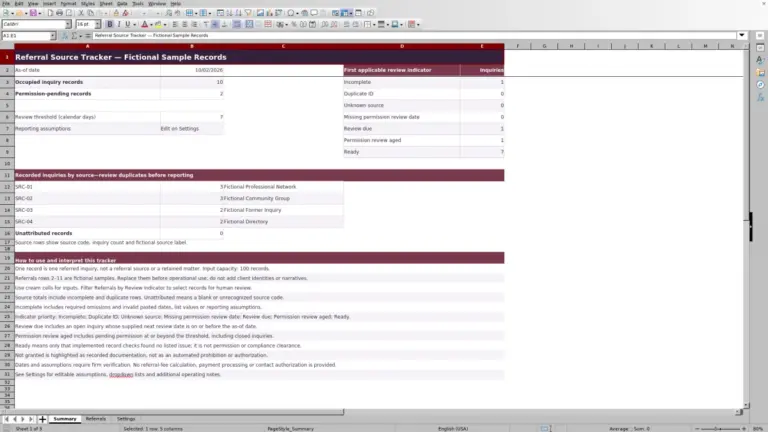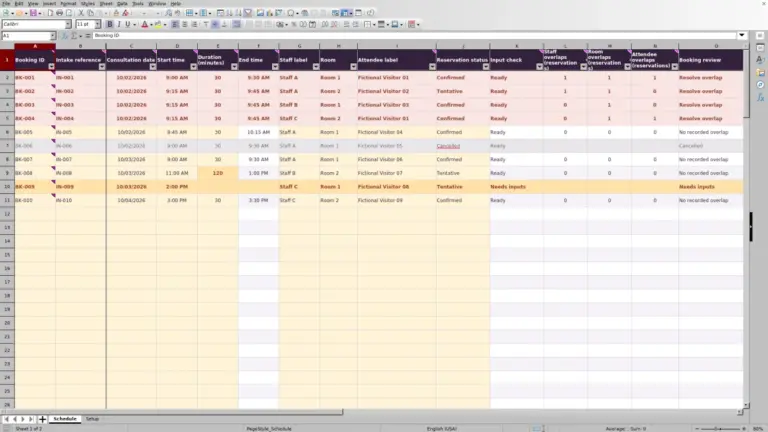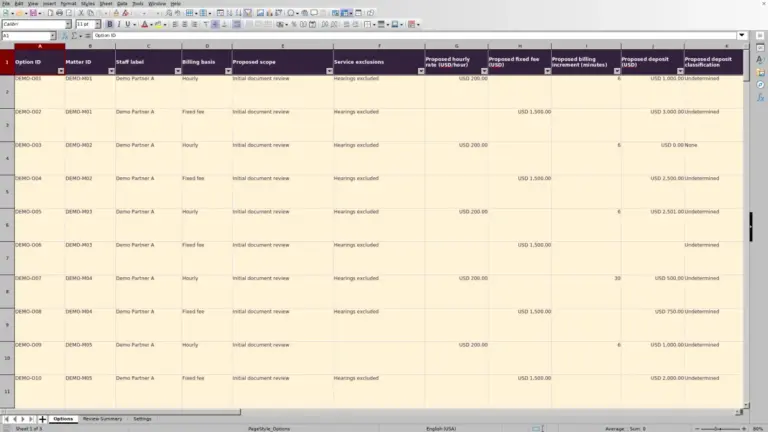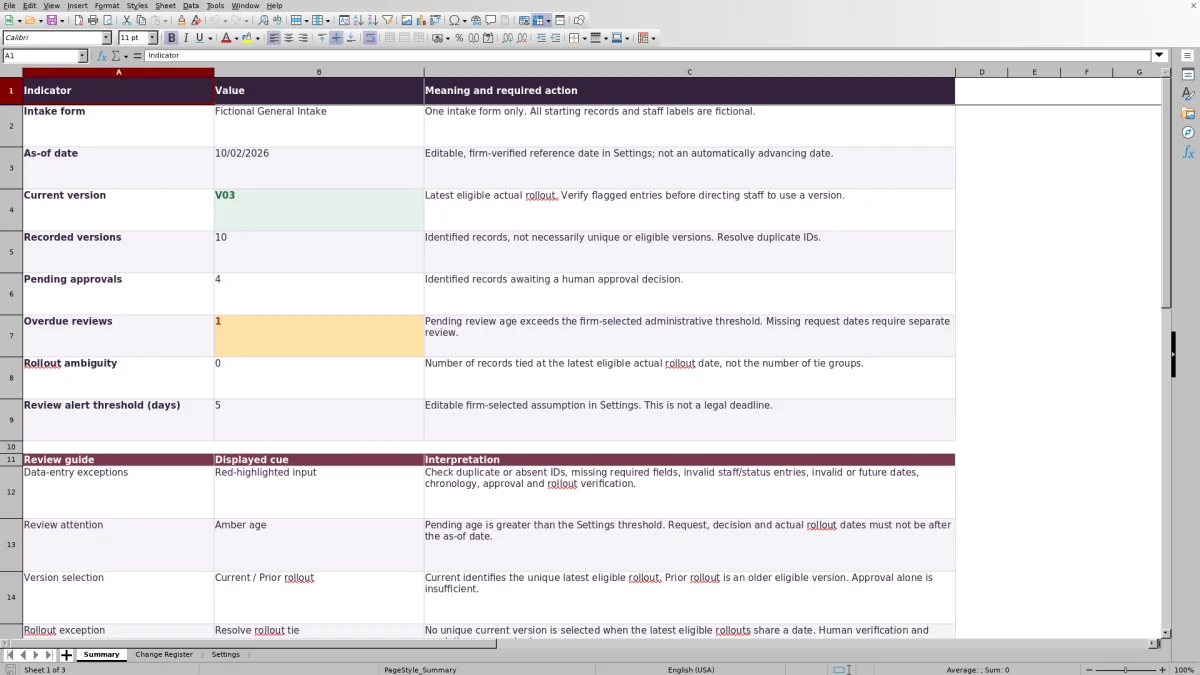
Before directing staff to a revised intake form, confirm what changed, who approved it and whether it was actually rolled out. The Law Firm Sheets intake form change register is an Excel workbook for recording those details and reviewing which version is eligible for use.
The workbook covers one intake form, with space for version records and an editable reference date. It is an administrative record, not an intake database or a substitute for the firm's approval and rollout checks. All starting records and staff labels are fictional.
Where this workbook helps
- Keep changed question IDs and a short explanation together so reviewers can locate the revision.
- Separate an approval decision from actual rollout before directing staff to a version.
- Use pending review age to prioritize follow-up under a firm-selected administrative threshold.
- Spot incomplete records and competing rollout dates before relying on the current-version result.
What is in the file
How to get started
1. Set the form and review assumptions
In Settings, enter the Intake form label, a firm-verified As-of date and the Review alert threshold (days). The reference date does not advance automatically. Update the staff labels in D2:D6 as needed, but retain the status terms Pending, Approved and Rejected.
2. Replace the fictional starting records
In Change Register, use the pale-cream input cells in columns A:K. Clear or replace the fictional examples without deleting the formulas in L:N. Enter a unique Version ID, Request date, Changed question IDs, Change summary and Owner staff label for each version record.
3. Record review and rollout separately
Set Review status to reflect the actual decision. Record Reviewer staff label and Decision date when a decision has been made. Use Planned rollout date for the intended release; enter Actual rollout date and Rollout verifier staff label only after the firm verifies the rollout. Supply dates in MM/DD/YYYY format.
4. Check exceptions before handing off the form
Review highlighted inputs and Use status in Change Register, then check Summary. Resolve missing information, duplicate IDs and rollout ties before relying on Current version. Confirm the corresponding form file and communicate the release through the firm's normal process; saving the workbook does not distribute the form.
Keep the register focused on form revisions
Use each record to explain a version of the form, not a particular prospective client's answers. In Changed question IDs, identify the questions affected. In Change summary, describe the administrative revision clearly enough that the reviewer can locate it in the separate form file.
For example, a fictional description such as “Separate phone and email response fields” identifies the change without including client information. Avoid client identities and privileged narratives. If internal supporting notes require a matter reference, use a fictional matter ID in examples.
Keep separate workbook copies for different intake forms. The current-version formulas compare all prepared records together; they do not group versions by form. Mixing several forms in one register could therefore produce a misleading selection.
Understand what makes a version eligible
Approval alone is not rollout. The eligibility calculation requires a unique Version ID, a request date, changed question IDs, a change summary and an owner label. It also requires Approved status, a reviewer label, a decision date, an actual rollout date and a rollout verifier label.
The recorded dates must follow this sequence: request on or before decision, decision on or before actual rollout, and actual rollout on or before the Settings As-of date. Planned rollout date does not establish eligibility. Among eligible records, the unique latest actual rollout receives Current; older eligible records receive Prior rollout.
An identified record that fails the formula's requirements receives Not eligible. Its Eligible rollout date appears blank because the helper result is zero, not because no calculation exists. Complete or correct the underlying inputs rather than typing over that result.
These are recorded eligibility checks, not proof that the form was approved or deployed correctly. A nonblank staff label can satisfy part of the eligibility formula while still being an invalid dropdown entry. Inspect highlighted exceptions even when a row says Current. The register records the firm's decisions; it does not make professional judgments, clear conflicts or determine compliance.
Fictional example: decide which review needs follow-up
Suppose you enter a fictional version V11 with Request date 09/24/2026 and Review status Pending. Set the As-of date to 10/02/2026 and the Review alert threshold (days) to 5, matching the workbook's starting review assumptions.
The pending-age calculation subtracts the request date from the reference date: 8 calendar days pending. Because that age exceeds the selected threshold, it receives the amber age cue and contributes one record to Overdue reviews. That result means the request needs administrative follow-up under this assumption—not that a legal deadline has passed.
Check with the responsible reviewer, then record a decision only when one has actually been made. If the request remains pending, update the As-of date during the next review so the age reflects the new reference date. The workbook does not advance that date or send a reminder.
The alert uses “greater than,” not “equal to.” A request at exactly the selected threshold is not yet flagged as overdue. The firm chooses the threshold and independently verifies dates; the workbook does not calculate court-rule deadlines.
Resolve competing rollout dates without guessing
If multiple eligible records share the latest actual rollout date, each receives Resolve rollout tie. Summary then displays No unique current version instead of selecting one arbitrarily. Rollout ambiguity counts the affected records, not the number of separate tie groups.
Compare the register with the actual form files and the firm's rollout record. Correct inaccurate dates or other inputs only when you can verify the correction. Do not invent a different date merely to make the formula choose a version.
If two versions genuinely went out on the same day, the date-only selection logic cannot distinguish their order. Obtain a firm decision about which form staff should use and communicate it outside the workbook while resolving the administrative record. The absence of a unique selection is a reason to investigate, not permission to use whichever version appears last in the list.
Troubleshooting missing ages and misleading results
- A pending age is blank: Check Version ID, Review status and Request date. The age formula returns blank if the ID or request date is missing, or if the status is not Pending. A missing request date needs separate review; it is not evidence of a recent request.
- A pending age is zero: A same-day request can legitimately have zero age. However, the formula also floors negative ages at zero. Check for a request date after the As-of date and correct the underlying date error.
- A version unexpectedly says Not eligible: Look for duplicate IDs, missing approval or verification details, and dates out of sequence. Both records using the same Version ID fail the uniqueness requirement.
- A pasted value looks wrong: Dropdowns and date validation are entry aids, not protection against invalid pasted data. Review red-highlighted inputs, use real Excel dates rather than text, and select the permitted status and staff values.
- Summary shows no unique current version: Check for both rollout ties and the absence of any eligible record. Either condition can leave the workbook without a Current result.
After correcting an input, recheck both the row's Use status and Summary before directing staff to a form. Do not remove an exception by overwriting a formula.
Preserve a usable record during staff handoffs
Before transferring responsibility for intake-form maintenance, filter Change Register for pending requests and unresolved use statuses. Confirm who owns each outstanding revision and who will review it. The separate owner, reviewer and rollout verifier fields let you record those responsibilities without treating them as the same action.
The workbook is unprotected. Keep entries in the designated input cells and preserve formulas in columns L:N through row 101. Save a dated copy under the firm's file-control procedure when a release or handoff needs a reference snapshot; the workbook does not provide an automatic audit trail.
The prepared range holds 100 records, and Summary calculations refer to that range. Entries below row 101 are not automatically included in those calculations. Before exceeding the range, have the formulas, validation, highlighting and filters extended and checked, or move to an administrative process suited to a larger record.
At rollout, separately confirm where staff obtain the form and how obsolete copies will be removed from use. A Current label in a spreadsheet does not replace files, notify staff or verify that every intake location has been updated.
Compare this register with a blank spreadsheet
A blank spreadsheet may be enough for an occasional revision if someone consistently checks every entry. This prepared workbook is useful when you want defined fields and repeatable review cues for one intake form, while retaining responsibility for verification.
| Method | Revision and approval record | Current-version decision | Review follow-up | Maintenance responsibility |
|---|---|---|---|---|
| Law Firm Sheets Excel register | Prepared fields separate changed questions, review decisions and verified actual rollout. | Formulas select the unique latest eligible rollout and flag latest-date ties. | Pending age and threshold-based cues use a manually maintained reference date. | Users verify inputs, preserve formulas and stay within or carefully extend the prepared range. |
| Blank spreadsheet | The firm designs the columns and decides which details are required. | A person compares releases unless the firm builds and tests selection formulas. | A person checks elapsed time unless the firm adds its own calculations. | The firm builds and maintains the layout, validation and any formulas it chooses to use. |
Choose the prepared register when its single-form scope and recorded eligibility rules fit your process. Choose a blank spreadsheet when you need a substantially different record structure and can maintain your own review controls. Neither approach, by itself, confirms that staff have switched to the intended form.
Frequently asked questions
Can a planned rollout date be in the future?
Yes. Planned rollout date records an intention and does not make a version eligible for current use. Request date, Decision date and Actual rollout date must not be after the As-of date. The fictional starting version V07 illustrates a future planned rollout only.
What should I do with a rejected revision?
Use Rejected in Review status and record the reviewer and decision date. A rejected record is not eligible for current use and does not receive a pending review age. Keeping it in the register preserves the recorded decision rather than presenting it as a released version.
Does Recorded versions count unique releases?
No. It counts nonblank Version ID entries in the prepared range, including records that are incomplete, duplicated or ineligible. Review duplicate-ID exceptions before interpreting the total as the number of distinct versions.
Can I change the dropdown choices?
You can edit the staff labels in Settings D2:D6. The prepared staff dropdowns use those five cells. Keep Pending, Approved and Rejected unchanged because formulas depend on those exact status terms. Changing or adding list entries beyond the prepared ranges requires corresponding workbook changes and checks.
Are the starting records ready for operational use?
No. Versions V01–V10 and Staff A through Staff E are fictional examples. Some demonstrate exceptions: V08 intentionally lacks a rollout verifier and must remain ineligible. Replace the sample inputs with verified firm records before relying on Summary, while preserving the calculation columns.
Editorial coverage

Audra PembrokeBilling and finance content

Graham ElleryPractice administration content