When a partner is choosing between proposed engagement options, put the scope and billing terms side by side before drafting. This Law Firm Sheets Excel workbook records each option, its exclusions, and the firm's internal review decision.
Use it to organize an internal comparison, not a contract. The workbook checks specified fields and flags proposals against firm-supplied review assumptions; it does not choose an option or perform professional judgment. Law Firm Sheets is an administrative Excel library, not a legal service.
Where this workbook helps
- Compare multiple proposals for one matter without treating them as separate matters.
- Keep service exclusions beside the proposed scope so price is not reviewed in isolation.
- Identify missing information and threshold alerts before handing an option off for drafting.
- Separate recorded review status from the internal decision about what happens next.
What is in the file
How to get started
1. Confirm the review assumptions
Open Settings and check the deposit, billing-increment, and review-age thresholds. These are illustrative assumptions, not universal standards. Confirm the Review-as-of date; its initial formula uses TODAY(), but you can replace it with an independently verified date for a fixed review.
2. Prepare the option records
The initial records are fictional samples. In your working copy, clear or replace sample inputs in Options columns A:Q while preserving the formulas in columns R:U. Use rows 2–101, with one text Option ID per proposal and the same Matter ID for alternatives concerning the same matter. Keep client identities and privileged narratives out of the comparison.
3. Enter the proposed terms
Record Proposed scope and Service exclusions, then choose Billing basis. For Hourly, enter the USD hourly rate and a whole-minute billing increment; leave the fixed fee blank. For Fixed fee, enter the USD fixed fee and leave the hourly rate and increment blank. Complete the deposit, classification, invoicing frequency, and proposal date fields.
4. Record the review and inspect the results
Enter Review status and Internal decision. When recording Reviewed, supply the Human review date. Use Review notes for unresolved questions and next actions. Check the row's information and alert results, then open Review Summary after spreadsheet recalculation. Resolve warnings rather than treating a selection as permission to ignore them.
Compare the work covered before comparing the price
Start by checking whether competing options describe the same work. A lower proposed fee may cover a narrower assignment, so review Proposed scope and Service exclusions together before making a price comparison.
Give each alternative its own Option ID and reuse the Matter ID where appropriate. You can then filter Options to the matter under discussion. Use short administrative descriptions that make differences clear without adding client identities or privileged facts.
If one proposal is still vague, record the clarification needed in Review notes and consider Revise as the Internal decision. The workbook checks whether scope and exclusion fields contain information; it does not determine whether those descriptions are adequate or equivalent.
Keep fee proposals separate from deposits
The rate and fixed-fee fields describe alternative billing proposals. They do not calculate a total hourly engagement cost: the workbook has no estimated-hours input or projected-fee calculation. To evaluate an hourly option's likely cost, the reviewer needs a separately supported estimate of the work involved.
Enter Proposed billing increment (minutes) in whole minutes, not decimal hours. That field is compared with the firm's increment threshold for Hourly options. It does not round time entries or calculate invoice charges.
A proposed deposit is also not a fee total or a payment received. Use Proposed deposit classification to record the proposed treatment, including Undetermined when that question remains open. A filled classification field does not verify the classification or establish client-funds, trust-account, or IOLTA compliance.
Review Summary deliberately does not sum proposed fees or deposits. Alternatives for the same matter may be mutually exclusive, so adding them together could misstate the proposal under consideration.
Fictional example: a complete proposal still needs review
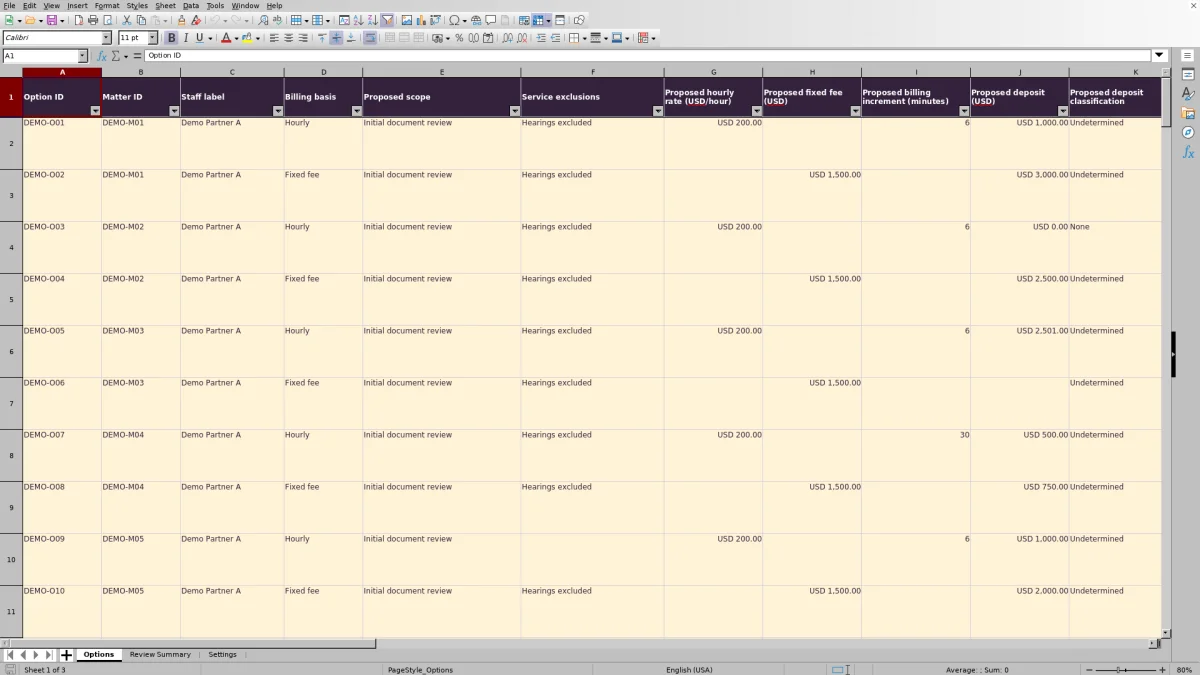
Consider the workbook's fictional sample DEMO-O02 for matter DEMO-M01. It proposes a USD 1,500.00 fixed fee for initial document review, with hearings excluded, and a USD 3,000.00 deposit classified as Undetermined. The fictional staff label is Demo Partner A, invoicing is Monthly, and the Proposal date is 08/18/2026.
The record has Review status set to Reviewed, a Human review date of 08/23/2026, and an Internal decision of Undecided. For this example, set Review-as-of date to 09/30/2026 and retain the illustrative USD 2,500.00 deposit threshold and 30-day review-age threshold.
- Information check returns Ready for review because the specified required fields are populated, including the fixed fee and review date.
- Deposit alert returns Review deposit because the proposed deposit exceeds the threshold.
- Review-age alert returns Refresh review: the elapsed review age is 38 days, which exceeds the threshold.
- Increment alert is blank because the option is Fixed fee, not Hourly.
The result means the record is complete enough for the workbook's field check, but it still has substantive review questions. The next action is to revisit the deposit amount and classification, refresh the recorded review if a new review occurs, and then record the internal decision. None of these results selects the option or establishes acceptance.
Read review status and selection as different decisions
Review status records whether a user has marked a proposal Pending or Reviewed. Internal decision separately records Undecided, Revise, Selected for drafting, or Declined. Keeping these fields separate lets staff distinguish a completed review from a decision to proceed with drafting.
Ready for review is a completeness result, not a review outcome. An option can have all specified fields populated while its deposit classification remains Undetermined or its internal decision remains Undecided.
In Review Summary, pay particular attention to Selected with missing information. That count identifies options marked Selected for drafting that still fail the field-completeness check. Return to those rows before the drafting handoff. Selection highlighting does not remove warnings, and a recorded Reviewed status is not engagement acceptance or conflict clearance.
The Options count measures text Option IDs, not distinct matters. Use the summary to assess the recorded review workload, not to report how many new matters the firm has accepted.
Troubleshooting missing information and misleading blanks
- A populated row has blank checks: confirm that Option ID is filled in. The formulas in columns R:U depend on that identifier. Use a text identifier rather than a number alone, because the summary's Options count counts text IDs.
- Information check shows Missing information: inspect the common proposal and review fields, then the billing-specific inputs. Hourly requires a rate and increment; Fixed fee requires a fixed fee. Reviewed also requires a Human review date. Review notes is not part of this required-field check.
- No deposit is proposed: enter numeric zero in Proposed deposit (USD), rather than leaving it blank, and record None as the proposed classification when appropriate. A blank deposit means missing information; zero records an explicit proposal of no deposit.
- Increment alert is blank: confirm whether the option is Fixed fee. A blank is expected for that basis. For an Hourly option, a missing increment also produces a blank increment alert, so check Information check as well.
- Totals seem unchanged after filtering: Review Summary formulas count the prepared ranges, not just the visible filtered rows. Remove the filter when reconciling the full summary.
If results appear stale, allow Excel to recalculate and recheck Settings. Dropdowns and validation are not comprehensive error detection. Review pasted values and preserve the formula columns; a formula-based presence check cannot establish that an entered amount or description is correct.
Use a consistent review date for the handoff
The Review-age alert compares Human review date with the Review-as-of date in Settings. It flags a review dated after that reference date as Check future date. Otherwise, it flags Refresh review only when the elapsed number of days is strictly greater than the review-age threshold. A review exactly at the threshold remains Within threshold.
The same strictly-greater-than approach applies to deposit and increment thresholds. Within threshold does not mean approved; it means that particular comparison did not exceed the configured limit.
For a review meeting or dated handoff, consider saving a copy with a fixed, independently verified Review-as-of date. Leaving TODAY() in place allows the reference date to change when the workbook recalculates. Record the next action and intended reviewer in Review notes, and communicate the handoff through your firm's normal process. An alert displayed in a cell is not a reminder sent to that person.
A blank Review-age alert can mean the Human review date is absent. Do not treat that blank as evidence of a current review, and do not update the date merely to remove an aging warning.
Compare this workbook with a blank spreadsheet
A blank spreadsheet can suit a one-time comparison with unusual terms. This workbook provides a prepared structure when staff need a consistent internal record of scope, proposed billing terms, and review decisions.
| Method | Proposal structure | Review checks | Summary and upkeep | Decision responsibility |
|---|---|---|---|---|
| Law Firm Sheets workbook | Prepared fields for hourly and fixed-fee options, scope, exclusions, deposits, and review records. | Specified missing-field checks and configurable deposit, increment, and review-age alerts. | Counts cover rows 2–101. Staff must maintain inputs, assumptions, and formulas; proposed amounts are not totaled. | Staff record review and internal decisions. The workbook does not evaluate the substance of the terms. |
| Blank spreadsheet | Staff design columns around the terms they need to compare. | Staff must inspect entries manually or build and verify their own checks. | Staff define the reporting range and create any counts or summaries they need. | The reviewer still evaluates the terms and records the decision. |
Choose the prepared workbook when its two billing bases and review fields fit the task and you want consistent checks across proposals. Start with a custom spreadsheet when the comparison requires materially different terms or calculations, with time allowed to design and verify that structure.
Frequently asked questions
Can I use the workbook as an engagement letter?
No. It is an internal comparison record for proposed terms. Selected for drafting indicates a next step, not an executed agreement. Prepare and review any engagement document through the firm's separate drafting process.
Are the initial records real matters or real staff?
No. Options DEMO-O01 through DEMO-O10, matters DEMO-M01 through DEMO-M05, and Demo Partner A are fictional. The sample records are labeled in Review notes. Clear or replace their inputs in a working copy before relying on the summary for your own review.
Can I add more than 100 engagement options?
The prepared input area, formulas, validation ranges, and summary formulas cover 100 options in rows 2–101. Entries below that range are not included by the existing summary formulas. Extending the workbook requires updating and verifying all affected ranges; typing another row alone is not enough.
Does it support contingency or blended billing proposals?
The verified Billing basis list contains Hourly and Fixed fee. There are no dedicated fields or checks for contingency or blended arrangements. Do not relabel an unsupported arrangement as one of the available choices just to make the completeness check pass.
Does the proposed invoicing frequency create invoices?
No. Proposed invoicing frequency records Monthly, At milestones, or On completion as a proposal term. The workbook does not generate invoices, schedule billing, or record payments received.
Editorial coverage

Audra PembrokeBilling and finance content

Graham ElleryPractice administration content