
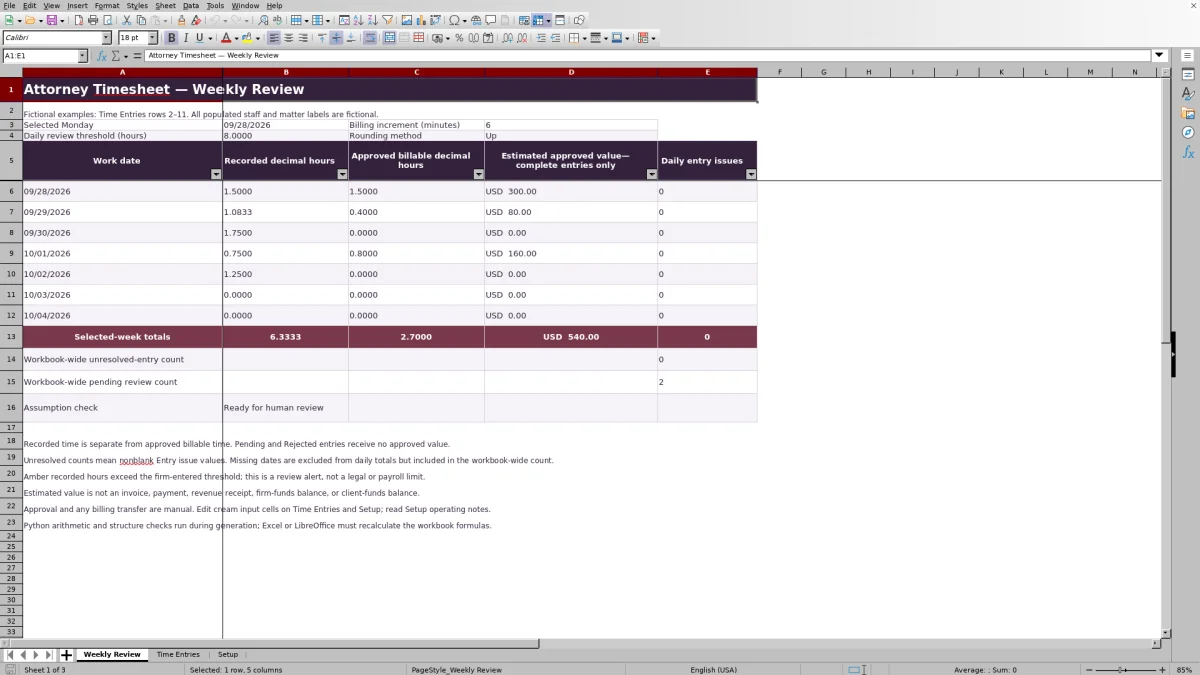
Before preparing billing, separate time recorded from time approved for billing. This attorney timesheet Excel workbook from Law Firm Sheets lets you enter matter-based time, record your reviewer’s decision, and check daily totals for a selected week.
Use it to prepare a reviewed record for manual billing transfer—not to generate invoices or send entries to another system. Law Firm Sheets is an administrative Excel library, not a law firm, legal advice provider, or practice management service. The populated example records are fictional.
Where this workbook helps
- Keep recorded time separate from proposed and approved billable hours during billing review.
- Find entries with missing or invalid inputs before preparing a manual billing handoff.
- Review daily workload totals alongside a firm-entered hours threshold.
- Give billing staff a record of review status, reviewer, review date, and a manually entered transfer reference.
What is in the file
How to get started
1. Set the review period and firm assumptions
Read the operating notes on Setup. Enter a valid Monday in Selected week's Monday, then confirm Billing increment (whole minutes), Rounding method: None or Up, and Daily recorded-hours review threshold. Review the staff rates, matter IDs, activities, and reviewer labels. The supplied values are fictional examples, not billing rules.
2. Replace the fictional entries with your records
Time Entries rows 2–11 contain fictional examples. Clear or replace their input values before relying on totals, while preserving formula cells. Use the cream input cells to record the work date, staff label, matter ID, activity, whole recorded minutes, billing status, and review status. Keep sensitive matter narratives out of the activity field.
3. Record the firm’s review decision
Have your designated reviewer check each record and supply Review status, Reviewer label, and Review date. Resolve any nonblank Entry issue. Approval is a manual decision; the workbook records that decision and calculates eligible results but does not authorize billing.
4. Recalculate and check the weekly handoff
Open the file in Excel or LibreOffice and let the formulas recalculate. On Weekly Review, check selected-week totals, daily issues, and the workbook-wide unresolved and pending counts. Transfer reviewed records through your firm’s separate billing process, then enter a reference in Manual transfer batch reference if appropriate.
Fictional example: from recorded minutes to estimated value
The supplied fictional entry for matter FIC-M003 records Staff-A performing Administration on 09/29/2026 for 20 minutes. Its Billing status is Billable, and its Review status is Approved, with Reviewer-A and a review date entered. The example setup uses a USD 200.00 hourly rate, a 6-minute billing increment, and Up rounding.
The recorded duration becomes 20 ÷ 60 = 0.3333 recorded decimal hours as displayed. Up rounding applies to this individual billable entry, raising the proposed duration to 24 minutes, or 0.4000 decimal hours. With no Entry issue and an Approved status, approved billable hours are 0.4000. Multiplying those hours by the hourly rate gives an estimated approved value of USD 80.00.
The difference between recorded and approved hours reflects the selected rounding assumption, not additional work performed. Before carrying the estimate into billing, confirm that the matter’s billing arrangement permits the chosen treatment. The workbook’s example settings are not universal rules.
Read weekly totals without overlooking other entries
Weekly Review summarizes the seven dates beginning with the Monday selected on Setup. Recorded decimal hours includes valid recorded duration for matching dates, while approved hours and estimated value use the separate approval calculations. A day can therefore show recorded work without a corresponding approved value.
Daily totals combine matching entries across staff and matters. They are not individual timekeeper workload totals. The amber hours alert compares the combined daily recorded hours with the firm-entered threshold; it is a prompt to investigate, not a legal or payroll limit. Filtering Time Entries does not change these date-based summary formulas.
Check the workbook-wide counts as well as the daily rows. An entry without a work date cannot appear in a daily total, but its issue is included in the workbook-wide unresolved count. A clean-looking selected week does not establish that every record in the file is ready for billing.
Troubleshooting blank results and entry issues
A blank calculated result is not necessarily a zero-dollar result. Start with Entry issue on the affected row, then check the setup assumptions and review status.
- Weekly dates are blank: confirm that Setup contains a valid Excel date that falls on Monday, not text or a date with a time component.
- Recorded decimal hours is blank: enter whole Recorded minutes from 1 through 1440. Decimal-hour input or hours:minutes notation does not belong in that field.
- Entry issue says Incomplete entry: fill the required work date, staff, matter, activity, minutes, billing status, and review status.
- Entry issue says Unknown or duplicate staff label: match the label to one unique staff record on Setup. Do not add duplicate staff labels to represent different rates.
- Approved hours or value is blank: check for an Entry issue and confirm the reviewer’s status. Pending and Rejected records do not receive approved value.
Dropdowns do not guarantee that pasted data is valid. Recheck pasted records, preserve formula cells, and recalculate the file before relying on results. The checks identify common input problems; they do not replace review of the underlying time record.
Separate billing status from review status
Billing status answers whether the entry is marked Billable or Nonbillable. Review status separately records Pending, Approved, or Rejected. Marking an entry Billable alone does not move its proposed hours into approved billable hours.
A nonblank Entry issue suppresses approved hours and value even when Review status is Approved. Conversely, a complete Pending or Rejected record can have no Entry issue while still receiving no approved value. No entry issue is not the same as approval. Use the workbook-wide pending count to find work that still needs a review decision.
A complete, approved Nonbillable entry produces zero approved billable hours and zero estimated value. That zero is different from a blank caused by pending review or an input problem. Keep the recorded duration for workload review, and let the designated reviewer decide how the entry should be treated.
Protect reviewed periods when rates or rounding change
Rate (USD/hour) is looked up by Staff label from Setup. The workbook does not select rates by matter or by the work date. Before using an estimate, check whether a staff-based rate fits the billing arrangement; matter-specific rates need a separate controlled process.
Changing Setup rates recalculates historical entries. Changing the shared rounding assumptions can also change proposed and approved billable hours for existing entries. Do not revise settings in a reviewed file and assume earlier results will remain fixed.
Retain a dated copy before making changes, or use separate reviewed periods as the operating notes suggest. Keep staff labels unique and document which assumptions applied to each handoff. A saved copy is a practical recordkeeping step, not an automatic audit trail.
Prepare a controlled manual billing handoff
Before transferring time, inspect the relevant records on Time Entries. Confirm the matter ID, activity, approved hours, rate, estimated value, and review details. Use the filters to narrow your review, but check workbook-wide unresolved and pending counts separately so excluded records are not forgotten.
The Manual transfer batch reference field holds a reference you supply. It does not perform or confirm a transfer. After completing your separate billing process, record the reference according to firm procedure and reconcile the receiving record against the reviewed entries. Do not treat a filled reference as proof that billing staff received or used the data.
Estimated approved value is a calculation for review. It is not an invoice, payment received, revenue receipt, payroll amount, or funds balance. Save a dated handoff copy and identify who will address any records left pending.
Compare this workbook with a blank spreadsheet
A blank spreadsheet can serve a straightforward time log if someone maintains its structure and calculations. This workbook supplies a defined entry and review layout, but it also requires your workflow to fit its prepared rows, shared assumptions, and manual handoff.
| Method | Time calculations | Review controls | Billing handoff | Fit and limits |
|---|---|---|---|---|
| Law Firm Sheets attorney timesheet workbook | Prepared minute conversion, entry-level rounding, staff-rate lookup, and approved-value formulas. | Status, reviewer, review date, common entry checks, and weekly review summaries. | Manual transfer with a user-entered batch reference; no transfer is performed. | 100 prepared entry rows using shared assumptions and staff-based rates. |
| Blank spreadsheet maintained by the firm | The firm must build and check any calculations it needs. | The firm must design review fields, checks, and summaries. | Manual unless the firm separately develops and verifies another process. | Layout can be tailored, with responsibility for maintaining formulas and controls. |
Choose the prepared workbook when its review fields and calculation model match your process. A custom spreadsheet may fit unusual rate structures or entry layouts, provided someone is responsible for testing and maintaining it. Neither approach, by itself, supplies professional billing judgment or confirms a completed transfer.
Frequently asked questions
Does the workbook include separate daily and weekly timesheet forms?
It has one Time Entries log and a Weekly Review worksheet with daily rows for the selected week. There are no separate daily and weekly entry forms. Enter each record once in Time Entries, then review the date-based summaries.
Can I add more than 100 time entries?
The verified formulas, validation ranges, and summary references cover Time Entries rows 2–101. Entries added below that range are not included by the existing summary references. Use another controlled workbook copy or have all affected formulas and validation ranges extended and tested before relying on additional rows.
Which rounding methods are available?
Setup offers None and Up. None uses recorded decimal hours for billable entries. Up rounds each billable entry to the selected whole-minute increment, which must be from 1 through 60 minutes. The workbook does not offer nearest-increment or downward rounding. The firm must confirm the appropriate method for the work being reviewed.
Do I need Excel to calculate the results?
The workbook’s operating notes specify that Excel or LibreOffice must recalculate its formulas. Recalculate after changing entries or assumptions and check the results before a billing handoff; do not rely on a static preview as evidence that current inputs have been calculated.
Should time entries contain client names or detailed matter narratives?
Use Matter ID and a concise administrative activity label rather than client identities or privileged narratives. All populated staff and matter labels in the supplied examples are fictional. Follow your firm’s access and storage procedures when replacing them with working records.
Editorial coverage

Audra PembrokeBilling and finance content

Graham ElleryPractice administration content