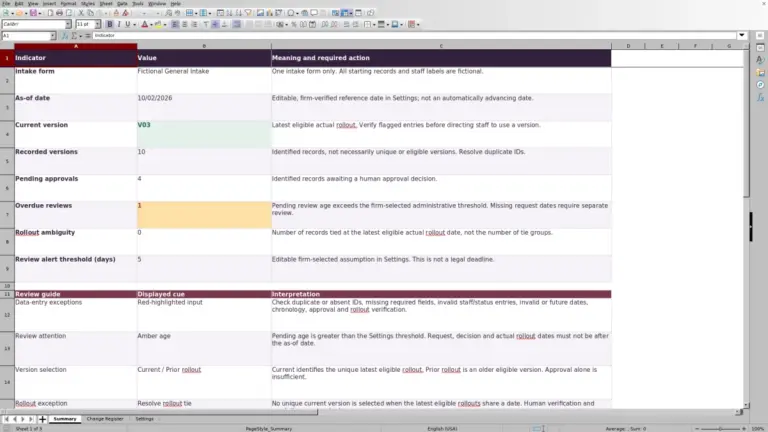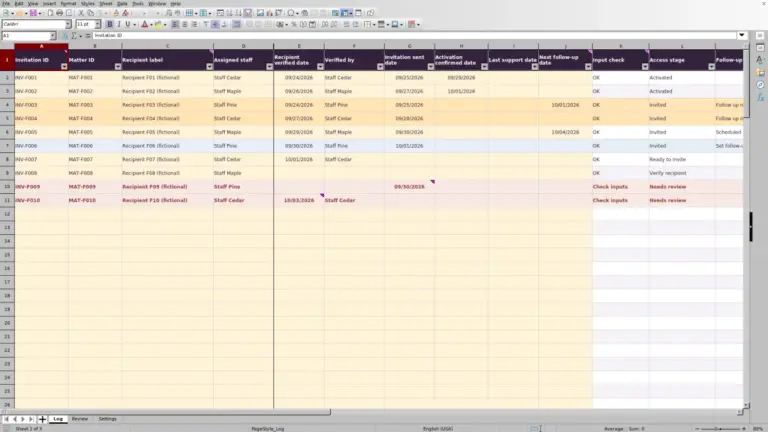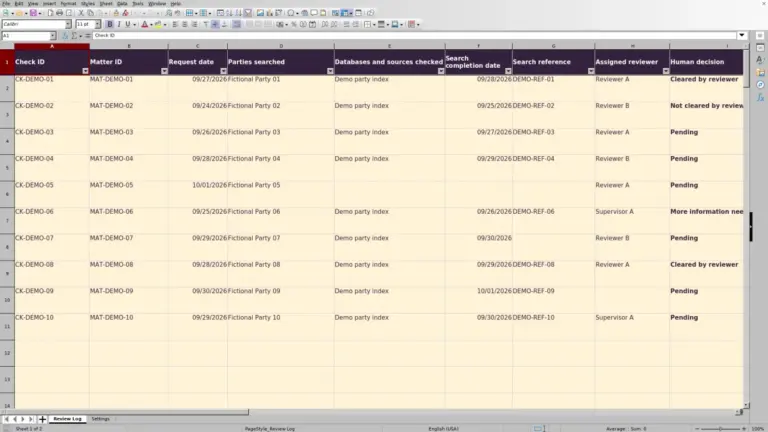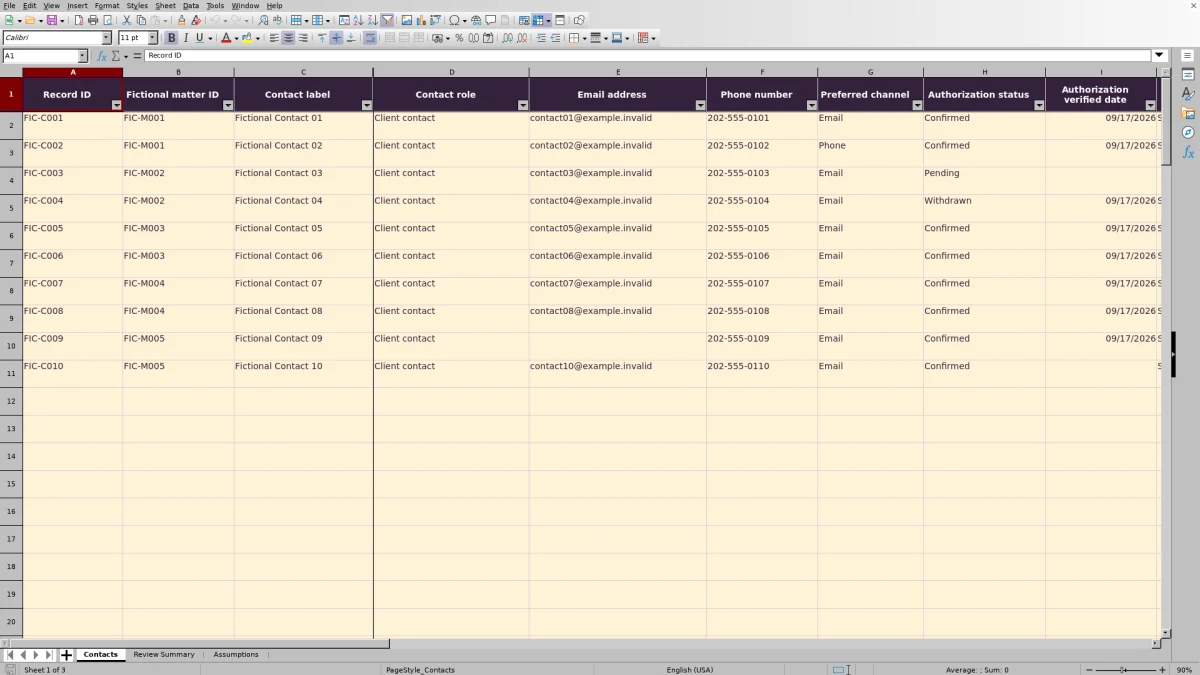
Before making a routine call or sending an email, check the contact record for the right matter. The Law Firm Sheets Client Contact Directory is an Excel workbook for recording contact details, preferred channels and staff-entered authorization information without adding sensitive case narratives.
Use its review dates and status counts to identify records that need attention before relying on them. Law Firm Sheets is an administrative Excel library, not a law firm, legal advice provider or practice management service. The workbook records your review; it does not verify a person’s identity or authority.
Where this workbook helps
- Keep each contact’s role and preferred channel tied to a specific matter reference.
- Identify records that need authorization review, missing details or refreshed contact information.
- Record who verified authorization and when, so another staff member can follow up.
- Review status totals and duplicate-ID alerts before using the directory for daily communications.
What is in the file
How to get started
1. Set the review assumptions
Open the workbook in Excel and go to Assumptions. Enter the Review as-of date and your firm’s Contact review interval (days). The interval must be a whole number from 1 through 3650. Update the as-of date manually each time you review the directory; it is not a live current-date setting.
2. Prepare the contact records
Contacts rows 2–11 contain fictional examples. Replace or clear their inputs before operational use, preserving the formulas. Enter records in columns A:L within rows 2–101. Use one row per contact–matter relationship, with a unique Record ID and a matter reference in Fictional matter ID. Keep sensitive narratives and privileged information out of the file.
3. Record the staff verification
Select the Contact role, Preferred channel, Authorization status and Do not contact value. Enter the applicable email address or phone number, then record Authorization verified date, Verified by staff and Contact details verified date based on work your staff actually performed. Use MM/DD/YYYY dates. A selected status is not evidence that verification occurred.
4. Review the results before relying on the directory
Recalculate the workbook, then inspect Directory status and Duplicate ID alert on Contacts. Use Review Summary to locate categories needing follow-up. Preserve columns M:O: they contain unprotected formulas, not input fields. Independently check the arithmetic and record checks before operational use; the supplied manifest does not include an executed recalculation test result.
Keep each contact tied to the correct matter
A contact’s role may differ from one matter to another. Maintain one record per contact–matter relationship rather than treating a phone number or email address as a universal instruction for every matter.
For example, if fictional contact FIC-C021 is associated with fictional matter FIC-M014 and also needs a record for FIC-M028, create a separate row with a new Record ID. Record the role and authorization information for that relationship instead of assuming the first row applies.
Record ID identifies the directory entry; Fictional matter ID identifies its matter reference. A repeated matter reference can be appropriate when several contacts belong to the same matter. The duplicate formula checks Record ID, not whether two rows describe the same person. Review potential duplicate people or contact details separately.
Separate a contact preference from permission to communicate
Preferred channel records whether Email or Phone is preferred. It does not establish that the address works, that the number reaches the intended person or that the person may receive a particular communication. Staff must verify identity, email deliverability, phone validity and authorization authenticity independently.
Use Authorization status, Authorization verified date and Verified by staff to record the outcome of that work. The supplied authorization choices are Confirmed, Pending and Withdrawn. These entries are staff-entered attestations, not workbook findings.
If Do not contact is Yes or Authorization status is Withdrawn, Directory status returns Do not use ahead of other checks. Treat that result as a reason to stop and resolve the record with the responsible reviewer. It does not technically prevent someone from sending a message elsewhere. Even Current recorded details means only that the recorded fields pass the listed checks, not that communication is authorized.
Fictional example: calculate the next contact review
In the supplied fictional record FIC-C001 for matter FIC-M001, Contact details verified date is 09/22/2026. With the demonstration Contact review interval (days) set to 90, the formula adds 90 calendar days and produces a Review due date of 12/21/2026.
Against the demonstration Review as-of date of 10/02/2026, that due date is still ahead. The record also contains a Confirmed authorization status, a verification date and staff label, contact details, and No under Do not contact. With the supplied inputs, it belongs in Current recorded details. That is an administrative record result, not a fresh verification of the contact.
The next decision is when staff should recheck the details under the firm’s chosen procedure. When the as-of date reaches the due date, the record becomes eligible for Review contact, provided no earlier-priority issue applies. Equality triggers review; staff do not need to wait until the following day.
The example interval is fictional demonstration data, not a recommended standard. These dates schedule contact-data review, not court deadlines, and the workbook sends no notifications. The result above follows the documented formula; verify recalculation in your working copy.
Read the summary without overlooking secondary problems
Start with Review Summary to see how many entered records need each type of attention. Entered records includes partially completed rows anywhere in the prepared range, so it is not a count of fully usable contacts.
Each row receives a primary Directory status according to a priority order: blocked records first, then invalid assumptions, authorization review, incomplete details, date errors, duplicate IDs, contact review and finally current recorded details. Completely blank input rows have no status. A higher-priority problem can therefore hide another issue until the first one is corrected.
Read Duplicate-ID rows separately. That count includes every row carrying a Duplicate record ID alert, even if its primary status says something else. Do not add it to the primary status counts as though it represented additional contacts.
For each flagged record, assign follow-up through your firm’s normal process. After correcting the inputs, recalculate and check the row again. A changed status may reveal the next unresolved issue rather than indicate that the correction failed.
Troubleshooting blank dates, missing details and duplicate IDs
- Blank Review due date: Check Contact details verified date and the interval on Assumptions. A missing input, an invalid date, a non-whole-day interval or an interval outside the supported range can leave the result blank. Blank does not mean that no review is needed.
- Set review assumptions: Enter a valid Review as-of date and a supported whole-day interval. A missing or invalid global setting can affect many rows at once, so correct it before editing individual contact records.
- Complete details: Check required fields, supported dropdown choices and the detail for the selected channel. For example, a Phone preference needs a phone number; an email address alone does not satisfy that preference.
- Check dates: Look for verification dates entered as text, future verification dates relative to the as-of date, or dates that cannot produce a supported review due date. Re-enter dates as Excel dates using MM/DD/YYYY, based on the actual verification record.
- Duplicate record ID: Determine whether the same relationship was entered twice or two distinct records were assigned the same ID. Correct the mistaken row or assign a unique ID as appropriate. Changing an ID merely to hide the alert does not resolve a duplicate relationship.
If a result disappears after pasting data, check whether a formula in columns M:O was overwritten. The cells are unprotected. Restore the formula from an intact copy and verify the affected row before continuing.
Maintain a controlled working copy within the prepared range
The prepared capacity is 100 contact records, ending at Contacts row 101. Row 102 is outside the supplied table, formulas, validation and alerts. Do not assume that typing below the table will extend the review process or include the new record in Review Summary.
When the directory approaches capacity, decide whether to have the workbook deliberately extended and tested or move the recordkeeping task to another appropriate system. Until then, keep operational entries inside the prepared range so the displayed counts correspond to the records you are reviewing.
On Assumptions, edit dropdown choices only within the highlighted list cells. Keep the supplied channel, authorization and do-not-contact terms unchanged because the status rules depend on their exact wording. Avoid pasting across input and formula columns together.
For an office handoff, identify the controlled working copy and tell the next reviewer which records still need action. Store the file under the firm’s access procedures because email addresses and phone numbers remain contact information even without a case narrative. Saving the file does not send a handoff message or establish that another staff member reviewed it.
Compare the directory with a blank spreadsheet
A blank spreadsheet can support a small contact list, but staff must design and maintain any review logic they need. This workbook supplies a defined administrative structure, with limits that matter when choosing how to maintain the directory.
| Method | Contact structure | Review checks | Capacity and maintenance | Communication handling |
|---|---|---|---|---|
| Law Firm Sheets directory | Prepared fields for contact–matter relationships, preferences and staff-entered verification. | Review-date formulas, primary statuses, duplicate-ID alerts and summary counts. | Prepared for 100 records; formulas are unprotected and the as-of date requires manual updating. | Records contact preferences and restrictions; sends no messages and has no integrations. |
| Blank spreadsheet | Staff choose the columns and conventions. | Checks and summaries must be performed manually or built and tested by the firm. | No template-specific prepared range; staff must maintain any formulas, validation and counting ranges they create. | Serves as a reference list unless separate communication tools or functions are added. |
Choose this workbook when the prepared fields fit your intake process and staff can maintain the review settings and resolve flags. A blank spreadsheet may fit a simpler list or a substantially different structure, provided the firm accepts the setup and checking work. If you need connected matter records, message delivery or broader workflows, evaluate a separate system against those requirements; this directory is not a matter-management system.
Frequently asked questions
Are the sample contacts real?
No. Contacts rows 2–11 and the supplied staff labels are fictional demonstrations. Sample email addresses use example.invalid, and the phone numbers are fictional. Rows 12–101 have blank inputs with prepared formulas. Remove or replace the demonstration inputs before treating the summary as your firm’s record count.
Can I use this file for conflict clearance?
No. It is an intake contact reference, not a conflict-checking or clearance tool. A contact’s presence in the directory, authorization status or Current recorded details result does not establish conflict clearance. Use the firm’s separate conflict-review procedure.
Does the workbook include an authorization evidence attachment field?
No attachment field is identified in the supplied workbook. It records Authorization status, Authorization verified date and Verified by staff. Keep supporting evidence in the firm’s appropriate record system rather than adding sensitive narratives or documents to this directory.
Can the directory send email or synchronize contacts?
No. The file contains no message-sending functions, external links, macros or integrations. Email addresses, phone numbers and preferences are reference data for staff to review before using a separate communication tool.
Can I open the workbook in LibreOffice?
The workbook’s notes direct users to open it in Excel or LibreOffice to recalculate formulas. The supplied manifest does not establish an executed compatibility or recalculation test. Before operational use in your chosen application, check the calculated dates, status results, dropdowns and summary counts rather than assuming identical behavior.
Editorial coverage

Audra PembrokeBilling and finance content

Graham ElleryPractice administration content