Before changing your intake process, check where inquiries stop progressing. The Law Firm Sheets lead conversion dashboard is an Excel workbook for comparing inquiry-month groups, consultation attendance, and recorded engagements through a reporting date you supply.
Use it to prepare an administrative intake review, not to manage a contact pipeline. The workbook summarizes entered records and flags data issues; your firm supplies and verifies the dates and decides what the results warrant. Law Firm Sheets is an administrative Excel library, not a law firm or legal advice service.
Where this workbook helps
- Compare monthly inquiry groups without moving later outcomes into a different cohort.
- Review consultation attendance separately from inquiry-to-engagement conversion.
- Identify older, unengaged inquiries for an administrative status review.
- Check excluded records and reporting assumptions before sharing intake totals.
What is in the file
How to get started
1. Set the reporting assumptions
On Settings, enter Reporting date, First cohort month, and Aging-review threshold (days). The first cohort date must be the first day of a calendar month, and the threshold must be a nonnegative whole number. Confirm that Assumption check shows Ready before interpreting results.
2. Remove the fictional examples
Rows 2–11 on Inquiries contain fictional records. Replace or clear their inputs before operational use. If you replace an example Inquiry ID, reset that cell to General format so the example's fictional display label does not remain. Keep client identities, contact details, and privileged narratives out of this workbook.
3. Enter one record per distinct inquiry
Use Inquiries columns A:G for inputs. Complete Inquiry ID, Inquiry date, Source, Staff label, and Attendance status. Enter Consultation date and Engagement date when applicable. Repeat contacts about the same inquiry remain one record. Leave columns H:N intact because they contain the calculations.
4. Resolve checks, then review the summary
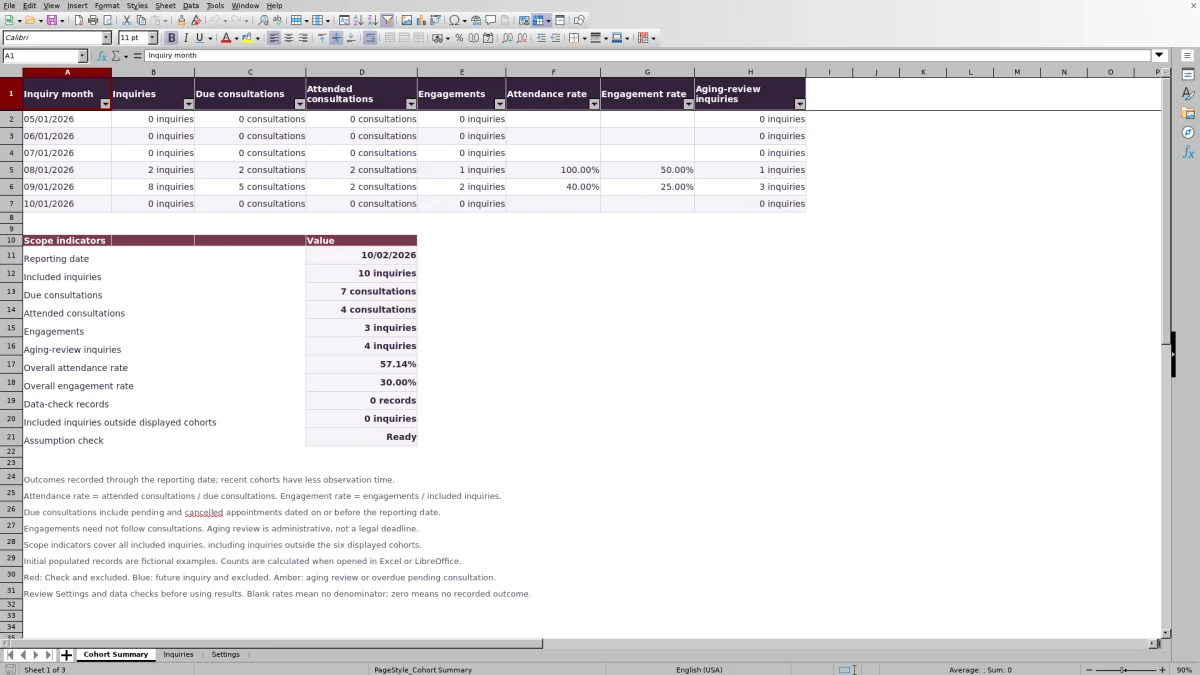
Review Data check on Inquiries and correct flagged records. On Cohort Summary, compare the six displayed months and inspect Scope indicators, especially Data-check records and Included inquiries outside displayed cohorts. Resolve exclusions before drawing conclusions about a conversion bottleneck.
Read cohorts by inquiry month, not outcome month
A cohort is a group of inquiries received in the same calendar month. The workbook assigns that group from Inquiry date. A consultation or engagement recorded later still contributes to the original inquiry-month group, provided the outcome qualifies through the reporting date.
This lets you ask whether inquiries received in one month progressed differently from those received in another. It does not show consultations grouped by the month they took place. Recent cohorts have less observation time, so a lower engagement rate may reflect unfinished intake rather than a process problem.
The six displayed months begin at First cohort month. Scope indicators cover all included inquiries, not just those six months. If the overall counts do not match the visible cohort totals, check Included inquiries outside displayed cohorts before assuming a formula error. Adjust the displayed starting month if the review needs a different window.
Separate attendance from engagement conversion
Attendance rate answers how many due consultations were recorded as attended. Its calculation is attended consultations divided by due consultations. A consultation is due when its entered date is on or before the reporting date for an included inquiry. Pending and cancelled appointments with dates in that period remain in the denominator.
Engagement rate answers a different question: how many included inquiries have an Engagement date on or before the reporting date? It divides engagements by included inquiries, not by attended consultations. Engagements may occur without a consultation, so do not interpret this rate as consultation-to-engagement conversion.
A blank rate is not a zero rate. A blank means there is no denominator. Zero means there are eligible inquiries or due consultations, but no corresponding recorded outcome. Read the underlying counts alongside the percentages, especially when a cohort is small. An engagement count is not an invoice amount or a payment received.
Fictional example: locate the next intake question
Consider a separate, fictional three-record review using matter IDs MAT-F101, MAT-F102, and MAT-F103 in Inquiry ID. Set Reporting date to 10/02/2026 and Aging-review threshold (days) to 14, with September included in the displayed months. Assume all required fields are valid and these are the only records in this example.
- MAT-F101: Inquiry date 09/02/2026, Source Phone, Staff label Intake A, Consultation date 09/08/2026, Attendance status No-show, and no Engagement date.
- MAT-F102: Inquiry date 09/07/2026, Source Other, Staff label Intake B, Consultation date 09/12/2026, Attendance status Cancelled, and no Engagement date.
- MAT-F103: Inquiry date 09/12/2026, Source Website, Staff label Intake A, Consultation date 09/17/2026, Attendance status Attended, and Engagement date 09/22/2026.
The verified calculation rules produce 3 included inquiries, 3 due consultations, 1 attended consultation, and 1 engagement. Attendance rate is 1 ÷ 3 = 33.33%, and engagement rate is also 33.33%. The two unengaged inquiries meet the aging threshold, producing 2 aging-review inquiries.
The matching rates do not establish why conversion is low. Here, the immediate question is whether the cancellation and no-show statuses are current and whether further administrative follow-up is appropriate. Confirm those records before proposing changes to consultation scheduling. The percentages alone do not establish lead quality or staff performance.
Use aging review to check unresolved status
Aging review counts an included inquiry when it has no engagement counted through the reporting date and the calendar days since Inquiry date meet or exceed the configured threshold. The threshold is a firm-supplied administrative assumption, not a universal intake standard.
On Inquiries, filter Aging review to 1 and inspect the recorded dates and Attendance status. Determine whether the record needs an update, whether an engagement date is missing, or whether the firm should consider another administrative action. The workbook has no field for recording the resulting task assignment, so keep that handoff in your firm's separate action record.
An aging flag is not a legal deadline or a reminder. It does not assess an inquiry's merits, clear conflicts, or decide whether the firm should accept a matter. The counts identify records to inspect; they do not supply professional judgment.
Troubleshooting missing counts and flagged records
If results are blank or unexpectedly low, start with Settings rather than changing summary formulas. Invalid assumptions suppress inclusion. Correct Check settings by entering valid date-only values, using the first day of a month for First cohort month, and supplying a nonnegative whole-number aging threshold.
- Duplicate or incomplete records: Check for a unique text Inquiry ID and complete all required inputs. A record marked Check is excluded from outcome counts, so missing records can distort the review.
- Dates pasted as text or with times: Re-enter a genuine Excel date without a time component. Formatting text to look like MM/DD/YYYY does not necessarily make it a valid date value.
- Status and date mismatch: Not scheduled requires a blank Consultation date. Every other attendance status requires a consultation date. Attended, No-show, and Cancelled cannot use consultation dates after the reporting date.
- Unrecognized labels: Match Source, Staff label, and Attendance status to their Settings lists. Validation helps with entry but does not prevent all invalid pasted values.
- Future inquiries: An inquiry dated after Reporting date is excluded. Verify whether the inquiry date is wrong or the reporting cutoff is intentionally earlier; do not change the cutoff merely to increase the total.
Color is supplemental. Use Data check, Aging review, attendance status, and dates to understand the condition rather than relying on shading alone.
Keep a reliable record between intake reviews
The workbook records one current Consultation date per inquiry. If an appointment is rescheduled, update that field to the current scheduled date, but retain any history your firm needs elsewhere. The workbook does not preserve rescheduling history, so it cannot explain how many appointment changes preceded attendance.
Before a partner review, confirm the reporting cutoff and save a dated copy under your firm's file-handling procedures. Later changes to statuses, engagement dates, or assumptions may change the results. A saved copy provides a reference point; it is not an automatic audit trail.
All cells are unprotected, including formula cells. Keep input edits in Inquiries A:G and avoid pasting across the calculated columns. Preserve an untouched template for comparison if a calculation is accidentally overwritten. The workbook's counts remain dependent on the completeness and accuracy of the records your firm supplies.
Compare this dashboard with a blank spreadsheet
A blank spreadsheet can support a simple intake tally, but your staff must define and maintain its counting rules. This workbook supplies a specific cohort method, with limits that matter when choosing the right administrative record.
| Method | Counting rules | Data checks | Record scope and maintenance |
|---|---|---|---|
| Law Firm Sheets dashboard | Built-in inquiry-month cohorts, reporting-date cutoff, and defined attendance and engagement rates. | Input validation, assumption checks, and record checks that exclude flagged rows. | 100 formula-backed inquiry rows, six displayed months, and one current consultation date per inquiry. Staff maintain inputs and preserve formulas. |
| Blank spreadsheet | Your firm designs the grouping, cutoff, denominators, and formulas. | Your firm adds validation and checking rules or reviews entries manually. | Your firm designs the capacity and fields, including any history it needs, and tests the resulting calculations. |
Use this dashboard when its definitions fit a compact, periodic intake review and you want an existing calculation structure. Choose a custom spreadsheet when different measures or appointment history are essential and someone can build and test those requirements. If the task is ongoing contact follow-up and assignment, use a separate workflow designed for that purpose rather than treating this dashboard as a contact pipeline.
Frequently asked questions
Can I change the source and staff labels?
Yes. Settings provides editable source and staff lists within the highlighted slots: four source entries and two staff entries. Keep them distinct and nonblank. If you rename a label already used in Inquiries, update affected records so they still match the list. Do not rename the attendance vocabulary; formulas interpret those fixed statuses.
Can I add more than 100 inquiries?
The verified formula and validation ranges cover Inquiries rows 2–101. Summary formulas also reference that fixed range. Typing below row 101 will not bring those records into the supplied summary calculations. Extending capacity requires coordinated changes to formulas, validation, and checks, followed by testing.
Does the dashboard include charts or source-by-source conversion reports?
No charts are included. The supplied summary groups results by inquiry month. Source and Staff label are recorded on Inquiries, but the workbook does not provide separate conversion summaries for those labels. Filtering records is not the same as a verified source-specific rate calculation.
When should our staff enter an engagement date?
Your firm determines the event that qualifies as an engagement and verifies the date before entry. Apply that definition consistently across inquiries. The workbook counts a qualifying recorded date; it does not determine whether an attorney-client relationship exists or verify engagement documents.
Will counts appear when I preview the file?
The workbook notes state that counts calculate when the file is opened in Excel or LibreOffice. Do not rely on a static preview for current results. Open the workbook in a calculating spreadsheet application, check the reporting assumptions, and review data checks before using the summary.
Editorial coverage

Audra PembrokeBilling and finance content

Graham ElleryPractice administration content