After an inquiry is declined, intake staff need a clear record of the decision owner, whether the initial non-engagement communication was sent, and where its dispatch evidence can be found. The Law Firm Sheets Non-Engagement Letter Log brings those administrative details together in Excel.
Use the workbook to identify missing entries, record a staff member’s evidence review, and check follow-up dates against a firm-supplied review date. It is an administrative record, not a letter generator or legal advice; the firm remains responsible for the communication and its review.
Where this workbook helps
- Keep the decline decision, initial notice details, and evidence-review record together for each inquiry.
- Separate unsent notices from records missing dispatch information or a recorded evidence review.
- Prioritize administrative review using calendar-day aging and staff-supplied follow-up dates.
- Spot duplicate IDs, missing IDs, and date inconsistencies before relying on summary counts.
What is in the file
How to get started
1. Prepare the review settings
On Settings, confirm or replace Review As-of Date and Unsent Review Threshold (calendar days). Both are firm-supplied administrative assumptions. Update the fictional staff labels in D2:D4 as needed, and review the notice-channel choices in E2:E5.
2. Remove the fictional examples and enter an inquiry
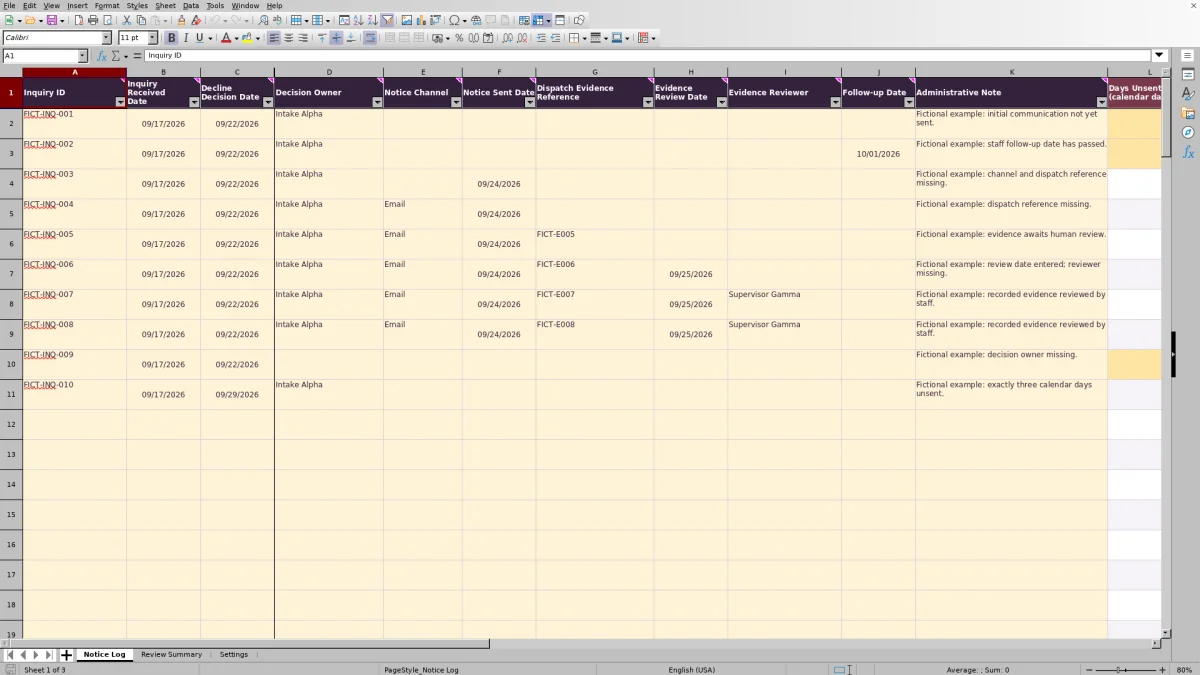
All prefilled records are fictional. Replace or remove their inputs before operational use, preserving the formulas. In Notice Log, enter Inquiry ID, Inquiry Received Date, Decline Decision Date, and Decision Owner. Use one row per declined inquiry and enter actual dates as MM/DD/YYYY.
3. Record dispatch and the subsequent evidence review
After the communication is sent outside the workbook, enter Notice Channel, Notice Sent Date, and Dispatch Evidence Reference. When a staff member reviews the evidence, record Evidence Review Date and Evidence Reviewer. Do not fill those fields merely to obtain a completed status.
4. Set follow-up and check the review queue
Enter an independently verified Follow-up Date where needed. Open Review Summary to check status counts, Over-threshold unsent records, Follow-ups due, and Record checks. Use the Notice Log filters to inspect the underlying entries. Confirm that formulas recalculate correctly in the firm’s spreadsheet application before relying on the results.
Read the status as a record-completeness check
Workflow Status checks fields in a defined order. For a row with an Inquiry ID, missing receipt date, decline decision date, or decision owner produces Incomplete. Once those fields are present, a blank Notice Sent Date produces Not sent. A sent date without a notice channel or dispatch reference produces Evidence missing. With those details entered, a missing review date or reviewer produces Awaiting verification.
Reviewed record is not proof of delivery. It means the required fields, including the recorded evidence review, are present. The formula does not examine the evidence or exercise professional judgment. Staff must perform the review before recording it; the label does not establish legal sufficiency or conflict clearance.
Resolve the earliest missing information first. A record can move from Incomplete to Evidence missing after its intake fields are completed. That change exposes the next gap rather than indicating that new information was lost.
Keep the dispatch reference useful at handoff
Enter a plain-text reference in Dispatch Evidence Reference that authorized staff can use to locate the supporting record in the firm’s existing filing system. The workbook records the reference; it does not send the notice, retrieve the evidence, or verify receipt. A channel entry such as Email or Portal identifies how staff say the notice was sent, not an integration with that service.
Keep Decision Owner and Evidence Reviewer distinct when the responsibilities differ. The first identifies the person responsible for the decline decision; the second records who reviewed the dispatch evidence. Neither field assigns work or notifies that person.
Before handing the log to another staff member, confirm that they can locate the referenced evidence and understand the next administrative action. Use Administrative Note for a brief action note rather than treating a completed row as a substitute for that conversation.
Fictional example: decide which unsent notice needs attention
The workbook’s fictional inquiry FICT-INQ-002 has an Inquiry Received Date of 09/17/2026, a Decline Decision Date of 09/22/2026, and Decision Owner Intake Alpha. Notice Sent Date is blank, and Follow-up Date is 10/01/2026. With Review As-of Date set to 10/02/2026, the formula subtracts the decision date from the review date: 10 calendar days unsent.
The required intake fields are present, so Workflow Status is Not sent. The sample threshold is 3 calendar days, and 10 strictly exceeds 3, so this row contributes to Over-threshold unsent records. Its follow-up date is on or before the review date, so Follow-up Indicator is Follow-up due. These are administrative signals based on the fictional settings, not a statement that a legal deadline has passed.
The next decision is to check with the decision owner: is the communication genuinely unsent, or was dispatch omitted from the log? If it was sent, enter the actual dispatch details supported by the record. If it remains unsent, confirm the next action outside the workbook. Do not enter an estimated sent date to remove the alert.
Use follow-up dates without mistaking them for reminders
The Review As-of Date controls the review snapshot. Update and verify it before each review; the calculation does not use a rolling TODAY formula. Changing that date affects unsent aging, due-follow-up indicators, and the checks for actual dates that fall after the review date.
Follow-up Indicator stays blank unless both Inquiry ID and Follow-up Date are present. With those inputs, an unreviewed record shows Follow-up due when its follow-up date is on or before the review date, or Scheduled when the date is later. A Reviewed record with a follow-up date shows Closed. Without a follow-up date, even a Reviewed record has a blank follow-up indicator.
Staff must independently supply and verify follow-up dates. The workbook does not calculate court-rule deadlines or send reminders, and Closed is only an administrative label. Arrange any required reminders or continuing follow-up in the firm’s separate process.
Troubleshooting: blanks, counts, and inconsistent dates
A blank result is not necessarily a completed task. Days Unsent (calendar days) is blank when the ID or decision date is missing, a sent date is present, or the decision date falls after the review date. A zero means the unsent decision date equals the review date. After a sent date is entered, this field does not preserve the elapsed time from decision to dispatch.
- Inputs but no workflow label: Check Inquiry ID. Rows containing other inputs without an ID are counted separately under Input rows without an ID. They do not receive workflow indicators.
- Unexpected inquiry totals: Recorded inquiries counts nonblank IDs, including duplicates. Records with duplicate IDs counts every row sharing an ID, not just the extra copies. Confirm which row belongs to the inquiry before consolidating records.
- Unexpected threshold count: Only rows with Workflow Status equal to Not sent and days strictly above the threshold are included. A row exactly at the threshold, or one still marked Incomplete, is excluded.
- Date warnings on a reviewed row: Check the source dates. Review Summary separately flags future actual-date cells, reversed chronology, and evidence review dates without sent dates. A workflow label does not override these warnings.
Record-check counts can overlap. Future actual-date cells counts cells, not distinct inquiries, and excludes follow-up dates. Do not add all warning counts together and interpret the sum as the number of affected inquiries.
Preserve formulas and plan for the prepared row limit
The prepared log covers rows 2–101. Formula results, summary ranges, validation, and filters are set up for that range. Rows entered beneath it are not automatically included in the verified summaries. Before extending the file, arrange a controlled spreadsheet change and test the formulas, checks, dropdowns, and filters together.
Keep input edits separate from formula cells. The workbook identifies editable inputs with pale cream cells, but all cells remain unprotected. Avoid typing over columns L–N in Notice Log or the formula results in Review Summary. When removing fictional samples, clear the input values rather than deleting the calculated results.
If several staff members work on the log, agree on which saved copy is current and who will update it during a handoff. Do not rely on the workbook to preserve an automatic audit trail. A dated review copy can support the firm’s administrative process, but it does not replace that process or establish a retention requirement.
Compare this log with a blank spreadsheet
A blank spreadsheet can suit a firm with an established intake-review design. This workbook suits a narrower task: maintaining one initial non-engagement communication record per declined inquiry, with defined completeness checks and a review summary.
| Method | Initial setup | Review support | Evidence handling | Capacity and upkeep |
|---|---|---|---|---|
| Law Firm Sheets log | Prepared fields, dropdown sources, and editable review assumptions. | Defined workflow labels, unsent aging, follow-up indicators, and date and ID checks. | Stores a dispatch reference and staff-entered review details; staff locate and assess the evidence separately. | 100 prepared record rows; changes beyond that range require extension and testing. |
| Blank spreadsheet | Staff define the fields, choices, and review assumptions. | Staff review manually or build and test their own formulas and checks. | Staff decide how to record references and reviews, then assess the evidence separately. | Staff design the record range and maintain any formulas, filters, and validation they add. |
Choose the prepared log if its fields and review sequence match the firm’s process. Choose a custom spreadsheet if the process needs a different structure, provided someone can maintain and test it. Neither approach, by itself, sends communications or determines whether they are legally sufficient.
Frequently asked questions
Does the workbook include a non-engagement letter template?
No. It records declined inquiries and the initial non-engagement communications associated with them. Prepare and review the communication through the firm’s separate process, then record the actual dispatch details in the log.
Can I use the file in LibreOffice?
The workbook instructions identify Excel and LibreOffice as applications that recalculate its formulas on opening. Verify the results, dropdown behavior, and alerts in the application your firm uses before operational use; do not assume identical behavior without checking.
How do I change the staff names or notice channels?
Edit the existing staff-list cells in Settings D2:D4 and channel-list cells in E2:E5. These ranges supply the dropdowns. Changing a list entry does not rename values already entered in Notice Log, so review existing records after making changes. Adding choices outside those ranges requires updating the validation source.
How should I record a second attempt to send the notice?
Keep one initial-notice record per inquiry. Record later attempts under the same Inquiry ID in Administrative Note rather than creating another initial-notice row. The workbook is not a separate, structured dispatch history for every attempt.
Should I enter client names or copies of the evidence?
No. Follow the workbook’s data-minimization guidance: use internal inquiry IDs and plain-text evidence references. Keep client names, addresses, inquiry narratives, privileged details, document copies, and bank account numbers out of the log. Store the supporting material through the firm’s authorized recordkeeping process.
Editorial coverage

Audra PembrokeBilling and finance content

Graham ElleryPractice administration content