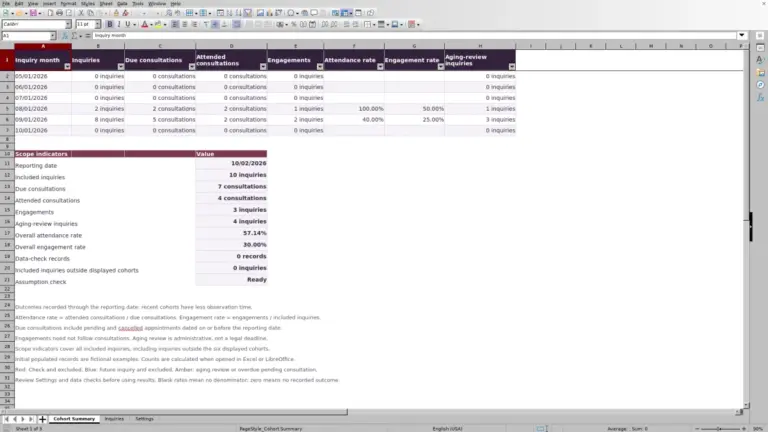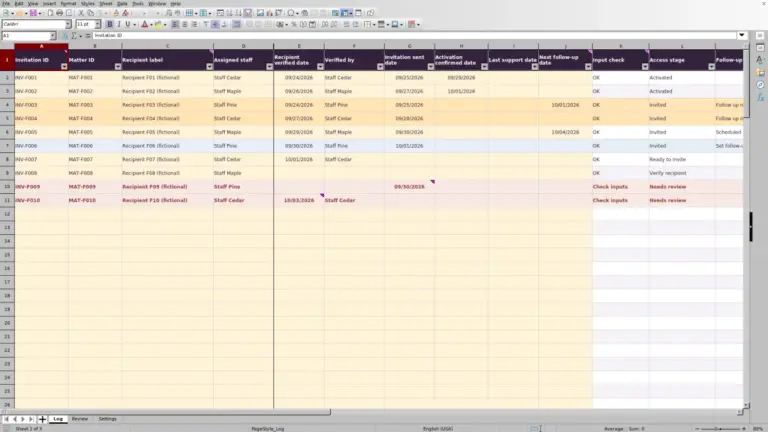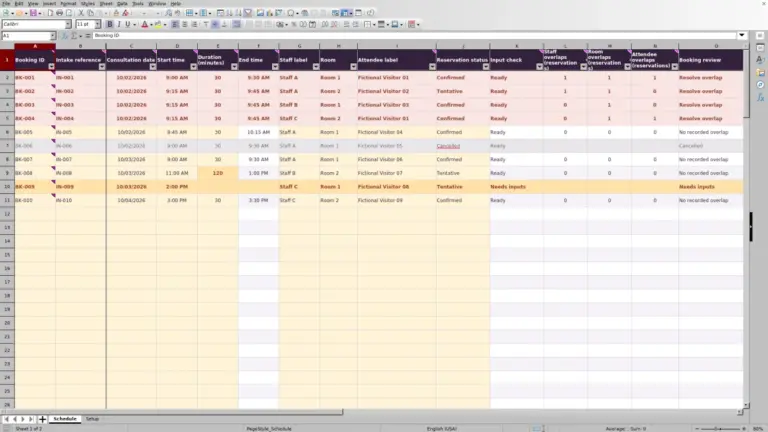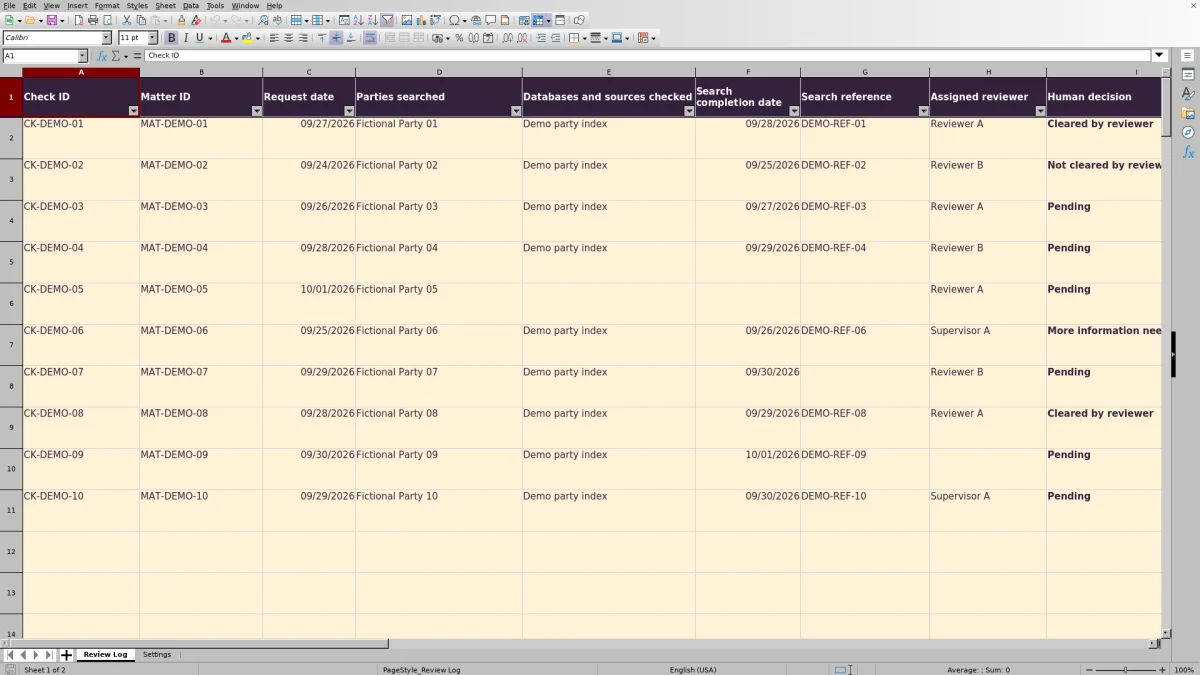
When an intake request needs conflict review, keep the search record and the reviewer’s decision together. The Law Firm Sheets law firm conflict check log is an Excel workbook for recording what was searched, who is reviewing the request, and what follow-up remains.
Use it to prepare a clear administrative handoff, not to decide whether a matter can proceed. The workbook records human review; it does not search databases or determine conflicts. Law Firm Sheets is an administrative Excel library, not a law firm or legal advice service.
Where this workbook helps
- Keep searched parties, sources, and an internal search reference together for the reviewer.
- Distinguish populated search records from pending or incomplete decision documentation.
- Review unresolved requests by calendar-day age using a firm-supplied as-of date.
- Filter follow-up statuses to identify missing inputs and requests needing attention.
What is in the file
How to get started
1. Set the review date and firm assumptions
In Settings, update As-of date and Follow-up threshold (calendar days). The threshold accepts whole numbers from 0 through 365 and is an administrative follow-up assumption, not a legal deadline. Replace the four fictional staff labels with the labels your firm will use.
2. Replace the fictional sample records
The workbook includes ten fictional example requests. Before operational use, replace their input values in Review Log. Use a unique Check ID for each request and enter its Matter ID, Request date, Assigned reviewer, and Human decision. Use Pending for a new unresolved request. Preserve the formulas in columns M:P.
3. Document the search actually performed
Complete Parties searched, Databases and sources checked, Search completion date, and Search reference. List aliases only when they were actually searched. Use an internal, nonlinked reference rather than a confidential narrative.
4. Record the decision and review the queue
After the responsible person makes a decision, record the appropriate Human decision, Decision date, and Deciding reviewer. Recalculate the workbook in Excel, then filter Follow-up status to review outstanding issues. Check the underlying inputs before relying on any indicator, particularly after pasting records.
Build a search record the reviewer can trace
A reviewer needs to know the scope of the search, not just that someone marked it complete. In Parties searched and Databases and sources checked, record the actual parties and sources used. Pair those entries with Search completion date and a Search reference that lets authorized staff locate the supporting record under your firm’s procedures.
Search documentation returns Entered when all four fields are populated; otherwise, it returns Incomplete on an active row. Entered means populated, not verified. The formula does not assess whether the search was sufficient, whether a party was omitted, or whether the reference points to the right record.
If the indicator says Incomplete, check those four fields against the search work before filling a gap. Do not insert a placeholder merely to change the indicator. If the search itself remains unfinished, state the next action in Follow-up note and leave the record accurate.
Separate reviewer assignment from a recorded decision
Assigned reviewer identifies the person responsible for reviewing the request. Deciding reviewer records who actually made the completed decision. Those fields can differ, so confirm both against firm records rather than automatically copying one into the other.
Human decision offers Pending, More information needed, Cleared by reviewer, and Not cleared by reviewer. For either completed decision choice, Decision documentation returns Incomplete if Decision date or Deciding reviewer is blank. It returns Entered when both are populated. For unresolved choices, it returns Pending.
A recorded decision is not automatic clearance. Both completed choices stop unresolved aging, including Not cleared by reviewer. Staff must read the actual Human decision before taking the next intake action; neither a blank age nor complete documentation authorizes a matter to proceed.
Fictional example: turn unresolved age into a next action
Consider the workbook’s fictional request CK-DEMO-03 for matter MAT-DEMO-03. Its Request date is 09/26/2026, its Assigned reviewer is Reviewer A, and its Human decision is Pending. Parties searched, Databases and sources checked, Search completion date, and Search reference are populated.
With As-of date set to 10/01/2026, the unresolved-age formula subtracts the request date from the review date: 5 calendar days unresolved. Search documentation evaluates to Entered, while Decision documentation evaluates to Pending. These results mean the search fields are filled in, but no completed human decision has been recorded.
The sample follow-up threshold is 3 calendar days. This request exceeds that administrative threshold, so the next step is to contact the assigned reviewer and record a concise next action in Follow-up note. Do not change Human decision simply because the request has aged. These are formula-derived example results; independently verify them after recalculation before operational use.
Review the queue against a deliberate as-of date
Update Settings before each queue review. As-of date is an editable value, not a live clock. If you leave it unchanged, the age calculations continue to describe that earlier review date rather than today’s queue.
The follow-up threshold uses calendar days, so weekends are included. The operating guidance defines overdue as age greater than the threshold. Choose the threshold under your firm’s procedures; it does not establish a court deadline or interpret court rules. Supply and verify all dates independently.
Filter Follow-up status in Review Log column P to organize the review. Its stated priority is missing required input, settings or date problems, overdue follow-up, missing documentation, and then human-review status. Because one status can take priority over another, also inspect Search documentation and Decision documentation when resolving a row.
Treat the filtered list as a work queue for staff to review. Do not assume that recording an assignment or an overdue status sends a notification to anyone.
Troubleshooting blanks, warnings, and pasted records
- Blank unresolved age: Check whether Human decision contains a completed choice. Age is also blank when Check ID is missing, the request or as-of date is nonnumeric, or the request date is later than the as-of date. A blank is not proof that the request needs no attention. A zero for an unresolved request means its request date matches the as-of date.
- Missing required input: Check Check ID, Matter ID, Request date, Assigned reviewer, and Human decision. Complete the actual missing information before moving to later warnings.
- Check settings or Check dates: Confirm that Settings contains a valid date and a permitted whole-number threshold. Verify request, search, and decision dates for text values, future dates, and incorrect sequence. Enter dates as Excel-recognized dates displayed in MM/DD/YYYY format.
- Duplicate Check ID highlighting: Determine whether you copied the same request twice or assigned one ID to separate requests. Correct the record rather than ignoring the warning.
- Unexpected documentation result: Inspect the source fields and formula cells. Cells are unprotected, and pasted values still need review even where validation exists. Restore a damaged formula from a clean copy and verify the row again.
Keep handoffs and later searches distinct
Use Follow-up note for a short administrative next action, such as confirming an outstanding source check or asking the assigned reviewer for a decision. When responsibility changes, update Assigned reviewer and communicate the handoff through your firm’s usual process. Saving a new name in the workbook should not substitute for that communication.
The operating guidance calls for one request per record. If additional searches are needed after a completed review, create a new Check ID rather than overwriting the completed request. Keep the appropriate Matter ID so staff can recognize the related matter without adding privileged background to the note.
Rows 2–101 are prepared with formulas and validation. Do not assume added rows inherit those controls. If you need more capacity, have the extended formulas, validation ranges, filter, and summary counts checked before relying on the expanded file. Retain dated copies under your firm’s procedures when you need a record of a handoff or review.
Compare this log with a blank intake spreadsheet
Both approaches can hold a manual record of conflict-search activity. The practical difference is whether staff start with defined fields and checks or design and maintain those elements themselves.
| Method | Search and decision record | Follow-up review | Setup and maintenance | Professional judgment |
|---|---|---|---|---|
| Law Firm Sheets conflict check log | Prepared fields separate search documentation, assigned reviewer, and completed decision details. | Calendar-day aging, documentation indicators, and a filterable follow-up status are supplied. | Replace fictional inputs, set assumptions, and preserve controls within the 100 prepared rows. | Records a person’s decision; does not search sources or determine conflicts. |
| Blank intake spreadsheet | Staff define the fields and decide how to distinguish searching from decision recording. | Staff review manually unless they build and check their own formulas and filters. | Offers a custom layout but requires the firm to establish and maintain its checks. | Still requires search work and a responsible person’s decision outside the spreadsheet’s calculations. |
Choose the prepared log if its fields and capacity fit your intake process and you want a consistent starting structure. A blank spreadsheet may suit a materially different recording process if your firm can design, document, and verify its own controls. Neither approach replaces the underlying search or reviewer judgment.
Frequently asked questions
What do the workload counts actually count?
Requests with IDs counts nonblank Check ID cells in the prepared rows; it is not a count of unique matters. Overdue follow-ups counts rows whose Follow-up status is Overdue follow-up. Incomplete decision documentation counts rows marked Incomplete in Decision documentation, not every pending request.
Can we rename staff labels or decision choices?
You can replace the four fictional staff labels in Settings cells D2:D5, which supply the Assigned reviewer and Deciding reviewer dropdowns. Check existing records for consistency after making changes. Keep the Human decision choices unchanged because formulas depend on their exact text.
Does Search reference open or retrieve the supporting search?
No retrieval function is established for this field. The workbook guidance calls for an internal, nonlinked reference. Use it to identify the supporting record in your firm’s approved storage process, and keep confidential narratives out of the log.
Should we verify the file before using it for intake?
Yes. The workbook guidance directs you to open it in Excel or LibreOffice to recalculate formulas and independently verify sample outcomes and pasted records. No executed workbook tests are claimed. Review dates, dropdown values, formulas, and resulting indicators before relying on the file in your administrative process.
Editorial coverage

Audra PembrokeBilling and finance content

Graham ElleryPractice administration content